Best Wireless Presentation Clickers in 2026: How to Pick the Right One

The short answer: The Logitech R500s is the best wireless presentation clicker for most people. It costs roughly $30 to $45 and reaches 20 meters. Choose the Logitech Spotlight 2 for hybrid presenting, the Logitech R800 for big rooms and bright screens, and the Kensington Presenter Expert if you want a built-in mouse.
Ever frozen behind your laptop, tapping the arrow key while the room watches you? Painful.
The fix is cheap, tiny and fits in your pocket: one of the best wireless presentation clickers. I compared spec sheets, retailer listings, university IT guides and published reviews, so you don't have to. Here's what holds up, what doesn't, and which presentation remote fits how you present.
What Is a Wireless Presentation Clicker (and Do You Need One)?
A wireless presentation clicker, also called a wireless presenter or slide advancer, is a small handheld remote that changes your slides from across the room. Most add a laser pointer, a timer, or on-screen highlighting. If you ever stand away from your laptop when you present, you need one.
Here's why:
You stop hunting for the keyboard mid-sentence.
You face your audience instead of the screen.
You control the pace, not your trackpad.
Some people try a smartphone app or a smart TV remote instead. BrightCarbon found the app option workable but weaker than a standard clicker. Honestly, a dedicated PowerPoint clicker just feels more dependable.
Best Wireless Presentation Clickers at a Glance
Short on time? This comparison table shows all five picks side by side, so you can see range, pointer type, connection, battery life and price in one place. Specs come from manufacturer and retailer listings. Prices are approximate US retail ranges checked in October 2026, and they change often, so confirm before you buy.
Model | Best for | Range | Pointer | Connection | Battery | Approx. price |
|---|---|---|---|---|---|---|
Logitech Spotlight 2 | Premium, hybrid presenting | 30 m (100 ft) | Red laser plus digital highlighting | Bluetooth or Logi Bolt USB-C | Up to 3 months | $129.99 at launch |
Logitech R500s | All-round value | 20 m (65 ft) | Red laser, Class 1 | Bluetooth LE or USB receiver | Up to 12 months | $30 to $45 |
Logitech R800 | Big rooms, bright screens | 30 m (100 ft) | Green laser, Class 2 | 2.4 GHz USB receiver | AAA batteries | $40 to $80 |
Kensington Presenter Expert | Cursor control | Up to 50 m (150 ft), claimed | Red laser | 2.4 GHz USB receiver | AAA batteries | $50 to $75 |
Logitech Spotlight (original) | Highlighting without a laser | 30 m (98 ft) | Digital only | Bluetooth or USB receiver | Up to 3 months | $90 to $120 |
One honest note. There's no single lab-tested ranking out there, so this is my read of the evidence, not gospel.
The 5 Best Wireless Presentation Clickers in 2026
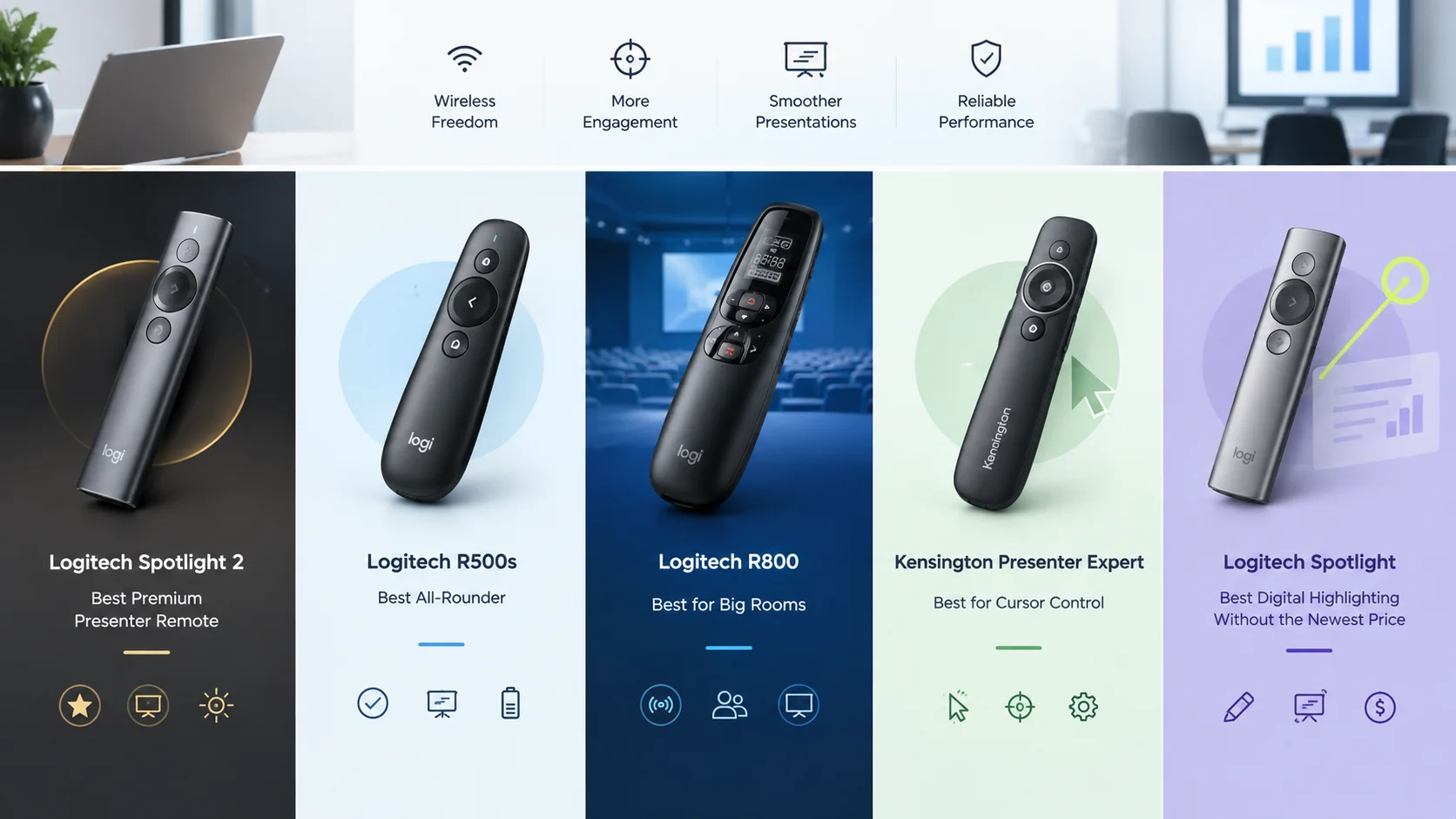
Now the good stuff. Each pick below gets a short intro, then the specs that matter most: range, laser pointer type, connection and battery. I stuck to manufacturer and retailer pages for the numbers, and I labelled marketing claims as claims. Read the one that sounds most like your situation, or skim all five.
Logitech Spotlight 2: Best Premium Presenter Remote
Want the fanciest option? This is it. Logitech's flagship got its first major update in years, and the new model is built for people who present in hybrid meetings as often as in boardrooms. It also costs the most here, so it's worth knowing exactly what the extra money buys you.
After nine years, Logitech gave its flagship a successor, as Notebookcheck reported. It added a laser, haptic feedback and a rounded aluminium body. It launched at $129.99.
What you get:
Digital highlighting modes: Spotlight, Squarelight, Magnify and Annotate
Bluetooth or a Logi Bolt USB receiver (USB-C)
A battery that lasts up to three months per charge
A concave Next button and a convex Back button, so you can tell them apart by touch
Digital highlighting is the secret weapon. A laser dot disappears on a Zoom share, but an on-screen spotlight doesn't. The catch? You’ll want the Logi Options+ app to unlock the good stuff.
Also presenting over video? Check our guide to the best video conferencing software before your next hybrid meeting.
Logitech R500s: Best All-Rounder
If you only want one clicker that just works, start here. The R500s skips the fancy extras and nails the basics, which is exactly what most presenters need. It's also the cheapest of the Logitech picks, so it's a low-risk place to start if you've never owned a presentation clicker before.
According to Logitech's own page, it reaches 20 meters (about 65 feet) and uses a Class 1 red laser. It connects by Bluetooth low energy or a USB receiver. Logitech claims up to 12 months of battery life.
Why I like it:
Three clear buttons you can find without looking
Works with Windows, macOS, Google Slides, Prezi and PDF
Costs a fraction of the Spotlight line
Is 20 meters enough? For nearly every meeting room, absolutely. For a hotel ballroom, maybe not.
Logitech R800: Best for Big Rooms
Presenting under bright lights or on a huge LED wall? Meet the R800. It's an older design, but it was built for exactly that situation, and it still shows up on recommendation lists because of its green laser and its built-in timer. Just check your operating system before you buy.
Logitech describes it as having a green laser that's easy to see on flat panel displays and in brightly lit rooms. It adds an LCD timer with silent vibrating alerts, a range of up to 100 feet, and a receiver that stores inside the remote.
Here's the catch. The R800 is an older 2.4 GHz Windows-era design, and one retailer listing marks it as not Mac compatible.
A speaker-coaching writer preferred it over the Spotlight, mainly for its sturdier buttons. Fair point. Buttons matter more than people admit.
Kensington Presenter Expert: Best for Cursor Control
Sometimes pointing isn't enough. You need to click, drag and open a video, and walking back to your laptop breaks your flow. The Kensington Presenter Expert solves that by doubling as a mouse. It's a handy tool if your slides lean on embedded video or live demos.
The Presenter Expert has a switch that flips between presenter mode and cursor control. Kensington claims up to 150 feet of range over 2.4 GHz, and the backlit buttons help in dark rooms. The receiver tucks inside the remote.
One warning worth knowing about. The University of Michigan's LSA IT team documented a shutdown issue with a Kensington remote on certain Windows podium computers. It's an edge case, but test it on the venue's machine if you can.
Logitech Spotlight (Original): Best Digital Highlighting Without the Newest Price
The first-generation Spotlight still earns a spot. It lacks a laser, but it pioneered the on-screen highlighting that makes remote and hybrid presentations easier to follow. If you present mostly over video calls or on large screens, it may give you most of what you want for less than the newer model.
Logitech lists three advanced pointing modes, a 30 meter range, and compatibility with PowerPoint, Keynote, Google Slides, Zoom and Teams. A one-minute charge gives roughly three hours of presenting.
It has no laser, though. If you need a physical red dot for a conference room, pick another model.
Presenting on Zoom instead? Here’s how to blur your background on Zoom so your slides stay the focus.
How to Choose the Best Wireless Presentation Clicker (Step-by-Step)
Picking the right clicker isn't hard once you know what to ask. Think of this as a short checklist that saves you from buying the wrong remote twice. Work through the steps in order, and by the end you'll know exactly which model from the table above fits your setup, your room and your budget.
Check your computer. Mac, Windows, Chromebook or iPad? Confirm compatibility on the product page first.
Estimate your room size. Small meeting rooms need little range. Auditoriums need 30 meters or more.
Pick your pointer. Choose a green laser for bright rooms, red for ordinary ones, or digital highlighting for screen shares.
Decide on batteries. Rechargeable models save hassle. Replaceable batteries are easy to swap on the road.
Look at the software. Timers and button remapping often need the Logi Options+ app. Already use Logitech gear? See our Logitech MX Keys S review.
Set a budget. Under $50 gets you something solid. Over $100 buys features you may not need.
See? Not rocket science.
Bluetooth vs USB Receiver: Which Connection Is Safer?
This question trips up a lot of presenters. Both connection types work, but they fail in different ways, and knowing the difference can save you from an awkward moment on stage. Here's how they compare, what to watch for, and which one I'd rely on when the stakes are high.
A USB receiver is plug-and-play. Plug it in and go. The downside is that modern laptops sometimes only have USB-C ports, so you may need an adapter.
Bluetooth needs no dongle, which is great for thin laptops and iPads. But one veteran speaker warned that Bluetooth can be risky in a room full of people's devices. That article dates from 2018, so treat it as a caution rather than a rule.
My advice? Choose a model with both, like the Spotlight 2 or R500s. Then you have a backup when something misbehaves.
Laser Pointer Safety: What You Need to Know
Let's get serious for a second. A laser pointer is a tool, not a toy, and a few simple habits keep everyone safe. University safety offices agree on the basics, and their guidance is easy to follow. It's also a good reason to prefer a known brand over an unlabelled pointer from a random seller.
UW-Madison says never to look into the beam, never to shine it at anyone, and to avoid reflective surfaces. UC Berkeley limits presentation pointers to Class 2 or 3R.
Georgia Tech's guide adds that testing found some pointers labelled Class 2 or 3R were actually more powerful than stated.
So look for a clear class label. If it doesn't have one, skip it.
A Word on Cheap Clickers
You've seen them. Ten-dollar clickers with "328-foot range" splashed across the listing. They're tempting, especially if you only present now and then. Before you click "buy", though, it helps to know what's actually been verified and what's just a seller's promise.
Windows Central recommended a DinoFire remote back in 2022. But I couldn't find independent testing of those big range claims. They come from seller listings, so I wouldn't trust them for an important talk.
Here's my rule. Use a budget clicker for a casual team meeting. Use a name-brand one when the stakes are high.
Quick Setup Checklist Before You Present
Buying the clicker is only half the job. Even the best wireless presenter can let you down if you plug it in two minutes before showtime. This five-minute routine catches the most common problems: dead batteries, missed pairing, and a range that falls short in the back row. Run through it every time, especially in an unfamiliar room.
Charge or replace the batteries the night before.
Plug in the receiver or pair Bluetooth on the actual presentation computer.
Test every button in slideshow mode, including back, blank screen and the pointer.
Walk to the far corner of the room and click again to test your range.
Install the companion app if you plan to use timers or highlighting.
Pack a backup, such as a spare battery or a second dongle.
Totally worth it.
Wireless Presentation Clicker FAQ
How far should a wireless presentation clicker reach?
For most meeting rooms, 20 meters (about 65 feet) is plenty. The Logitech R500s offers that range. For lecture halls and stages, look for 30 meters, like the Logitech R800 and Spotlight models. Kensington claims up to 150 feet. Keep in mind that range figures are measured in ideal conditions, so walls and interference can reduce them.
Do presentation clickers work on a Mac?
Many do, but not all. The Logitech R500s lists support for Windows, macOS, Chrome, iPadOS and Android, and the Spotlight models support Windows and macOS. The Logitech R800, by contrast, is an older design, and one retailer lists it as not Mac compatible. Always check the product page for your operating system before buying.
Is a green or red laser pointer better?
Green is easier to see on LCD and LED screens and in bright rooms, which is why Logitech pitches the R800 for those settings. Red works fine in ordinary meeting rooms and is common on cheaper models. Whichever you choose, look for a clear Class 2 label, and never aim the beam at people or reflective surfaces.
Should I choose Bluetooth or a USB receiver?
A USB receiver is the simplest option, since you plug it in and present. Bluetooth skips the dongle, which suits thin laptops and iPads. A 2018 speaker's guide cautioned that Bluetooth can be risky in crowded rooms. The safest choice is a model with both, like the Logitech R500s or Spotlight 2.
Can I use my phone instead of a presentation clicker?
You can, but it's usually a weaker option. BrightCarbon tested phone apps and smart TV remotes as alternatives and found the apps gave reasonable control, but standard clickers did better. A phone can also ring or lock mid-talk. For anything important, a dedicated clicker is more reliable.
Are cheap presentation clickers worth buying?
For casual meetings, maybe. For important talks, I'd be cautious. Big range claims on budget clickers come from seller listings, and I couldn't find independent tests to back them up. A name-brand model like the Logitech R500s costs about $30 to $45 and has published specs you can check.
Final Verdict: Which of the Best Wireless Presentation Clickers Should You Buy?
So where does all this leave you? Every model here does the core job well, which is changing slides without touching your laptop. The real question is what else you need on top: range, a laser, highlighting, a timer or a mouse. Here's the short version, based on the specs and sources above.
Most people: the Logitech R500s
Hybrid presenters and heavy users: the Logitech Spotlight 2
Big rooms and bright displays: the Logitech R800 (check OS support first)
Presenters who want a built-in mouse: the Kensington Presenter Expert
Digital highlighting at a lower price: the original Logitech Spotlight
Whichever you pick, test it on the real computer, in the real room, before you go on. Your slides deserve a smooth delivery, and the best wireless presentation clickers give you exactly that.
Written by