How to Cancel Adobe Subscription Without Paying the Fee (2026)

Quick answer: To cancel your Adobe subscription, sign in at account.adobe.com/plans, select Manage plan next to the subscription you want to end, then choose Cancel your plan. If you're on an annual plan and more than 14 days past your initial purchase, Adobe charges an early termination fee of 50% of your remaining contract balance. Cancel within 14 days of that first purchase and you get a full refund instead.
Key figures at a glance 50% — Adobe's early termination fee, calculated on your remaining contract balance 14 days — Refund window from your initial purchase (renewals do not reset it) $150 million — Adobe's March 2026 settlement with the U.S. Department of Justice over hidden cancellation fees 5GB — Cloud storage you're left with after cancelling
You want out of Adobe. And you want out without a surprise bill.
I get it. I've been there — a $210 charge I never saw coming.
Here's the thing nobody tells you upfront: hitting "cancel" on an Adobe plan isn't like cancelling Netflix. Depending on which plan you're on, Adobe may charge you hundreds of dollars just to leave.
So in this guide, I'm going to walk you through exactly how to cancel Adobe subscription plans of every type — Creative Cloud, Photoshop, Acrobat, Express — plus how to dodge the fee legally, when you're owed a refund, and what changed after Adobe's $150 million settlement in March 2026.
Let's dive in.
Before You Cancel: Figure Out Which Adobe Plan You Actually Have
This is the step almost everyone skips. And honestly? It's the one that costs people the most money.
Adobe sells three fundamentally different subscription structures, and your cancellation outcome — free exit, partial refund, or a painful fee — depends entirely on which one you signed up for. Most people genuinely don't know. I didn't either, until that $210 landed.
So before you touch anything, log in to your Adobe account plans page and look at your plan card in the upper right.
The Three Adobe Plan Types Compared
Here's exactly what you're walking into, side by side.
Plan Type | Commitment | Cancellation Fee | Refund Window |
|---|---|---|---|
Month-to-month plan | None | None | 14 days from initial purchase |
Annual plan, paid monthly | 12 months | 50% of remaining balance after day 14 | 14 days from initial purchase |
Annual plan, prepaid | 12 months | None (but no refund of unused months) | 14 days from initial purchase |
According to Adobe's official subscription terms page, updated 27 January 2026, these rules differ sharply between plan types. Understanding your Adobe billing cycle now saves you a support ticket later.
The annual plan, paid monthly is the sneaky one. It looks monthly. It bills monthly.
But it's a 12-month contract — and it's Adobe's default option for Photoshop, Illustrator, and Creative Cloud. It's also the exact plan that triggered the federal lawsuit we'll get to shortly.
Quick Self-Check
Ask yourself: did I pay one big charge, or do I see a charge every month?
If it's monthly, ask the follow-up: did I get a discount for "committing to a year"?
If yes — you're on the annual, paid monthly plan. Read the fee section carefully.
Not sure Adobe's even worth leaving? It's worth reading our breakdown of the best Adobe Creative Cloud alternatives before you commit either way.
How to Cancel Adobe Subscription: Step-by-Step Walkthrough
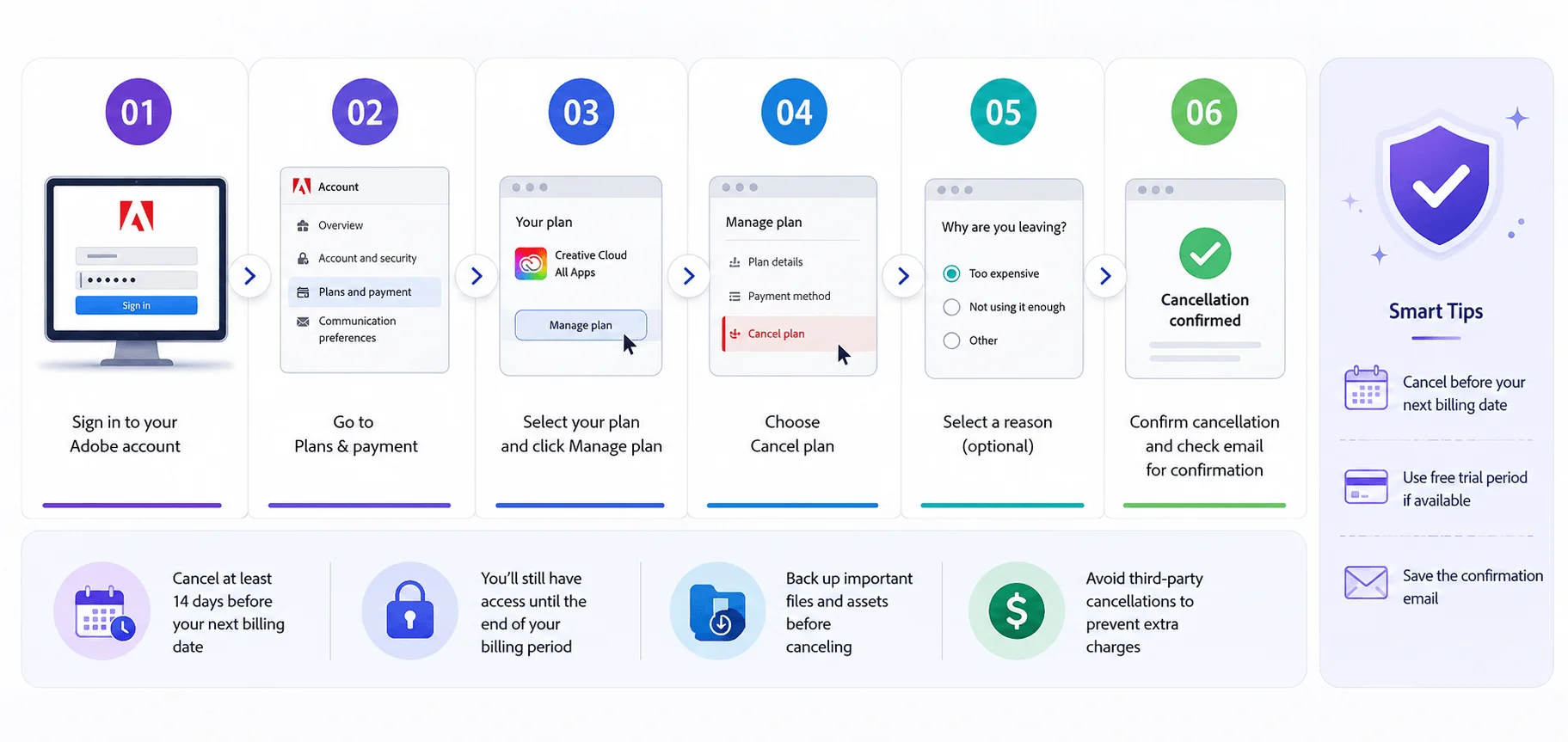
Right. Let's actually do this.
The whole process lives on the web — Adobe doesn't let you cancel from the desktop app or the mobile app, which is mildly infuriating but here we are. According to Adobe's official cancellation help page, the flow takes about two minutes if nothing goes sideways.
I'll flag the friction points as we go, because there are a few.
Step 1: Sign In to Your Adobe Account
Head to account.adobe.com/plans and sign in with your Adobe ID — the email address tied to the subscription.
Sounds obvious.
But if you've ever had a work account and a personal account, double-check you're in the right one. Loads of people cancel a free account and wonder why the charges keep coming.
Step 2: Open "Plans and Payment"
Once you're in, expand Plans and payment and select Plans.
You'll now see your current plan, every app included in it, and your billing details laid out.
Take a screenshot here. Seriously — it's useful evidence if you ever need to dispute a charge later.
Step 3: Select "Manage Plan"
Find the subscription you want to end and click Manage plan.
Now, important: each subscription cancels separately. If you're running a Photography Plan and a single-app Acrobat plan, cancelling one does absolutely nothing to the other. I've seen people billed for months because of this exact mistake.
Step 4: Click "Cancel Your Plan"
Scroll down to the End your service section and hit Cancel your plan.
Adobe will now show you your refund terms or your early termination fee before you confirm. Read that screen. Don't skim it.
Step 5: Survive the Retention Gauntlet
Here's where Adobe gets creative.
You'll be offered discounts. Alternative plans. Pauses. "Are you sure?" screens. In its March 2026 press release, the U.S. Department of Justice described this as a process "filled with unnecessary steps, delays, unsolicited offers, and warnings."
Fun fact: some users report being offered 30–50% off just for starting the cancellation flow. If you were on the fence, that's worth knowing.
Step 6: Confirm and Save Your Proof
Complete the final confirmation, then check your email for the cancellation confirmation.
Go back to your plans page and verify no active subscription remains. Screenshot that too.
What If the Cancel Button Is Missing?
This happens more than you'd think.
Usually it means a payment is currently processing or has failed. Adobe locks cancellation during that window. Wait 24 hours and try again.
Still stuck? Try a different browser, clear your cookies, and make sure pop-ups are enabled. If you're hitting this on mobile, a full cache clear often resolves it — here's how to clear the cache on an iPhone if you need the steps. If that fails, use Adobe's contact page and type "agent" into the chat field to reach a human.
The Adobe Early Termination Fee: What It Costs and Why
Okay. Deep breath. This is the part that makes people angry.
If you're on an annual plan and you cancel after the first 14 days, Adobe charges an early termination fee (ETF) equal to 50% of your remaining contract balance. That's the whole formula. And it applies whether you've been a customer for one month or ten years, because annual plans auto-renew into fresh 12-month commitments.
Adobe's stated reasoning: you got a discount for committing. Break the commitment, pay back half the difference.
How the Adobe Cancellation Fee Is Calculated
Adobe's own published example, from its subscription terms page: cancel in the ninth month, and you pay 50% of the remaining three months.
Here's that math run across a full year, using Adobe's published North America reference rate of US$69.99/month:
Month You Cancel | Months Remaining | Approximate Fee |
|---|---|---|
Month 2 | 10 | ~$350 |
Month 3 | 9 | ~$315 |
Month 6 | 6 | ~$210 |
Month 9 | 3 | ~$105 |
Month 11 | 1 | ~$35 |
Adobe notes these figures are calculated at that standard rate and apply to North America — your own fee may differ.
See the pattern?
The closer you are to your renewal date, the cheaper the exit. Which leads directly to the smartest move in this entire article.
The Timing Play
If your fee is large, don't cancel today.
Find your renewal date, then cancel in the final month of your term. You'll pay a fraction of what you'd pay now — and you keep using software you've already paid for in the meantime.
Set a calendar reminder. It's free money.
How to Avoid the Adobe Cancellation Fee (Legally)
Now for the part you actually came here for.
There's no magic button that erases an Adobe early termination fee — anyone promising that is selling something. But there are three genuinely legitimate routes that either eliminate the fee or shrink it dramatically, and all three are documented in Adobe's own terms.
Let's go through each.
Option 1: Cancel Inside the 14-Day Window
If you're within 14 days of your initial purchase, you get a full refund, no fee, no argument. Adobe's legal subscription terms state this plainly.
This applies to prepaid annual plans too — a lot of people wrongly assume it doesn't.
Refunds typically take 12–14 days to process, so don't panic on day three.
One massive caveat: the 14-day window applies to your initial purchase only — not renewals. If your plan auto-renewed yesterday and you cancel today, you are not inside a fresh 14-day window. This trips up thousands of people every year, and it's the single most misunderstood rule in Adobe's terms.
Option 2: Switch Plans Instead of Cancelling
This is the underrated one.
Annual Creative Cloud subscriptions can't be paused or suspended — but you can downgrade your Adobe plan. Moving from Creative Cloud All Apps to something like the Photography Plan or a single-app plan cuts your bill substantially without triggering the ETF.
And if the only reason you're paying Adobe is Acrobat, check what your existing hardware already does. Most modern printers and phones handle document capture natively — our guide on how to scan to email covers the setup, and it may remove your need for a paid PDF subscription entirely.
If you mainly use Lightroom and Photoshop anyway? You were overpaying regardless. Our Adobe Creative Cloud pricing comparison breaks down which tier actually fits which workflow.
Option 3: Use the Retention Offer
Start the cancellation flow, decline the first offer, and see what Adobe counters with.
Is it a little cynical? Sure.
Does it work? Frequently.
What Doesn't Work
Cancelling your card or stopping a direct debit does not cancel your contract. You'll still owe the balance, and Adobe can refer it onward.
Cancel properly through your account. Always. (The same logic applies to most services — see our guide to cancelling recurring subscriptions the right way.)
Cancelling Adobe Bought Through Apple, Google, or Microsoft
Quick but critical section.
If you subscribed through the App Store, Google Play, or Microsoft, Adobe cannot cancel it for you. The billing owner is the store, not Adobe — which means you cancel inside that platform's own subscription settings. And per Adobe's mobile refund policy, Adobe doesn't issue refunds for purchases made directly through app stores.
Check your receipt or bank statement to confirm who's actually charging you.
On iPhone or iPad
Open Settings, tap your name at the top, then tap Subscriptions. Find Adobe, tap it, and select Cancel Subscription.
Adobe's mobile refund documentation is specific here: cancel through the app store within 48 hours of payment for a full refund. Cancel between 48 hours and 14 days and you're still eligible for a full refund, but you need to contact Adobe Support directly. After 14 days, refunds aren't available.
On Android
Open the Google Play Store, tap your profile icon, go to Payments & subscriptions, then Subscriptions. Select Adobe and cancel.
While you're in there, it's worth auditing what else is quietly draining your device and your wallet — see how to stop apps running in the background on Android.
What Happens After You Cancel Your Adobe Plan
So you've cancelled. What actually changes?
Less than you might fear, honestly — but there are real consequences around your files. If you've got large projects sitting in the cloud, you need to act before your access shrinks. Here's the honest picture.
Your Account Doesn't Disappear
Your Adobe account downgrades to a free Creative Cloud membership. It stays active. You can restart billing anytime and pick up where you left off.
You just lose the ability to create and edit in most apps.
Your Cloud Storage Shrinks to 5GB
This is the one that bites.
Per Adobe's teams cancellation documentation, storage per cancelled licence drops to 5GB. If you're over that limit at cancellation, you get 30 days to move files out before Adobe may remove access to some or all of them.
Save everything locally first. In a compatible, non-proprietary format where possible. Do it before you cancel, not after.
Team and Enterprise Accounts
If you're an admin, cancelling the entire plan removes your Admin Console access, along with expert sessions and dedicated support.
The flow lives in the Admin Console under Account → Plans and licenses → Manage → Cancel Licenses. And if you bought through a reseller, you cancel through them — not Adobe.
Why Adobe's Cancellation Process Is Under Legal Scrutiny
Here's the context that makes everything above make sense.
You weren't imagining the difficulty. In June 2024, the U.S. Department of Justice — on referral from the Federal Trade Commission — sued Adobe and two executives over exactly these practices. The core allegation: Adobe hid the early termination fee behind fine print and inconspicuous hyperlinks, and made cancelling deliberately painful.
The internal language surfaced in unredacted court filings was blunt. As TechRadar reported, an Adobe executive was quoted comparing early termination fee revenue to "heroin" for the company.
The $150 Million DOJ Settlement (March 2026)
On 13 March 2026, the Department of Justice announced a proposed stipulated order resolving the case against Adobe and executives Maninder Sawhney and David Wadhwani.
The terms:
$75 million in civil penalties
$75 million in free services to customers
$150 million total
The alleged violation was of the Restore Online Shoppers' Confidence Act (ROSCA), which requires online subscription sellers to clearly disclose key terms and provide simple cancellation. Adobe denied wrongdoing but agreed to resolve the matter.
What the Settlement Changes for You
Going forward, the order requires Adobe to:
Clearly disclose any Early Termination Fee — and show how it's calculated — before you enrol
Remind you before converting any free trial longer than seven days into a paid subscription
Provide easy ways to cancel your subscription
Meanwhile, the UK's Competition and Markets Authority opened its own investigation into the same practices shortly after the settlement was announced.
Translation: cancelling Adobe should keep getting easier.
Frequently Asked Questions
Can I cancel my Adobe subscription anytime?
Yes. You can cancel through your Adobe account or Customer Support at any point. But on an annual plan, cancelling after 14 days triggers an early termination fee of 50% of your remaining contract balance.
How much is the Adobe cancellation fee?
The Adobe cancellation fee is 50% of your remaining contract balance. On Adobe's published US$69.99/month reference rate, that's roughly $315 if you cancel in month 3, around $210 in month 6, and about $35 in month 11.
Will I get a refund if I cancel Adobe?
Only if you cancel within 14 days of your initial purchase. After that, your payment is non-refundable and service continues to the end of your billing period. Renewals do not reset that 14-day window.
Does cancelling Adobe delete my files?
No. Files saved on your computer stay exactly where they are. Your cloud storage drops to 5GB, and if you're over that limit you typically get 30 days to migrate files before Adobe may remove access.
Can I pause my Adobe subscription instead?
No — annual subscriptions can't be paused or suspended. Switching to a cheaper plan is the closest equivalent and avoids the early termination fee entirely.
How do I cancel Adobe if I subscribed through Apple?
Cancel inside Settings → [your name] → Subscriptions on your iPhone or iPad. Adobe cannot cancel App Store subscriptions on your behalf, and doesn't issue refunds for them.
Final Thoughts
Cancelling Adobe isn't hard. Cancelling Adobe cheaply takes about ten minutes of homework.
So here's your action plan: identify your plan type from the table above, check your renewal date, calculate whether waiting saves you money, download your cloud files, then cancel properly through account.adobe.com — never by killing your card.
And if a fee shows up that you don't think you were ever told about? Given what the DOJ found, that's a conversation worth having with Adobe support.
Good luck out there.
Written by
Alex
Creative blogger sharing insights, stories, and fresh ideas.