How to Open Task Manager: 9 Fast Ways That Work Even When Your PC Freezes

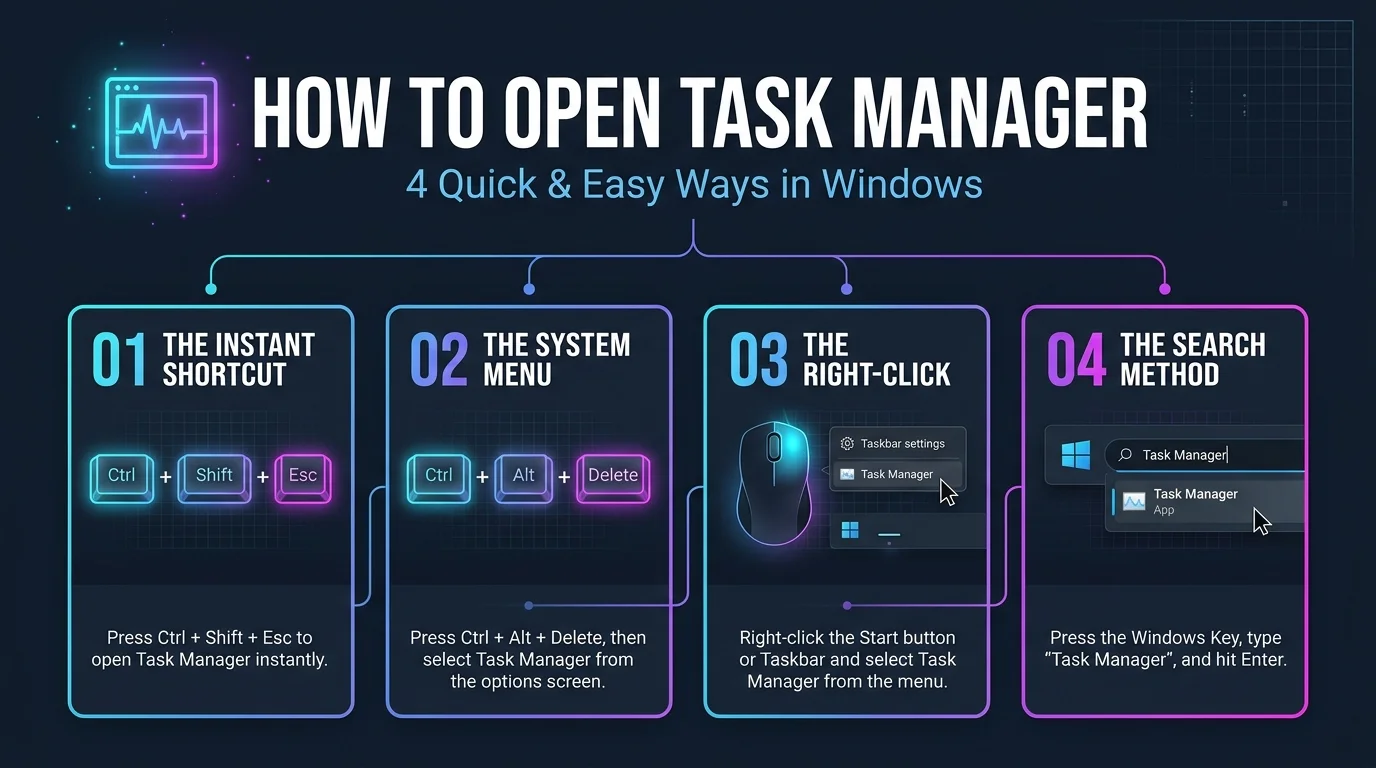
How to open task manager: Press Ctrl+Shift+Esc and Task Manager opens straight away on Windows 10 and Windows 11. If that fails, right click the taskbar, or press Win+R and type taskmgr.
I've rescued more frozen PCs than I can count.
Honestly? This one tiny skill saves the most headaches.
The Fastest Way to Open Task Manager
Let's be real for a second. When an app locks up, you don't want a ten step tutorial. You want out, and you want out now. That's why I always start with the keyboard shortcut. It skips every menu and works from almost any screen. Dell's support guide lists it first for the same reason. So here's exactly what you do.
Step by step: Ctrl+Shift+Esc
Hold down Ctrl.
Add Shift.
Tap Esc.
Let go of everything.
Boom. Done.
Nothing happened? Then press Ctrl+Alt+Delete instead. You'll land on the Windows Security screen, where Task Manager is one click away.
All 9 Ways to Open Task Manager Compared
You've got options, so here they are side by side. Skim the table, pick your favorite, and move on with your day. Each method works on both Windows versions unless the last column says otherwise. I'd memorize the first two and bookmark this page for the rest.
Method | How you do it | Best for | Windows version |
|---|---|---|---|
Ctrl+Shift+Esc | Press three keys together | Speed | 10 and 11 |
Ctrl+Alt+Delete | Pick Task Manager on the security screen | Fallback shortcut | 10 and 11 |
Win+X menu | Press Win+X, click Task Manager | Mouse users | 10 and 11 |
Right click taskbar | Right click, then Task Manager | One click access | 10; 11 from 22H2 |
Run dialog | Win+R, type taskmgr, Enter | Keyboard fans | 10 and 11 |
Start search | Win+S, type "Task Manager" | Beginners | 10 and 11 |
Terminal, Command Prompt, PowerShell | Type taskmgr, Enter | Admins and developers | 10 and 11 |
Windows Tools | Open Windows Tools, click Task Manager | Windows 11 menus | 11 |
File Explorer | Open C:\Windows\System32\taskmgr.exe | Last resort workaround | 10 and 11 |
Open Task Manager on Windows 11 (Every Method)
Windows 11 shuffled a few things around, and plenty of people got confused. The taskbar right click option vanished at launch, then came back in version 22H2. So what works today? ElevenForum's tutorial documents nine different routes. I've narrowed them down to the ones you'll actually use, so pick whichever feels natural.
The mouse friendly options:
Right click the taskbar, then click Task Manager.
Press Win+X to open the Power User menu, then click Task Manager.
Press Win+S, type "Task Manager", and hit Open.
The command options:
Press Win+R to open the Run dialog, type taskmgr, and press Enter.
Type taskmgr into Windows Terminal, Command Prompt, or PowerShell.
Want the older look? Run
taskmgr -dfrom the Run box.
Here's a pro tip. Once it's open, right click its icon and choose Pin to taskbar. Windows Digitals shows how. After that, it's literally one click away.
Open Task Manager on Windows 10
Still on Windows 10? Good news: nearly everything above works for you too. freeCodeCamp walks through seven ways to do it, and most take under five seconds. The shortcut is identical, and so is the Run command. I'd say the right click menu on the Start button is the friendliest route if you're a mouse person.
Quick Windows 10 steps
Right click an empty spot on the taskbar.
Click Task Manager.
Or, if Explorer is acting up, press Win+R, type taskmgr, and press Enter. Geekflare notes this helps precisely because it doesn't depend on the desktop.
What to Do When Your PC Is Frozen
Nothing feels worse than a frozen app that won't budge. Your cursor stutters, the window turns white, and panic creeps in. Relax. The Windows Security screen runs separately from your stuck program, so it often appears even when everything else hangs. Follow this order, and you'll probably regain control without a reboot.
Press Ctrl+Shift+Esc first.
No luck? Press Ctrl+Alt+Delete, then choose Task Manager.
Find the unresponsive program in the Processes list.
Click it, then hit End task.
Wait a few seconds for Windows to close it.
Still stuck? Then, and only then, hold the power button. It's the last resort, because you'll lose unsaved work.
Does your PC freeze a lot? Check Task Manager for a process hogging your CPU usage. Also, a clogged fan can make a machine crawl, so read how to clean a laptop fan before you blame Windows.
Fix "Task Manager Has Been Disabled by Your Administrator"
Ever clicked and gotten that annoying error? I've seen it plenty. It usually means a policy or registry setting is blocking you, not that Task Manager is broken. Microsoft Learn explains the fix (page updated February 12, 2026), and it's simpler than it sounds. Just remember: on a work or school PC, your IT team may have turned it off on purpose.
Fix it with Group Policy Editor
Press Win+R, type gpedit.msc, and press Enter.
Go to User Configuration, then Administrative Templates, then System, then Ctrl+Alt+Del Options.
Open Remove Task Manager.
Set it to Disabled or Not Configured.
Run
gpupdate /forcein a Command Prompt, then restart.
Fix it in the registry
Back up first. Then check that DisableTaskMgr equals 0 under the System policies key. Microsoft lists several locations to check, so read its page carefully. Also, scan for malware. Viruses sometimes flip this setting, and the value will keep reverting if something is enforcing it.
Open Task Manager on Mac and Chromebook
Not on Windows at all? No worries. Both Apple and Google have their own versions, and they're just as quick. On a Mac, the equivalent is Activity Monitor, and Nektony's guide explains how it differs from Force Quit. Chromebooks have a built in tool too, so you're covered either way.
On a Mac:
Press Command+Space, type Activity Monitor, and hit Return.
For a frozen app, press Command+Option+Esc to open the Force Quit Applications window.
Want more time savers? Browse these Mac keyboard shortcuts.
On a Chromebook:
Press Search+Esc, per Android Authority.
Alternatively, open Chrome's menu, then More tools, then Task manager.
Frequently Asked Questions
What's the fastest way to open Task Manager?
Press Ctrl+Shift+Esc. It opens the app directly, with no extra screens.
Why won't Task Manager open?
Usually a policy or registry block, malware, or a frozen system. Try the Run box and taskmgr first, then use the fixes above.
Can I open Task Manager from Command Prompt?
Yes. Type taskmgr and press Enter in Command Prompt, PowerShell, or Windows Terminal.
What is the Mac version of Task Manager?
It's Activity Monitor. For a quick force quit, press Command+Option+Esc.
Your Next Move
You now know nine ways in, plus fixes for when it's blocked. Pretty handy, right?
So here's what I'd do today. Pin Task Manager to your taskbar. Practice Ctrl+Shift+Esc three times. Then bookmark this guide, because the next freeze is coming whether you like it or not.
Want more tech fixes like this? Browse the LLMProGen blog and subscribe.
Written by
Alex
Creative blogger sharing insights, stories, and fresh ideas.