How to Use Keyboard Shortcuts Mac: Complete 2026 Guide


Quick answer: To use keyboard shortcuts on Mac, hold one or more modifier keys (⌘ Command, ⌥ Option, ⇧ Shift, ⌃ Control) and then press a final key — all at the same time. Start with Command-C, Command-V, Command-Tab, and Command-Space. Every shortcut for an app is already listed beside its commands in the menu bar, so you never need to memorize a list.
Now here's the thing nobody tells you when you unbox a Mac.
You just paid a premium for one of the fastest machines on the planet — and then you spend your whole day dragging a pointer across the screen like it's 2004.
I did this for years. Honestly, it was embarrassing.
So in this guide I'm going to show you exactly how to use keyboard shortcuts on Mac, from the five you should learn today to the custom keyboard shortcuts most people never touch. No filler. No 300-row table you'll never read. Just a real learning path.
Let's get into it.
What Keyboard Shortcuts on Mac Actually Are (And Why They Work)
Before you memorize anything, you need the mental model. Because once you understand how Apple built this system, you stop memorizing and start predicting. And that's a completely different experience. According to Apple's official documentation, a shortcut is simply a keystroke combination — one or more modifier keys plus a final key, all pressed at the same time. That's it. That's the whole concept. The magic isn't complexity; it's consistency.
There are four modifier keys you genuinely need:
⌘ Command — the main one, does about 80% of the work
⌥ Option (Alt) — the "give me the alternate version" key
⇧ Shift — the "do the opposite" or "extend" key
⌃ Control — the system-level and terminal key
Apple's guide gives the cleanest example: instead of moving your pointer to the menu bar to choose File > New Window, you just press Command-N.
You hold the modifier. You tap the last key. You release.
Simple, right?
Now here's the part that changed everything for me.
Every Shortcut Is Already Printed on Your Screen
You don't need a cheat sheet. You need to look up.
Open any Mac app and click a menu. See those little symbols on the right side of each command? Those are the Mac keyboard shortcuts for that exact app. Apple literally shows you the answer while you're doing the slow version of the task.
So the workflow is:
Do the thing with your mouse (like you always do)
Glance at the shortcut listed next to it
Do it with the keyboard next time
Repeat that for a week and you'll learn more than any listicle can teach you.
If you're ever unsure which symbol means what, Apple keeps a full symbol reference on its master shortcuts page. (Want the printable version? Grab our free Mac shortcuts cheat sheet PDF and keep it beside your keyboard.)
The 12 Mac Keyboard Shortcuts You Should Learn First
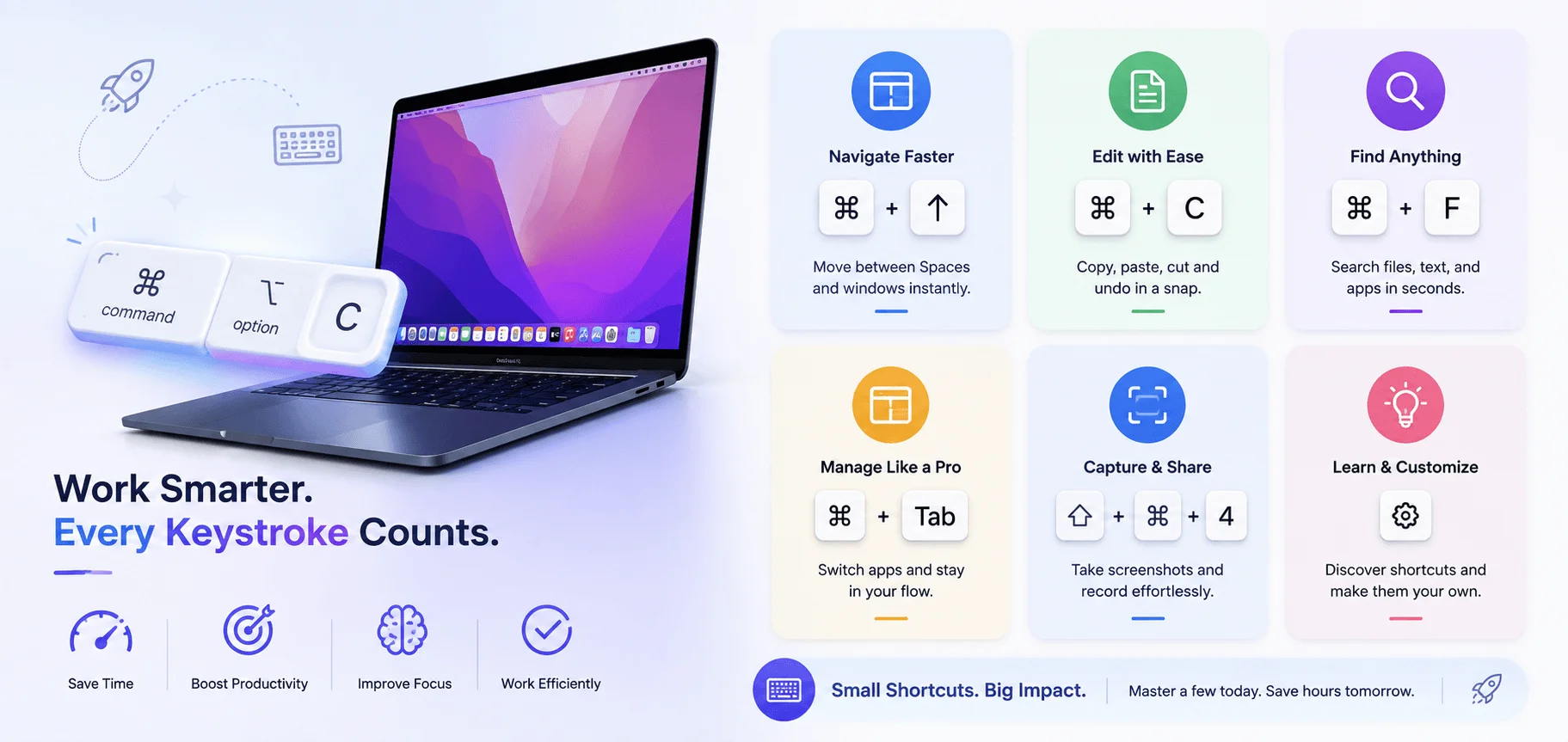
I want to be blunt here. Most guides throw 150 shortcuts at you and call it value. That's not helpful — that's a data dump. Research summarized by Productivity Report points to a 2005 study by Lane, which found shortcuts in Microsoft Word shaved more than half a second (sometimes three times that) off common tasks versus toolbar clicking. Half a second sounds like nothing. Multiply it by a few thousand actions a week, though, and it's real.
So start here. These twelve carry the most weight:
Shortcut | What It Does | Use It When |
|---|---|---|
Command-C / Command-V | Copy and paste | Constantly |
Command-X | Cut | Moving text |
Command-Z | Undo (Shift-Command-Z redoes) | You just broke something |
Command-A | Select all | Bulk edits |
Command-S | Save | Every 30 seconds, ideally |
Command-F | Find on this page | Scanning long documents |
Command-Tab | Switch between open apps | Multitasking |
Command-W | Close the window or tab | Tab overload |
Command-Q | Quit the app entirely | Freeing up memory |
Command-Space | Open Spotlight search | Launching anything |
Space bar | Quick Look — preview any file | Browsing files in Finder |
Option-Command-Esc | Force Quit a frozen app | An app stops responding |
Learn three. Use them for a week. Then add three more.
That's it. That's the method.
Command-W vs Command-Q (The Mistake Everyone Makes)
Quick tangent, because this trips up almost every Windows switcher.
On a Mac, closing the window does not quit the app. Command-W closes the window. Command-Q kills the process.
That's why your Dock fills up with apps you thought you'd closed.
Use Command-Q when you actually mean it.
The Shortcuts That Feel Like Superpowers
Okay — now the fun part. These aren't beginner shortcuts. They're the ones that make people lean over and ask "wait, how did you do that?" And frankly, they're where Mac productivity shortcuts stop being about saving seconds and start being about staying in flow. Apple's master list documents dozens of these, but a handful deliver most of the value.
Shift-Command-5 opens the full screenshot and screen recording toolbar. You get region capture, window capture, timed capture, and video — all in one panel. (Shift-Command-4 grabs a region directly; add Space to grab a single window. We break all of these down in our complete guide to taking screenshots on Mac.)
**Command-grave ()** cycles between windows *within* the app you're already in. Command-Tab switches apps; Command- switches windows. Learning both is the single biggest window-management upgrade available.
Control-Command-F toggles full screen in any app that supports it.
Control-Command-Space opens the Character Viewer for emoji and symbols. Pressing Fn-Fn does the same thing.
Fn-A shows or hides the Dock. Fn-C opens Control Center. Fn-N opens Notification Center. Fn-D starts dictation.
And pressing Command twice opens Type to Siri.
If you're building an Apple-wide maintenance habit, it's worth pairing this with the basics on the mobile side too — here's our walkthrough on how to clear cache on iPhone, which follows the same "learn it once, save time forever" logic
A macOS Tahoe 26 Change You Need to Know
Here's something most articles still get wrong.
In macOS Tahoe 26 and later, Fn-Shift-A shows or hides Apps. In earlier versions of macOS, that same combination opened Launchpad.
If you followed an older tutorial and the shortcut "didn't work," that's why. Apple changed the destination, not the keys.
Small detail. Saves a lot of frustration.
Finder Keyboard Shortcuts: Navigate Files Without Your Mouse
Finder is probably the app you open most and think about least. Which makes it the highest-leverage place to build muscle memory. Every second you spend clicking through folders is a second you could reclaim with a two-key combo, and the Finder shortcut set is genuinely small enough to learn in an afternoon. Here's the shortlist I actually use.
Command-N — new Finder window
Command-T — new tab
Command-Up Arrow — go up one folder (far more reliable than the Back button)
Command-Down Arrow — open the selected item
Command-Delete — move to Trash
Shift-Command-Delete — empty the Trash
Command-1 / 2 / 3 / 4 — switch between icon, list, column, and gallery view
Shift-Command-G — Go to Folder (type a path directly)
Shift-Command-D — jump to Desktop
Shift-Command-O — jump to Documents
For more ways to speed up repetitive work, see our post on how to create charts in Excel — Excel is one of the apps where Mac keyboard shortcuts pay off fastest, since you're repeating the same actions across hundreds of rows.
How to Move a File Instead of Copying It
This one's semi-hidden and genuinely useful.
Step 1: Select your file and press Command-C to copy it.
Step 2: Navigate to the destination folder.
Step 3: Press Option-Command-V instead of Command-V.
The file moves rather than duplicating. It's macOS's equivalent of cut-and-paste for files — and Apple never really advertised it.
Also worth knowing: Option-clicking a disclosure triangle in list view expands every subfolder at once, and Command-clicking a window title reveals the full folder path above it.
How to Create Custom Keyboard Shortcuts on Mac
Now we're past the memorization stage. This is where you bend macOS to your workflow instead of the other way around — and it's the section almost every competing guide skips. Apple lets you assign your own shortcut to any existing menu command in any app, including Finder. If you run the same three-click menu dive twenty times a day, you can collapse it into one keystroke. Here's exactly how.
Step 1. Open the Apple menu > System Settings, then click Keyboard in the sidebar. You may need to scroll down.
Step 2. Click Keyboard Shortcuts.
Step 3. Select App Shortcuts on the left, then click the + button.
Step 4. Choose your app from the Application pop-up menu — or pick All Applications if you want it everywhere. If the app isn't listed, choose Other and locate it manually.
Step 5. In the Menu title field, type the menu command exactly as it appears in the app. This is the part people get wrong. Use -> to separate nested menu levels.
Apple's own examples: to shortcut Format > Font > Ligatures > Use Default in TextEdit, you'd type Format->Font->Ligatures->Use Default. For File > Export as PDF…, you'd type File->Export as PDF….
Step 6. Click the Keyboard shortcut field, press your desired combination, then click Done.
Two rules worth remembering: you can only create shortcuts for commands that already exist in a menu, and you can't use the same key twice in one combination.
Fixing Keyboard Shortcut Conflicts
Sometimes an app's shortcut collides with a system one. When that happens, the system usually wins — and your app shortcut just… doesn't fire.
The fix is straightforward.
Go to System Settings > Keyboard > Keyboard Shortcuts, pick a category in the sidebar (Mission Control, Spotlight, and so on), then deselect the checkbox next to the macOS shortcut you want out of the way.
Conflict resolved.
Quit and reopen the affected app for changes to take effect.
When Shortcuts Don't Work at All
One overlooked cause: your keyboard layout.
Apple notes that shortcuts vary depending on the language and input source you're using. If a documented combo behaves strangely, check the app's own menu bar for the correct one, or open the Keyboard Viewer to see your active layout.
Nine times out of ten, that's the culprit.
Mac Startup Key Combinations: Apple Silicon vs Intel
I'm including this because people search for it constantly and confuse it with regular shortcuts. It's not the same category at all — these fire before macOS loads, and they behave completely differently depending on your chip. Apple's startup key documentation splits the guidance in two, and getting this wrong is why so many troubleshooting attempts fail on newer machines.
Goal | Apple Silicon (M1 and later) | Intel-Based Mac |
|---|---|---|
Startup options screen | Press and hold power button | Hold Option (⌥) for Startup Manager |
macOS Recovery | Power button > Options > Continue | Command-R |
Internet Recovery | Built into Options screen | Option-Command-R or Shift-Option-Command-R |
Safe mode | Options > select disk > hold Shift > Continue in Safe Mode | Hold Shift (⇧) |
Apple Diagnostics | Options screen > Command-D | Hold D |
Reset NVRAM/PRAM | Not needed | Option-Command-P-R |
Target disk mode | Recovery > Share Disk | Hold T |
Verbose mode | Recovery > Terminal | Command-V |
Note that Command-S single-user mode was disabled in macOS Mojave and later.
Apple's guidance: hold all keys together, not one at a time. If a combination won't register on restart, shut down fully first, then hold the keys immediately after pressing power.
Switching From Windows? Read This Part Twice
If you came from a PC, most of your existing muscle memory still works — the modifier just moved. Microsoft's own shortcut reference and Apple's list overlap far more than people expect, which means you're not starting from zero. You're doing a find-and-replace on a habit.
Windows Shortcut | Mac Equivalent | What It Does |
|---|---|---|
Ctrl+C / Ctrl+V | Command-C / Command-V | Copy and paste |
Ctrl+Z | Command-Z | Undo |
Alt+Tab | Command-Tab | Switch apps |
Alt+F4 | Command-Q | Quit the app |
Ctrl+W | Command-W | Close window or tab |
Windows key | Command (⌘) | Primary modifier |
Print Screen | Shift-Command-4 or Shift-Command-5 | Screenshot |
Ctrl+Alt+Delete | Option-Command-Esc | Force Quit |
Delete (forward) | Fn-Delete | Delete forward |
Windows+E | Command-N in Finder | Open a file browser window |
Give it two weeks. Your hands will stop reaching for Ctrl. And once the modifier swap clicks, apply it everywhere — including document formatting tasks like creating a hanging indent in Google Docs, where the Mac and Windows shortcuts differ by exactly one key.
How to Actually Make These Stick
Knowing shortcuts and using shortcuts are different skills. This is the step almost everyone skips — and it's why people read guides like this one, feel motivated, then go back to clicking the next morning. One widely cited estimate from Brainscape puts the payoff at roughly eight full workdays a year for a full-time computer worker, about 3.3% of total productivity. Treat that as directional rather than precise — Brainscape hasn't published the underlying methodology — but the direction is clearly right.
Here's the system that worked for me.
Pick three, not thirty. Choose the three actions you repeat most today. Just three.
Ban the mouse for those three. When you catch yourself reaching for the trackpad, stop. Undo the click. Do it with the keyboard instead. It'll feel slower for about four days.
Read the menus. Every time you use a menu command, look at the shortcut printed beside it. Free lessons, all day long.
Add three more on Monday. Weekly cadence. No cramming.
Customize the stubborn ones. If a shortcut is awkward for your hands, remap it using the App Shortcuts method above. A shortcut you won't use isn't a shortcut.
Within about a month, you'll notice something strange: you'll stop thinking about the keys entirely. Your hands will just go.
Frequently Asked Questions About Mac Keyboard Shortcuts
Below are the questions people ask most often about how to use keyboard shortcuts on Mac. Short answers, no fluff — so you can find what you need and get back to work.
How do I create a custom keyboard shortcut on Mac?
Open System Settings > Keyboard > Keyboard Shortcuts > App Shortcuts, click +, choose your app, then type the menu command exactly as it appears — using -> between nested levels. Press your key combination and click Done. You can only create shortcuts for commands that already exist in a menu.
Why aren't my Mac keyboard shortcuts working?
Usually it's a conflict or a layout issue. Apple notes that shortcuts vary by language and input source, so open the Keyboard Viewer to check your active layout. If a system shortcut is overriding an app one, deselect it under System Settings > Keyboard > Keyboard Shortcuts, then quit and reopen the app.
What is the shortcut for a screenshot on Mac?
Press Shift-Command-5 to open the full screenshot and screen recording toolbar. Use Shift-Command-4 to grab a region directly, or press Shift-Command-4 then the Space bar to capture a single window.
How do I force quit an app on Mac?
Press Option-Command-Esc to open the Force Quit window, select the frozen app, and click Force Quit. It's the Mac equivalent of Ctrl+Alt+Delete on Windows.
What's the difference between Command-W and Command-Q?
Command-W closes the current window or tab but leaves the app running. Command-Q quits the app completely and removes it from memory. This is why apps you thought you closed still appear in your Dock.
Do Mac startup key combinations work on Apple silicon?
Mostly no. On M-series Macs you press and hold the power button until the startup options screen appears, then click Options. The classic Intel combinations — Command-R, Option, Option-Command-P-R — don't apply to Apple silicon.
How many Mac keyboard shortcuts should I actually learn?
Start with three. Use them daily for one week, then add three more. Most people get 80% of the productivity benefit from about 15 shortcuts, not 150.
What are the four modifier keys on a Mac?
⌘ Command, ⌥ Option (Alt), ⇧ Shift, and ⌃ Control. Nearly every Mac keyboard shortcut combines one or more of these with a single final key.
Final Thoughts on How to Use Keyboard Shortcuts on Mac
Learning how to use keyboard shortcuts on Mac isn't about memorizing Apple's entire list. It's about picking the handful that match what you actually do all day, then letting the menu bar teach you the rest. The modifier keys stay consistent, the patterns repeat across apps, and your hands do the remembering for you.
Pick your three today. Add three next Monday.
Now close this tab and press Command-Space. You already know what to do next.
Read more: Why Genboostermark Software Is So Popular: Fact-Checked Guide
Written by
Alex
Creative blogger sharing insights, stories, and fresh ideas.