Color Picker From Image: How to Grab Any Exact Color in 60 Seconds

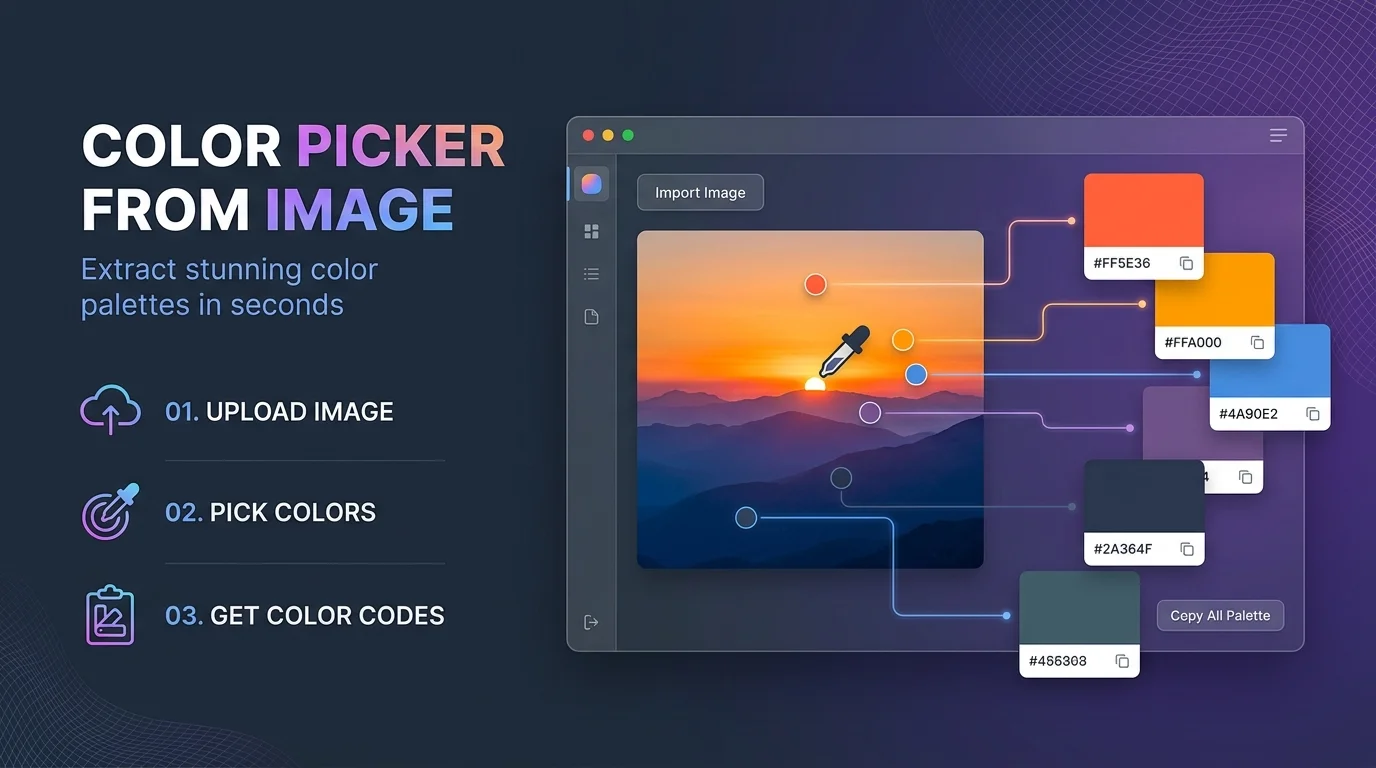
A color picker from image reads the color of one pixel and gives you its HEX, RGB, and HSL codes. You upload a photo, hover to zoom, click, and copy the code. Most tools are free and run in your browser, so you can do it in about a minute.
Last checked: October 2026.
Ever spotted the perfect shade in a photo and thought, "I need that exact color"?
Same here. I used to waste hours guessing codes by eye, and it never worked.
So let me show you what I do now. You'll learn how these tools work, which one fits you, and how to avoid the contrast mistake that ruins good designs.
What Is a Color Picker From Image?
Let me keep this simple. It's a tool that reads one pixel and hands you the code. You load a photo, click a spot, and you're done.
No guessing. No squinting. No "close enough" shades that wreck your layout.
You'll also hear it called an image color picker, an eyedropper tool, or a color finder. Same thing, different name.
Here's the cool part. Many tools, like this privacy friendly picker, process everything inside your browser. That means your file isn't sent to a server, which matters for client mockups. (Check each tool's own privacy claims, though.)
One quick note before you start. A picker reads pixels, so it works best on raster images such as JPG, PNG, and WebP. If you work with logos or icons, it helps to understand vector vs raster first, because the two formats store color differently.
Which Color Codes Will You Get?
Most pickers return several formats at once. Here's what each one means and when you'd use it.
Format | What it looks like | Best for |
|---|---|---|
HEX |
| CSS, web design, most design apps |
RGB | 255, 87, 51 | Screens and digital displays |
HSL | 11°, 100%, 60% | Tweaking lightness and saturation |
HSV | 11°, 80%, 100% | Image processing and color wheels |
CMYK | 0, 66, 80, 0 | Print projects |
A HEX color code is a 6 digit code that stands for a color, and it's the most common format in web design, as ImageColorPicker explains. Want CMYK or HSV too? GetImageColor lists both.
How Does a Color Picker From Image Work?
Here's the thing: it feels like magic, but it's just math. Every image is a grid of pixels, and each pixel stores a color value. Your picker reads that value when you click. Some tools go further and scan the whole picture to build a palette. I'll break down both approaches, so you know exactly what's happening behind the scenes.
Single Pixel Picking
This is the classic method. You hover over the image, and a magnifier loupe zooms in on the pixel under your cursor.
Then you click, and you get the exact code.
I use this when I need one specific shade from a logo or screenshot. DesignRevision's picker shows that zoomed loupe before you click, so you land on the right pixel.
Dominant Color Extraction
Now for the smarter option. Instead of one pixel, the tool finds the dominant colors of the whole image.
Most use k-means clustering, which groups similar pixels and picks one representative color per group. The process is called color quantization. This extractor lets you pick 2 to 12 colors and shows what percentage of the image each one covers.
Another tool, ThisDevTool, samples roughly 2,000 pixels in a grid and returns up to 8 dominant colors, which you can export as CSS variables.
Are you a developer? Then follow this Python walkthrough to build your own with the Pillow library.
Step by Step: How to Pick a Color From an Image
Ready to try it? Good, because this takes about sixty seconds. I'll walk you through the same process I use on almost every project. Follow along, and you'll have your first code before your coffee gets cold. Honestly, it's easier than most people expect.
Your 6 Step Process
Open a color picker tool. ImageColorPicker.com is a good start.
Load your image. Upload a file, paste from your clipboard, or enter a URL.
Hover over the image. Use the zoom loupe to find the exact pixel.
Click to select. The tool shows HEX, RGB, and HSL instantly.
Copy the code. One click puts it on your clipboard.
Save your palette. Pick several colors, then export them.
Done. Seriously.
Bonus: Sample Colors From Anywhere on Your Screen
Want a color from a website or app, not just an uploaded photo? Then you'll like the EyeDropper API.
It lets web apps open a browser eyedropper that reads from your whole screen. For safety, it only starts after you click, and you can cancel anytime with the Escape key.
One catch. According to Can I Use, it works in Chrome, Edge, and Opera, but not in Firefox or Safari. The Web Platform DX feature page lists it as "limited availability," so don't count on it for every visitor.
Best Image Color Picker Tools Compared
You've got plenty of options, and they're not all the same. Some give you a loupe, some build palettes, and some add extra color formats. I compared the tools I linked above using what each one's own page says, so you can pick quickly. Think about your workflow first, then choose. A designer needs different things than a developer.
Tool | Standout feature | Formats | Palette tool |
|---|---|---|---|
ImageColorPicker | Upload, paste, or URL input; no signup | HEX, RGB, HSL, HSV | Basic |
DesignRevision | Zoom loupe; runs in browser | HEX, RGB, HSL | Click to pick |
RGBColorPicker | Keyboard navigation; color history export | HEX, RGB, HSL | Auto palette |
GetImageColor | Adds CMYK and HSV; shade generator | HEX, RGB, HSV, CMYK | Yes |
ThisDevTool | Up to 8 dominant colors; CSS variable export | HEX, RGB, HSL, HSV | Yes |
Image Color Extractor | 2 to 12 colors with percentages | Palette focused | Yes |
My advice? Start with one that gives you a color palette generator plus a loupe. That combo covers about 90% of jobs.
Why Color Contrast Matters Before You Use That Color
Picking a beautiful color is only half the job. If your text can't be read against its background, the design fails, no matter how pretty it looks. That's where color contrast comes in. I check it every single time, and I want you to do the same. It takes seconds, and it protects people with low vision or color blindness.
Here's what the standards say:
Level AA: at least 4.5:1 for normal text and 3:1 for large text, according to TPGi's WCAG summary.
Level AAA: at least 7:1 for normal text and 4.5:1 for large text.
Formula: contrast ratio = (L1 + 0.05) / (L2 + 0.05), where L1 is the lighter color's luminance, as Quorum's tutorial shows.
Scale: ratios run from 1:1 to 21:1, and one checker says the criteria were unchanged between WCAG 2.1 and 2.2.
Reach: the same source reports that contrast problems appear on over 80% of scanned homepages. That's their own scan data, so treat it as a vendor figure.
So here's my routine after picking a color:
Paste your foreground color and background color into a contrast checker.
Look at the AA and AAA results.
Adjust the shade until it passes.
One more thing. EZUD notes that APCA, a newer contrast method, is not yet a W3C standard. So stick with the WCAG ratio for compliance.
Frequently Asked Questions
Still have questions? That's normal. Here are the ones I hear most, with short, direct answers.
How do I pick a color from an image?
Upload or paste your image into a color picker tool, hover to find the pixel, and click. The tool shows the HEX, RGB, and HSL codes, and you copy the one you need.
What is the difference between a color picker and a color extractor?
A picker reads one pixel you choose. An extractor analyzes the whole image, usually with k-means clustering, and returns its dominant colors as a palette.
Is it safe to upload my image to an online color picker?
It depends on the tool. Some process images inside your browser without uploading them, as DesignRevision says it does. Always read the privacy notes first.
Can I pick colors from outside the browser window?
Yes, in Chromium based browsers. The EyeDropper API can sample anywhere on your screen, but Firefox and Safari don't support it yet.
Which color format should I use for web design?
Use HEX or RGB for most CSS work. Use HSL when you want to adjust lightness or saturation easily.
Why You Should Start Using an Image Color Picker Today
Let me be straight with you. You could keep guessing colors by eye. You could keep fiddling with sliders until your head hurts. But why would you?
A good image color picker saves you time, protects your brand colors, and keeps every project consistent. You get exact CSS ready codes in seconds. You get an instant palette from any photo. And you skip the endless "what kind of teal did you mean?" emails.
Think of it this way. One minute of setup now saves you hours later. Many tools here are free, browser based, and need no signup. There's honestly no reason to wait.
So here's what I want you to do next. Bookmark one tool from the table above. Open your latest photo, logo, or mood board. Pick three colors, check their contrast, and save your palette.
Do it today. You'll wonder how you ever worked without it.
Related Reading
Written by
Alex
Creative blogger sharing insights, stories, and fresh ideas.