What Is a Pixel? Complete Definition Guide (2026)

A pixel short for "picture element" is the smallest unit of a digital image or display, holding one position and one color value. Millions of these tiny units, arranged in a grid, combine to form every photo, video, and interface you see on a screen. The concept dates back to an 1888 German patent and has been used in U.S. patents since 1911. This guide covers how pixels work, how they differ from resolution, PPI, and DPI, and how to choose the right pixel dimensions for your own project.
Let's get into it.
What Is a Pixel?
A pixel is a single dot of color that, combined with thousands or millions of neighboring dots, forms a complete digital image. I like to think of pixels as the "atoms" of the digital visual world — on their own, they're just one boring square of color. Arrange enough of them in a raster grid, though, and you get a sunset photo, a meme, or a 4K movie streaming on your TV.
According to the Federal Agencies Digitization Guidelines Initiative, a pixel is the smallest discrete unit of information in an image's structure — a definition that applies whether you're talking about a digital camera sensor or the display device on your phone.
Kind of wild that something so small carries so much weight, right?
A Quick History Lesson (Because Context Matters)
You might assume "pixel" is a modern word. It's not.
Per Wikipedia's history of the pixel, the concept dates back to an 1888 German patent, where it appeared under the term "Bildpunkt." The word "pixel" itself has shown up in U.S. patents since 1911 — over a century before smartphones existed.
I find that genuinely fascinating. Long before anyone had a camera in their pocket, engineers were already thinking in terms of tiny, addressable picture points.
How Does a Pixel Actually Work?
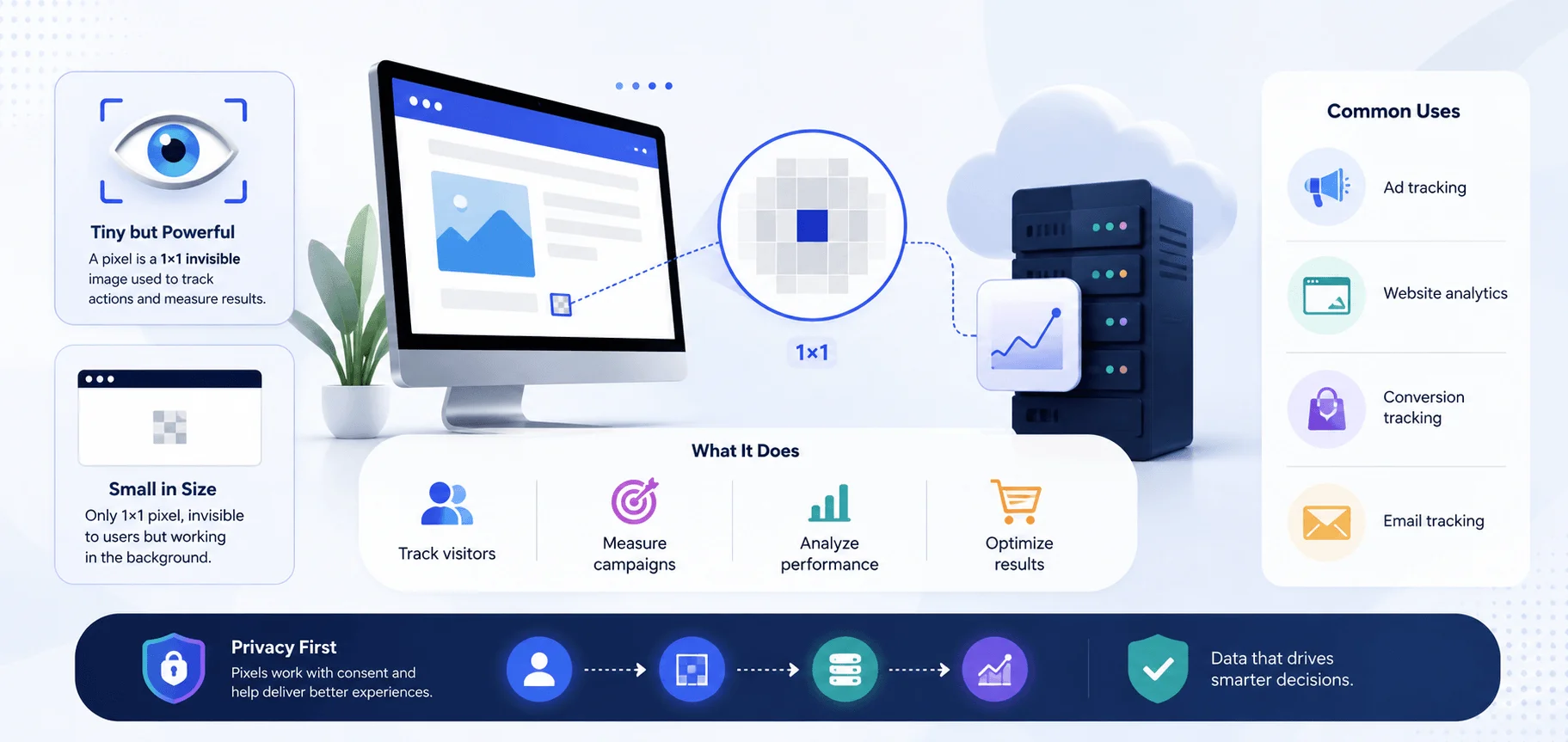
Every pixel does two jobs at once: it holds a position on a grid and a value representing color or intensity. That's the entire mechanism — no more, no less.
Here's the breakdown, step by step.
Step 1: The Grid
Pixels sit in a regular, two-dimensional grid — rows and columns, just like a spreadsheet. Each pixel gets its own coordinate (x, y), so the system always knows where it belongs.
Step 2: The Color Value
Each pixel's color typically comes from combining three or four channels — RGB (red, green, blue) for screens, or CMYK (cyan, magenta, yellow, black) for print.
Step 3: The Subpixel Trick
Per BachelorPrint's technical breakdown, every visible pixel on a screen is actually made of even smaller units called subpixels. By adjusting how brightly each subpixel glows, a screen creates millions of distinct colors from just three tiny lights. Modern OLED panels, common in most 2026 flagship phones, use refined subpixel arrangements specifically to improve sharpness and color accuracy over older LCD designs.
Step 4: The Sensor Side
On the capture side, a pixel works differently. The Digitization Guidelines Initiative notes that in a camera or scanner, a pixel is a photosensitive cell that reacts to light — photons hit the sensor, electrons get released, and that electrical charge becomes the pixel's brightness value.
So a display pixel and a sensor pixel are technically doing opposite jobs: one emits light, the other captures it.
Pixel vs. Resolution: What's the Real Difference?
Resolution is the total pixel count in an image or display, expressed as width × height. A pixel is just one single unit within that total.
So when a 2026 flagship phone advertises a "50-megapixel" camera, that means the sensor captures roughly 50 million individual pixels — typically in a grid around 8160 × 6120. According to Lenovo's photography glossary, a megapixel simply equals one million pixels, and it's the standard way camera resolution gets marketed.
More pixels usually means more detail — but not always "better." A high-megapixel photo shot with poor lighting or a cheap sensor can still look worse than a lower-resolution shot from quality glass.
PPI vs. DPI: The Confusion That Never Dies
This trips up even experienced designers, so let's settle it clearly.
PPI (pixels per inch) measures how many pixels are packed into one inch of a digital image. DPI (dots per inch) measures how many physical ink dots appear in one inch of a printed image. TechTarget notes these terms are frequently conflated — partly because some print services mistakenly request images at a specific "DPI" when they actually mean PPI.
Term | Applies To | Measures | Typical 2026 Standard |
|---|---|---|---|
PPI | Digital screens | Pixel density per inch | 300–460 PPI (smartphones) |
DPI | Physical prints | Ink dot density per inch | 300 DPI (photo-quality print) |
Megapixel | Camera sensors | Total pixel count (millions) | 12–50 MP (flagship phones) |
If you're prepping images for print, always confirm you're checking PPI, not DPI — even when software labels say otherwise.
Physical Pixels vs. Logical Pixels
This distinction rarely gets covered, but it deserves more attention — especially with today's mix of foldables, high-refresh displays, and multi-density screens.
Physical pixels are the real, tangible light-emitting units built into a screen's hardware. Their total count determines the device's native resolution — say, 1440 × 3040 on a modern flagship. Logical pixels, by contrast, are a software abstraction: the operating system groups several physical pixels together and treats them as one logical pixel, so text and interface elements scale consistently across devices with very different pixel densities.
Aspect | Physical Pixel | Logical Pixel |
|---|---|---|
Defined by | Hardware | Operating system / software |
Fixed or scalable | Fixed (matches panel) | Scalable (adjusts per device) |
Determines | Native resolution | On-screen element sizing |
Example use | 4K panel = 3840×2160 physical pixels | Same panel may render UI at "1920×1080 logical" for readability |
This is exactly why a webpage looks equally crisp on a high-density display and a budget phone, even though their actual physical pixel counts are worlds apart.
Step-by-Step: How to Calculate the Right Pixel Dimensions for Your Project
If you're a designer, marketer, or blogger sizing images, here's a practical walkthrough.
Step 1: Decide your output — screen or print. Web images are sized directly in pixels. Print images need a DPI-based conversion.
Step 2: For web images, match your target display. Standard HD is 1920 × 1080 pixels. For high-density (retina-style) displays, double that to around 3840 × 2160.
Not sure what resolution your current screen is running? Check out our guide on how to take a screenshot on Dell devices — it's a quick way to capture your exact pixel dimensions before resizing anything.
Step 3: For print, use this formula. Multiply your desired print size (inches) by your target DPI. For a 5×7 inch photo at 300 DPI, you need roughly 1500 × 2100 pixels.
Step 4: Check your megapixel count. Multiply width × height, then divide by one million. A 4000 × 3000 image equals 12 megapixels — enough for most standard prints.
Step 5: Avoid upscaling whenever possible. Stretching a low-pixel-count image to fit a larger frame causes pixelation — that blocky, blurry look nobody wants in a final deliverable.
Follow those five steps and you'll rarely run into resolution problems again.
Why Understanding Pixels Actually Matters for You
You might be wondering why any of this matters day-to-day. Fair question.
If you're a photographer, pixel density determines how large you can print without losing quality. If you're a web designer, pixel-to-inch conversions determine whether your site looks razor-sharp or embarrassingly blurry — the same underlying concept covered in our guide on what a URL is and how web resources get structured. And if you're just buying a new phone or TV, knowing the difference between resolution and raw pixel count helps you avoid overpaying for marketing buzzwords like "50MP camera" that don't always translate to better real-world photos.
Pixels aren't a technical footnote — they quietly control how good or bad your visual content looks everywhere it appears.
A Perspective Most Guides Skip: Pixels in Computational Photography
Here's something worth adding to your mental model. In 2026, most flagship smartphone cameras no longer rely on raw pixel count alone — they use computational photography, where software merges data from multiple pixels (and even multiple frames) to produce a single, cleaner final pixel. This is why a modern 12MP computational shot can outperform an older 48MP sensor with no processing behind it.
In other words: the pixel count on the spec sheet is only half the story now. How those pixels get processed after capture matters just as much — a nuance most beginner guides on this topic leave out entirely. If you're experimenting with AI-generated imagery yourself, our Gemini AI photo prompt guide walks through how pixel-level detail gets shaped by prompts rather than raw sensor hardware.
Common Mistakes People Make With Pixels
Mistake one: Confusing DPI and PPI, especially when prepping files for a printer.
Mistake two: Assuming higher megapixel counts always mean better image quality — sensor size, lighting, and computational processing matter just as much.
Mistake three: Stretching small images to fit large spaces, causing ugly pixelation instead of clean detail.
Mistake four: Ignoring the difference between physical and logical pixels when designing responsive layouts, leading to blurry icons on high-density screens.
Avoid these four, and you're already ahead of most people working with digital images.
Frequently Asked Questions
What is a pixel in simple terms?
A pixel is the smallest single dot of color that makes up a digital image or screen. Millions of them together form the picture you see.
What's the difference between a pixel and a megapixel?
A pixel is one single unit. A megapixel equals one million pixels, and it's typically used to describe camera sensor resolution.
Is a higher pixel count always better?
Not necessarily. Sensor quality, lighting, and computational processing often matter more than raw pixel count alone.
What is PPI used for?
PPI, or pixels per inch, measures pixel density on a digital screen or image — the digital equivalent of DPI for print.
Why do my images look blurry when I resize them?
Stretching a low-pixel image beyond its native resolution forces software to "guess" extra detail, causing pixelation and blur.
Are subpixels the same as pixels?
No. Subpixels are the tiny red, green, and blue components inside a single pixel that combine to produce its final color.
What's a logical pixel?
A logical pixel is a software-based grouping of multiple physical pixels, used to keep interface elements consistent across different screen densities.
Is pixel density the same as resolution?
No. Resolution is the total pixel count (width × height). Pixel density (PPI) measures how tightly those pixels are packed into a physical inch of screen or image.
Final Thoughts
A pixel is the smallest unit of a digital image or display — a single dot of color and position that, multiplied by millions, becomes every photo and screen you interact with. Understanding the difference between pixels, resolution, PPI, and DPI helps you avoid blurry prints, oversized files, and misleading megapixel marketing.
Next time you zoom into a photo and see those little colored blocks, you'll know exactly what you're looking at — and why getting your pixel dimensions right can make or break your visual content.
Written by
Alex
Creative blogger sharing insights, stories, and fresh ideas.