Phone Screen Unresponsive to Touch? Fix It Now (2026)


If your phone screen is unresponsive to touch, the fix is almost always one of three things: a software glitch (fixed with a force restart), a dirty or obstructed screen (fixed by cleaning it), or physical digitizer damage (which needs professional repair). Most cases — around 9 out of 10 — are software-related and fixable at home in under 10 minutes, without losing any data.
So your phone screen is unresponsive to touch and you're sitting there tapping like a maniac, hoping something magically happens. I get it. I've been there.
Here's the good news: an unresponsive touchscreen is almost never as scary as it feels in the moment.
In this guide, I'll walk you through exactly why your phone touch screen is not working, and how to fix it — step by step, no fluff.
Why Is My Phone Screen Not Responding to Touch?
Before we jump into fixes, let's talk causes — because you can't fix what you don't understand. A screen not responding to touch generally comes down to three buckets: software glitches, environmental interference, or actual hardware damage. Knowing which bucket you're in changes your whole approach, so let's break each one down quickly before moving to the fixes.
1. Software Glitches (The Most Common Culprit)
Nine times out of ten, it's software — not hardware.
Your phone's operating system can freeze due to a buggy update, an overloaded background process, or a third-party app conflict fighting with your touch driver. If you've noticed your phone running sluggish in general, it's worth learning how to stop apps running in the background on Android — this alone resolves a surprising number of touch-lag issues.
This typically shows up as either:
A completely touch screen frozen state (nothing registers)
Or delayed touch response (your tap eventually works, just slowly)
This is the easiest category to fix — for free, at home.
2. Environmental Interference (Dirtier Than You Think)
A dirty screen sensor is one of the sneakiest reasons your touchscreen misbehaves. Oil, sweat, water droplets, or even a cheap screen protector interference issue can throw off your phone's sensing.
Most phones use capacitive touch sensing, which detects the electrical charge from your finger. Anything sitting between your skin and the glass — grease, moisture, a thick protector — can disrupt that signal. Simple, but easy to overlook.
3. Hardware Damage (The Bucket Nobody Wants)
If your phone was recently dropped or exposed to water, there's a real chance digitizer damage is the root cause.
The digitizer is the thin glass layer bonded to your display that detects touch, connected to your motherboard via a delicate flex cable — if you're curious how that internal connection actually works, our guide on what a motherboard is breaks it down. A hard drop can loosen that connection or crack the digitizer internally — even when the screen looks fine.
This often shows up as a dead zone screen: a specific spot where taps just don't register, ever.
Software vs. Hardware: Quick Comparison
Here's a quick reference table to help you self-diagnose before trying any fix:
Symptom | Likely Cause | First Fix to Try | Typical Repair Cost (if hardware) |
|---|---|---|---|
Entire screen unresponsive, no drop/water exposure | Software freeze / buggy update | Force restart | $0 |
Screen works, but laggy or delayed | Storage overload / background apps | Clear cache, close apps | $0 |
Started right after installing an app | Rogue third-party app | Safe mode + uninstall | $0 |
One consistent dead spot, tested repeatedly | Digitizer / ribbon cable damage | Dead zone test | $80–$300+ |
Unresponsive after a drop | Cracked digitizer or loose connector | Professional inspection | $100–$350+ |
Unresponsive after water exposure | Liquid damage to display components | Power off, dry 24–48 hrs | $0–$300+ |
(Repair cost ranges are general 2026 industry estimates and vary by device model and region — always get a quote from your repair provider.)
How to Fix an Unresponsive Touch Screen (Step-by-Step)
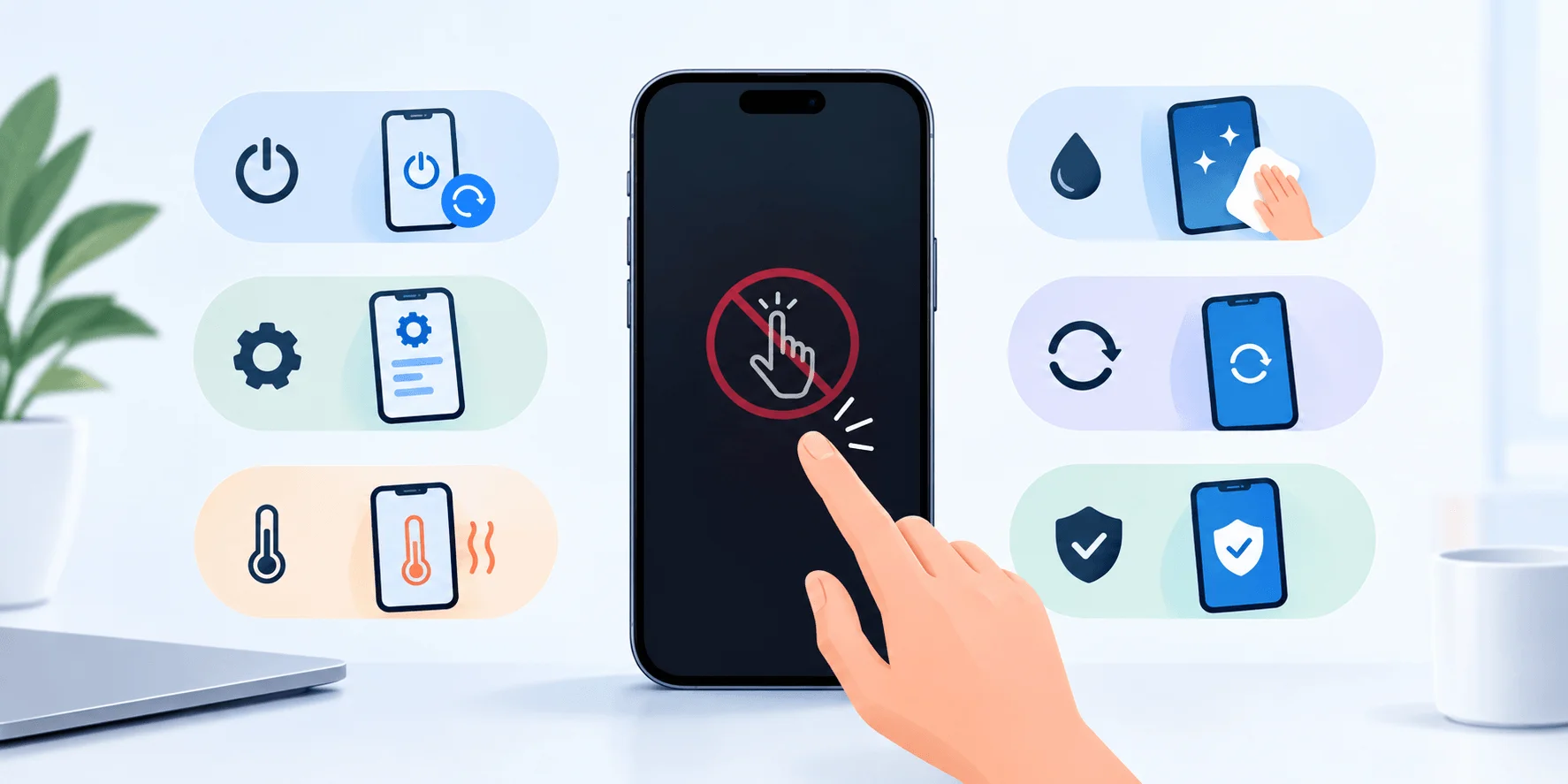
This is the part you came for. I'll walk you through fixes in order — easiest and free first, more involved later. Start at step one, don't skip ahead, and test your screen after each step.
Step 1: Clean Your Screen
Grab a clean phone screen microfiber cloth and gently wipe the entire display, edge to edge. Fingerprints, grease, and condensation mess with touch sensitivity more than you'd think.
While you're at it:
Remove phone case screen covers pressing against the edges
Take off your screen protector temporarily to rule it out
Dry your hands completely before testing
Step 2: Force Restart Your Phone
This is the MVP fix for most touch issues. A force restart phone clears memory, kills frozen processes, and reloads your touch driver from scratch — no screen contact needed.
For iPhone (Face ID models):
Quickly press and release Volume Up
Quickly press and release Volume Down
Press and hold the Side button until the Apple logo appears
For most Android phones:
Hold Volume Down + Power simultaneously
Hold for 7–10 seconds until it reboots
This single step fixes the majority of touch issues on both platforms.
Step 3: Boot Into Safe Mode (Android) to Catch a Rogue App
Safe mode Android disables all third-party apps temporarily, running only core system essentials.
Press and hold the power button
Long-press "Power off" until the safe mode prompt appears
Tap OK to reboot
If your touch screen malfunction disappears in safe mode, one of your recently installed apps is the problem. Uninstall recent apps one by one until it's resolved.
Step 4: Check for Software Updates
Manufacturers regularly push fixes targeting touch screen lag and driver bugs through routine software updates.
iOS: Settings > General > Software Update
Android: Settings > System > System Update
Step 5: Wipe the Cache Partition (Android Only)
A corrupted system cache can trigger a touch driver reload issue. Wiping it forces a clean rebuild — no personal data is deleted. iPhone users dealing with similar sluggishness should check out how to clear cache on iPhone for the equivalent process.
Power off your device completely
Hold the recovery-mode key combo for your device (commonly Volume Up + Power, or Bixby + Volume Up + Power on Samsung)
Navigate to "Wipe Cache Partition" using Volume keys
Confirm with the Power button
Reboot
Step 6: Use Your Phone Without Touch (Emergency Access)
If your screen is completely dead and you need to back up data before a reset:
For Android: Connect an OTG mouse Android adapter — this lets you navigate using a standard USB mouse. Google's own ADB documentation confirms adb shell input tap commands can simulate touch input from a connected computer.
For iPhone: Activate Siri voice control by holding the Side button. If previously enabled, AssistiveTouch iPhone lets you navigate using on-screen buttons that respond independently of the main digitizer.
Step 7: Factory Reset (Last Software Resort)
A factory reset phone wipes everything and reinstalls a clean OS, resolving any software-caused touch issue that survived earlier steps.
Important: a factory reset will not fix physical hardware damage. If your digitizer is cracked or disconnected, this step does nothing.
Before resetting: back up everything possible (using Step 6 if needed), and understand this erases the entire device.
Step 8: Rule Out Water Damage Immediately
If your phone got wet, stop everything and do not charge it. Apple's official support documentation explicitly warns that charging a device with suspected water damage can cause permanent damage.
Power off immediately — don't try to restart it
Remove any case or accessories
Dry the exterior gently with a soft cloth
Leave it unplugged and undisturbed for 24–48 hours in a dry environment
How to Test for Touchscreen Dead Zones
Before writing off your phone as broken, confirm whether you're dealing with a genuine dead zone screen or a temporary glitch.
Open a drawing or notes app
Draw a continuous line across every inch of the screen, slowly
Note any areas where the line breaks or doesn't register
Repeat 2–3 times to confirm consistency
If the same spot fails every time, that's a genuine hardware indicator:
A strip near the edge often points to a partially detached ribbon cable
A central patch more commonly indicates digitizer damage
When to Get Professional Screen Repair
If you've tried every fix above and your phone screen unresponsive after drop or phone screen unresponsive after update issue persists, it's time for professional screen repair.
Consider repair when:
You've confirmed a consistent dead zone through testing
The issue started right after a physical drop
Your phone was submerged and hasn't recovered after drying
You see visible cracks near the display edges
Force restart, safe mode, and factory reset all failed
Screen digitizer replacement costs vary by device — check whether your model qualifies for a free-repair program like Apple's Service Programs, which have historically covered documented touchscreen defects on certain iPhone models. Check Apple's official support page with your serial number before paying out of pocket.
FAQ
Does a factory reset fix an unresponsive touchscreen?
Yes, but only if the cause is software-related. A factory reset will not repair a physically damaged digitizer or a disconnected ribbon cable.
Can water damage cause permanent touch failure?
It can, especially if the device is charged before fully drying. Power off immediately and let it dry for 24–48 hours before attempting to turn it back on.
Why did my screen stop responding after a software update?
Buggy updates occasionally introduce touch driver conflicts. A force restart or waiting for the next patch usually resolves it.
How do I know if it's a dead zone or a full software freeze?
Run the dead zone test above. If specific areas consistently fail while others work, it's hardware. If the entire screen is unresponsive, it's more likely software.
Can I use my phone if the screen won't respond at all?
Yes — Android users can connect a USB mouse via an OTG adapter, and iPhone users can use Siri or previously-enabled AssistiveTouch to navigate without touch.
How much does it cost to fix a touchscreen digitizer?
Costs typically range from $80–$350+ depending on the device model and whether it's done by an authorized service center or third-party repair shop.
Is it safe to charge a phone with a wet or unresponsive screen?
No — if water exposure is suspected, avoid charging until the device is fully dry, per Apple's official guidance.
Final Thoughts
A phone touch screen not working situation feels like a crisis, but statistically you're far more likely dealing with a software hiccup than a broken phone.
Start simple: clean the screen, force restart, and work down this list methodically. Don't jump to a factory reset out of frustration — you might erase your data over something a 10-second restart would've solved.
And if it does turn out to be hardware? Now you know exactly what to say when you walk into that repair shop.
Written by
Alex
Creative blogger sharing insights, stories, and fresh ideas.