What Is a Motherboard? Full 2026 Guide (Simple)


Quick Answer: A motherboard is the main printed circuit board inside a computer that connects and powers every core component, including the CPU, RAM, storage drives, and graphics card, so they can communicate as one system. It also handles power distribution and data transfer between all your hardware. You'll also hear it called a mainboard, system board, or "mobo."
If you've ever cracked open a computer case and stared at that big board covered in slots, wires, and tiny chips, you've met the motherboard. And honestly? It's the one component that doesn't get nearly enough credit.
I want to walk you through exactly what a motherboard is, what it does, and why it matters when you're building or upgrading a PC in 2026. No jargon-soup. No skimming past the important parts. Just a clear breakdown you can actually use.
By the end of this guide, you'll know your CPU socket from your chipset, your ATX from your Mini-ITX, and you'll be able to shop for one without feeling lost. If you're picking parts for a full build, it's worth pairing this with our guide on how to build a PC and our CPU buying guide once you're ready for the next step.
And once your hardware is set, it's worth understanding Secure Boot, a BIOS-level feature that protects your system during startup.
Let's get into it.
What Is a Motherboard, Exactly?
Here's the short version: a motherboard is the main printed circuit board inside a computer, and it's the reason every other part of your PC can actually talk to each other.
Think of your computer as a city for a second. Every building needs roads connecting it to every other building, right? That's basically what a motherboard does.
It connects and powers every core component, the CPU, RAM, storage drives, graphics card, and all your peripherals, so they work as one system. You'll also hear it called a mainboard, system board, or just "mobo" if you're hanging around PC building forums.
The motherboard performs two massive jobs at once. It distributes power from your power supply to every piece of hardware plugged into it, and it transfers data and instructions between all those components. Without it, your CPU has nowhere to plug into, your RAM has no home, and your graphics card is just an expensive paperweight.
Pretty important piece of hardware, wouldn't you say?
Why the Motherboard Matters More Than You Think
Most people focus all their attention on the CPU or the GPU when building a PC. I get it, those parts feel exciting. But the motherboard quietly decides what you're allowed to do with everything else.
It determines which processors you can install, how much memory you can add, how many drives you can connect, and how well your system handles future upgrades. Skimp on the motherboard, and you'll hit a wall fast. Choose wisely, and your PC has room to grow for years.
So before you fall in love with a flashy CPU or GPU, it's worth understanding the board that has to support them.
The Core Components of a Motherboard
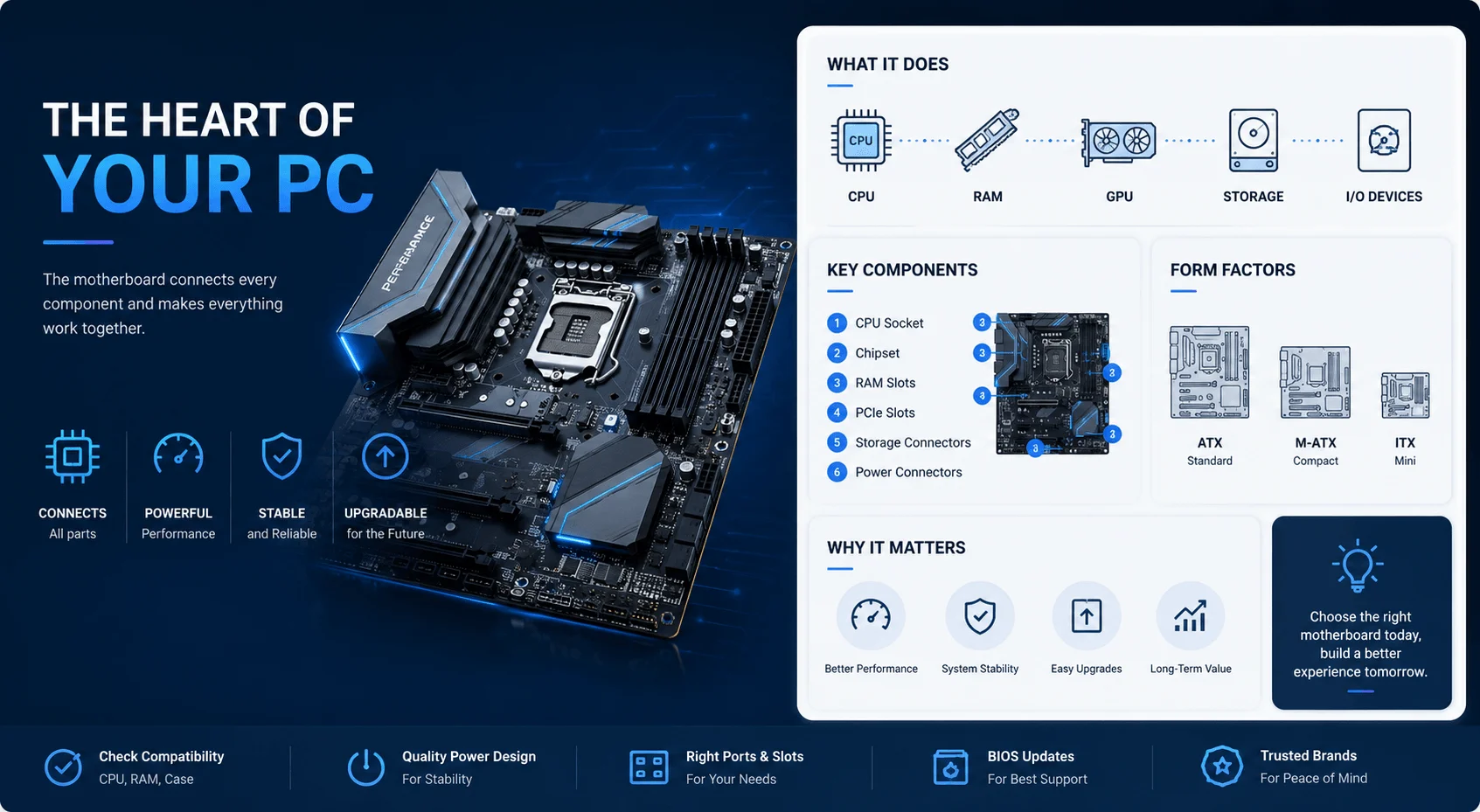
Every motherboard, no matter the brand or price point, is built around a handful of essential parts. Let's break each one down so you know exactly what you're looking at.
The CPU Socket
The CPU socket is arguably the single most important spot on the board. It's the slot where your processor physically sits, often described as the seat for the "brain" of your computer, since the CPU handles nearly all the calculations that make your PC function.
Here's the catch: sockets aren't universal. Intel and AMD use completely different designs, and sockets change across generations. As of 2026, common examples include AM5 for AMD's current Ryzen lineup and LGA1700 (with newer Intel platforms moving to LGA1851) for Intel. If your CPU's socket doesn't match your motherboard's socket, they simply won't fit together. No exceptions.
The Chipset
Next up is the chipset, and this one trips up a lot of beginners.
Think of the chipset as the motherboard's traffic controller. It manages how data flows between your CPU, memory, storage, and other components, and it has to be compatible with your specific processor to function properly.
Different chipset tiers unlock different features. Higher-end chipsets like Intel's Z-series are built for overclocking and typically offer more PCIe lanes and connectivity compared to more budget-friendly B-series boards. So when two motherboards look almost identical, the chipset is often where the real differences hide.
RAM Slots (DIMM Slots)
These are the slots where your RAM sticks click into place. More slots mean more flexibility later if you want to add memory. Most modern boards give you two to four slots, depending on board size.
Expansion Slots (PCIe)
PCIe slots are where your graphics card, sound card, and other add-in components plug in. The number and type varies a lot by motherboard size and price, so check this closely if you're planning a dedicated GPU.
Storage Connectors: SATA and M.2
For storage, you'll typically see two connection types. SATA ports handle traditional hard drives and older SSDs, while M.2 slots support faster NVMe drives. If speed matters to you, prioritize a board with enough M.2 slots for your needs.
BIOS and CMOS
Here's a part that quietly runs the show every time you turn your computer on.
The BIOS (Basic Input/Output System) is firmware stored right on the motherboard. It's the first piece of software that runs when you power up your PC, kicking off the boot process before handing control to your operating system.
Right alongside it sits the CMOS battery, a tiny battery that keeps your BIOS settings and system clock intact even when unplugged. When your computer runs a quick diagnostic called POST (Power-On Self-Test) at startup, it's confirming that all your motherboard components are present and communicating correctly before your OS even loads.
If your PC ever fails to boot and beeps at you in a strange pattern, this is usually the system talking to you through POST.
Power Connectors and I/O Ports
Finally, you've got the power connectors, which supply electricity from your power supply unit to the board, and the I/O ports along the back edge, where you plug in your keyboard, mouse, monitor, USB devices, and network cable.
Motherboard Form Factors: Does Size Really Matter?
Yes, actually, quite a bit. The physical size of your motherboard, known as its form factor, determines what case it fits into and how much room you have for expansion. Here's how the most common options compare:
Form Factor | Size | Expansion Slots | Best For |
|---|---|---|---|
ATX | 305mm x 244mm | 7–8 | Gaming rigs, workstations, most builds |
Micro-ATX | 244mm x 244mm | 4–6 | Single-GPU builds, budget systems |
Mini-ITX | 170mm x 170mm | 1–2 | Compact, space-saving PCs |
E-ATX | 305mm x 330mm | 7–8+ | High-end workstations, multi-GPU builds |
ATX gives you the most room for expansion slots, RAM, and features, making it the go-to choice for gaming and productivity builds.
Micro-ATX shrinks things down while keeping most of the core technology, though you'll usually get fewer PCIe lanes, better suited to single-GPU setups.
Mini-ITX is the smallest common option, built for compact builds. You'll sacrifice expansion room but gain a smaller, often more budget-friendly system.
E-ATX sits above standard ATX, aimed at high-end workstations that need extra slots and features.
So which one should you pick? It comes down to what you're building and where it's going to live.
How to Choose the Right Motherboard: A Step-by-Step Guide
Feeling a little overwhelmed? Let's simplify this into a process you can follow.
Step 1: Start with your CPU. Decide on your processor first. This narrows down your socket type immediately, whether that's AM5, LGA1700, or something newer.
Step 2: Match the socket. Double-check the motherboard's socket matches your CPU's socket exactly. This isn't a "close enough" situation.
Step 3: Pick your chipset tier. Decide whether you need overclocking support and extra PCIe lanes (higher-tier chipset) or whether a standard chipset covers your needs.
Step 4: Confirm your form factor fits your case. Measure your case and match it against ATX, Micro-ATX, Mini-ITX, or E-ATX dimensions before buying.
Step 5: Count your expansion needs. Think ahead. How many drives, graphics cards, or add-in cards do you realistically want?
Step 6: Check your RAM requirements. Look at how many RAM slots the board offers and what maximum memory capacity it supports.
Step 7: Review the I/O and connectivity. Glance at the rear I/O panel. USB ports, networking, and audio jacks matter more once you're using the machine daily.
Follow those seven steps, and you'll avoid the most common (and most expensive) mistakes people make when picking a motherboard.
Common Motherboard Mistakes to Avoid
Don't buy a CPU and motherboard separately without triple-checking socket compatibility. It's the most common mistake new builders make.
Don't assume every motherboard within a form factor has identical features. Two ATX boards from different brands can have very different chipsets, port counts, and quality.
Don't ignore the case you already own, or plan to buy, when picking your form factor. A gorgeous E-ATX board does you no good if it won't physically fit.
And if you ever run into random boot or update failures after a hardware change, it's not always the motherboard itself, sometimes it's a software conflict. Our guide on how to fix Windows update errors covers a few common causes worth ruling out first.
Frequently Asked Questions
What does a motherboard actually do?
A motherboard connects and powers every core component in your computer, including the CPU, RAM, storage, and graphics card, while managing the flow of data between them.
Is a motherboard the same as a mainboard?
Yes. Motherboard, mainboard, system board, and "mobo" all refer to the same component.
What's the most important factor when choosing a motherboard?
CPU socket compatibility comes first, followed closely by chipset features and form factor.
Can I upgrade my motherboard without changing my CPU?
Only if the new motherboard uses the same socket and chipset generation as your current CPU. Otherwise, you'll need a new processor too.
What's the difference between ATX and Micro-ATX?
ATX is larger with more expansion slots (7–8), while Micro-ATX is more compact with fewer slots (4–6), making it a solid choice for smaller, simpler builds.
Wrapping Up
At the end of the day, the motherboard is the quiet organizer behind everything your computer does. It's not flashy, and it rarely gets the spotlight. But every component in your build depends on it.
Now that you understand the sockets, chipsets, form factors, and the step-by-step process for choosing one, you're in a much stronger position to build a PC that fits your needs, both today and years down the road.
Written by
Alex
Creative blogger sharing insights, stories, and fresh ideas.