How to Change Margins in Google Docs (Step-by-Step Guide)


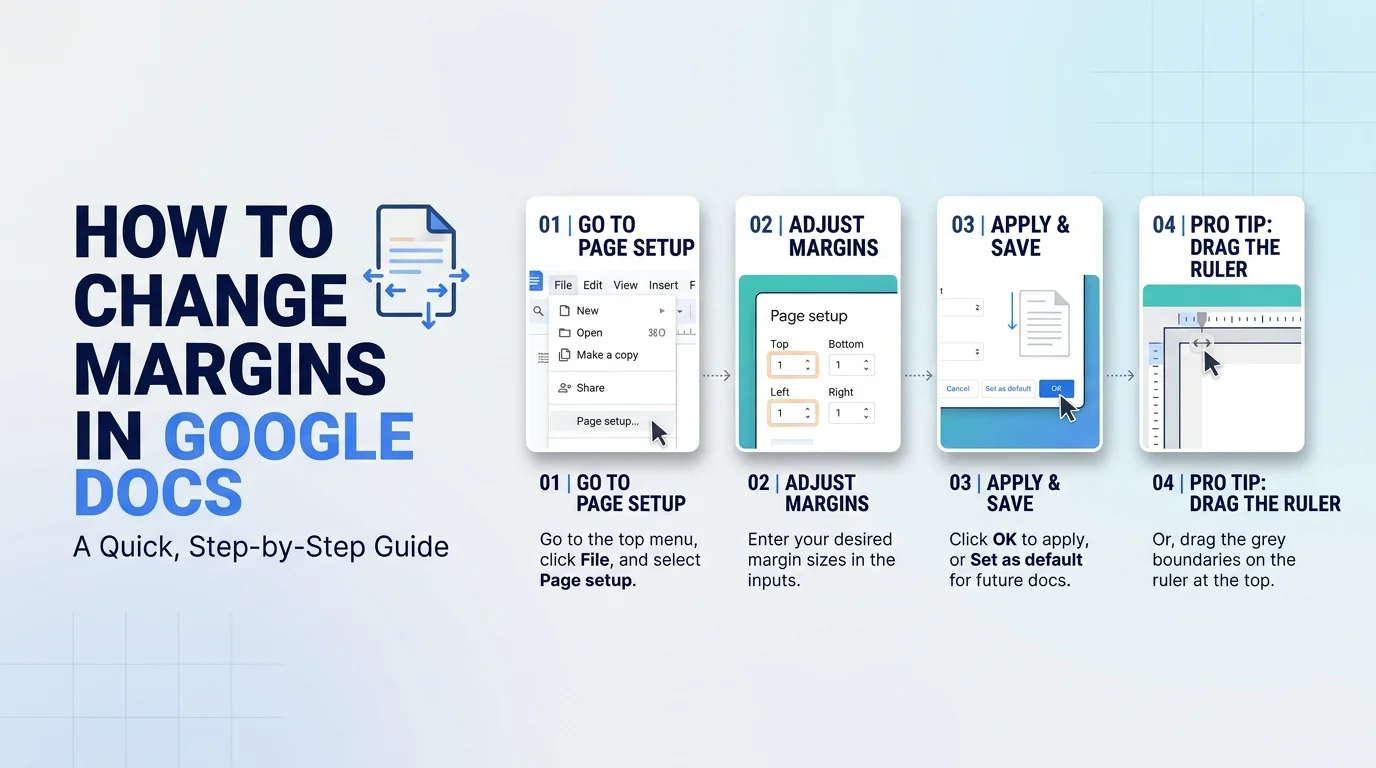
How to change margins in Google Docs open File > Page setup, select Pages, enter your top, bottom, left and right values, and click OK. You can also drag the ruler for a quick tweak. The default is one inch on every side.
Let me be honest with you: Google Docs margins drive people nuts.
One stray line spills onto page two, and your whole document formatting falls apart.
I've fixed this more times than I can count. Good news, though. You only need about two minutes.
Which Method Should You Use?
Before you click anything, pick the right tool for the job. Each approach has a clear strength, and choosing well saves you from redoing work. This table compares them, based on the sources I checked for this guide. Skim it, then jump to the section you need.
Method | Best for | Precision | Where it works | Saves as default? |
|---|---|---|---|---|
Page setup | Exact custom margins | High | Desktop browser | Yes |
Ruler | Quick visual fixes | Low | Desktop, Pages format | No |
Section break plus Apply to | Different margins in one file | High | Desktop browser | Per section |
iPhone app | Edits on the go | Medium | iPhone | No |
Android app | Not available | None | Android | No |
What Margins Actually Do in Google Docs
Here's the basic idea. Margins are the blank white space between your text and the page edge. Google's default of one inch suits most page layout needs. But resumes, school papers and print jobs often demand something else. So let's dig in.
Margins vs. Indents
Quick warning, because this trips up almost everyone. A margin sets the boundary for the whole page. An indent only shifts a paragraph. Zapier notes that the small rectangle on the ruler changes indentation, not margins. SelectHub makes the same point.
If indents are what you actually need, read my guide to the hanging indent in Google Docs.
Method 1: Change Margins With Page Setup
This is my first choice. Why? Because it's precise.
You type exact numbers, and Google Docs obeys. If you need a clean print preview, start here.
Step by Step: Set Exact Margins
This takes about thirty seconds. I'm using the desktop browser, which 9to5Google also uses.
Open your document on a computer.
Click File, then Page setup.
Choose Pages at the top if you don't see margin fields.
Enter the top margin, bottom margin, left margin and right margin.
Click OK.
Made a mistake? Press Ctrl+Z (Cmd+Z on a Mac). Help Desk Geek recommends undo right after a ruler tweak, and it works here too.
Save Your Margins as the Default
Here's where most people leave time on the table. If you always use the same layout, why redo it every time?
In the same dialog, click Set as default before you press OK. Technobezz spells out the order: choose Pages, enter your values, click Set as default, then confirm. Every new doc then starts with your default margins.
Method 2: Drag the Ruler for a Quick Fix
Sometimes you don't need math. You just need that last orphan line to disappear.
The ruler is fast and visual, but less accurate. 9to5Google notes it can't set a default.
Click View, then Show ruler.
Drag the small triangle at either end of the horizontal ruler.
Hover over the top of the vertical ruler until the arrow appears, then drag up or down.
Ruler missing? How2Shout says Pageless mode hides it, and Suggesting mode can act strangely.
Why Margin Settings Disappear in Pageless Mode
Ever opened Page setup and found no margin boxes? Don't panic. You probably switched to Pageless mode. This layout removes page boundaries, and Google's help page treats it as a separate format from pages.
How to Switch Back to Pages Format
Go to File, then Page setup.
Click Pages at the top.
Press OK.
Reopen Page setup and enter your margins.
TechRepublic and Boise State's IT team describe the same toggle. Prefer a reading friendly layout? Stay in Pageless, but 9to5Google warns it isn't ideal for printing.
How to Set Different Margins for Different Sections
Say your cover page needs wide margins, but the body needs narrow ones. You can do that with a section break. InfoInspired confirms that section breaks let you apply different page setups within one file.
Step by Step: Use a Section Break
Order matters here. Insert the break first, then change the margins. Otherwise, your edit hits the whole document.
Place your cursor where the new layout should begin.
Click Insert, then Break.
Choose Section break (next page) or Section break (continuous).
Open File, then Page setup.
Under Apply to, pick the section. Google's help text lists "This section" and "This section forward".
Enter your margins and click OK.
Pro Tip: Reveal Hidden Breaks
Go to View, then Show non printing characters. InfoInspired says breaks appear as blue labels you can delete.
Can You Change Margins on Your Phone?
It depends on your device. Frustrating, I know.
On an iPhone, yes. Zapier's guide says to tap the More icon, choose Page setup, then tap Margins.
On Android, Zapier and Nira both report the mobile app has no margin controls. Apps update often, so check your version. If you're stuck, use a desktop browser.
Frequently Asked Questions
How do I change margins in Google Docs?
Open File > Page setup, select Pages, enter your four margin values and click OK. For a faster, less exact fix, show the ruler from the View menu and drag its triangles.
What are the default margins in Google Docs?
The default is one inch on all four sides. You can change that for new documents by clicking Set as default in the Page setup dialog.
Why can't I change margins in Google Docs?
Your document is probably in Pageless mode, which hides page margin controls. Switch to Pages under File > Page setup, then try again.
Can I set different margins on one page?
Margins apply per section, not per line. To give one page its own margins, put its content in a separate section and use Apply to in Page setup.
Can I change margins in the Android app?
According to Zapier and Nira, no. The iPhone app offers a Margins option, but Android doesn't, so use a computer.
Change Your Google Docs Margins Today
Here's the truth. Margins feel tiny, but they shape how readable, professional and print ready your work looks.
You now have four tools: Page setup, the ruler, section breaks and Set as default. Pick one and use it today.
Start with the default. Open a fresh doc, set your ideal margins, click Set as default, and never fight a bad layout again. Future you will thank you.
Want to keep polishing your document? Check your length with this guide to seeing the word count in Google Docs, and tidy your spacing with my tutorial on double spacing in Word.
Written by
Alex
Creative blogger sharing insights, stories, and fresh ideas.