How to Install Memory in Laptop: The Complete Guide (2026)


How to install memory in laptop, first confirm your RAM isn't soldered, then buy a matched SODIMM kit that fits your laptop's DDR4 or DDR5 type. Power down, unplug, open the bottom panel, and click the new sticks in at roughly 45 degrees. Boot up and check Settings, System, About.
Your laptop isn't dying. It's starving.
I've watched people drop $1,000 on a new machine when a cheap memory kit would have fixed everything. That's painful. So I'll walk you through every step, even if you've never opened a laptop before. Ready? Let's go.
Why a Laptop RAM Upgrade Beats Buying a New Machine
Before you grab a screwdriver, you need to know why this upgrade is worth your time. Memory is your laptop's short term workspace for apps, tabs and files. When it runs out, everything crawls. A laptop RAM upgrade is one of the cheapest, fastest ways to fix that, and honestly, it feels like magic.
Here's what you get:
Smoother multitasking with dozens of browser tabs open
Faster app switching in editing and design tools
A longer life for a laptop you already own
Laptop Mag notes that more RAM can rescue a sluggish older laptop, or a newer one that bogs down under too many tabs. If your machine is slow and not ancient, memory should be your first suspect. Planning a gaming rig on a budget instead? Browse these best cheap gaming laptops, since many of them keep upgradeable memory slots.
Step Zero: Check Whether Your Memory Is Upgradeable
Stop. Don't buy anything yet.
This is where most people go wrong. Some laptops use soldered RAM, which is fused to the motherboard. Others use removable SODIMM sticks. A few mix both. Spend two minutes checking now, and you'll save money later.
Use Task Manager
Press Ctrl + Shift + Esc, or follow this guide on how to open Task Manager if the shortcut doesn't work. Then open Performance and click Memory. Tom's Hardware says a "Form factor" reading of SODIMM means your RAM is socketed and replaceable. Atera adds a tell: "Slots used" showing 0 of 0 almost certainly means soldered memory.
Confirm With the Manufacturer
Never rely on one signal. Look up your exact model's spec sheet. Acer's knowledge base explains how, and if the spec says "soldered" or "onboard," you can't upgrade. Many gaming laptops are upgradeable, while plenty of slim ultrabooks aren't.
Soldered vs SODIMM vs LPCAMM2: Which One Do You Have?
You'll run into three memory types, and knowing yours saves you from buying the wrong thing. Soldered memory is permanent, SODIMM is the classic removable stick, and LPCAMM2 is the newer replaceable module. Here's how they compare.
Feature | Soldered RAM | SODIMM | LPCAMM2 |
|---|---|---|---|
Upgradeable | No | Yes | Yes |
Typical memory type | LPDDR5 or LPDDR5X | DDR4 or DDR5 | LPDDR5X |
Fits a SODIMM slot | Not applicable | Yes | No |
Best for | Thin ultrabooks | Gaming and mainstream laptops | Newer premium laptops |
The first two rows come from Acer's soldered vs unsoldered breakdown. On LPCAMM2, Crucial says its LPDDR5X data rate of 7,500 MT/s moves 1.34x more data than standard 5,600 MT/s DDR5 SODIMM. The Register reported that Lenovo's ThinkPad P1 Gen 7 was the first laptop to use it. ServeTheHome confirms LPCAMM2 won't slot into a SODIMM socket.
How to Pick the Right Memory
Compatibility decides whether your new stick works or just sits there. Match your laptop's generation, either DDR4 or DDR5, and respect its maximum supported speed. Pop the wrong type in and it simply won't fit. If speed ratings confuse you, read this explainer on what RAM speed means before you shop.
My quick process:
Run your exact model through a memory advisor tool. Laptop Mag recommends Crucial's for max capacity and slot count.
Match the generation: DDR4 or DDR5.
Buy a matched two stick kit.
That last step matters. Tom's Hardware explains that a matched pair runs in dual channel mode, which performs better and reduces stability problems. One stick works, but a kit is the smarter play.
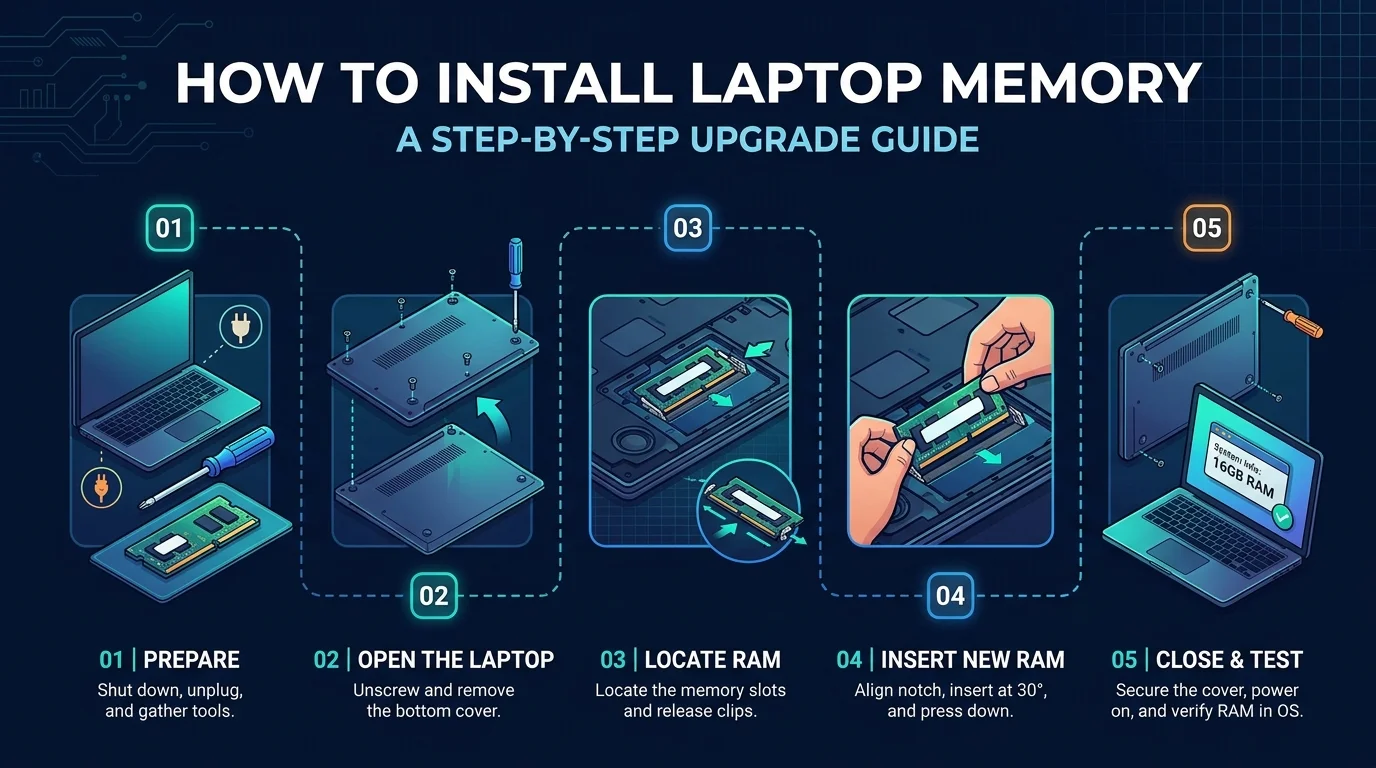
How to Install Memory in a Laptop: 8 Steps
Alright, you've confirmed your laptop is upgradeable and your sticks are on the desk. Now the fun part. In my experience it takes 15 to 20 minutes, and you can't go wrong if you move slowly. Work somewhere static safe, and keep a small tray for screws.
Power down completely. Shut the laptop off and unplug the charger. Don't just close the lid.
Remove the bottom panel screws. Corsair suggests a magnetic tray, but a coffee mug works.
Pry the panel off gently. Use a thin plastic spacer. Corsair warns that metal tools can scratch or bend the panel.
Peel back any memory cover. Don't tear it, because it protects your modules.
Release the old stick. Push the side clips outward. Windows Central says to pull the module out at an angle, not straight up.
Insert the new stick. Line up the notch and slide it in at roughly 45 degrees, as Technibble's illustrated guide describes.
Press down until it clicks. The clips lock on their own.
Reassemble and boot. Replace the covers and panel, then power on.
One more tip. Hold the module by its edges and never touch the gold contacts. Kingston's SODIMM guide says to use both hands on the top corners and avoid pressing on the chips.
While the back panel is off, take a minute to look at the fan. Dust buildup is a common reason laptops run slow and hot, so follow this guide to clean your laptop fan before you close everything up.
How to Confirm It Worked (and Fix Problems)
You're almost there. Before celebrating, verify the upgrade. It takes ten seconds. Go to Settings, System, About, and Tom's Hardware says the installed RAM should match what you expected.
If something's off, try these fixes:
Missing capacity: Power off, reopen the panel, and reseat the stick firmly.
Memory mismatch message: Enter setup, then select Save and Exit. Technibble notes many laptops require this after a RAM change.
Won't boot: Remove the new stick and test it alone to rule out a bad module or a compatibility issue.
Frequently Asked Questions
Can I upgrade the RAM in any laptop?
No. Laptops with soldered memory can't be upgraded. Check your model's spec sheet first.
How do I know if my laptop uses DDR4 or DDR5?
Look up your exact model with a memory advisor tool, or check the spec sheet. The generations aren't interchangeable.
Do I need two RAM sticks?
Not strictly. However, a matched kit enables dual channel performance and is easier to troubleshoot.
Is it safe to install RAM myself?
Yes, if you power down, unplug and handle the module by its edges. Windows Central describes it as safe and simple when you're careful.
Will adding RAM void my warranty?
It depends on your manufacturer. Check your warranty terms before you open the panel.
Why I'd Buy the Upgrade Today
Here's my honest take. You can keep fighting a slow laptop, or you can spend a small fraction of a new machine's price and get a snappier one. The install is simple, the payoff is immediate, and you keep your files and your setup.
In your shoes, I'd do this tonight:
Check your RAM is upgradeable
Confirm your DDR4 or DDR5 type
Order a matched kit from a trusted brand with a warranty
By tomorrow morning, your laptop could be flying, and you'll wonder why you waited.
Final Thoughts
Installing laptop memory is easier than it looks. Check upgradeability, match your type, stay static safe and take your time. Now open Task Manager, check your form factor, and find your kit.
Written by
Alex
Creative blogger sharing insights, stories, and fresh ideas.