Docking Station for Laptop: The 2026 Buyer’s Guide


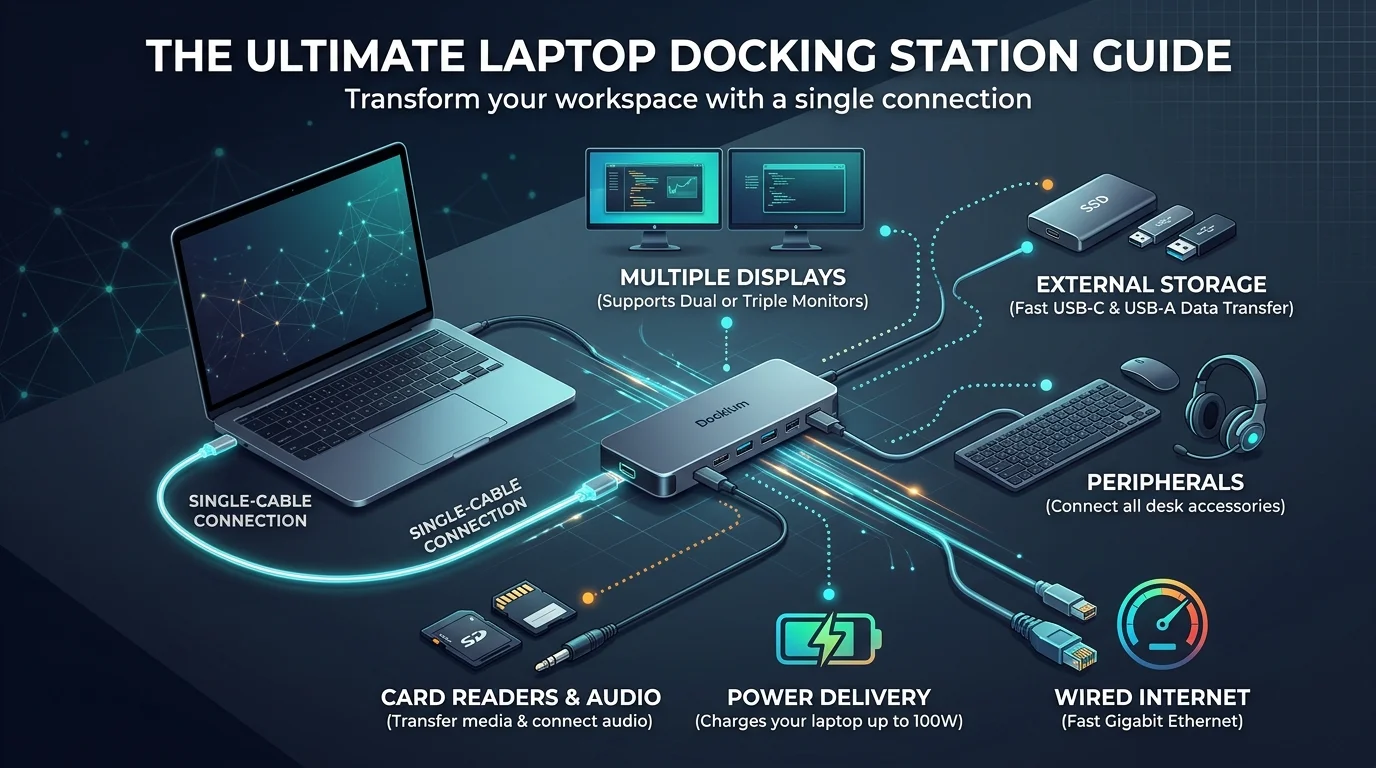
A docking station for laptop setups turns one USB-C or Thunderbolt port into a full desk. You get monitors, charging, Ethernet and peripherals through a single cable. Choose Thunderbolt 4 for reliability, Thunderbolt 5 for future proofing, or a DisplayLink dock for extra screens on a Mac. Then match the dock's wattage to your laptop charger.
I used to plug in six cables every morning. Six! Now it's one. Let me show you how to choose yours.
What Is a Docking Station (and Why You Need One)
A laptop docking station is the closest thing to a desktop replacement you can buy without buying a desktop. Plug in once, and your external monitors, keyboard, mouse, Ethernet and charger all connect together. No more daily cable juggling. Honestly, you'll feel the difference on day one. Here's the part people get wrong, though.
A USB hub isn't a dock. TechRadar notes that Thunderbolt 4 docks supply more power than hubs. They also add audio jacks, SD readers and USB-A ports.
Hubs are for travel. Docks are for living.
Once your desk runs on a single cable, upgrade the rest of it too. A quality keyboard like the Logitech MX Keys S makes a docked workstation feel complete.
Thunderbolt 4 vs USB4 vs USB-C: Quick Comparison
All three share one oval connector, so you can't tell them apart by looking. But bandwidth decides how many monitors you can run and how fast your data transfer will be. Here's the cheat sheet, so you can skip the confusing spec sheets and see the differences side by side.
Port | Max bandwidth | Best for |
|---|---|---|
USB-C 3.2 | 5 to 10 Gbps | Basic hubs, one monitor |
USB4 | 20 to 40 Gbps | Budget multiple display setups |
Thunderbolt 4 | 40 Gbps | Reliable dual 4K |
Thunderbolt 5 | 80 Gbps (120 Gbps Boost) | Triple 4K, pro work |
The first Intel certified Thunderbolt 5 dock was Kensington's SD5000T5 EQ.
How to Check Your Laptop's Port (Step by Step)
Don't buy yet. Two minutes of checking now saves you a return label later. I've been the guy repacking a box. These four steps tell you exactly what your laptop can handle.
Look for the lightning bolt. A Thunderbolt symbol means Thunderbolt.
Open your spec sheet. Search for "USB4," "DisplayPort Alt Mode" and "Power Delivery."
Count your monitors. Note the resolution you want, too.
Check your charger wattage. It's printed on the brick.
DisplayLink vs Native Video: How Many Monitors Can You Run?
Your dock sends video one of two ways, and picking wrong means blank or choppy screens. Nobody wants that. So here's the plain English version, followed by my rule of thumb for each kind of user.
Native video (DisplayPort Alt Mode) goes straight from your GPU. It needs no driver and has low latency.
DisplayLink builds extra outputs from USB data. It's great for productivity screens, but a poor fit for fast gaming.
Docs and email: DisplayLink is fine.
Editing, CAD, gaming: go native Thunderbolt.
Older laptop without Alt Mode: DisplayLink can still work.
Need screen space away from your desk? Check our guide to the best portable monitor for laptop to pair with your dock.
Heads Up for MacBook Owners
Apple Silicon Macs are picky about multiple monitor setups. I'd hate for you to unbox a dock and see only one screen light up. So read this twice before buying.
On Windows, MST can split one stream into several displays. macOS typically won't turn that into independent desktops. That's why hybrid docks like the Plugable UD-6950PDZ mix one native output with two DisplayLink outputs.
Power Delivery: Don't Let Your Dock Starve Your Laptop
A dock that connects everything but can't charge your laptop is useless. Power delivery is the spec people forget, and it causes the "why is my battery draining while docked?" complaints. A minute of checking now keeps you charged all day, so let's keep this simple.
USB-C PD tops out at 100W. Your laptop sets the real limit, though, and some accept only 65W. Gaming or workstation laptop? Kensington's Thunderbolt 5 dock delivers up to 140W. Shopping for one? See our list of the best cheap gaming laptops.
My advice: pick a dock rated at or above your charger's wattage.
One more tip. If you keep your laptop closed while docked, airflow matters, so clean your laptop fan regularly.
Best Docking Stations to Buy Right Now
Is it worth the money? Short answer: absolutely. You save minutes daily, protect your laptop's ports from wear, and switch between home and office without a second thought. Over a year, that's hours back. So here's my shortlist, built from sources that actually tested these docks.
Best overall: CalDigit TS4, Technobezz's top Thunderbolt 4 pick.
Future proof power users: a Thunderbolt 5 dock like the Kensington above.
Hands on tested: PCWorld's Thunderbolt dock roundup.
Budget options: Anker's 2026 guide.
Docking Station FAQs
Still have questions? Good. These are the ones I hear most often, answered in plain language so you can decide quickly and move on. Each answer stands on its own, so skim to the one you need.
What is the difference between a docking station and a USB hub?
A dock supplies more power and offers more connections, such as audio jacks and SD readers. A hub is smaller and simpler.
Do docking stations work with MacBooks?
Yes. But Apple Silicon Macs have multiple monitor limits, so choose a hybrid DisplayLink dock for three screens.
How many watts do I need?
Match or exceed your charger's wattage. USB-C PD maxes at 100W, and Thunderbolt 5 docks can reach 140W.
Is Thunderbolt 4 better than USB4?
Both hit 40 Gbps. Thunderbolt 4 enforces stricter requirements, so it tends to work more consistently.
Is DisplayLink good for gaming?
No. It adds software processing and USB transport, so native video is better for fast motion.
Final Verdict: Get the Right Laptop Docking Station
Here's the bottom line. Check your port, count your monitors, match your wattage, and pick the dock that fits. That's it. A good laptop docking station gives you a cleaner desk, faster mornings and a single cable workflow you won't want to give up. Don't overthink it. Grab your dock today.
Written by
Alex
Creative blogger sharing insights, stories, and fresh ideas.