How to Create Forms in Google Forms: A Step by Step Guide for 2026

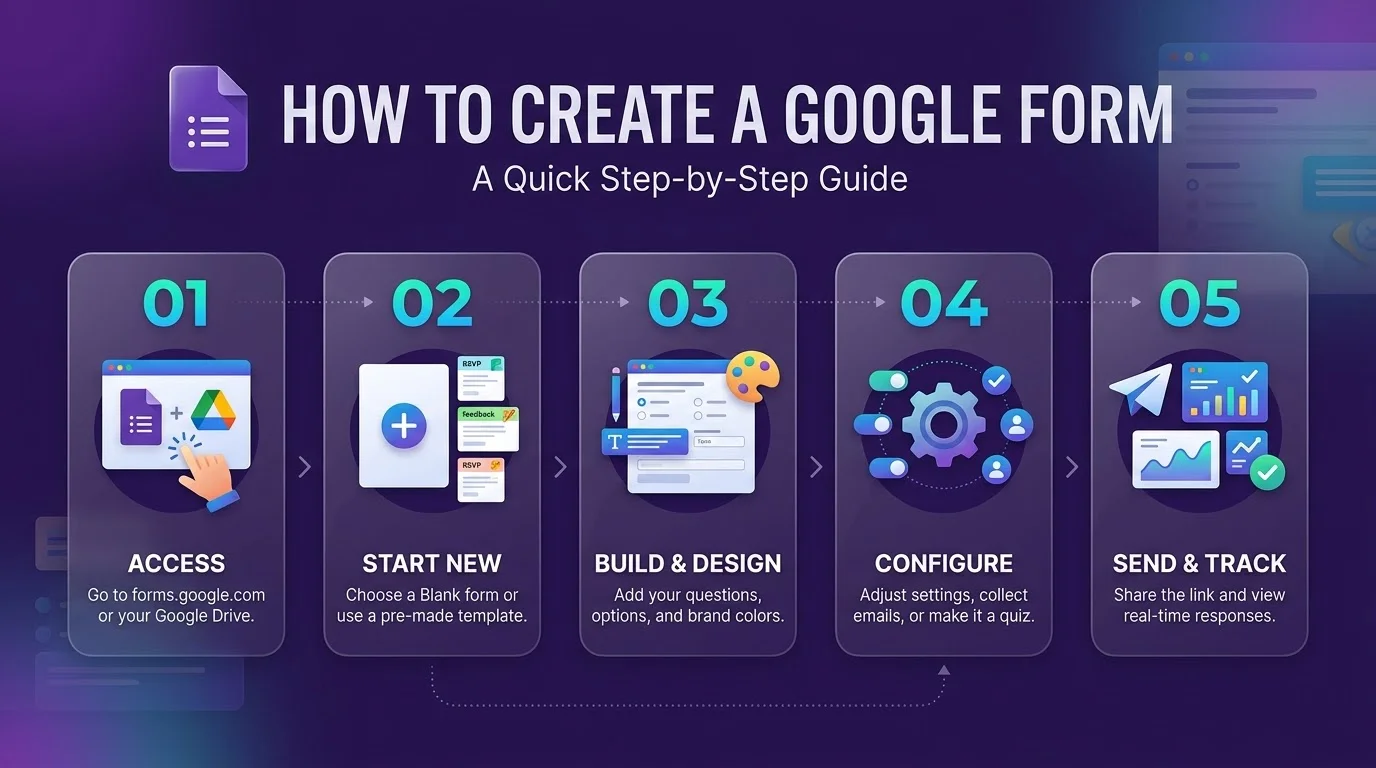
To create a Google Form, open forms.google.com, click Blank form, add your questions, preview it, and share the link. It takes about ten minutes, and every answer lands in Google Sheets automatically.
I've built a lot of forms over the years. Let me save you the trial and error.
Why Google Forms Is Worth Your Time
Honestly? I used to overthink this. I tested paid form builders, fought with pricing tiers, and lost a weekend to setup. Then I opened Google Forms and had a working online survey before my coffee got cold.
The tool is free with a Google account, and every change autosaves to Drive. You can also watch responses arrive in real time.
Here's the quick comparison I wish I'd had:
Google Forms | Dedicated form builders | Email or paper | |
|---|---|---|---|
Cost | Free with a Google account | Often a free tier, paid upgrades | Free, but slow |
Setup speed | Minutes | Minutes to hours | Hours |
Response storage | Google Sheets | Varies by tool | Manual entry |
Advanced design | Basic themes | Usually more control | None |
Pricing and features for other tools change, so check each vendor's site before you decide.
Step by Step: How to Create a Google Form From Scratch
Ready? This is where most people freeze, so I'll keep it dead simple. Follow these steps in order and you'll have a finished form in minutes. I'm assuming a desktop browser, though phones work too. Don't aim for perfect on the first pass. You can edit everything later.
Open Google Forms. Go to forms.google.com and sign in. You can also type
forms.newin your address bar.Pick a starting point. Click Blank form, or choose one of the Google Forms templates if you're short on time.
Name it. Click "Untitled form," then add a clear title and a one line description. Tell people why you're asking.
Add your first question. Type it in, then pick a question type from the dropdown.
Mark key questions as required. Flip the Required toggle so nobody skips the important stuff.
Style it. Open the palette icon to change colors, fonts, and the header image.
Preview it. Click the eye icon and test the form before sharing. Check it on your phone too.
Share it. Hit Send, then copy the shareable link, email it, or embed it on your website.
Show Image
Pro tip: keep your form short and test it on different devices. Fewer questions usually means more completed responses.
For Google's own walkthrough, see the official Create your first form in Google Forms Help Center article.
Choose the Right Question Type for Every Job
Picking the wrong question type quietly ruins good data. I've watched smart people ask for a rating in a paragraph box and then wonder why their results looked like spaghetti. Google Forms offers roughly a dozen formats, and the exact count varies by source and by interface updates. Match the format to the answer you want, and analysis gets ten times easier. Here's my cheat sheet.
Question type | Best for |
|---|---|
Short answer | Names, emails, one line replies |
Paragraph | Open feedback and comments |
Multiple choice | One pick from a list |
Checkboxes | Several picks from a list |
Dropdown | Long lists in a compact space |
Linear scale | Ratings, such as 1 to 5 |
Multiple choice grid | Rating several items at once |
File upload | Collecting documents or images |
Show Image
Want more examples? This Google Forms tutorial covers grids and uploads well. And if you need fun poll ideas, try a round of this or that questions.
Level Up With Quiz Mode, Sections, and Validation
Basic forms are fine. But once you've got the hang of it, you'll want more power. A few settings turn a plain questionnaire into a self grading, self routing tool. Best of all, each one is a click or two away.
Quiz mode: toggle on "Make this a quiz" and assign points. It works with multiple choice, checkbox, and dropdown questions, and grades automatically.
Form sections: break long forms into steps. Sections show a progress bar, which can help completion.
Branching logic: send people to different sections based on their answers. It works on multiple choice and dropdown questions, not on every type.
Response validation: reject bad data early. For example, require a valid email or keep ages between 18 and 100.
Limit to 1 response: stop duplicate submissions from the same account.
Notifications are off until you turn them on, so switch them on or you'll miss submissions. Google has also added an option to set a close date or response limit, so you don't have to shut the form manually.
Let Gemini Build Your First Draft
Staring at a blank page is awful, so why do it? Google has been adding Gemini to Forms so you can draft questions from a plain English prompt. Google's release notes mention suggested questions and summaries of text responses. Quiz generation from Drive files has also been rolling out in stages. Availability depends on your account and your admin's settings, so check yours before you count on it.
Try prompts like these:
"Registration form for a 5K charity run"
"Post event survey for a networking meetup"
"10 question biology quiz for high school students"
Then edit everything. Gemini has limits, so always review what it creates.
What to Do With Your Responses
You've collected answers. Now what? Open the Responses tab for a summary, individual responses, and a link to a spreadsheet. Visual summary charts help you spot trends fast. For deeper analysis, link the form to Google Sheets or export the data.
If you export to a spreadsheet, two of my other guides will help:
Clean messy data with how to remove duplicates in Excel.
Turn answers into visuals with how to create charts in Excel.
Writing a long intro or instructions block? Keep it tight. Here's how to see the word count in Google Docs while you draft.
Frequently Asked Questions
Still curious? Good. These are the questions I hear most, answered straight so you can get back to building.
Is Google Forms really free?
Yes. It comes free with a Google account, so you can create forms, collect responses, and view results without paying. Paid Google Workspace plans mainly add admin controls and extra Workspace features.
Where do my Google Forms responses go?
They appear in the Responses tab inside your form. You can also link them to a Google Sheet, where each submission becomes a new row.
How do I stop a form from accepting responses?
Switch off the accepting responses toggle on the Responses tab. You can also set a close date or response limit so it closes automatically.
Can I embed a Google Form on my website?
Yes. Click Send, choose the embed option, and paste the HTML code into your page. Test it on mobile afterward.
How do I make a Google Form quiz?
Open Settings, toggle on "Make this a quiz," then set correct answers and point values for each question.
Your Next Move
So here's the deal. Google Forms is free, fast, and flexible enough for surveys, quizzes, sign ups, and feedback. You've got the steps, the question types, and the advanced tricks. Nothing's stopping you now.
Open Google Forms, build your first form today, and share it before dinner. Seriously, go.
Written by
Alex
Creative blogger sharing insights, stories, and fresh ideas.