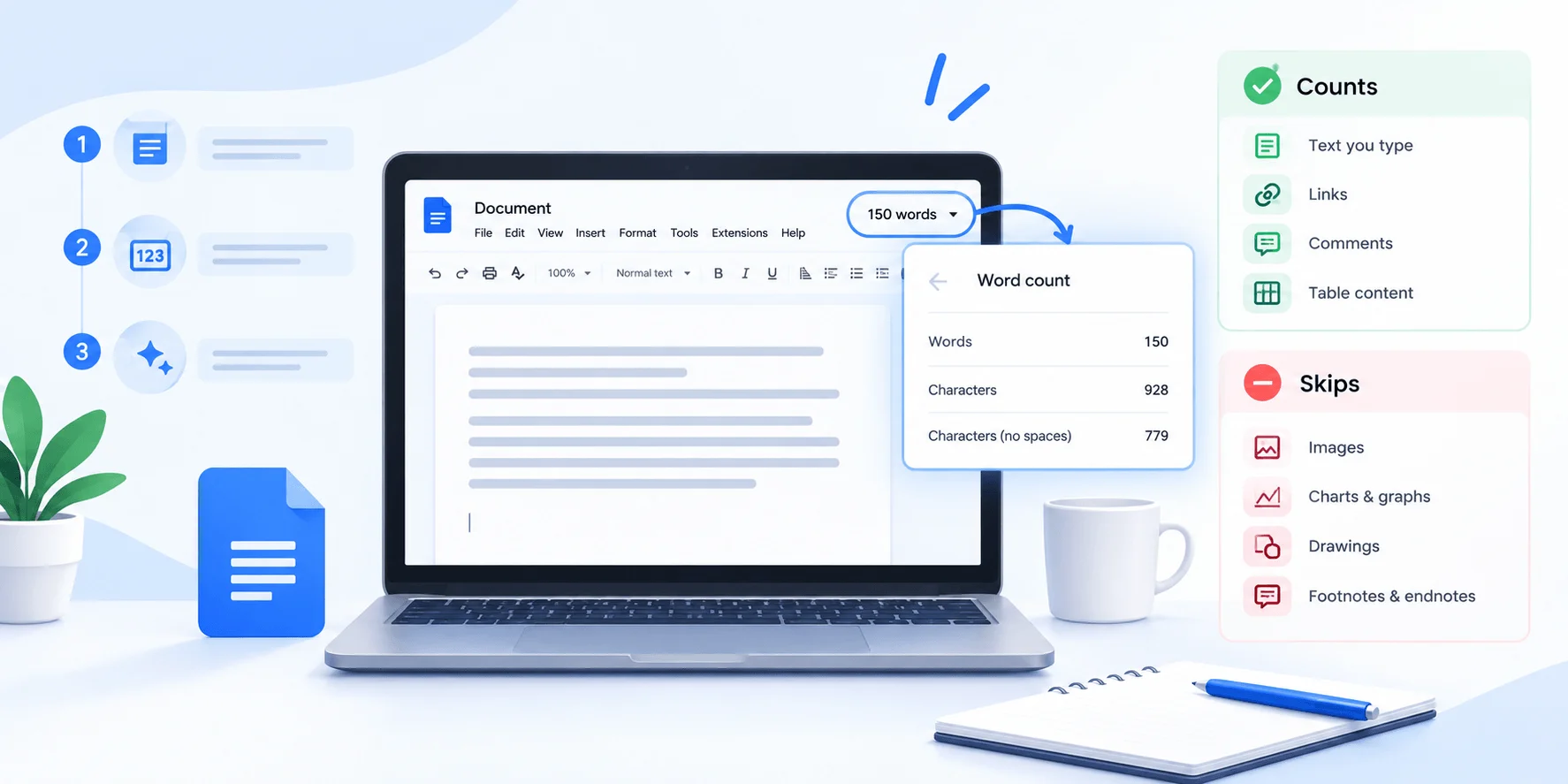
To see word count on Google Docs, click Tools → Word count, or press Ctrl + Shift + C (Cmd + Shift + C on Mac). To keep a live count on screen, tick "Display word count while typing." On the mobile app, tap the three-dot More menu, then Word count.
That's the short answer.
But if you've ever submitted an essay and had a teacher's count disagree with yours, stick around.
In this guide, I'll show you every way to check your Google Docs word count, and exactly what Google includes (and quietly skips).
Key Takeaways
Fastest method: Ctrl + Shift + C on Windows and ChromeOS, or Cmd + Shift + C on Mac.
Live counter: Tools → Word count → "Display word count while typing" puts a running total in the bottom-left corner.
Mobile: Tap More (⋮) → Word count in the Android or iOS app.
Excluded by default: Headers, footers, and footnotes, according to Google's official help page.
Tabs: The built-in counter only covers the tab you're currently on.
Not available: In Google Sheets, Google Slides, or Office Compatibility Mode.
Let's dive in.
All 6 Ways to See Word Count on Google Docs (Comparison Table)
Before we get into step-by-step instructions, here's the big picture. Google Docs gives you six ways to check your count, depending on your device and what you need. Some are built for speed, while others are better for tracking a target as you write. I've put them side by side so you can pick the right one in seconds. After the table, I'll walk you through each method in detail, starting with the one Google documents first.
Method | Device | How to Open It | Extra Stats Shown | Best For |
|---|---|---|---|---|
Tools menu | Desktop, Chromebook | Tools → Word count | Pages, characters (with and without spaces) | Full-document checks |
Keyboard shortcut | Windows, ChromeOS, Mac | Ctrl + Shift + C / Cmd + Shift + C | Pages, characters | Quick checks mid-draft |
Live counter | Desktop | Tick "Display word count while typing" | Click box for pages and characters | Essays and articles with limits |
Selected text | Desktop | Highlight text + shortcut | Characters for the selection | Section or answer limits |
Android app | Android | More (⋮) → Word count | Characters (with and without spaces) | Checking on the go |
iPhone & iPad app | iOS, iPadOS | More (⋮) → Word count | Characters (with and without spaces) | Checking on the go |
Why Your Google Docs Word Count Matters
A word count is often the difference between "accepted" and "sent back." Teachers set minimum word counts for essays, while grant programs and job applications cap you at a maximum. In fact, Indeed's career guide notes that funding applications, grant proposals, and bid writing frequently come with strict word guidelines. And if you write for the web, content length affects how thoroughly you can cover a topic.
So knowing where the counter lives, and trusting what it tells you, is worth two minutes of your time.
For SEO writers, word count is only half the picture. You'll also want to track how often your target keyword appears, and a keyword count checker like Zuhio makes that easy.
Method #1: Check Word Count Using the Tools Menu
This is the classic method, and it's the one I recommend if you're new to Google Docs. It works in any browser on Windows, Mac, or a Chromebook. On top of words, it shows your page count, character count, and characters excluding spaces in a single window. Google itself suggests this approach for long documents, such as novels and screenplays, because it gives you the complete picture without cluttering your screen while you write.
Step 1: Open your document in Google Docs.
Step 2: Click Tools in the top menu bar.
Step 3: Select Word count.
Step 4: Read your stats: pages, words, characters, and characters excluding spaces.
Step 5: Click Done to close the window.
[Screenshot: Tools menu open with "Word count" highlighted — Alt text: "Google Docs Tools menu showing the Word count option"]
Method #2: Use the Google Docs Word Count Shortcut
If you hate reaching for the mouse, this one's for you. The word count shortcut opens the exact same window as the Tools menu, just faster. It's listed on Google's official keyboard shortcuts page, so it works reliably across modern browsers. Once it's in your muscle memory, you'll barely touch the menu again.
Windows and ChromeOS
Press Ctrl + Shift + C anywhere inside your document. The word count window pops up instantly, and pressing Enter closes it.
Mac
Press Cmd + Shift + C. Tom's Guide confirms the same combo in its walkthrough.
Pro tip: Forgot a shortcut? Press Ctrl + / (or Cmd + /) to open Google's full shortcut list. And if you're on a Mac, my guide on how to use keyboard shortcuts on Mac will help you work even faster.
Method #3: Display Word Count While Typing
This is my favorite feature, and most people never find it. That's because it hides inside a window you usually open and close in a second. The live word count puts a small counter in the bottom-left corner that updates with every word. Google announced it on its Workspace Updates blog in September 2019, saying users with minimum or maximum word requirements had asked for it. It's still one of the most useful settings in Docs today.
How to Turn It On
Step 1: Open the word count window (Tools → Word count, or Ctrl + Shift + C).
Step 2: Check "Display word count while typing."
Step 3: Click OK.
A small word count box now appears in the bottom-left corner.
[Screenshot: Live counter in the bottom-left corner — Alt text: "Google Docs live word count box in the bottom left corner"]
How to Expand or Hide It
Click the box to switch what it shows: pages, words, characters, or characters without spaces, per Google's help documentation.
To hide it, click the box and choose Hide word count.
I keep it visible while drafting and hide it during editing, so I focus on flow instead of numbers.
Method #4: Check Word Count for Selected Text
Sometimes you don't need the total. You need the count for one paragraph, one section, or one answer on an application form. Google Docs handles this well: highlight text, and the counter reports the selection alongside the full document total. As 9to5Google reported at launch, the live counter even updates automatically when you highlight something. This is the method I use most when trimming long sections.
Step 1: Click and drag to highlight the text.
Step 2: Press Ctrl + Shift + C (or Cmd + Shift + C).
Step 3: Read the count for your selection.
If the live counter is on, you don't even need Step 2.
How to See Word Count on Google Docs Mobile App (Methods #5 and #6)
Away from your laptop? The Google Docs mobile app has a word counter too. However, there's no Tools menu on your phone, which confuses a lot of people. Instead, the feature sits inside the three-dot More menu. The steps are nearly identical on Android and iOS, and both show words, characters, and characters excluding spaces. Here's how to find it on each platform.
Method #5: On Android
Step 1: Open the Google Docs app and your document.
Step 2: Tap More (⋮).
Step 3: Tap Word count.
Official steps: Google Docs Help for Android.
Method #6: On iPhone and iPad
Step 1: Open the Google Docs app and your document.
Step 2: Tap More (⋮).
Step 3: Tap Word count.
Official steps: Google Docs Help for iPhone & iPad.
What Google Docs Counts (and What It Skips)
Pay close attention here, because this section could save your grade. Not everything on the page makes it into your total. Google has specific rules, and many blogs get them wrong. I've seen popular guides claim footnotes are included by default, which is the opposite of what Google says. So let's go straight to the official source and put everything in one reference table.
Document Element | Counted by Default? | Source / Note |
|---|---|---|
Body text | Yes | Google Docs Help |
Headers and footers | No (unless selected) | Google Docs Help |
Footnotes | No (unless selected) | Google Docs Help |
Text in tables | Yes | Add-ons offer an option to exclude it |
Comments | No | Third-party guides |
Other document tabs | No, current tab only | Community reports |
Hyphenated words ("well-known") | Usually one word | No space inside the term |
URLs | Usually one word | Third-party guides |
Myth vs. Fact: Footnotes
Myth: "Google Docs includes footnotes in the word count by default."
Fact: Google's help page states that headers, footers, and footnotes are excluded unless you select that part of the document.
When sources disagree, trust Google.
What About Document Tabs?
Google added document tabs in 2024, and they changed how counting works for long projects. The built-in counter only looks at one tab at a time, so if your document has many tabs, you'd have to check each one and add them up yourself. Writers have raised this repeatedly in the Google Docs Help Community. If you need a combined total, you'll either count each tab manually or use an add-on or Apps Script.
Does Word Count Work in View-Only Docs?
Yes. According to How2Shout, opening a document with view-only access still lets Tools → Word count return the full count. If it doesn't open, the shortcut is usually the culprit, so use the menu instead.
Why Google Docs and Microsoft Word Show Different Numbers
Paste the same text into Word and Docs, and you may get two different totals. Neither tool is broken; they just draw word boundaries in different places. As How2Shout explains, the two disagree on hyphenated words, strings containing numbers, and text separated by symbols instead of spaces, with the gap usually under one percent. For most writing, that's trivial. But right at a hard limit, it matters.
Try This Quick Test Yourself
Copy this sentence into Google Docs, Microsoft Word, and any online counter:
"The well-known author's 2026 e-book—praised widely—is at example.com/book."
A pure space-based counter would see 8 words, because "e-book—praised" and "widely—is" have no spaces around the dashes.
A human reader would probably count more.
Compare what each tool reports. Any difference you see comes down to how it treats hyphens, em dashes, and URLs, a topic ZeroUtil breaks down in detail.
My rule: For official submissions, always trust the counter in the submission portal.
How Many Words Per Page in Google Docs?
"How many pages is 1,000 words?" is one of the most common follow-up questions. The honest answer depends on font, font size, spacing, and margins. Still, a widely used rule of thumb assumes a 12-point font, standard one-inch margins, and plain paragraphs without images. Treat the numbers below as estimates, and use the page count in the Tools → Word count window for your actual document.
Word Count | Single-Spaced (approx.) | Double-Spaced (approx.) |
|---|---|---|
250 words | ½ page | 1 page |
500 words | 1 page | 2 pages |
1,000 words | 2 pages | 4 pages |
2,500 words | 5 pages | 10 pages |
Troubleshooting: Google Docs Word Count Not Showing
When the feature doesn't work, there's almost always a simple reason. Maybe you're in the wrong app, your file is in an unusual format, or an extension is hijacking your shortcut. I've run into all three at some point. Here are the most common causes, each with a quick fix.
You're in Office Compatibility Mode
If you opened a .docx file directly, you may be in Microsoft Office Compatibility Mode, where Google confirms word count isn't available. Fix it with File → Save as Google Docs, then open the new copy. More details: editing Office files in Google Docs.
You're in Sheets or Slides
Word count only exists in Docs, not in Google Sheets or Google Slides. Paste the text into a Doc to count it.
The Shortcut Isn't Working
A browser extension or keyboard layout may conflict with Ctrl + Shift + C. Use the Tools menu, or open the Tool finder (Alt + /) and type "word count."
Word Count for Screen Reader Users
Accessibility rarely gets covered in word count guides, which is a shame. Google Docs has a dedicated command that reads your count aloud. First, turn on screen reader support. Then use the key sequence below, taken from Google's keyboard shortcuts page.
Windows / ChromeOS: Hold Ctrl + Alt + Shift, press A, then W.
Mac: Hold Ctrl + Cmd, press A, then W.
Pro Tips to Hit Your Word Count Goals
Knowing where the counter lives is step one. Using it well is step two. These habits help me hit targets without padding or panic.
Keep the live counter on while drafting. You'll pace yourself naturally.
Check each section separately. Highlight each H2 section to keep your article balanced.
Use an add-on for advanced stats. The free Word Counter Max add-on can exclude text in parentheses, brackets, and tables, count footnotes, and set word targets. Get it from the Google Workspace Marketplace.
Format academic essays properly. Writing a paper with a strict word limit? You'll likely need citations too. Here's how to do a hanging indent in Google Docs for your Works Cited or References page.
FAQs About Word Count in Google Docs
What is the shortcut for word count in Google Docs?
Press Ctrl + Shift + C on Windows and ChromeOS, or Cmd + Shift + C on Mac. This opens the word count window showing pages, words, characters, and characters excluding spaces.
How do I keep word count visible in Google Docs?
Open Tools → Word count, check "Display word count while typing," and click OK. A live counter appears in the bottom-left corner and updates as you type.
Does Google Docs count footnotes?
No. By default, Google Docs excludes headers, footers, and footnotes. To count them, select that text before opening the word count window.
Does Google Docs count comments?
No. Comments aren't included in the word count. Only document text is counted.
Does Google Docs count words in tables?
Yes. Text inside tables counts toward your total. If you need to exclude it, a third-party add-on like Word Counter Max can do that.
How do I see the word count for all tabs in Google Docs?
The built-in counter shows only the current tab. Check each tab separately and add the totals, or use an add-on or Apps Script for a combined count.
Why is word count not available in my document?
You're likely in Microsoft Office Compatibility Mode, or working in Sheets or Slides. Save the file as a Google Doc to enable word count.
Does Google Docs count hyphenated words as one word?
Usually, yes, because hyphenated terms contain no spaces. Other tools may count them as two, which is one reason totals differ between apps.
Can I check word count on the Google Docs mobile app?
Yes. Open your document, tap More (⋮), then Word count. It shows words, characters, and characters excluding spaces.
Final Thoughts
Now you know exactly how to see word count on Google Docs on a laptop, a Chromebook, an Android phone, or an iPad. More importantly, you know what the number includes, which is where most people slip up. To recap, use the Tools menu for a full check, Ctrl + Shift + C for speed, and the live counter when you're writing to a target. Remember the exclusions: headers, footers, footnotes, and other tabs.
Written by