Remove Duplicates in Excel: Complete 2026 Guide


Let me guess. You've got a spreadsheet full of repeated rows, and you're tired of scrolling through it trying to spot them with your own two eyes. I get it. Duplicate data is one of those small annoyances that quietly wrecks your reports, your totals, and your sanity. So in this guide, I'm going to walk you through every method that actually works for remove duplicates in Excel — from the one-click Remove Duplicates tool to the newer UNIQUE function that doesn't touch your original data at all.
Ready? Let's get into it.
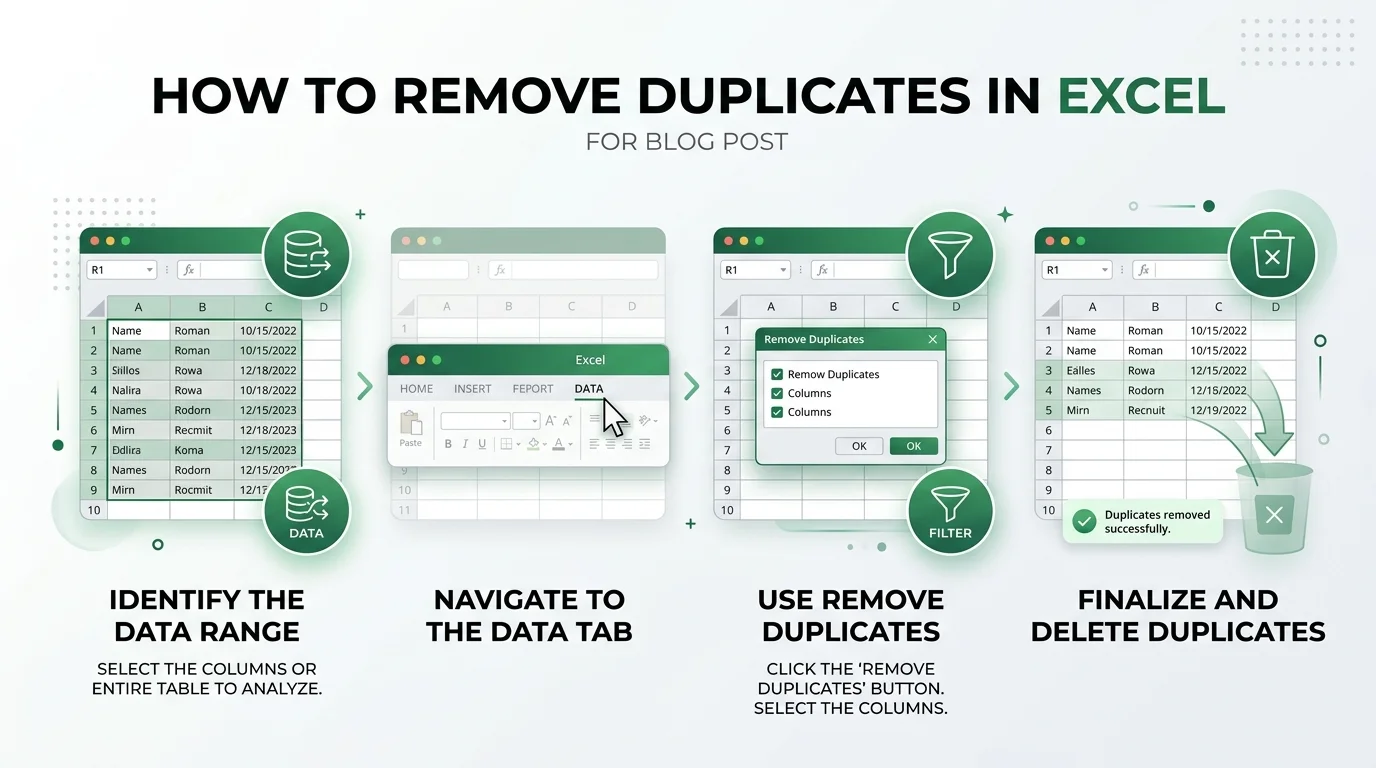
Why Duplicate Data Is Quietly Ruining Your Spreadsheets
Here's the thing nobody tells you about duplicates: they don't just look messy. They actively lie to you.
Picture this. You've got a sales tracker, and one transaction accidentally got pasted twice. Now your monthly total is inflated, and you don't even know it. That's the sneaky part — duplicate rows don't announce themselves. They just sit there, quietly skewing your numbers.
And honestly? The bigger your dataset gets, the worse this problem becomes. A 50-row list is easy to eyeball. A 5,000-row list shared across your whole team? That's a different story entirely.
This is exactly why Excel built dedicated tools for data cleaning — because manually hunting for repeats simply doesn't scale. If you're also cleaning up visual reports from that same data, it's worth learning how to create charts in Excel once your dataset is duplicate-free, since a chart built on messy data will just visualize the same mistakes.
What You Need Before You Start
Before you touch anything, let's cover the basics. You'll want:
A backup of your original data (seriously, don't skip this)
A clear idea of which columns actually define a "duplicate" for your use case
Excel 2007 or later for the classic tool, or Microsoft 365 / Excel 2021+ if you want to use the UNIQUE function
That last point matters more than you'd think. UNIQUE is a newer, dynamic array function — it's not available in Excel 2019 or earlier. So check your version first. It'll save you a headache later.
Step-by-Step: Removing Duplicates With the Ribbon Tool
Okay, here's where it gets practical. This is the fastest way to clean up a spreadsheet, hands down.
Select your data range, headers included.
Head over to Data > Remove Duplicates in the Data Tools group.
Tick "My data has headers" if your top row is labels, not data.
Choose which columns should count toward a match. This part matters a lot — more on that in a second.
Hit OK.
And that's it. Excel keeps the first instance of each unique row and wipes out the rest.
But — and this is important — if something looks off, press Ctrl+Z immediately. Undo only works before you save and close the file, so don't wait around.
The Keyboard Shortcut You'll Actually Use
If you're someone who lives on your keyboard (no judgment, I respect it), there's a shortcut for this.
Press Alt, then A, then M, one after another. That opens the same Remove Duplicates dialog you'd get from clicking through the ribbon. It's faster once it's muscle memory, I promise.
The Column Selection Trap (Don't Fall Into This)
Here's where most people mess this up, and I mean most people.
When you check multiple columns in the Remove Duplicates dialog, Excel only flags a row as a duplicate if every single checked column matches. Check just First Name and Last Name? A repeated name gets deleted, even if other details differ.
Check three columns instead of two, though, and suddenly nothing matches anymore, because now the whole combination has to be identical.
So ask yourself: am I trying to deduplicate people, or am I trying to deduplicate entire records? That answer decides which columns you check. Get this wrong, and you'll either delete data you needed or keep clutter you didn't.
Using UNIQUE: The Non-Destructive Alternative
Now, if the idea of permanently deleting rows makes you nervous (fair enough), there's a gentler option.
The UNIQUE function pulls a list of distinct values into a totally separate spot on your sheet. Your original data? Untouched. And here's the cool part — it updates automatically whenever your source data changes.
The basic formula looks like this:
=UNIQUE(A2:A100)Want only values that show up exactly once, not just the first occurrence of a repeat? Add a third argument:
=UNIQUE(A2:A100,FALSE,TRUE)This is a dynamic array formula, which is a fancy way of saying it spills results into as many cells as it needs, automatically. Just don't type anything in the cells below it, or you'll trigger a #SPILL! error.
Highlighting Duplicates Before You Delete Anything
You know what? Sometimes you don't want to delete duplicates right away. You just want to see them first.
Totally reasonable. Here's how:
Select your data.
Go to Home > Conditional Formatting > Highlight Cells Rules > Duplicate Values.
Pick a format that'll actually stand out.
Click OK.
Now every duplicate lights up in color, and you get to review before committing to anything permanent. It's a smart middle step, especially on shared spreadsheets where one wrong deletion could cause real problems.
Common Mistakes That Trip People Up
Let's be real for a second — everyone makes at least one of these at some point.
Skipping the backup. I know, I already said this. But it's worth repeating because it's the mistake with zero good excuses.
Checking the wrong columns. We covered this above, but it deserves a second mention because it's genuinely the most common error.
Assuming "first occurrence" means "correct occurrence." Excel keeps whichever row appears first, not the most accurate or recent one. If row order matters to you, sort your data before you deduplicate, not after.
Mixing up UNIQUE and Remove Duplicates. One deletes data permanently. The other creates a brand-new, live-updating list elsewhere. They're not interchangeable, and using the wrong one at the wrong time can cost you.
Quick Recap: Which Method Should You Actually Use?
Honestly, it depends on what you need:
One-time cleanup? Go with Remove Duplicates. It's fast and built right into the ribbon.
A list that needs to stay live and updated? UNIQUE is your friend.
Recurring imports from the same source? Look into Power Query — it lets you set the logic once and rerun it on every refresh.
There's no single "best" method here. There's just the right tool for what you're actually trying to accomplish. And once your spreadsheet is clean, that's usually the moment worth building your first PC-grade workflow around, if data work is becoming a bigger part of what you do.
So go ahead — open that messy spreadsheet, back it up first, and pick the method that fits. Your future self, staring at accurate totals instead of inflated ones, will thank you.
Written by
Alex
Creative blogger sharing insights, stories, and fresh ideas.