How to Format SD Card 2026: Windows, Mac & Camera.

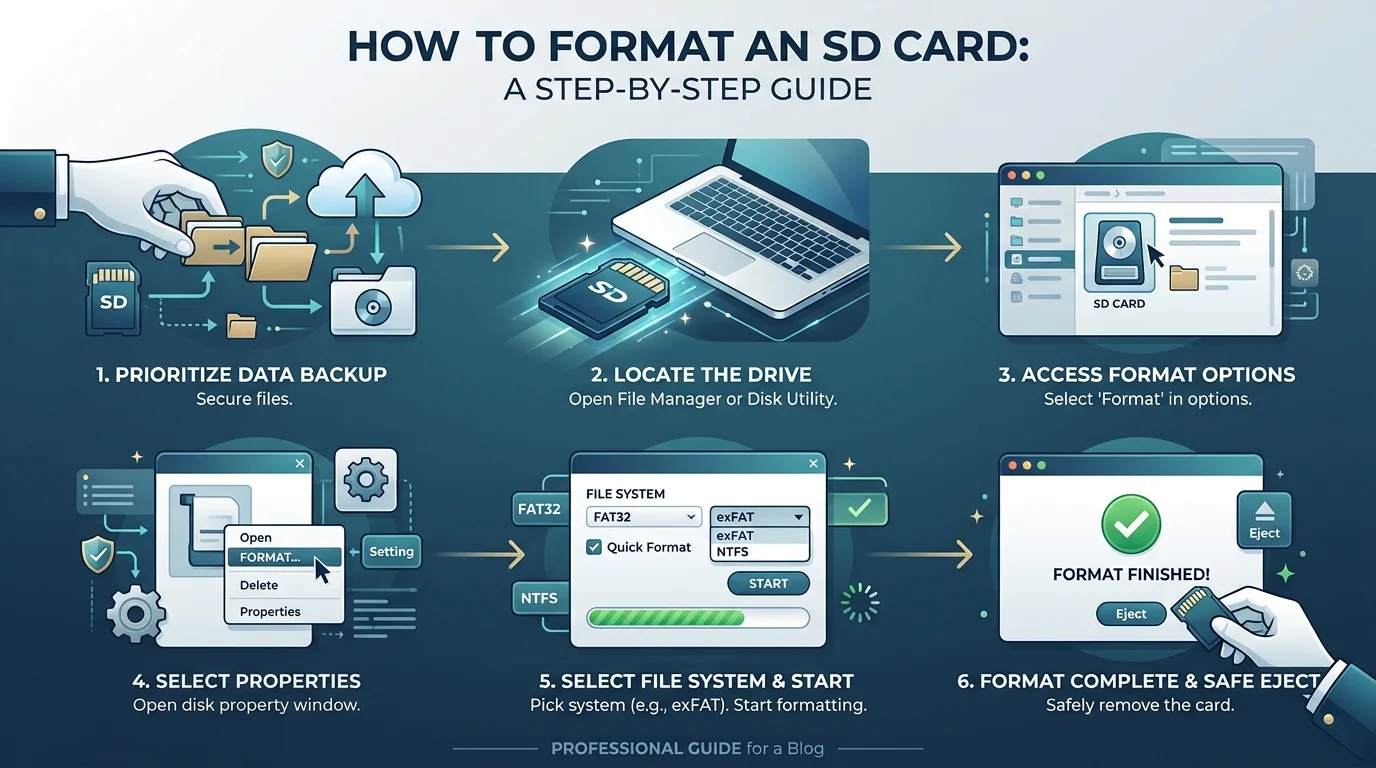
To format SD card, back up your files first. Then use your device's Format option, or the free SD Memory Card Formatter. Choose FAT32 for cards up to 32GB and exFAT for cards over 32GB. Formatting erases everything, so double check the drive before you click.
Why You Should Format an SD Card (Not Just Delete Files)
Deleting files feels like cleaning, but it only removes the pointers. The mess underneath stays put. Over time, files fragment and performance can drop, as Tuxera explains. A proper memory card format rebuilds the file system from scratch.
That's why it fixes so many odd errors. Think of it as wiping a whiteboard instead of writing over old notes.
And remember: back up first. Always.
Pick the Right File System First
Here's where most people slip up. You can't just pick any option and hope for the best. The SD Association ties each card type to a file system, and your device expects that match. Use this cheat sheet:
Card type | Capacity | File system | Max single file |
|---|---|---|---|
SD | Up to 2GB | FAT12/FAT16 | 4GB |
SDHC | Over 2GB to 32GB | FAT32 | 4GB |
SDXC | Over 32GB to 2TB | exFAT | No practical limit |
SDUC | Over 2TB to 128TB | exFAT | No practical limit |
Why does this matter to you? Because FAT32 splits long videos into 4GB chunks. So for 4K video on a big card, go with exFAT.
How to Format SD Card on Windows
Windows gives you three solid options. Before you start, plug in your card (or microSD card plus adapter) and check the drive letter twice. Picking the wrong drive is a mistake you only make once. Let's start with the easiest route.
Method 1: File Explorer (Fastest)
This takes about a minute, and Guiding Tech walks through the same steps.
Press Win + E to open File Explorer.
Right click your card under This PC and choose Format.
Pick FAT32 or exFAT from the table above.
Tick Quick Format, then click Start.
Method 2: The Official SD Card Formatter (Most Reliable)
Here's my favorite. The tool follows the SD Association's own file system spec, and OS built in formatters aren't always as strict. It runs on Windows, Mac and Linux, supports SDUC, and needs administrator rights.
Select your card, choose Quick format or Overwrite format, then click Format. Two catches, per the official download page: it skips the card's protected area, and it can't handle BitLocker To Go cards.
Method 3: Command Prompt for FAT32 Above 32GB
For years, Windows refused to make FAT32 volumes over 32GB. That's changing. PCWorld reports that Microsoft raised the command line limit from 32GB to 2TB in recent Windows 11 builds.
Open an elevated Command Prompt and run format X: /FS:FAT32 /Q (swap X for your drive letter). The File Explorer dialog still caps FAT32 at 32GB, and the 4GB file limit remains.
This only works on an updated Windows 11 build. If your system is stuck on an old version, fix your Windows update error first, then try the command again.
How to Format SD Card on Mac
Mac users, good news: Disk Utility is already installed. Press Cmd + Space, type "Disk Utility," and hit Return. (Want to move faster on your Mac? Our guide to keyboard shortcuts on Mac helps.)
Apple uses different labels, though, and that trips people up. "MS-DOS (FAT)" means FAT32. Here's the SanDisk macOS process in short:
Insert the card and open Disk Utility.
Select the card under External, then click Erase.
Name it and choose exFAT or MS-DOS (FAT).
Set the scheme to Master Boot Record.
Click Erase, then Done.
Format Your SD Card in the Camera
You might assume the computer is the "proper" way. Not quite. Camera makers prefer in camera formatting, and they say so clearly. Canon advises formatting in the camera when a card came from another device. Sony recommends the same, because the camera builds the exact folder structure it needs.
Go to Menu, then Setup, then Format. Confirm, and wait until the access light turns off. Never pull the card mid format.
Which Formatting Method Should You Use?
Still unsure? That's normal. Each method suits a different situation, so here's a comparison to save you time.
Method | Best for | Speed | Skill level |
|---|---|---|---|
In camera format | Cameras, drones, action cams | Fast | Beginner |
File Explorer | Quick Windows reformat | Fast | Beginner |
SD Card Formatter | Stubborn or corrupted cards | Medium | Beginner |
Command Prompt | FAT32 on cards over 32GB | Medium | Intermediate |
Disk Utility (Mac) | Mac users | Fast | Beginner |
Quick Format vs Overwrite Format
Quick format clears the file table and finishes in seconds. Overwrite format rewrites every block, so it takes longer but is more thorough. Tuxera notes the official tool supports both.
Use quick format for routine resets. Use overwrite when a card acts up. And note that formatting doesn't completely erase data, so it's not a secure wipe for a card you're selling.
What to Do When Your SD Card Won't Format
Sometimes the card just says no. Frustrating, yes, but usually fixable. Work through these in order:
Check the lock switch. A write protected card refuses to format.
Try another reader or port. Cheap readers cause plenty of headaches.
Scan for malware. Viruses can trigger write protection errors.
Run the SD Card Formatter with Overwrite format.
Try DiskPart on Windows, but pick the right disk.
If none of that works, the card is probably dying.
Why a Quality SD Card Is Worth Buying
Here's the truth I'd tell a friend. Formatting fixes errors, but it can't fix a bad card. Cheap, unbranded cards often slow down, fail early, or report fake capacity. That's a nightmare mid shoot.
So buy from a reputable brand like SanDisk, Lexar or Sony. Match the type to your gear: SDHC for older devices, SDXC for modern cameras and 4K. A few extra dollars buys reliability and peace of mind. Frankly, it's the cheapest insurance you'll ever buy.
FAQ: Formatting an SD Card
Should I format an SD card to FAT32 or exFAT?
Use FAT32 for cards up to 32GB (SDHC) and exFAT for cards over 32GB (SDXC). That follows the SD Association standard.
Does formatting an SD card erase everything?
Yes, it wipes the file system and your files. It isn't a secure wipe, though, so data may still be recoverable.
Is it better to format an SD card in the camera?
Yes. Canon and Sony both recommend it, because the camera creates the structure it expects.
Can Windows format a 64GB or 128GB card as FAT32?
File Explorer can't. Recent Windows 11 builds allow it from Command Prompt, up to 2TB.
How often should I format my SD card?
Format after you've safely backed up your files, and when switching to a new device. Regular in camera formatting is a good habit.
Final Thoughts: Format Smart, Not Hard
So there you have it. Back up your files, match the file system to your card, and use the right tool for your device. For cameras, format in camera. For everything else, the free SD Card Formatter is hard to beat.
Now grab your card and do it. Your future self will thank you.
Written by
Alex
Creative blogger sharing insights, stories, and fresh ideas.