How to Fix Windows Update Error (7 Easy Fixes, 2026)

You open Settings, hit "Check for updates," and there it is again: a red error code staring back at you.
I've spent way too many hours untangling this exact problem, and here's the good news: most Windows Update errors come down to a handful of root causes you can fix in under 20 minutes. To fix a Windows Update error, you typically need to run the built-in Windows Update Troubleshooter, clear the corrupted SoftwareDistribution folder, free up disk space, and repair system files using DISM and SFC. Common culprits include low storage, stalled update services, and third-party antivirus conflicts. This guide walks you through every fix, step by step, starting with the easiest one first.
If you're also troubleshooting other PC issues, check out our guide on what Secure Boot is and how it affects your Windows PC once you're done here.
Let's get your PC updating again.
Why Windows Update Errors Happen in the First Place
Before you start clicking buttons, it helps to know what's actually going on under the hood.
Windows Update is juggling a lot of moving parts at once. It's downloading files, verifying them, staging them, and coordinating a restart, all while other background services fight for the same resources.
So when something breaks, it's usually one of these, according to Microsoft's own troubleshooting documentation:
Corrupt update files sitting in the cache
Insufficient disk space, Microsoft recommends at least 16 GB free for 32-bit systems and 20 GB for 64-bit systems
A stopped or misbehaving Windows Update service
Conflicts from a connected USB device or printer
An incorrect system clock, which throws off certificate validation
Interference from third-party antivirus software
Once you know which bucket your error falls into, the fix usually takes minutes, not hours.
Compare the Fixes: Which One Should You Try First?
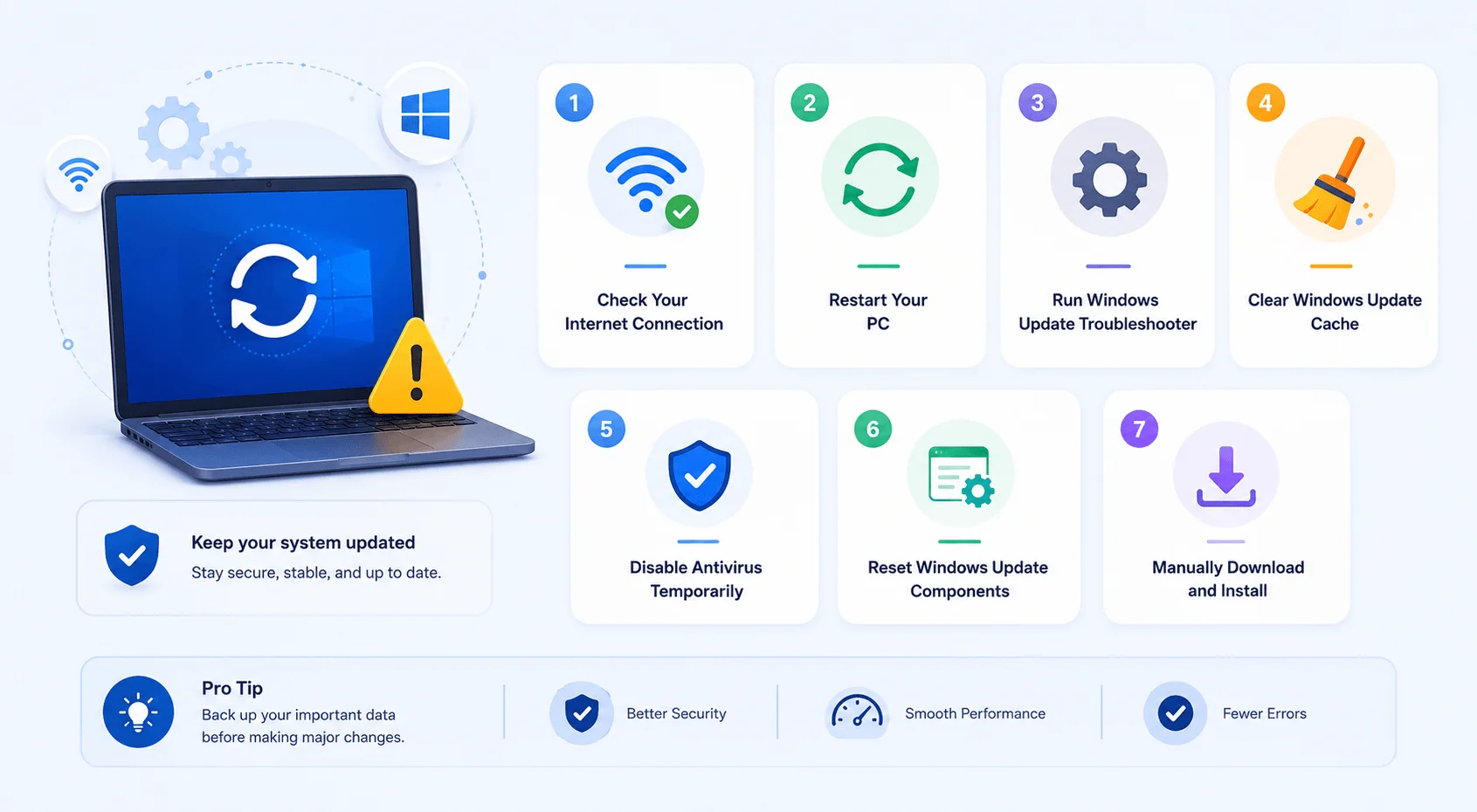
Not every fix suits every situation. Here's how the main methods stack up, so you can pick the right one instead of working through all seven in order.
Method | Time Needed | Difficulty | Best For |
|---|---|---|---|
Windows Update Troubleshooter | 2–5 min | Easy | First attempt, any error |
Free up disk space | 5–10 min | Easy | Storage-related errors (0x8007000e) |
Reset SoftwareDistribution folder | 5 min | Medium | Stuck downloads, repeated failures |
DISM + SFC repair | 15–30 min | Medium | Corrupted system files (0x800f0801) |
Reset Winsock | 2 min | Easy | "Can't connect to update service" errors |
Manual download via Update Catalog | 10 min | Medium | When automatic install keeps failing |
In-place upgrade | 30–60 min | Hard | Last resort, persistent failures |
Start from the top of this table and work down. Most people never need to go past row three.
Step 1: Run the Windows Update Troubleshooter First
Start here. Seriously, don't skip this one.
The Windows Update Troubleshooter is built into Windows and automatically scans for the most common update-breaking issues, then fixes them for you.
Here's how to run it:
Go to Start > Settings > System > Troubleshoot > Other troubleshooters
Find Windows Update under "Most frequent" and click Run
Let it finish scanning (this can take a few minutes)
Restart your device once it's done
If this clears the error, great, you're done. If not, keep reading.
Step 2: Check Your Disk Space
This one trips up more people than you'd think.
Windows needs breathing room to stage update files before installing them. If your drive is nearly full, updates can silently stall or throw vague errors that don't even mention storage.
Free up at least 20 GB using these quick wins:
Empty the Recycle Bin
Run Disk Cleanup (search for it in the Start menu)
Uninstall apps you no longer use
Move large files (videos, ISOs, install folders) to an external drive or cloud storage
For more on managing your Windows PC beyond storage, see our guide on how to take a screenshot on a Dell laptop. Once you've cleared space, head back to Settings > Windows Update and try again.
Step 3: Clear the SoftwareDistribution and Catroot2 Folders
This fix resolves a large share of stuck or failed updates because it forces Windows to re-download update files clean, according to 4sysops' troubleshooting guide.
Windows stores temporary update files in two folders: SoftwareDistribution and catroot2. If a file in there gets corrupted mid-download, every future update attempt can fail with the same error, over and over.
Here's how to clear them out:
Open Command Prompt as Administrator
Stop the update-related services by running:
net stop wuauserv
net stop cryptSvc
net stop bits
net stop msiserver
Rename the folders so Windows rebuilds them fresh:
ren C:\Windows\SoftwareDistribution SoftwareDistribution.old
ren C:\Windows\System32\catroot2 catroot2.old
Restart the services:
net start wuauserv
net start cryptSvc
net start bits
net start msiserver
Restart your PC and check for updates again
Step 4: Repair System Files with DISM and SFC
Sometimes the problem isn't the update itself. It's Windows underneath it.
The DISM tool (Deployment Image Servicing and Management) repairs the Windows image itself, while SFC (System File Checker) scans and fixes corrupted system files.
Run these in an elevated Command Prompt, one at a time:
DISM.exe /Online /Cleanup-image /Restorehealth
Wait for this to finish (it can take 10–15 minutes), then run:
sfc /scannow
Once both complete, restart your computer and try the update one more time. This combo fixes deep-rooted corruption that simpler fixes can't touch.
Step 5: Reset Network Settings
If your error message mentions a connection problem, like "We couldn't connect to the update service," the fix might have nothing to do with your internet at all.
Windows uses a component called Winsock to manage network connections, and it can get corrupted over time.
Open Command Prompt as Administrator and run:
netsh winsock reset
Restart your PC, then check for updates again. This one solves a common category of "internet is fine but updates won't connect" cases.
Step 6: Check Date, Time, and Third-Party Software
Two quick things people forget to check:
Your system clock. An incorrect date or time breaks certificate validation, which can silently kill an update. Go to Settings > Time & language > Date & time and turn on Set time automatically.
Third-party antivirus or VPN software. Security tools sometimes block update traffic without telling you. Try temporarily disabling your antivirus, VPN, or drive encryption software, then check for updates again.
Also unplug any external hardware, USB drives, printers, docking stations, since a driver conflict can occasionally cause updates to fail.
Step 7: Manually Download the Update
If nothing above works, you can skip the automated process entirely.
Every Windows Update error includes a code, something like 0x80070005 or 0x800f0801. Take that code (or the associated KB number) and search it on the Microsoft Update Catalog.
Download the matching update file, run it manually, and restart your PC once it finishes. This bypasses whatever was blocking the automatic install.
Last Resort: Run an In-Place Upgrade
If you've tried everything and updates still won't install, an in-place upgrade is your best bet.
This reinstalls Windows while keeping your files, apps, and settings intact, and it repairs corrupted system components in the process. You'll need the Windows 11 Installation Assistant or Media Creation Tool from Microsoft, then choose "Keep personal files and apps" when prompted.
It takes longer than the other fixes here, usually 30–60 minutes, but it resolves stubborn issues that nothing else can touch.
Common Windows Update Error Codes and What They Mean
Error Code | What It Means | Fastest Fix |
|---|---|---|
0x80070005 | Access denied / permissions issue | Run Command Prompt as Administrator |
0x8007000e | Not enough memory or disk space | Free up storage (Step 2) |
0x800f0801 | Feature update failure | Run DISM RestoreHealth (Step 4) |
0x80080005 | Installation service conflict | Restart update services (Step 3) |
Common Mistakes That Make Windows Update Errors Worse
A few things I'd tell you to avoid:
Repeatedly clicking "Check for updates" without changing anything, this just re-triggers the same failure
Skipping restarts between fixes, several of these steps only take effect after a reboot
Ignoring the error code entirely, it usually tells you exactly which fix to try first
Installing random third-party "fixer" tools, stick to Microsoft's own utilities
Error codes exist to point you in the right direction, similar to how an HTTP 302 error tells you exactly what's wrong with a webpage instead of leaving you guessing. Read the code, don't just dismiss it.
Frequently Asked Questions
Why does Windows Update keep failing on my PC?
It's usually caused by corrupt update files, low disk space, or a stopped Windows Update service. Running the troubleshooter and clearing the SoftwareDistribution folder resolves most cases.
Is it safe to delete the SoftwareDistribution folder?
Yes. Windows automatically rebuilds this folder the next time it checks for updates, so deleting or renaming it won't cause data loss.
How much free space do I need for a Windows update?
Microsoft recommends at least 16 GB for 32-bit systems and 20 GB for 64-bit systems, though some feature updates need more.
What does error 0x80070005 mean?
It typically means Windows Update lacks the necessary permissions. Running Command Prompt or the update process as Administrator usually fixes it.
Do I need to disable my antivirus to update Windows?
Not always, but if updates keep failing after other fixes, temporarily disabling third-party antivirus software is worth testing.
Wrapping Up
Windows Update errors are frustrating, but they're rarely permanent.
Start with the troubleshooter, work your way through disk space and the SoftwareDistribution fix, and lean on DISM and SFC if system files are the culprit. Between these steps, you'll fix the overwhelming majority of update errors without needing to reinstall anything.
If you've tried all of this and you're still stuck, drop the exact error code in a search along with "site:learn.microsoft.com" and you'll usually find someone who's hit the exact same wall.
Written by
Alex
Creative blogger sharing insights, stories, and fresh ideas.