How to Go Live on Instagram in 2026: The Complete Guide

Quick Answer: To go live on Instagram, open the app, tap the + icon, scroll the mode selector to Live, add a title, choose your audience, and tap to broadcast. But first, check eligibility — since August 2025, only public accounts with at least 1,000 followers can create live videos. Private accounts are blocked entirely.
I'll be blunt with you.
Most guides teaching how to go live on Instagram are wrong. Not slightly wrong — badly wrong. They're still telling you to swipe right and hit the Live button like it's 2021.
Here's the thing: Instagram changed the rules in August 2025, and a huge chunk of accounts simply can't go live anymore. So before I show you the taps, I need to show you the gate.
Let's get into it.
Can You Actually Go Live on Instagram? (Read This First)
Before you waste twenty minutes hunting for a button that isn't there, let's check whether your account even qualifies. This is the single biggest reason people search how to go live on Instagram and end up frustrated. Instagram didn't send an email. It didn't post an announcement. It just... changed things quietly, and thousands of creators found out the hard way. So here are the current Instagram Live requirements, straight from the source.
You need two things:
1. A public account. Private accounts are locked out entirely. No workaround.
2. At least 1,000 followers. That's the hard floor. Worth noting this applies to any account type — if you're not sure whether you should be running a personal, business, or digital creator account, that choice doesn't affect eligibility. Only follower count and public status do.
TechCrunch broke this story in August 2025, and Meta later confirmed it to Engadget, saying the change was meant to improve the experience for creators hosting broadcasts.
If you don't qualify, you'll see this notice:
"We changed requirements to use this feature. Only public accounts with 1,000 followers or more will be able to create live videos."
That's the message. That's your answer to why can't I go live on Instagram.
One more thing worth flagging — if you're under 16, you'll need parental permission to broadcast at all.
How Instagram's Live Requirements Compare to Other Platforms
Context helps here, because Instagram's move wasn't random — it was catching up. Every major platform gates live streaming to some degree, and Instagram sat at zero restrictions for years while everyone else tightened up. Seeing the full landscape also tells you where to stream instead if you're currently locked out. Here's how the thresholds stack up as of 2026:
Platform | Requirement to Go Live |
|---|---|
Public account + 1,000 followers | |
TikTok | 1,000 followers |
100 followers + account at least 60 days old | |
YouTube | 50 subscribers |
Twitch | No follower requirement |
Notice something? Facebook — Meta's own platform — sits at just 100 followers. If you're under 1,000 on Instagram, that's your nearest workaround.
What If You Have Under 1,000 Followers?
I know. This part stings. You wanted to learn how to go live on Instagram, and instead you got a velvet rope. But honestly? There's a decent play here, and it's not "buy followers." Instagram's whole reason for the change was stream quality, and fake followers don't watch streams. Here's what I'd actually do in your position.
Lean into Instagram Reels and Stories for now. They have no follower gate.
Use the Q&A sticker and polls to build the real-time feel without the live stream.
Stream on Facebook or Twitch and cross-promote clips to Instagram.
Get to 1,000 with genuinely useful content — then the door opens.
And yes, it's a real barrier for smaller creators. I'm not going to pretend otherwise.
How to Go Live on Instagram: The Step-by-Step Walkthrough
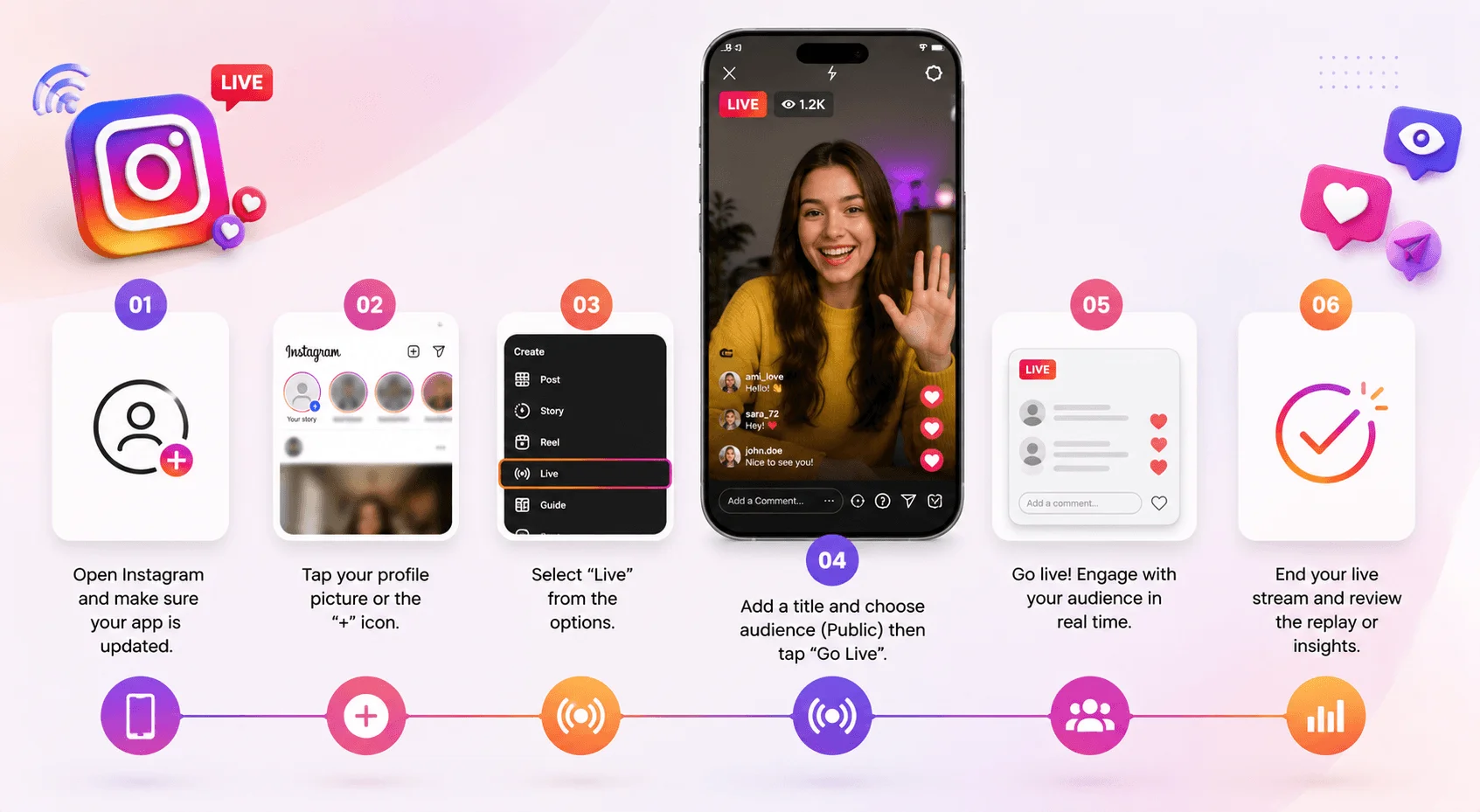
Okay — here's the short version before the detail: open the camera, scroll to Live, title your stream, pick your audience, tap to broadcast. That's the whole flow, and it takes about eight seconds once you know where things sit. What follows is the exact sequence on the current app. Mobile, iOS or Android, same steps either way. Follow along on your phone.
Step 1 — Open the Instagram camera
Tap the + icon, or swipe right from your feed. Either works.
Step 2 — Find the Live mode
At the bottom of your screen you'll see a mode selector: Post, Story, Reel, Live. Scroll it over to Live.
Step 3 — Add a title
Don't skip this. Seriously.
Your title shows up on the Stories tray next to your glowing live ring. "Live" tells people nothing. "Answering your pricing questions for 20 mins" tells them everything.
Step 4 — Pick your audience
Public or Close Friends. Public is the default and it's what you want if growth is the goal.
Step 5 — Check your setup
Hit the settings wheel. Flip the camera. Check your lighting. Face a window if you can.
Step 6 — Tap the button
You're live. Your followers just got a push notification on their lock screen.
That's it. That's how to start an Instagram Live.
The First 90 Seconds Matter More Than You Think
Here's a mistake I made for years, and I watch new creators make it constantly. You go live, three people are watching, you panic, and you start talking about the weather. Meanwhile your notification is still rolling out and viewers are trickling in one by one. Those first ninety seconds are your whole broadcast in miniature — because most people who join will decide within thirty seconds whether to stay.
So do this instead:
Say what the stream is about. Immediately.
Repeat it every few minutes for latecomers.
Pin a comment with the topic so anyone joining at minute twelve isn't lost.
Greet people by name. It sounds small. It isn't.
How to Schedule an Instagram Live Broadcast in Advance
You can schedule an Instagram Live up to 90 days ahead of time, and doing so lets followers opt into a reminder before you go on. Spontaneous lives are fun; scheduled lives are how you actually build an audience. There's a feature buried in the Live setup screen that most people never touch, and it's arguably the highest-leverage thing in this entire article — it turns your broadcast from "hey I'm on" into an actual event people can plan around.
Here's how:
In the Live camera screen, tap the calendar icon in the left sidebar.
Set your date, time, and title.
Instagram creates a reminder your followers can opt into.
Share it to your Stories and pin it to your profile.
Then, when the time comes, they get a nudge. Turnout goes up. Every single time.
Practice Mode: Your Dress Rehearsal
Nobody talks about this feature and I find that genuinely baffling. Practice Mode lets you run a full live session that nobody can see. Zero viewers. Just you, testing. As Later explains it, the feature lets creators join their guests ahead of a scheduled event to test their connection, lighting, and handle any other pre-show prep. If you're bringing on a guest for the first time, use this. It'll save you from the classic "can you hear me? no, can YOU hear ME?" opening.
How to Go Live on Instagram With Guests: Live Rooms Explained
You can bring up to three guests into an Instagram Live, making four people total on a split screen — and you can add or drop people mid-stream without ending the broadcast. Solo streaming is fine. Streaming with a guest is better, because you're borrowing their audience while they borrow yours. Instagram supports this through a feature set called Live Rooms, and it's one of the most underused growth mechanics on the platform.
To add a guest:
Start your live as normal.
Tap the person icon (or the two-faces icon) at the bottom.
You'll see people requesting to join — or you can search and invite someone directly.
Tap to add them. They pop into the split screen.
TechCrunch covered the Live Rooms launch, noting Instagram built it for talk shows, expanded Q&As, interviews, jam sessions, and live shopping.
Moderation Tools You Should Know Before You Need Them
Let me save you a bad experience. The moment your stream gets any real traction, you'll get a troll. It happens to everyone. And fumbling for controls while five hundred people watch is not a great look. So learn these now, while the stakes are low, and they'll be muscle memory when it counts.
Your in-stream toolkit
Pin comment — keeps a message locked at the top.
Mute a guest — instantly.
Turn off comments entirely via Options.
Block or remove a disruptive viewer.
Assign a moderator — a trusted person who handles the chat so you can just talk.
That last one is the pro move. Get a moderator.
How to Go Live on Instagram From Your Computer
Yes, you can go live on Instagram from a desktop — using Live Producer connected to third-party streaming software via an RTMP stream key. Phone streams are casual and that's their charm. But if you're running a webinar, an interview, or anything with screen sharing, you want desktop. It's more setup, but the quality jump is real: proper mic, proper camera, proper overlays.
Two warnings before you commit, and both come straight from Instagram's own Live Producer documentation:
One: you can't add guests or co-hosts through Live Producer. Live Rooms isn't supported there. If your stream needs a guest, use your phone.
Two: end the broadcast in Live Producer first, then stop your streaming software. Do it backwards and your stream keeps running while displaying the last frame it received. Frozen face. In front of everyone. Don't be that person.
Most people pair Live Producer with OBS Studio, which is free and handles scenes, overlays, and screen capture without much fuss.
What to Do After You End the Stream
Here's where most creators leave money on the table. You spend forty minutes streaming, you hit end, and the whole thing evaporates. But your live video has a second life — often a bigger one than the broadcast itself. So the moment you tap End Now, you've got some decisions to make about the Instagram Live replay.
Your options:
Share the replay to your profile and Stories.
Save it to your Live Archive, where you can view, share, and download the completed broadcast.
Cut it into Reels. This is the big one — a 45-second clip from your best moment will outperform the entire original stream.
Quick heads-up on saving: when you save a live, only the video is stored. Comments, likes, and viewer data don't come with it. So if there was a great exchange in the chat, screenshot it during the stream.
Repurposing: One Live, Ten Pieces of Content
I treat every live as a raw material factory, not a finished product. Forty minutes of unscripted talking contains more usable content than a week of planned posting, and you've already done the hard part. All that's left is cutting.
From one broadcast, you can pull:
Three to five Reels from your strongest moments.
A carousel post summarizing key points.
Quote graphics for Stories.
An email newsletter.
A blog post — like this one, actually.
How to Make Money With Instagram Live
Live video monetizes better than almost anything else on the platform. There are two main paths here, and neither requires a brand deal or a sponsor. Context for why this matters: industry estimates put US live commerce sales in the multi-billion-dollar range, with livestream formats driving somewhere north of $17 billion in recent years. That's the market you're stepping into every time you go on.
Instagram Badges
Instagram badges let viewers tip you during a broadcast. Per Instagram's Help Center, buying a badge places a heart icon next to that viewer's name in the comments, and their name appears on a list visible to you for up to 90 days.
Pricing sits at three tiers: $0.99, $1.99, and $4.99. Each viewer can buy one badge per live video.
Give badge holders a shout-out. It costs you nothing and it visibly encourages others.
Instagram Live Shopping
If you're eligible, Instagram Live Shopping lets you tag products mid-stream so viewers can tap and buy without leaving the broadcast. For product launches and demos, this is the shortest possible path from attention to sale.
How to Get More People Watching Your Live
You can nail every step above and still stream to eleven people. Getting viewers is a separate skill from going live, and it comes down to something deeply unglamorous: consistency. Live has a structural advantage no other format on Instagram has — when you start, the app actively interrupts your followers with a notification and pins you to the front of the Stories tray. Your job is just to make that interruption worth it.
What actually works:
Promote 24 hours ahead in Stories. Not ten minutes before. And pick your day deliberately; some days consistently outperform others on Instagram.
Go live on a fixed schedule. Same day, same time. Every week. If you're not sure which slot to claim, start from the best time to post on Instagram — live audiences follow roughly the same activity curve.
Bring a guest with an overlapping audience.
Pin a welcome comment for late arrivals.
Ask questions constantly. Comments feed the Instagram algorithm.
End with a clear next step. Follow, link in bio, whatever it is — say it out loud.
Frequently Asked Questions About Going Live on Instagram
Below are the questions I get asked most often about Instagram Live — the ones people type into search right before they give up. Short answers, no filler. If you're skimming this article, this is the section to read.
How many followers do you need to go live on Instagram?
You need at least 1,000 followers and a public account. Instagram introduced this requirement in August 2025, and it remains in effect in 2026.
Why can't I go live on Instagram?
The three most common reasons: your account is private, you have fewer than 1,000 followers, or you're under 16 without parental permission. An outdated app version can also hide the button.
Can private accounts go live on Instagram?
No. Private accounts cannot go live at all under the current rules. You'd need to switch to a public account first.
Can you go live on Instagram from a laptop or PC?
Yes — through Live Producer plus streaming software like OBS Studio. Note that guests and co-hosts aren't supported in Live Producer.
How many guests can join an Instagram Live?
Up to three guests, for four people total on screen. You can add or remove them at any point during the broadcast.
Does Instagram notify followers when you go live?
Yes. Your followers receive a push notification, and your account jumps to the front of the Stories tray with a live ring.
Are Instagram Lives saved automatically?
No. You choose at the end whether to share the replay, save it to your Live Archive, or discard it. Saved videos keep the footage only — comments, likes, and viewer counts aren't included.
How long can an Instagram Live last?
Standard broadcasts run up to four hours. Plan for 20–45 minutes though — that's the sweet spot for holding attention.
Final Thoughts on How to Go Live on Instagram
So that's the full picture. Going live on Instagram takes six taps once you're past the gate — but the gate is the part that trips most people up, and it's the part outdated guides keep getting wrong. Confirm you've got a public account with 1,000+ followers, title your stream properly, schedule it ahead so people show up, and cut the replay into Reels so the work keeps paying you after you sign off.
The creators who win at Instagram Live aren't the ones with the best lighting. They're the ones who show up on the same day, at the same time, every single week.
Pick your slot. Schedule your first one this week.
Written by
Alex
Creative blogger sharing insights, stories, and fresh ideas.