How to Screenshot on Dell: 6 Ways (Laptop & Desktop)

If you want to screenshot on Dell, press Windows + PrtScn. That's it. Your screen dims for a split second, and the image lands in Pictures > Screenshots as a PNG file.
But here's the thing.
I've watched people press that exact combination on a Dell Inspiron and get absolutely nothing. Not a flicker. Not a file. Nothing.
Why? Because Dell keyboards hide the Print Screen key behind a function layer, and Windows 11 quietly changed what that key does back in 2023 — reversing 28 years of behavior that had held steady since Windows 95.
So the "one shortcut" answer is only true about 70% of the time.
This guide covers the other 30%.
I'll walk you through all 6 Windows screenshot shortcuts, show you exactly where each one saves your file, and fix the PrtScn key not working problem that sends most people to Google in the first place.
Let's get into it.
Where Is the Print Screen Key on a Dell Keyboard?
Before you can use any shortcut, you need to find the key. And honestly? Dell doesn't make this easy. The label changes depending on which machine you bought, which decade it was built in, and whether you're on a laptop or a desktop. In fact, Dell's official support documentation lists 6 different labels for the same key: PrintScreen, PrntScrn, PrntScr, PrtScn, PrtScr, and PrtSc. Six names. One function. Windows keyboards handle this far less consistently than Macs do — if you switch between machines, our guide to Mac keyboard shortcuts covers the equivalent capture combinations. So let's narrow down where yours is hiding.
On Dell Desktop Keyboards
Look at the upper right corner, usually just past F12 and near Scroll Lock.
Found it? Great. You're done here.
Didn't find it? You might have a compact keyboard. Dell specifically documents that the KM3322W keyboard has no dedicated PrtScr key at all — you press Fn + Insert instead.
[Image placeholder: Close-up photo of the Print Screen key on a Dell KB216 desktop keyboard. Alt text: "Print Screen key location on a Dell desktop keyboard, upper right corner next to Scroll Lock"]
On Dell Laptop Keyboards
Here's where it gets frustrating.
On most Dell laptops, Print Screen sits on the Function row, sharing space with an F-key. That means it's a secondary function, and you'll often need Fn + F10 to trigger it.
Three Layouts to Check
1. Standard function row. Look for a small PrtScn label printed on F10 or F11. Hold Fn and press it.
2. Capacitive or illuminated function rows. Common on newer Dell XPS models. Dell notes these may require you to enable the function layer before the key responds at all.
3. No visible PrtScr key anywhere. Try Fn + Insert. Still nothing? Microsoft's documented fallback is Fn + Windows logo key + Space Bar, per their official print screen shortcut guide.
Now that you've located the key, let's put it to work.
How to Screenshot on Dell Using Keyboard Shortcuts
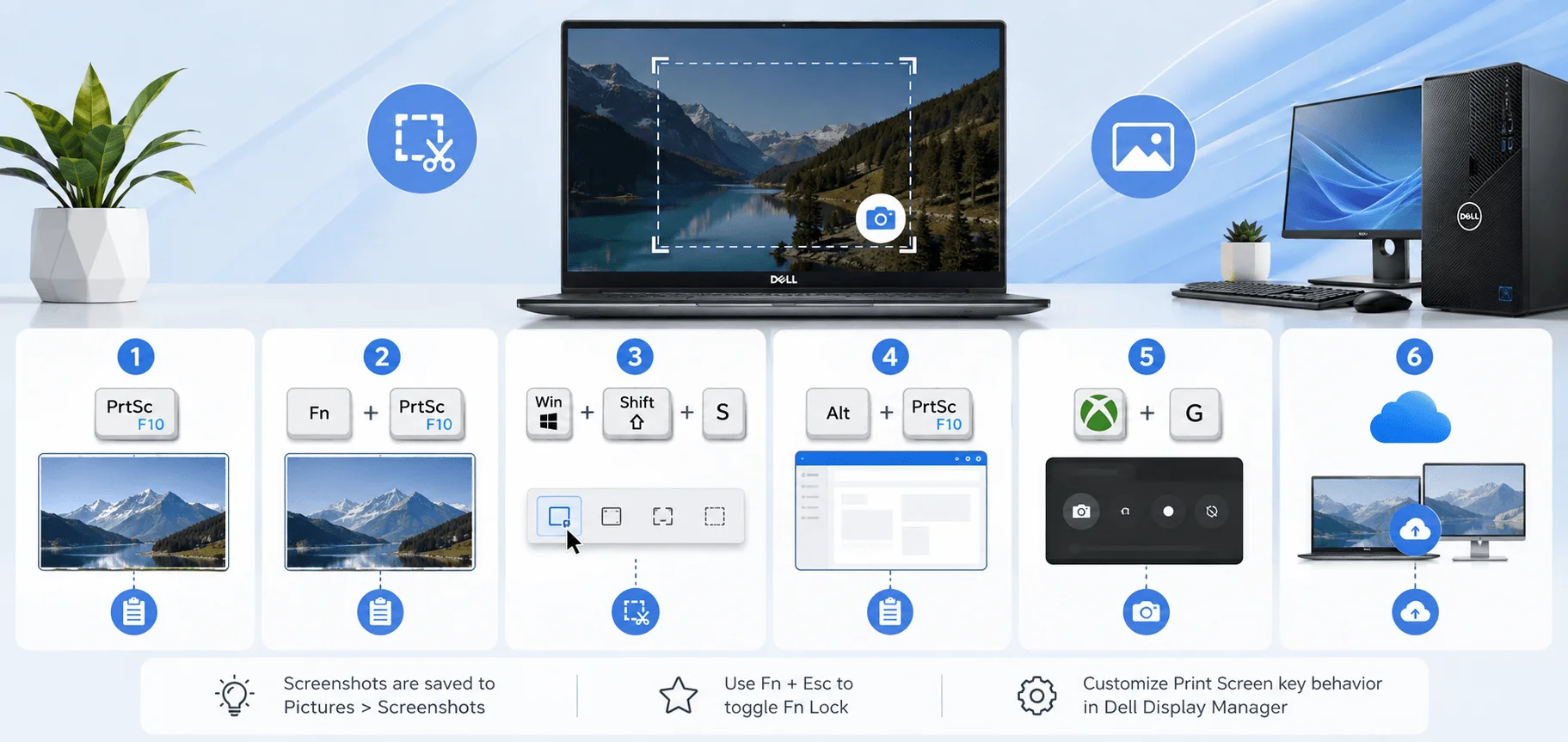
There are four Windows screenshot shortcuts that work on every modern Dell machine, and they are not interchangeable. Two of them save an actual file to your hard drive. Two of them only copy to the clipboard, which means the image vanishes the moment you copy something else. I've lost more screenshots to this than I care to admit. So before you pick one, ask yourself a single question: do I need this file later, or am I pasting it right now?
That answer determines your shortcut.
Method 1: Capture Your Entire Screen (Saves a File)
Press: Windows + PrtScn
This is the full screen screenshot most people want.
Your display dims briefly to confirm the capture, then Windows saves it automatically. No pasting required. No image editor needed.
Where it saves: Pictures > Screenshots
Using a Dell Latitude 2-in-1 or a rugged tablet? Dell documents a different combination for Windows-based tablets: Windows button + Volume Down.
Method 2: Copy the Whole Desktop to the Clipboard
Press: PrtScn (alone)
This grabs everything on your display and copies it to the Windows clipboard.
No file is created. Nothing gets saved.
To actually keep it, follow these 4 steps:
Press PrtScn
Open Microsoft Paint, Word, or any image editor
Press Ctrl + V to paste
Save the file as PNG or JPG
Quick heads up: on Windows 11, this key may open the Snipping Tool instead. I'll explain why in a moment.
Method 3: Capture Only the Active Window
Press: Alt + PrtScn
This is my personal favorite, and I think it's the most underrated Dell laptop screen capture method out there.
It grabs only the window you're currently working in. No taskbar. No desktop clutter. No second monitor bleeding into the frame.
Like Method 2, it goes to the clipboard — so paste it with Ctrl + V before you copy anything else. It's also the safest option when you're sharing a screenshot publicly, since nothing outside the active window gets captured. Same logic applies on video calls, where blurring your Zoom background keeps everything behind you out of frame.
Method 4: Grab a Specific Region
Press: Windows + Shift + S
Your screen dims and a small toolbar appears at the top.
From there you can take a rectangular snip, a freeform snip, a window capture, or a full-screen capture. It's the fastest route to a partial screenshot, and it's built into every Windows 10 and 11 machine.
The capture goes to your clipboard, and a notification appears in the corner. Click that notification to open it in the Snipping Tool, where you can annotate and save.
Why Your Print Screen Key Opens the Snipping Tool
If you've been using Windows for years and suddenly your PrtScn key behaves differently, you're not imagining things and your keyboard isn't broken. Microsoft changed the default in 2023. As BleepingComputer reported, pressing Print Screen now opens the Snipping Tool rather than copying to the clipboard — overturning behavior that had stayed consistent for 28 years, since Windows 95 shipped in 1995.
Some people love it. Others want the old behavior back.
Here's how to switch it.
Turning the Snipping Tool Behavior Off
Microsoft's original guidance was that the setting could be turned off via Settings > Accessibility > Keyboard, and that if you'd previously modified the preference yourself, it would be preserved.
Simple enough, right?
Not quite.
The toggle has moved between builds. One Microsoft Q&A thread points users toward Bluetooth & devices > Keyboard instead — and reports the option missing entirely on some Windows 11 Home installations.
The Registry Fix (5 Steps)
If you can't find the toggle anywhere, do this:
Press Windows + R, type
regedit, hit EnterNavigate to
HKCU\Control Panel\KeyboardCreate a new DWORD (32-bit) Value named
PrintScreenKeyForSnippingEnabledSet the value data to 0
Restart your Dell
Done. Your Print Screen key now copies to the clipboard the old-fashioned way.
What's Coming Next
Worth knowing if you use third-party capture software: Windows Latest reports that Build 26300 includes a new Group Policy called "Make Print Screen key yieldable," found under Computer Configuration > Administrative Templates > Windows Components > File Explorer.
Translation: apps like ShareX, Greenshot, and Snagit will finally be able to claim the key cleanly.
How to Take a Screenshot Using Xbox Game Bar
Gaming on an Alienware or a Dell G Series machine? Then you've probably noticed that regular screenshot shortcuts sometimes fail inside full-screen games. The display captures as a black rectangle, or nothing happens at all. That's a rendering issue, not a keyboard issue — and the fix is a tool Microsoft already installed on your machine. The Xbox Game Bar hooks directly into the graphics layer, so it captures what other methods can't. Here's how to use it.
Press: Windows + Alt + PrtScn
That's the one-shot capture. But you can also open the full overlay in 4 clicks:
Press Windows + G
Click the Widgets button
Select Capture
Click the camera icon
Where it saves: Videos > Captures
Yes, Videos — not Pictures. This trips up nearly everyone. As one detailed breakdown of Windows capture tools puts it, if you need the screenshot later, use a shortcut that saves a file; if you only need to paste once, clipboard-first is faster.
Bookmark that sentence. It's the whole system in a nutshell.
Print Screen Not Working on Your Dell? 4 Fixes
So you've tried every shortcut above and your Dell is still refusing to cooperate. Take a breath — this is almost never a hardware failure. In my experience, print screen not working on Dell machines comes down to 4 culprits, and you can rule out all four in under five minutes. Work through them in order, because the first one accounts for the overwhelming majority of cases and takes about two seconds to test.
Fix 1: Check Your Fn Lock
This is the big one.
On Dell laptops, the F-Lock setting determines whether the function row acts as F-keys or as media keys. If F-Lock is off, you must hold Fn to trigger PrtScn.
The test: press Fn + PrtScn once. If it works, F-Lock was your problem.
The fix: Dell uses Fn + Esc on most models. For comparison across the three major vendors:
Brand | F-Lock Toggle |
|---|---|
Dell | Fn + Esc |
HP (business models) | Fn + Shift |
Lenovo ThinkPad | Dedicated indicator light on Fn key |
Fix 2: Disable Cloud Screenshot Interception
OneDrive and Dropbox both offer a feature that automatically saves screenshots to the cloud. The problem? They intercept the capture before anything else can touch it.
Symptom: you press PrtScn, paste into Paint, and get an empty canvas.
To turn it off:
Click the OneDrive cloud icon in your system tray
Click the gear icon, then Settings
Open the Sync and backup tab
Find Automatically save screenshots I capture to OneDrive
Toggle it off
Funny enough, this works both directions. In one Microsoft support thread, a user found that Alt + PrtScn only started capturing the active window again after they re-enabled the OneDrive screenshot option.
So if disabling it doesn't help — try enabling it.
Fix 3: Check for Key Remapping
Microsoft support notes that if the Print Screen key doesn't open the Snipping Tool even with the setting enabled, your keyboard may be the culprit — remapped keys that don't send the standard PrtScn scancode simply won't register with Windows.
This affects mechanical keyboards and gaming peripherals most often. Check your keyboard's companion software for custom key profiles.
Fix 4: Use a Workaround
Still stuck? You've got three options:
Remap another key using PowerToys Keyboard Manager
Connect an external keyboard
Install a third-party tool with its own hotkey
How to Screenshot on a Dell Chromebook
Dell Chromebooks run ChromeOS, not Windows — which means every shortcut above is useless here. There's no Print Screen key on the keyboard at all. Instead, ChromeOS uses the Show Windows key, that rectangle-with-two-lines icon sitting where F5 would normally live on a Windows board. If you've just switched from a Windows Dell to a Chromebook, this is genuinely the number one source of confusion I hear about. Google's official Chromebook documentation covers it, but here's the short version.
The 4 Chromebook Shortcuts
Full screen: Ctrl + Show Windows
Capture menu (partial, window, and screen recording): Shift + Ctrl + Show Windows
External keyboard without a Show Windows key: Ctrl + Shift + F5
Tablet mode: hold the Power button, then select Screen capture
For the full walkthrough, including partial, window, tablet and stylus captures, see our complete guide on how to screenshot on a Chromebook.
Taking a Partial Screenshot on ChromeOS
The capture menu is where ChromeOS actually outclasses Windows, and most people never open it.
Press Shift + Ctrl + Show Windows and a toolbar appears at the bottom of your screen. From there you pick full screen, partial, or single window — and there's a camera/video toggle that switches the same tool into a screen recorder.
Here's the part worth knowing: after you drag a selection box, you don't have to redo it if you missed. Press Tab until a corner handle highlights, then use the arrow keys to nudge the edges pixel by pixel. Press Space to reposition the whole box.
That level of keyboard precision doesn't exist in the Windows Snipping Tool.
Where Chromebook Screenshots Save
Not in Pictures. Not in Screenshots.
Per Google's screen capture guide, recordings and screenshots save to your Downloads folder — though you can change that destination from the capture toolbar's Settings menu.
To edit one, click the thumbnail preview that pops up in the lower-right corner. ChromeOS opens its built-in annotation tools, where you can crop, highlight, and draw before sharing.
Where Do Screenshots Save on a Dell? Quick Reference
One last thing before the FAQ, because "I took the screenshot but I can't find it" is genuinely the most common follow-up question I hear. All 6 capture methods send files to a different location, and there's no logic connecting them. Rather than making you scroll back up, here's the full map in one place. Screenshot this section — pun fully intended.
Shortcut | Result | Save Location |
|---|---|---|
Windows + PrtScn | Saved file |
|
PrtScn | Clipboard only | Paste with Ctrl + V |
Alt + PrtScn | Clipboard only | Paste with Ctrl + V |
Windows + Shift + S | Clipboard + notification | Save via Snipping Tool |
Windows + Alt + PrtScn | Saved file |
|
Ctrl + Show Windows (Chromebook) | Saved file |
|
Frequently Asked Questions
Below are the questions I get asked most often about how to screenshot on Dell machines. Each answer is deliberately short, so you can skim to the one that matches your situation and get back to work. If your specific model isn't behaving the way this guide describes, the fastest path is Dell's own manuals and documentation portal, which lists key layouts by service tag.
How do I screenshot on a Dell laptop without a Print Screen key?
Press Fn + Insert first — Dell documents this as the substitute on laptops with no dedicated PrtScr key. If that fails, use Windows + Shift + S to open the Snipping Tool, or Microsoft's fallback combination, Fn + Windows logo key + Space Bar. All three work without touching a Print Screen key at all.
Why is my Dell screenshot not saving to the Screenshots folder?
Only Windows + PrtScn saves a file to Pictures > Screenshots. Plain PrtScn and Alt + PrtScn copy to the clipboard instead, so nothing appears on disk until you paste and save manually. If Windows + PrtScn also fails, check whether OneDrive is intercepting captures under its Sync and backup settings.
How do I screenshot just one window on a Dell?
Click the window you want so it becomes active, then press Alt + PrtScn. This copies only that window — no taskbar, no desktop, no second monitor. Paste it into Paint or Word with Ctrl + V to save it. Alternatively, press Windows + Shift + S and choose the window-capture icon from the toolbar.
Can I take a scrolling screenshot on a Dell laptop?
Not with built-in Windows shortcuts. Neither PrtScn nor the Snipping Tool captures content below the visible screen. For a full-page capture you'll need a third-party tool like ShareX or Snagit, or — if you only need a webpage — your browser's built-in full-page capture in Chrome or Edge DevTools. If the document you're capturing exists on paper rather than on screen, scanning it gives you a cleaner file than any screen capture will.
browser's built-in full-page capture in Chrome or Edge DevTools.
Where do screenshots go on a Dell Chromebook?
Chromebook captures save to the Downloads folder, not Pictures. You can change that location by pressing Shift + Ctrl + Show Windows, clicking Settings in the capture toolbar, and choosing a new folder. Screenshots also appear as a thumbnail preview in the lower-right corner immediately after capture.
Does the Print Screen key work differently on Windows 11 than Windows 10?
Yes. Since 2023, Windows 11 opens the Snipping Tool when you press Print Screen instead of copying the screen to your clipboard. Windows 10 keeps the original clipboard behavior. You can restore the old function through Settings, or via the PrintScreenKeyForSnippingEnabled registry value set to 0.
Wrapping Up
Here's what I'd remember if you forget everything else in this guide.
Windows + PrtScn handles 90% of what you need. Windows + Shift + S covers the other 10% when you want just one region. And if neither works on your Dell, press Fn + Esc and try again.
That's really it.
The shortcuts aren't complicated — Dell's six key labels and Microsoft's shifting defaults just make them feel complicated.
Now go capture something.
Recommended schema markup: Apply HowTo structured data to the four methods in "How to Screenshot on Dell Using Keyboard Shortcuts," and FAQPage markup to the six questions above. Both are eligible for rich results on this query type.
Read Also: How to Clean Laptop Fan: Step-by-Step Guide
Written by
Alex
Creative blogger sharing insights, stories, and fresh ideas.