How to Screenshot on Chromebook (2026): Every Method, Step by Step

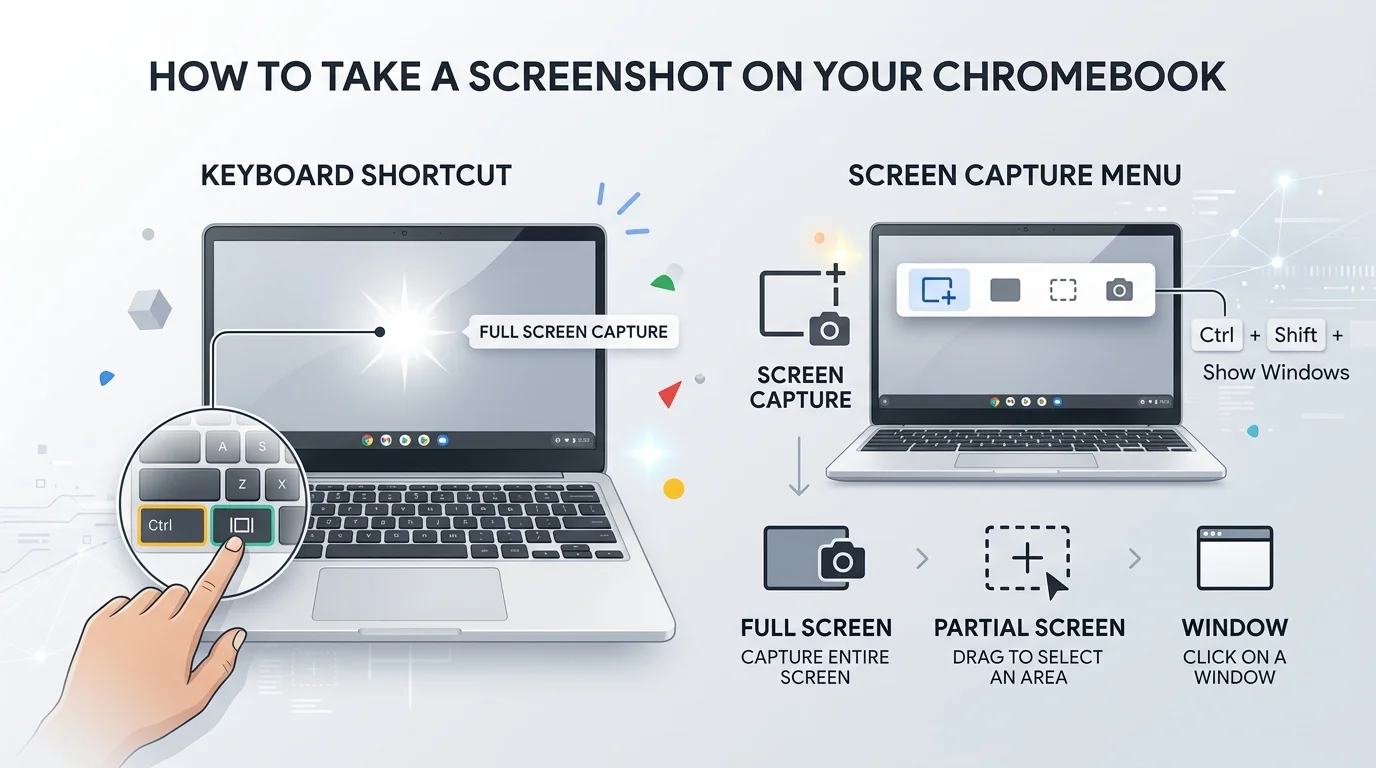
To screenshot on Chromebook, press Ctrl + Show windows for the full screen. Press Ctrl + Shift + Show windows to open the Screen Capture toolbar for partial, window, or video capture. On a tablet, press Power + Volume down.
Now let me walk you through each method.
Chromebook Screenshot Shortcuts at a Glance
You don't need to memorize everything today. Bookmark this table instead, then come back whenever you forget a keyboard shortcut. It covers every capture type, so you can find the right combo in seconds. I built it from Lenovo's support guide, Business Insider and Android Central.
What you want | Shortcut |
|---|---|
Full screen screenshot | Ctrl + Show windows |
Partial screenshot | Ctrl + Shift + Show windows |
Window screenshot | Ctrl + Alt + Show windows |
Open the full toolbar (also records video) | Shift + Ctrl + Show windows |
Tablet screenshot | Power + Volume down |
More tablet options | Power button, then Screen Capture |
Why the Chromebook Screenshot Shortcut Trips People Up
Here's the thing: your keyboard has no Print Screen key. Many new users hit that wall and get stuck. Instead, ChromeOS uses the Show windows key, the one in the top row that looks like a rectangle with two lines beside it. Once you spot it, everything clicks.
Coming from Windows? You might also like my guide on how to screenshot on a Dell, which shows the Windows side of the same skill.
Method 1: Take a Full Screen Screenshot
This is the fastest option, and honestly it's the one you'll use most. You capture everything on your display with a single key combination. No menus. No clicking. It works great when you need a quick record of a web page, a chat, or a confirmation screen.
Step by Step
Press Ctrl + Show windows together.
Watch for the pop up in the lower right. It confirms the screenshot was taken.
Click the pop up to view it, or paste it anywhere, because captures are copied to your clipboard automatically.
Some newer models have a dedicated Screenshot key. If yours does, use it to jump straight to capture mode.
Using an external keyboard with no Show windows key? Try Ctrl + Shift + F5, which the help text lists as the substitute.
Method 2: Capture Part of Your Screen
A partial screenshot keeps your image tight and professional. It's perfect when one corner of your screen shows something private, or when you only need one chart. Think of it as the built in snipping tool for ChromeOS. You'll end up with a cleaner image and far less cropping afterward.
Step by Step
Press Ctrl + Shift + Show windows.
Choose partial screenshot in the toolbar.
Click and drag a box around the area you want.
Release to capture.
Method 3: Screenshot a Single Window
Want a clean shot of just one app? Window capture does that without any background clutter. I love it for tutorials, bug reports, and documentation, since every image stays focused on one thing. Better yet, it skips the cropping step completely.
Step by Step
Press Ctrl + Alt + Show windows, the shortcut Business Insider lists for window shots.
Hover over the window you want.
Click to capture.
Want to compare two apps side by side first? Here is how to set up split screen on a Chromebook, and then capture the whole screen in one shot.
Method 4: Screenshots on a Chromebook Tablet or With a Stylus
No keyboard attached? No problem. Tablet mode uses physical buttons, much like a phone. It takes two seconds once you know it. Meanwhile, stylus users get a handy shortcut of their own, which students often love for note taking.
Tablet Buttons
Press Power + Volume down at the same time. That captures the entire screen.
Need Partial or Window Capture on a Tablet?
Open Quick Settings by swiping from the bottom right status area, then tap Screen Capture. The toolbar appears, and you can pick your mode there.
Stylus Method
Tap the stylus tool icon, then choose Capture screen or Capture region.
Bonus: Record Your Screen on a Chromebook
Need motion instead of a still? The same Screen Capture toolbar also records video. You can record the full screen, a selected area, or a single window. That makes it ideal for how to videos, lessons, and demos.
To start, press Ctrl + Shift + Show windows and flip the toggle from screenshot to screen record. Then pick your area and hit record.
Where Do Chromebook Screenshots Go?
You captured the image. Now where is it? Don't panic. Your screenshot is saved as a file, and it's also on your clipboard. So you can find it later or paste it right now.
Open the Files app from the Launcher. That's where Lenovo says screenshots are stored.
Look in your Downloads folder first, as Business Insider's walkthrough shows.
Want a different spot? Open the Screen Capture toolbar and click the settings gear to change the default save location, as Starry Hope explains. You can even pick a Google Drive folder so captures sync automatically.
Chromebook Screenshot Not Working? Try This
Most problems are simple. Usually it's the wrong key, a full drive, or a locked down device. So work through this checklist in order, and you'll fix it in under a minute.
Press all keys together, not one after another.
Restart your Chromebook.
Free up storage. Deleting files or moving them to Google Drive helps.
Check whether a school or work admin has restricted captures on a managed device.
Still seeing odd typing behavior while you test shortcuts? You may need to turn off Caps Lock on your Chromebook.
Chromebook Screenshot FAQ
How do I take a screenshot on a Chromebook?
Press Ctrl + Show windows for the full screen. For more options, press Ctrl + Shift + Show windows to open the toolbar.
How do I screenshot part of the screen?
Open the toolbar with Ctrl + Shift + Show windows, choose partial, then drag over the area you want.
Where is the Show windows key?
It's in the top row of your keyboard. It looks like a rectangle with two lines beside it.
How do I screenshot on a Chromebook tablet?
Press Power + Volume down together.
Where do screenshots save?
They go to your Downloads folder by default, and they're also copied to your clipboard. You can change the location in the toolbar settings.
Can I record my screen too?
Yes. The Screen Capture toolbar records the full screen, a partial area, or a window.
Why a Chromebook Is Worth Buying for Screenshots
Let me be straight with you. If you're choosing a laptop for school or remote work, a Chromebook makes capturing and sharing painless.
The screen capture tool is built in. There's nothing to install, nothing to pay for, and nothing to update separately. You also get cloud sync with Google Drive, a clean editor, and screen recording in the same toolbar. For a browser first workflow, that combination is hard to beat.
So if you're on the fence, I'd say go for it.
Final Thoughts
You now know every way to screenshot on a Chromebook. Use Ctrl + Show windows for speed, the toolbar for precision, and Power + Volume down on a tablet.
Practice each one once. By next week, you'll do it without thinking.
Written by
Alex
Creative blogger sharing insights, stories, and fresh ideas.