Gemini AI Photo Prompt Guide: Write Prompts That Work

Quick answer: A strong gemini ai photo prompt names one clear task, describes the style and lighting you want, and states exactly what should stay unchanged, usually the face, pose, and outfit.
I have spent the last few months testing every prompt style I could think of, from single-line requests to long, detailed instructions, just to see what actually holds up. What I found is simple: the words you choose decide whether Gemini gives you a polished, usable photo or a strange, half-right guess.
In this guide, I am walking you through the exact formula I now use for every edit, the mistakes that used to ruin my results, and real examples you can copy today. I will also show you where clean instructions matter far beyond photo editing, because the same idea is what led me to lean on a tool like LLMProGen for everything else I do with AI.
What Counts as a Good Gemini Photo Prompt?
Unlike a search query, a photo prompt has to carry visual detail in plain words. Gemini reads your text and, if you have uploaded a photo, uses it as a reference to keep faces, poses, or objects consistent while changing everything else you ask for. The clearer your description, the closer the output matches what is in your head. Vague prompts like "make it better" leave Gemini guessing, and guessing rarely produces a usable photo. Plain, concrete language beats technical jargon here, since Gemini responds better to a clear description than to camera terminology most people never use anyway.
Why My Early Attempts Kept Failing
When I first started, I would throw in five requests in one sentence, change the background, fix the lighting, add a filter, sharpen the face, and adjust the pose, all without telling Gemini what to leave untouched. The result was a photo that looked edited but not in the way I wanted. Once I started naming exactly what needed to stay unchanged, like the face, outfit, or pose, my results became far more predictable and usable straight away. It felt less like rolling the dice and more like giving clear directions to someone who was actually listening.
The Formula I Use for Every Gemini AI Photo Prompt
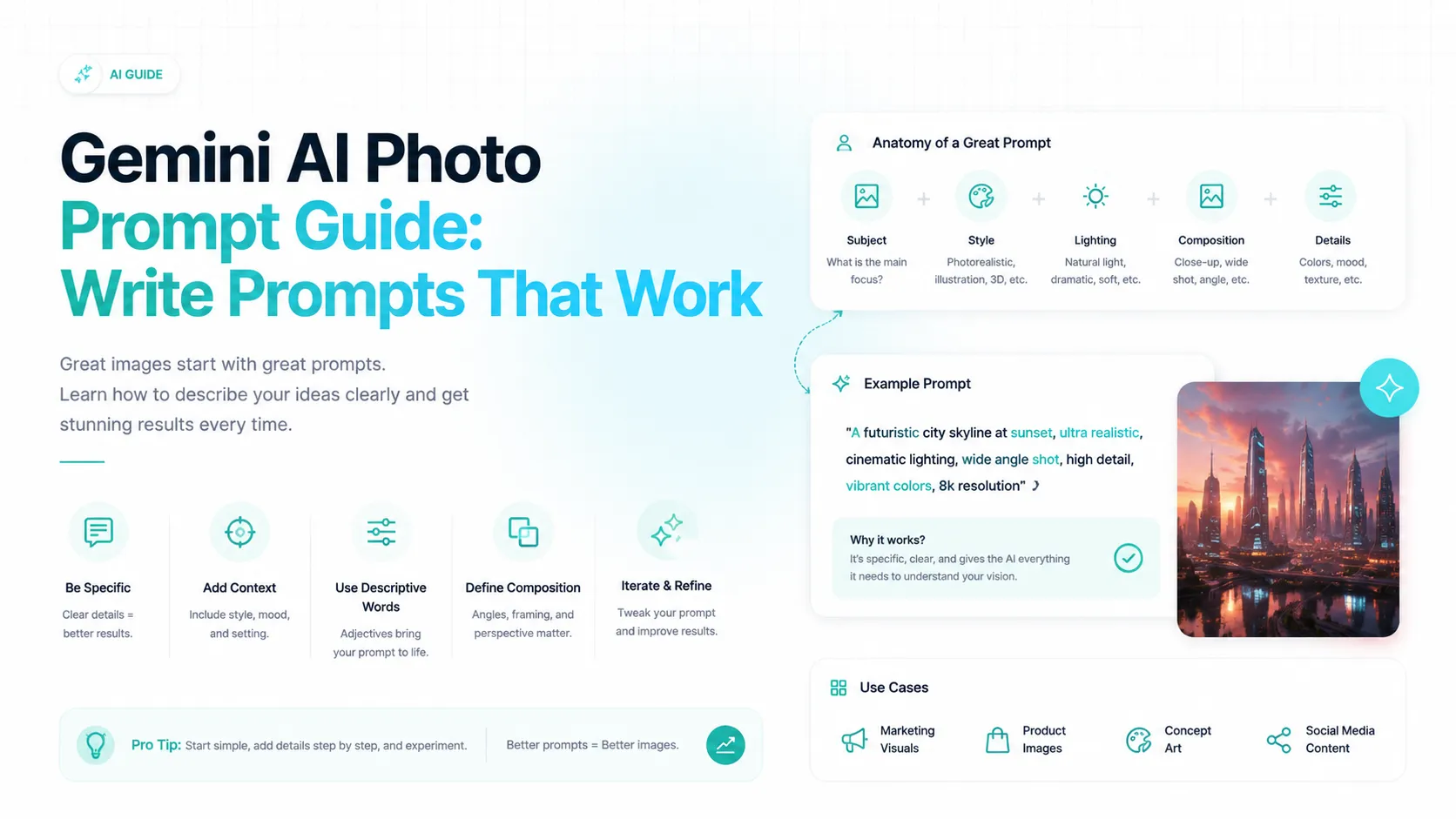
This order matters because Gemini processes instructions the way you write them, so leading with the subject and the task gives it a clear starting point before style details come in. I treat this formula like a checklist rather than a rigid script, filling in only the parts that matter for that specific photo.
Prompt Element | What It Controls | Example Phrase |
Subject | Who or what is in the photo | "A portrait of a woman in her thirties" |
Editing Task | The main change you want | "Replace the background with a city skyline" |
Style | The visual mood or finish | "Natural, soft daylight look" |
Lighting | How the scene is lit | "Warm golden hour lighting from the left" |
Background | The setting behind the subject | "Blurred rooftop garden at dusk" |
Quality | Sharpness and realism level | "High resolution, photorealistic detail" |
Preservation | What must not change | "Keep the face, hairstyle, and outfit exactly the same" |
Step-by-Step: Writing a Prompt That Keeps Faces Accurate
Upload a well-lit, front-facing reference photo so Gemini has enough detail to match later.
Open with the subject and the single main task, not five tasks at once.
Add style and lighting words only if the base edit already looks right.
Close with a preservation line such as "keep the face, pose, and skin tone unchanged."
Review the result and adjust one element at a time instead of rewriting the whole prompt.
This sequence has saved me from the back-and-forth of vague retries. Google's own guidance for editing images in Gemini Apps confirms that uploading a reference image and describing the exact edit is the intended workflow, and that the model is built to follow more detailed, layered instructions than earlier versions could handle. Enhanced instruction following lets the model follow more complex requests to capture details, and local edits allow quick, specific changes to parts of an image.
Gemini AI Photo Prompt Examples for Common Edits
I built the table below from the patterns that consistently worked for me. Feel free to swap in your own subject and setting details.
Use Case | Sample Prompt | Result You Should Expect |
Background swap | "Keep the subject's face and pose unchanged, replace the background with a quiet beach at sunset, soft warm lighting" | Same person, new realistic setting |
Portrait retouch | "Improve lighting and sharpness on this portrait, smooth skin naturally, keep facial features and expression identical" | Cleaner, more polished selfie or headshot |
Old photo restoration | "Restore this old photo, remove scratches and fading, keep the original expressions and clothing details unchanged" | Sharper, color-corrected restoration |
Product photo cleanup | "Remove the background, correct lighting and color accuracy, place the product on a plain white background" | E-commerce ready product shot |
Style transfer | "Apply a soft watercolor painting style to this photo while keeping the subject's pose and outline recognizable" | Artistic version of the same photo |
Mistakes I Avoid When Writing These Prompts
A few habits made the biggest difference once I dropped them:
I stopped writing "make it look professional" and started naming the exact lighting, background, and finish I wanted.
I stopped editing five things in one prompt and instead made one clear change per attempt.
I stopped assuming Gemini would keep the face untouched by default, and started stating it every single time.
I stopped ignoring the order of instructions, since leading with the subject and task consistently gave steadier results.
I stopped reusing the same prompt across very different photos, since lighting and background details rarely transfer well from one image to another.
A Rule I Never Break Before Uploading Anyone's Photo
This is the part most guides skip entirely, and it matters more than any lighting trick. Google's own Generative AI Prohibited Use Policy is explicit that using someone's image without their consent is not allowed, and that includes non-consensual intimate imagery. I treat this as a hard line, not a suggestion, whether I am editing a friend's selfie or a client's headshot. If I would not want my own photo used the same way without being asked, I do not do it to someone else.
How Resolution and Access Work in Gemini
Google's official help documentation for generating and editing images in Gemini Apps states plainly that to generate and edit images you must be 18 or over, while generating images only requires being 13 or the applicable age in your country. On the resolution side, you can preview images at high resolution and download at 2K with a Google AI plan, or 1K without one. Knowing this upfront saves you from planning a shoot or a client deliverable around a resolution you cannot actually export.
Which Gemini Model Handles These Photo Edits
I used to assume one model handled every kind of edit, but that is not quite how Gemini is set up. Nano Banana 2 is ideal for creating personalized images, such as viewing yourself with different hairstyles, picturing yourself in different scenes, or creating memes, while other Nano Banana variants are tuned for lighter, faster tasks. Switching models before you submit your prompt can change how much detail the edit captures, so it is worth checking which one is active if your results feel inconsistent. I now treat the model choice as part of my prompt process, not an afterthought.
A Quick Checklist Before You Hit Generate
I run through this short list every time now, and it catches most of the errors I used to make. It takes seconds but saves several retries, and it has become a habit I no longer have to think about consciously.
Reference photo is clear, well-lit, and shows the subject fully.
The prompt states one main editing task, not several stacked together.
Style and lighting details are specific, not vague adjectives.
A preservation line names exactly what should stay unchanged.
The output resolution matches what the final use case actually needs.
Why Clean Prompts Matter Beyond Photos
A precise photo prompt works because it removes guesswork for the model. I apply that same thinking to written content and websites too. When I need a site's content turned into clean, structured text that AI tools can actually understand instead of tripping over navigation menus and clutter, I use LLMProGen. It takes any webpage and converts it into organized, LLM-ready text in seconds, which is the same discipline of "clear input, reliable output" that makes a photo prompt succeed. If you are building anything that depends on AI reading your content accurately, whether that is a chatbot, a research tool, or a knowledge base, LLMProGen is worth trying before you spend hours manually cleaning text yourself.
Frequently Asked Questions
Is Gemini free to use for photo editing?
Yes, Gemini Apps offers image editing to signed-in users, though downloading at the highest 2K resolution requires a paid Google AI plan. The free tier still covers most everyday edits well.
What is the best gemini ai photo prompt format?
The most reliable format states the subject first, then the task, then style and lighting, and closes with what should stay unchanged.
Can I keep the same face when editing with Gemini?
Yes, uploading a clear reference photo and explicitly asking Gemini to keep the face, pose, and outfit unchanged gives the most consistent results.
Does this kind of prompt work for product photos?
Yes, prompts that describe background removal, lighting correction, and a plain backdrop work well for e-commerce product shots.
How long should a prompt like this be?
Length matters less than clarity. A short, specific prompt that names one clear task usually beats a long prompt trying to do everything at once.
Why does my prompt sometimes change the face slightly?
This usually happens when the preservation line is missing or too vague. Naming the face, skin tone, and expression directly, rather than assuming Gemini will leave them alone, fixes this in most cases I have tested.
Final Thoughts
Writing a good prompt for Gemini is less about clever wording and more about discipline: name your subject, state one task, describe the details that matter, and always protect what should not change. Once I built this habit, my edits stopped feeling like a gamble, and I stopped wasting time on retries that never quite matched what I pictured.
The same discipline applies to how I approach content for AI systems more broadly, not just images. Clear, structured input consistently beats clutter, whether you are prompting an image model or feeding a website into an AI pipeline. LLMProGen handles that second part for me, turning any website into clean, structured text that AI models can actually use, so give it a try the next time you need your content AI-ready.
Written by
Alex
Creative blogger sharing insights, stories, and fresh ideas.