Gmail newer than Operator: Find Email Fast (2026)


The Gmail newer than operator finds emails newer than a relative time period. Type
newer_than:followed by a number and a unit, either d (days), m (months), or y (years). For example,newer_than:7dshows every email from the last week.
I'll be honest with you.
For years, I scrolled endlessly through my inbox hunting for one email from "sometime last week."
Sound familiar?
Then I discovered the newer than Gmail search trick. Today, I find any recent email in about three seconds flat.
In this guide, I'll show you exactly how it works, the one mistake almost everyone makes, my favorite advanced search operators combos, and how to use it on your phone and in code.
Ready? Here we go.
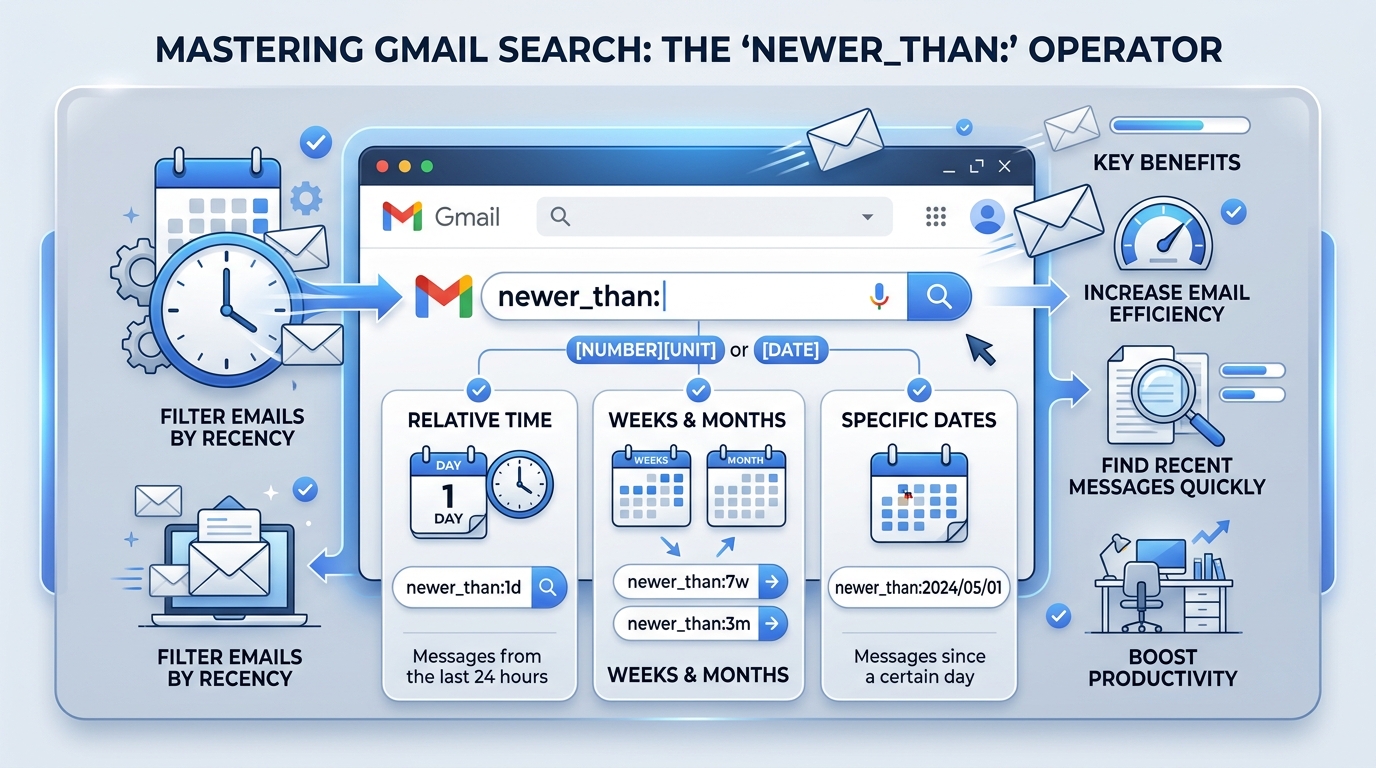
What Is the Gmail newer_than Operator?
First things first: what exactly is this thing?
The newer_than operator is a short piece of Gmail search syntax you type straight into the search bar. Instead of choosing exact calendar dates, you simply tell Gmail, "Show me everything from the last X days, months, or years." In other words, it's a relative date search that always stays current.
Better yet, it's official. Google's Refine searches in Gmail page lists older_than: and newer_than: together for finding emails older or newer than a time period, using d for day, m for month, or y for year.
Simple. Powerful. Criminally underused.
The Official Syntax
Now, let's look at the exact format you need.
The syntax couldn't be easier. You type the operator, a colon, a number, and a unit, with no spaces and no quotes. Because the window is relative, newer_than:7d always means "the last seven days," whether you search today or next year. That's why I rely on it for recurring searches.
Here are two quick examples:
newer_than:2dshows mail from the last two days.older_than:1yshows mail older than one year.
Even Google's Cloud Search reserved operators documentation lists newer_than as an official Gmail operator. So you know it's legit.
Supported Time Units
Here's the part you'll want to bookmark.
Gmail officially supports just three time units for this operator. That's it: days, months, and years. Knowing them cold prevents the most common search mistakes, which I'll cover in a moment. Meanwhile, here's a quick reference table you can copy straight into your notes.
Unit | Meaning | Example | What it finds |
|---|---|---|---|
d | Days |
| Emails from the last 7 days |
m | Months |
| Emails from the last 3 months |
y | Years |
| Emails from the last year |
How to Use newer_than: Step by Step
Okay, theory is nice.
But you're here for results, right? So I'm going to walk you through the exact process I use every single day on my laptop. Once you've done it twice, it becomes pure muscle memory. Honestly, you'll wonder how you ever managed without searching Gmail by date this way. Here's the complete workflow, from start to finish.
Step 1: Open Gmail on your computer.
Step 2: Click the search box at the top.
Step 3: Type your operator, such as newer_than:7d.
Step 4: Press Enter.
Step 5: Narrow things down by adding another operator, like from: or has:attachment.
Boom. You'll instantly see emails from the last 7 days, filtered exactly how you want.
How to Use newer_than on Android and iPhone
Good news: this trick works on your phone too.
Search operators also work in the Gmail mobile app, and Google even maintains separate Android and iPhone & iPad versions of its operator help page. So whether you're commuting or waiting for coffee, you can pull up recent mail instantly. Here's how I do it on my phone.
Step 1: Open the Gmail app.
Step 2: Tap the search bar at the top.
Step 3: Type newer_than:1d (or any combo you like).
Step 4: Tap search on your keyboard.
That's it. Same syntax, same results, smaller screen.
The Biggest Mistake: "m" Means Months (Not Minutes!)
Listen up, because this one trips up almost everybody.
When I first started, I typed newer_than:30m expecting emails from the last half hour. Instead? Gmail showed me roughly two and a half years of mail. Oops. The reason is simple: in Gmail's syntax, m stands for months, not minutes. Google's official operator list documents only days, months, and years.
So, whenever a tutorial suggests 10m for "ten minutes," be skeptical.
What About Hours and Weeks?
Now, you might be wondering about smaller units.
Interestingly, some developers use an h unit for hours in their automation scripts. For example, one Apps Script gist defaults to searching newer_than:1h. However, Google doesn't officially document hours or weeks anywhere on its help page. Therefore, treat them as unofficial.
My advice:
Test
hin your own inbox before relying on it.Never build anything critical on an undocumented unit.
For weeks, just use days (
newer_than:14dworks perfectly).
5 Powerful newer_than Combos I Use Daily
Here's where things get really fun.
On its own, newer_than is handy. But when you combine Gmail search operators, it becomes a precision tool. You can slice your inbox by sender, status, attachments, and category, all inside a rolling time window. As a result, I barely scroll anymore. Below are the five combos I personally rely on most, and you're welcome to steal every one.
Unread mail from today:
is:unread newer_than:1dRecent attachments:
has:attachment newer_than:7dLast month's invoices:
subject:invoice newer_than:1mYesterday only:
older_than:1d newer_than:2dOld promotions to clean up:
category:promotions older_than:6m
Here's a real world example of combo #2. Did you just scan a contract and email it to yourself? (If you haven't set that up yet, here's my guide on how to scan to email.) Then has:attachment newer_than:1d finds it in one shot.
Pro tip: combo #4 creates a rolling date window. In fact, one popular Multiple Inboxes setup uses this exact trick to build "Today," "Yesterday," and "Past Week" sections.
newer_than vs. after: and before: Which Should You Use?
Great question, and the answer depends on your goal.
Both approaches handle Gmail date range searches, but they work very differently under the hood. One is relative, while the other is absolute. Picking the right one saves time and, more importantly, prevents missed emails. So here's a side by side comparison showing exactly when I reach for each. Spoiler: I use both regularly.
Feature | newer_than: / older_than: | after: / before: |
|---|---|---|
Type | Relative (rolling window) | Absolute (fixed dates) |
Format | Number + d, m, or y | Date, e.g. |
Best for | "Last 30 days," recurring searches | "Everything in March 2025" |
API timezone issue | Avoids date format pitfalls | Dates read as midnight PST in the API |
Example |
|
|
Notice the YYYY/MM/DD date format? That's the safest way to write fixed dates in Gmail.
Using newer_than in the Gmail API and Apps Script
Are you a developer? Then you're going to love this section.
The exact same syntax works in code. That means you can automate inbox cleanup, build reports, or trigger workflows without learning a new query language. Even better, everything you practiced in the search bar transfers directly. Nevertheless, there are a few important quirks you absolutely need to know first, so let's cover them now.
The Gmail API q Parameter
Let's start with the API itself.
According to Google's search and filter guide, the messages.list and threads.list methods accept a q parameter that supports most of the same advanced syntax as the web interface. So a Gmail API search query like q=newer_than:7d just works.
Similarly, GmailApp.search() in Google Apps Script accepts identical strings. One caveat: the q parameter can't be used with the gmail.metadata scope.
Once your inbox runs on autopilot, you might want the same efficiency across your whole workflow. If so, my roundup of business process automation solutions is a great next step.
The Timezone Gotcha
Here's a sneaky one that catches many developers off guard.
Google's API guide warns that dates in a search query are interpreted as midnight PST, and recommends passing the value in seconds for other timezones. That's yet another reason I love newer_than, since relative windows sidestep this headache.
Also, the API doesn't perform alias expansion or thread wide searches the way the Gmail UI does. Consequently, expect occasional differences between UI and API results.
Turn Your Search Into an Automatic Filter
Now, let's take things one step further.
Searching is great, but automation is even better. Once you've built a search you love, Gmail lets you convert it into a filter in just a couple of clicks. From then on, your inbox quietly organizes itself in the background. Here's the exact process I follow, plus one important limitation you should know about.
Step 1: Run your search, for example from:newsletter@example.com.
Step 2: Click the filter icon in the search bar.
Step 3: Click Create filter.
Step 4: Choose an action: label, archive, or delete.
Google explains the full process in its filter setup guide. Quick heads up, though: filters act on incoming mail, so date operators like newer_than work best in saved searches and scripts. For bulk cleanup of old mail, a batch delete Apps Script is the smarter move.
Troubleshooting: Why Isn't newer_than Working?
Sometimes results look off. Don't panic.
In my experience, almost every newer_than problem comes down to one of four simple causes. The good news is that each one takes seconds to fix once you know what to look for. So before you assume Gmail is broken, run through this quick checklist. Nine times out of ten, the fix is right here.
Too many results? You probably typed
mexpecting minutes. Remember, it means months.Unexpected conversations? Gmail matches individual messages first, then shows whole conversations, so older threads can appear. Google notes this behavior for negative operators too.
Nothing found? Check for stray spaces.
newer_than: 7dcan break the query, so usenewer_than:7dinstead.Missing archived mail? Add
in:anywhereto include Spam and Trash as well.
Does newer_than Still Matter With Gmail's AI Search?
Absolutely, and here's why.
Gmail keeps getting smarter. For instance, Mailbird reports that in January 2026, Google announced Gemini powered AI Overviews for Gmail search that summarize threads. However, AI answers are conversational, while operators are precise and predictable. When you need exactly the right email, or you're about to bulk delete thousands of messages, predictable operator search still wins every time.
In short, use AI to explore, and use operators to act.
Frequently Asked Questions
Still have questions? You're not alone.
Below, I've answered the most common questions people ask about the Gmail newer_than operator. I kept each answer short and direct, so you can scan quickly and get back to your inbox. If your question isn't here, chances are the troubleshooting section above already covers it. Otherwise, Google's help page is your best next stop.
Does newer_than work with hours in Gmail?
Not officially. Google documents only d (days), m (months), and y (years). Some developers report success with h for hours in scripts, but because it's undocumented, it could change without notice. So always test it in your own inbox first, and avoid relying on it for anything important or automated.
What does "m" mean in newer_than?
In Gmail, m means months, not minutes. For example, newer_than:3m returns emails from the last three months. This is the single most common mistake people make with the operator, so double check your unit whenever your results look far larger than expected.
How do I search Gmail for the last 24 hours?
Type newer_than:1d into the Gmail search bar and press Enter. That returns emails from roughly the last day. Additionally, you can combine it with other operators, such as is:unread newer_than:1d, to see only today's unread messages. It's my favorite morning inbox check.
What's the difference between newer_than and after:?
The newer_than operator uses a relative time window, such as the last 7 days. Meanwhile, after: uses a fixed calendar date, like after:2025/03/01. Use newer_than for recurring searches that should always stay current, and use after: and before: when you need a specific historical date range.
Does newer_than work in the Gmail mobile app?
Yes. Search operators work in the Gmail app on both Android and iPhone. Simply tap the search bar, type something like newer_than:7d, and search. Google also maintains platform specific versions of its operator help page, so you can confirm supported syntax for your device.
Can I use newer_than in a Gmail filter?
You can type it into a filter, but filters apply to incoming mail as it arrives. Because of that, date operators work better in saved searches, Multiple Inboxes sections, or Apps Script automations. For cleaning up old emails, a scheduled script is usually the most reliable approach.
Start Mastering Gmail Search Today
So, here's the bottom line.
The Gmail newer_than operator costs you nothing, takes seconds to learn, and saves hours every month. Moreover, it scales from simple inbox searches all the way to full email automation with the Gmail API. I genuinely can't think of a faster, easier productivity win for your inbox.
Here's my challenge to you: open Gmail right now and type newer_than:7d is:unread.
Just try it once.
Then, bookmark Google's complete operator list so every operator is one glance away. I'm confident you'll never go back to endless scrolling again.
Your future self will thank you.
Written by
Alex
Creative blogger sharing insights, stories, and fresh ideas.