How to Double Space in Word (Windows, Mac & Web) 2026

To double space in Word, select your text, go to Home > Line and Paragraph Spacing, and choose 2.0. To double space the entire document, use Design > Paragraph Spacing > Double. The fastest route is Ctrl+A, then Ctrl+2.
Stuck with a cramped essay and a deadline? I've been there, so let me save you the headache. Below, you'll get every working method, plus fixes for the annoying problems nobody warns you about.
What Does Double Spacing Mean in Word?
Let's start with the basics, because the term trips people up. Double spacing adds a blank line's worth of room after every line of text. CustomGuide explains that this makes text easier to read, review and annotate. In Word, it appears as 2.0 line spacing. Teachers, editors and publishers love it because it leaves space for comments and edits. Honestly, that's the whole concept. Just don't confuse it with character spacing, which only changes the gaps between letters.
Which Method Should You Use? (Comparison)
Not sure where to start? This table shows you the quickest option for each situation.
Method | Best for | Steps |
|---|---|---|
Design > Paragraph Spacing > Double | Whole document | 3 clicks |
Home > Line and Paragraph Spacing > 2.0 | Selected paragraphs | 2 clicks |
Ctrl+A, then Ctrl+2 | Speed (Windows) | 2 key presses |
Format > Paragraph > Double | Word for Mac | 3 clicks |
Set as Default | Every future document | One time setup |
Method 1: Double Space the Entire Document
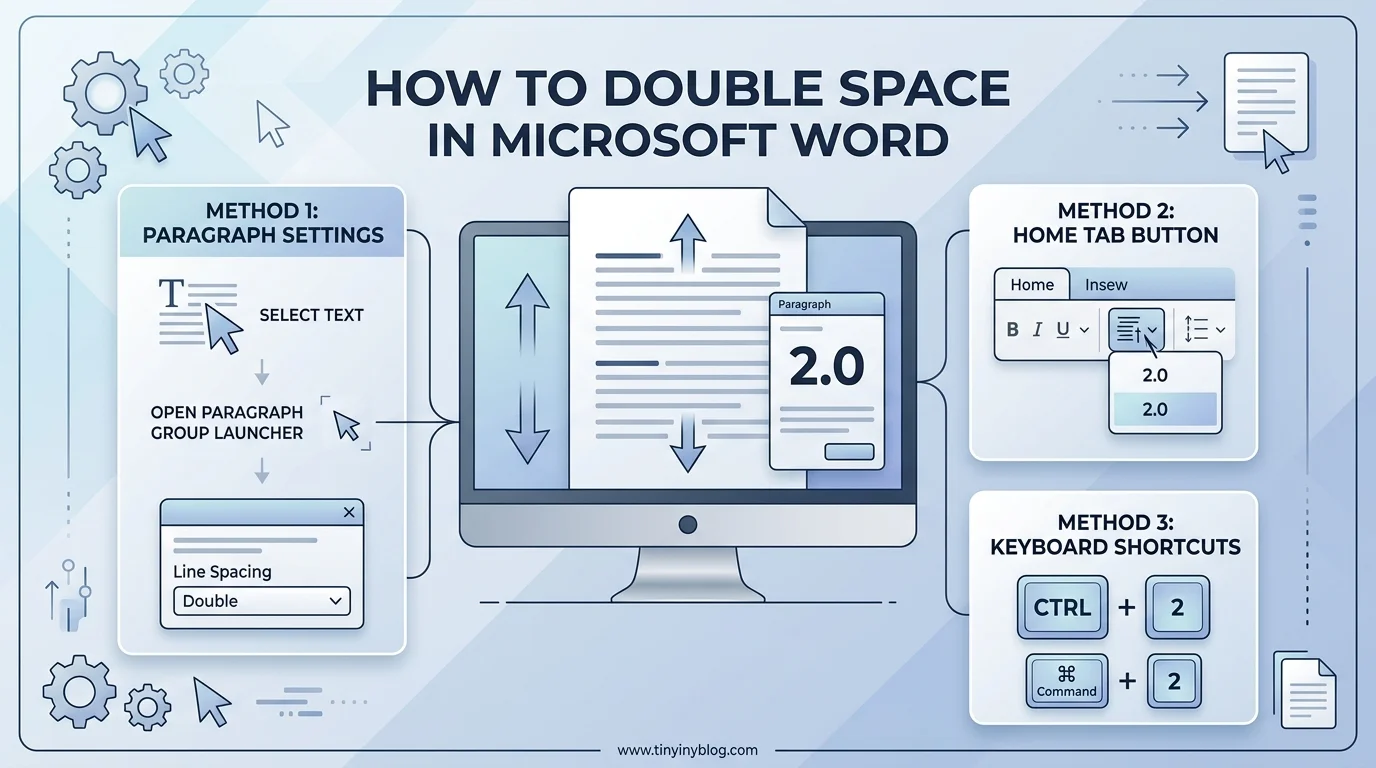
Need everything double spaced at once? This is your move. It's the method Microsoft Support recommends for the whole document, and it works in Word for Microsoft 365, 2024, 2021, 2019 and 2016. It takes about ten seconds. Better still, it also applies to text you add later.
Here's what you do:
Open your document.
Click the Design tab.
Select Paragraph Spacing.
Choose Double.
One heads up: this overrides your current style set. To undo it, open Paragraph Spacing again and pick the option listed under Style Set.
Method 2: Double Space Part of a Document
Maybe you only need the body text double spaced. Fair enough. Selecting specific paragraphs keeps your title block and quotes untouched. The steps come straight from Microsoft's guide.
Select the paragraphs you want to change.
Go to Home.
Click Line and Paragraph Spacing.
Choose 2.0.
Want finer control? Open Line Spacing Options. There you'll find Exactly, At least and Multiple, which let you set precise point values.
The Keyboard Shortcut for Double Spacing
Here's my personal favorite. It's fast, and you'll feel like a wizard. According to MOBAR, the shortcuts work on the paragraph where your cursor sits:
Ctrl+1: single spacing
Ctrl+2: double spacing
Ctrl+5: 1.5 spacing
To transform a full document, press Ctrl+A to select everything, then Ctrl+2. Done in a heartbeat.
How to Double Space in Word for Mac and Word for the Web
Using a Mac? The steps differ slightly, but they're just as simple. Per Macinstruct, choose Edit > Select All, then Format > Paragraph, set Line Spacing to Double and click OK. If you love working faster, don't miss my guide to keyboard shortcuts on Mac.
On Word for the web, Microsoft says to go to Home > More Paragraph Options > Line Spacing. Keep in mind that Word for the web reverts to 1.15 spacing in new documents.
How to Set Double Spacing as Your Default
Tired of repeating this every time? Me too. Word's default line spacing is 1.15, so you'll need to change it once and save it. Here's how:
Go to Home > Line and Paragraph Spacing > Line Spacing Options.
Choose Double under Line spacing.
Click Set as Default.
Select All documents based on the Normal template.
Click OK.
Troubleshooting Double Spacing Problems
Sometimes the result looks wrong even after you follow every step. That's normal, and it's fixable. Two culprits cause nearly all the trouble: extra paragraph spacing and the number of spaces after a period. Let me walk you through both.
Extra Space Between Paragraphs
Seeing a gap that's bigger than double? Word adds space after paragraphs by default, which stacks on top of your line spacing. LibreTexts points out that APA papers shouldn't have it. Open Line Spacing Options and set Before and After to 0 pt.
One Space or Two After a Period?
This one divides writers. Grammarly says every major style guide recommends one space after a period. Purdue Global notes APA 7 returned to one space. Interestingly, a 2018 eye tracking study of 60 students found two spaces slightly aided initial text processing, though comprehension didn't change. Follow your instructor's rule.
Double Spacing for APA and MLA Papers
Writing an academic paper? The rules are strict, but they're easy once you know them. APA 7 says to double space the entire paper, including the title page, abstract, headings, block quotations and reference list. Table bodies and figure images are the exceptions. Also, don't add extra spacing between paragraphs. Your reference list needs a hanging indent too, and my walkthrough on how to make a hanging indent in Google Docs shows you exactly how.
Purdue OWL's MLA guide is just as direct: double space the text of your paper.
Frequently Asked Questions
How do I double space in Word quickly? Press Ctrl+A to select all, then Ctrl+2.
What is the double spacing setting in Word? It's 2.0 under Home > Line and Paragraph Spacing.
How do I double space the whole document? Go to Design > Paragraph Spacing > Double.
Is double spacing the same as 2.0? Yes, 2.0 line spacing is double spacing in Word.
How do I double space on a Mac? Select all, then Format > Paragraph > Line Spacing > Double.
What is Word's default line spacing? It's 1.15, according to Microsoft.
Does APA require double spacing? Yes, for the entire paper, apart from table bodies and figure images.
Why Microsoft 365 Makes Formatting Effortless
Look, you could wrestle with free tools and clunky workarounds. But I wouldn't. Word for Microsoft 365 gives you the Design tab shortcut, the Paragraph dialog, style sets and Set as Default, all in one place. You save time on every essay, report and manuscript. If you format documents regularly, getting a Microsoft 365 subscription is a smart investment. Try it, and you'll wonder how you managed without it.
Written by
Alex
Creative blogger sharing insights, stories, and fresh ideas.