Turn Off Caps Lock on Chromebook: 1-Second Fix (2026)


To turn off Caps Lock on a Chromebook, press the Shift key once. This works across all Chrome OS devices, including Acer, HP, Lenovo, and Google Pixelbook models, because Chromebooks don't use a traditional physical Caps Lock key like Windows or macOS. Instead, Google replaced it with the "Everything Button," and Caps Lock is triggered through a key combination rather than a dedicated key.
Below, I'll walk you through turning it off, turning it on, remapping a key to make it permanent, and fixing it when it gets stuck.
Let's get into it.
Why Chromebooks Don't Have a Regular Caps Lock Key
Chromebooks were built differently from the start.
Google removed the physical Caps Lock key from the Chromebook keyboard entirely. In its place, you'll find the Launcher key (also called the Search key, marked with a magnifying glass icon).
This key handles multiple jobs. It opens your app launcher, searches your device, and, combined with Alt, toggles Caps Lock.
Google made this change to keep the Chrome OS keyboard layout minimal and fast. Fewer dedicated keys means a cleaner design, and Caps Lock was one of the least-used keys on a standard keyboard anyway.
If you're coming from a Windows laptop, this switch can feel unfamiliar at first. You reach for a key that isn't there. Once you know the shortcut, though, it becomes second nature.
If you multitask often, you might also want to check out our guide on how to split screen on a Chromebook to get more out of your keyboard shortcuts.
How to Turn Off Caps Lock on a Chromebook (Step-by-Step)
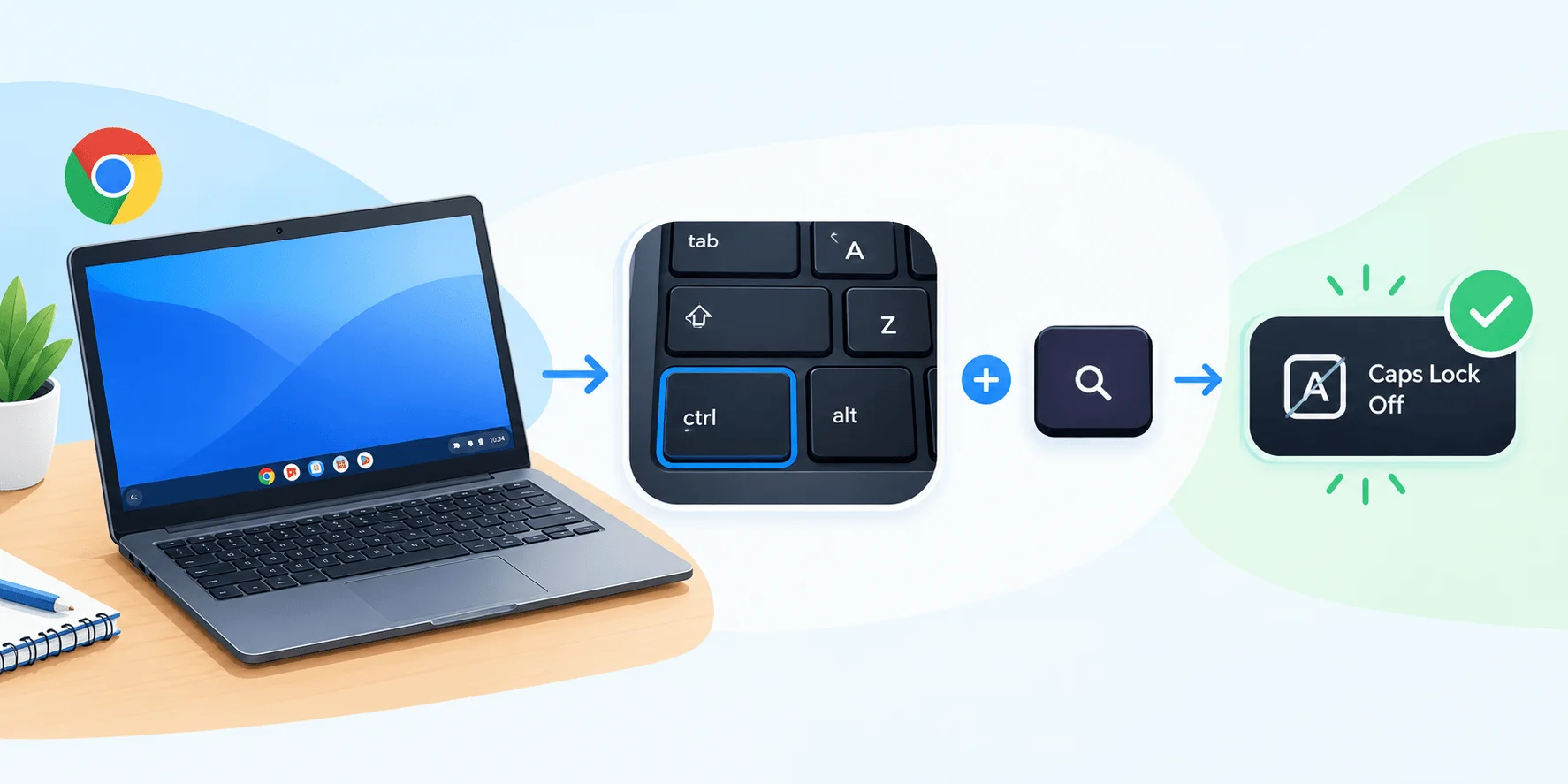
Turning off Caps Lock on a Chromebook takes one second once you know the shortcut.
Step 1: Locate the Shift Key
Your Shift key sits below the Search/Launcher key, on both the left and right sides of your keyboard.
Step 2: Press Shift Once
That's the whole trick. Google's own Chromebook keyboard support page confirms that a single Shift press disables Caps Lock immediately, no combo required.
Step 3: Confirm It's Off
Look at the bottom-right corner of your screen. When Caps Lock is active, a small arrow icon appears in the notification area. Once you press Shift, that icon disappears.
Type a lowercase letter to double-check. If it prints lowercase, you're set.
Alternative Method: Alt + Search
You can also toggle Caps Lock off using Alt + Search (or Alt + Launcher, depending on your model), the same combo that turns it on. This method works as a toggle, flipping Caps Lock to whichever state it wasn't in before.
Acer's official support documentation confirms this combo works identically across Acer Chromebook models, and it applies the same way on most other Chrome OS devices too.
How to Turn ON Caps Lock (In Case You Need It)
Turning Caps Lock on uses the reverse of the shortcut above.
Press Alt and the Search/Launcher key at the same time
Watch for the arrow icon in your notification bar
A small pop-up confirms Caps Lock is now active
Everything you type will appear in UPPERCASE until you turn it off using the Shift method.
How to Remap a Key to Act as a Dedicated Caps Lock
You can assign a different key to act as a permanent Caps Lock button, which helps if you use it often and don't want to remember the Alt + Search combo every time.
Chrome OS calls this keyboard remapping, and Google's remapping guide outlines the full process.
Step-by-Step: Remapping Your Keys
Sign in to your Chromebook
Click the time in the bottom-right corner
Select the Settings gear icon
Under "Device," click Keyboard
Choose Remap keyboard keys
Pick the key you want to reassign (many people choose the Search/Launcher key)
Set its action to Caps Lock
Once saved, that key becomes a dedicated Caps Lock button, no combos needed. If you're used to a different OS, our Mac keyboard shortcuts guide is a useful comparison for how key remapping differs across platforms.
Caps Lock Behavior by Chromebook Brand
Most Chromebooks follow the same Shift-to-disable rule, but a few small differences show up depending on the manufacturer.
Brand | Turn On | Turn Off | Notes |
|---|---|---|---|
Acer | Alt + Search | Shift | Confirmed via Acer Community KB |
HP | Alt + Search | Shift | Same Chrome OS default behavior |
Lenovo | Alt + Search | Shift | Same Chrome OS default behavior |
Google Pixelbook | Alt + Search | Shift | Uses the standard "Everything Button" layout |
External USB/Bluetooth keyboard | Physical Caps Lock key | Physical Caps Lock key | May bypass the Alt + Search combo entirely |
Common Mistakes People Make With Caps Lock on Chromebook
Mistake #1: Trying the Windows Shortcut
If you're used to Windows, your instinct is to look for a standalone Caps Lock key. Chromebooks don't have one. Use Shift instead.
Mistake #2: Assuming It's Broken
Sometimes Caps Lock seems unresponsive because of a sticky keys accessibility setting rather than an actual malfunction. Check your accessibility settings if Shift and Alt + Search both fail.
Mistake #3: Ignoring the Notification Icon
That small arrow in the bottom-right corner tells you the current state. Check it before you keep typing in the wrong case.
Mistake #4: Forgetting About External Keyboards
A plugged-in USB or Bluetooth keyboard with a physical Caps Lock key may behave differently than your built-in Chromebook keyboard, bypassing the Alt + Search combo entirely.
What to Do When Caps Lock Gets Stuck On
This isn't rare. A user on the Chromebook Community forum reported this exact inconsistent toggling issue, where Alt + Search didn't reliably switch Caps Lock off.
Here's how to troubleshoot it:
Restart your Chromebook. This clears temporary glitches affecting keyboard input.
Check for pending Chrome OS updates. Go to Settings, then About Chrome OS, then Check for updates.
Try an external keyboard. If the issue only happens on your built-in keyboard, it points to a hardware quirk rather than a settings problem.
Reset keyboard remapping. If you previously remapped a key, undo the change and test the default combo again.
Log out and back in. A session refresh often resolves minor input bugs.
If keyboard issues persist alongside general slowdowns, it's also worth running through our laptop fan cleaning guide, since overheating can sometimes affect input responsiveness.
Most of the time, a simple restart clears it up.
Quick Reference Table
Action | Shortcut |
|---|---|
Turn Caps Lock ON | Alt + Search/Launcher |
Turn Caps Lock OFF | Shift (single press) |
Toggle Caps Lock | Alt + Search/Launcher (again) |
Remap a key to Caps Lock | Settings > Keyboard > Remap keyboard keys |
Check Caps Lock status | Arrow icon, bottom-right notification bar |
Frequently Asked Questions
Does every Chromebook use the same Caps Lock shortcut?
Yes. Whether you're on an Acer, HP, Lenovo, Samsung, or Google Pixelbook, the Alt + Search combo to turn Caps Lock on and Shift to turn it off works consistently across Chrome OS devices, as confirmed by both Google and Acer's support documentation.
Why did Google remove the physical Caps Lock key?
Google redesigned the Chromebook keyboard to prioritize simplicity and speed. The physical Caps Lock key was replaced by the more versatile Search/Launcher key, which also handles app searching and other shortcuts.
Can I disable Caps Lock permanently on a Chromebook?
You can't remove the function entirely, but you can remap the key that triggers it through Settings > Keyboard > Remap keyboard keys, so it never activates accidentally.
What if Shift doesn't turn off Caps Lock?
Try the Alt + Search combo instead, since it acts as a toggle. If neither works, restart your Chromebook or check for a pending Chrome OS update, since outdated software occasionally causes keyboard glitches, as reported in the Chromebook Community forum.
Does this work the same way on an external keyboard?
Not always. A physical USB or Bluetooth keyboard with its own Caps Lock key may use traditional toggling rather than the Chromebook's Alt + Search method, so test it separately if you're using one.
Wrapping Up
Turning off Caps Lock on your Chromebook comes down to one shortcut: press Shift.
That's the fastest fix, and it works on essentially every Chrome OS device on the market today.
For more control, remap a key through your Settings so Caps Lock behaves exactly how you want, every time. And if it ever gets stuck, a restart clears it up in seconds.
For more Chromebook tips, check out our split screen on Chromebook guide, and if you switch between operating systems often, our Mac keyboard shortcuts guide is worth a look too.
Written by
Alex
Creative blogger sharing insights, stories, and fresh ideas.