How to Split Screen on Chromebook (2026 Guide + Shortcuts)

Split screen on Chromebook lets you view two windows side by side on one screen. To do it, snap a window using Alt + [ (left) or Alt + ] (right), drag its title bar to a screen edge, or hover the maximize button and pick a layout. This works with Chrome browser windows, Android apps, and progressive web apps on every Chromebook model, including tablet mode and multi-monitor setups.
I'll walk you through every method that actually works right now, from the classic drag-and-drop trick to the newer Snap Groups feature. Whether you're comparing two documents, taking notes during a video call, or just tired of alt-tabbing between fifteen tabs, this guide has you covered.
If you're looking to master more device-specific shortcuts, check out our guide on how to screenshot on Dell.
Let's get into it.
What Is Split Screen on Chromebook?
Split screen is ChromeOS's built-in way of showing two windows at once, positioned next to each other so you can use both simultaneously. Google calls this window snapping, and once you get the hang of it, you'll wonder how you lived without it.
Here's the thing — this isn't a hidden power-user trick. It's built into every Chromebook, budget or premium. No extensions. No downloads. It just works.
The feature supports Chrome browser windows, Android apps, and progressive web apps, so running Gmail next to a Google Doc, or a tutorial next to your notes app, is effortless.
Since split screen often goes hand-in-hand with heavier browser use, it's also worth knowing how to block distracting websites on Chrome and Android if you're using this setup to stay focused while multitasking
Split, Partial, Full, and Float — Quick Comparison
Most guides only mention one layout option, but ChromeOS actually gives you four. Here's how they stack up:
Layout | Screen Ratio | Best For | Works in Tablet Mode |
|---|---|---|---|
Split | 50/50 | Two equal-priority apps (docs + browser) | ✅ Yes |
Partial | 67/33 | A primary app + a reference window | ✅ Yes (limited) |
Full | 100% | Single-app focus | ✅ Yes |
Float | Small overlay | Quick reference (calculator, notes) | ❌ Limited support |
Partial split has been available since ChromeOS 105, but most users never discover it because it's buried inside the maximize-button menu rather than offered as a default option.
How to Split Screen Using the Maximize Button
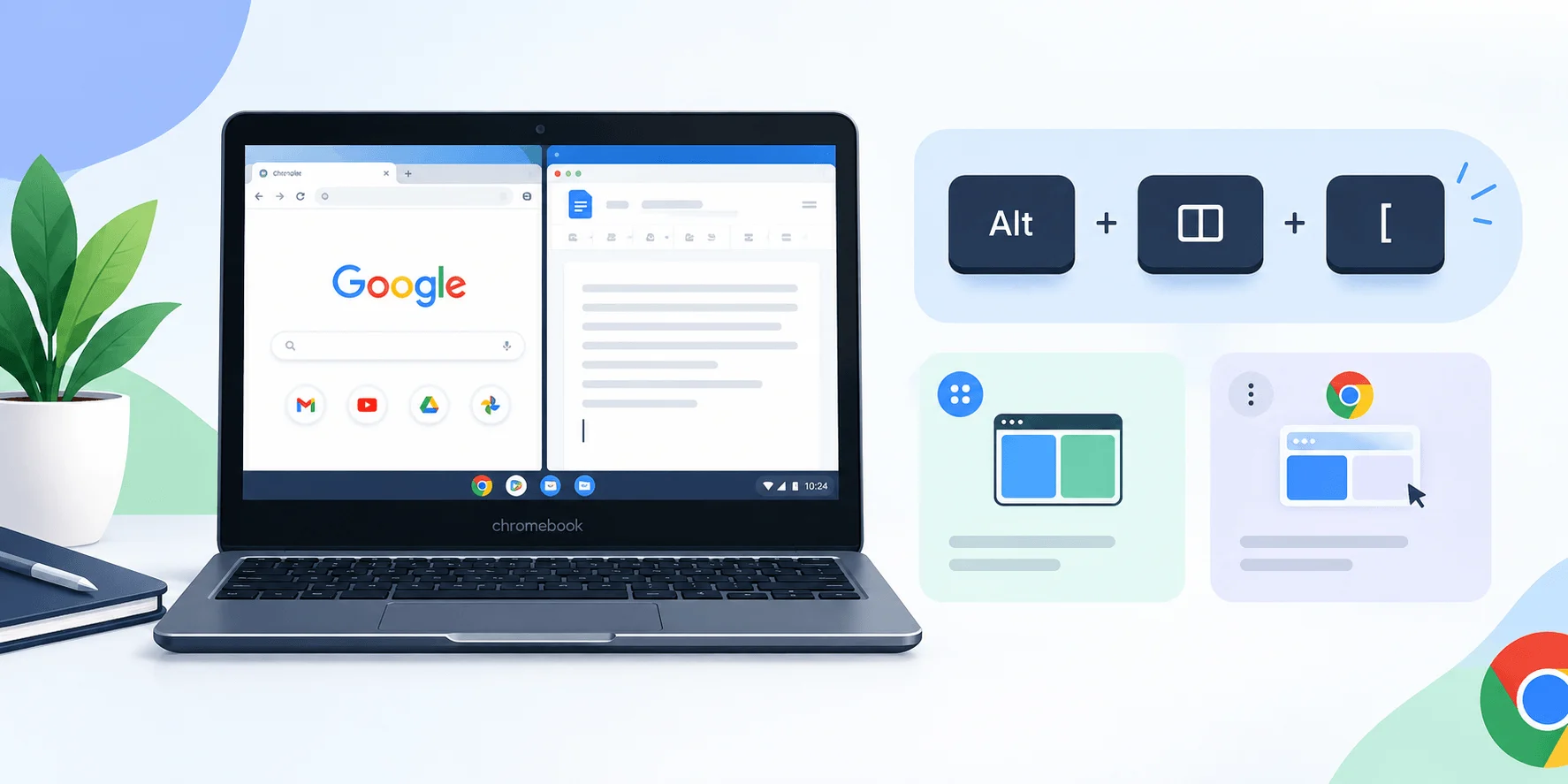
This is the easiest method, and the one I'd recommend if you've never split your screen before. No shortcuts to memorize. No dragging precision required.
Here's your step-by-step guide:
Open the first app or window you want on one side of your screen.
Move your cursor to the maximize button — the square icon in the top-right corner, next to the close (X) button.
Hover over it and wait a beat. You'll see a short animation play out.
A window layout menu appears showing your split screen options.
Click the side you want that window to snap to.
Open your second app, or pick it from the suggested list that appears automatically.
Once both windows are snapped, a divider bar appears between them. Drag it to resize either window if one needs more room.
How to Split Screen With Keyboard Shortcuts
If you'd rather skip the trackpad entirely, this is your fastest option. Here's a quick-reference table so you never have to look it up twice:
Shortcut | Action | Notes |
|---|---|---|
Alt + [ | Snap active window left | Official ChromeOS shortcut |
Alt + ] | Snap active window right | Official ChromeOS shortcut |
Shift + [ | Snap active window left | Alternate binding on some devices |
Shift + ] | Snap active window right | Alternate binding on some devices |
Alt + = | Maximize and exit split view | Restores full screen |
Alt + Tab | Cycle through a Snap Group | Requires an active group |
Click the window you want to move first so it's active, then hit the shortcut. It snaps instantly.
One detail most guides skip: using these shortcuts won't trigger the automatic suggested-window pairing that the maximize-button method offers. You're snapping one window at a time, which is fine for most people, but worth knowing before you assume something's broken.
If you switch between a Mac and a Chromebook regularly, our guide to keyboard shortcuts on Mac covers the equivalent commands so you're not mixing up your muscle memory between devices
How to Split Screen by Dragging Windows
This is the old-school method, and it still works exactly as you'd expect.
Click and hold the title bar at the top of the window you want to snap.
Drag it toward the left or right edge of your screen.
Watch for a transparent outline to appear along that edge — your cue that it's about to snap.
Release, and the window locks into place on that half of the screen.
Repeat with your second window on the opposite side.
Simple, visual, and satisfying. If you're a drag-and-drop person by nature, you'll probably lean on this method over the shortcuts.
How to Split Screen in Tablet Mode
If you've got a convertible or 2-in-1 Chromebook, things work differently once you fold it into tablet mode — there's no title bar to grab, so you'll lean on touch gestures instead.
Swipe up from the bottom of the screen and hold to open Overview mode, which shows thumbnails of everything open.
Tap and hold the app you want, then drag it to the left or right side of the screen.
Release it there, and it snaps into place.
Tap a second app from the remaining thumbnails to fill the other half automatically.
To resize, touch the divider bar between the two apps and pause until it visibly widens, then drag it left or right. You won't get quite the fine-grained control clamshell mode offers, but the quarter/three-quarter and half-and-half options work well for most tablet use cases.
Organizing Split Screen With Snap Groups
This is a part a lot of older guides miss, because it's a newer ChromeOS addition. Snap Groups let you save and organize your split-screen layouts so you're not rebuilding them from scratch every session.
You'll need ChromeOS version M128 or later to use this feature, so check for Chromebook updates if you don't see it yet.
Once set up, snapping a window and choosing another from the suggested list automatically creates a Snap Group. You can:
Activate a group — select Show Windows, or swipe up with three fingers on your trackpad.
Break a group — maximize, minimize, or close one of the windows inside it.
Replace a window — drag a new window on top of the existing group.
Move between windows — hold Alt and press Tab until you land on the one you want.
If the auto-suggestion behavior feels intrusive, turn it off: click the time in the system tray, open Settings → System preferences, and under "Window and desks," toggle off "Show window suggestions when starting split screen."
Split Screen on Multiple Monitors
Here's something most people don't realize, and it's genuinely one of the most underused features in ChromeOS: split screen works independently on each connected display. Plug in an external monitor, and you can run two apps side by side on your Chromebook's built-in screen while splitting two entirely different apps on the external one.
Snapping is per-display, so think of each monitor as its own separate split-screen workspace. This matters most for writers cross-referencing sources, or students juggling research and note-taking across two screens at once — a workflow most split-screen guides never even mention.
How to Exit Split Screen
Getting out of split screen is just as easy as getting into it:
Click the maximize button on either window to return it to full screen.
Drag the divider all the way to one side to close the other window.
Close one of the two windows directly.
Press Alt + = with your desired window selected to maximize it and exit the split view.
Pick whichever fits your workflow.
Common Split Screen Problems (And Fixes)
If your windows won't snap, a few things could be going on.
First, check whether your Chromebook is stuck in tablet mode — some laptop-style snapping methods are disabled there, so switch to the touch-based Overview method instead.
Second, confirm both windows are on the same desk and display. Split screen won't pair windows living on different virtual desks.
Third, if a fully visible window is already snapped to the opposite side of the one you're trying to move, the suggestion list won't appear. Move or close that window first, then try again.
Why Split Screen Actually Matters for Your Workflow
Constantly switching between full-screen apps drains your focus over the course of a day. Split screen removes that friction entirely.
Students can research and write papers at the same time. Professionals can monitor email while editing a document. Anyone attending an online class can take notes without ever leaving the lecture window. It's a small feature, but it compounds into a real productivity boost the more you use it.
Frequently Asked Questions
Does split screen work on all Chromebook models?
Yes — split screen works on Chromebooks from Dell, HP, Acer, Lenovo, Asus, and virtually every other manufacturer, since it's a core ChromeOS feature rather than something hardware-specific.
Do Android apps support split screen on Chromebook?
Most do. Some games and older apps force full-screen mode, so results vary app to app.
What's the keyboard shortcut for split screen on Chromebook?
Alt + [ snaps a window left, and Alt + ] snaps it right. Some setups also use Shift + [ and Shift + ].
Can I resize split screen windows?
Yes. Drag the divider bar between the two windows to give one more space than the other.
What ChromeOS version do I need for Snap Groups?
ChromeOS M128 or later. Check for updates in Settings if you don't see the feature yet.
What's the difference between Split and Partial layouts?
Split gives you an even 50/50 screen ratio. Partial, available since ChromeOS 105, gives you an uneven 67/33 ratio — useful when one app needs more room than the other.
Wrapping Up
Split screen on Chromebook comes down to picking whichever method fits how you work: the maximize button menu if you like visuals, keyboard shortcuts if you like speed, dragging if you're a mouse person, or Overview mode if you're on a tablet. Once you've got one of these down, side-by-side multitasking becomes second nature, and going back to single-window browsing will feel painfully slow.
Written by
Alex
Creative blogger sharing insights, stories, and fresh ideas.