OpenCore Legacy Patcher: Install macOS Sequoia

OpenCore Legacy Patcher (OCLP) is a free, open source tool that installs newer macOS versions on unsupported Intel Macs. The latest official release, 2.5.0, supports macOS up to Sequoia. Tahoe support is still in development, and macOS Golden Gate 27 isn't supported at all.
Your Mac still works fine. Apple just decided it's done with it.
Annoying, right?
That "no more updates" message feels unfair when the hardware still runs great. In this guide, I'll show you exactly how the open core legacy patcher fixes it, step by step. Stick around, because the honest status section near the end could save you from a very expensive mistake.
What Is the Open Core Legacy Patcher?
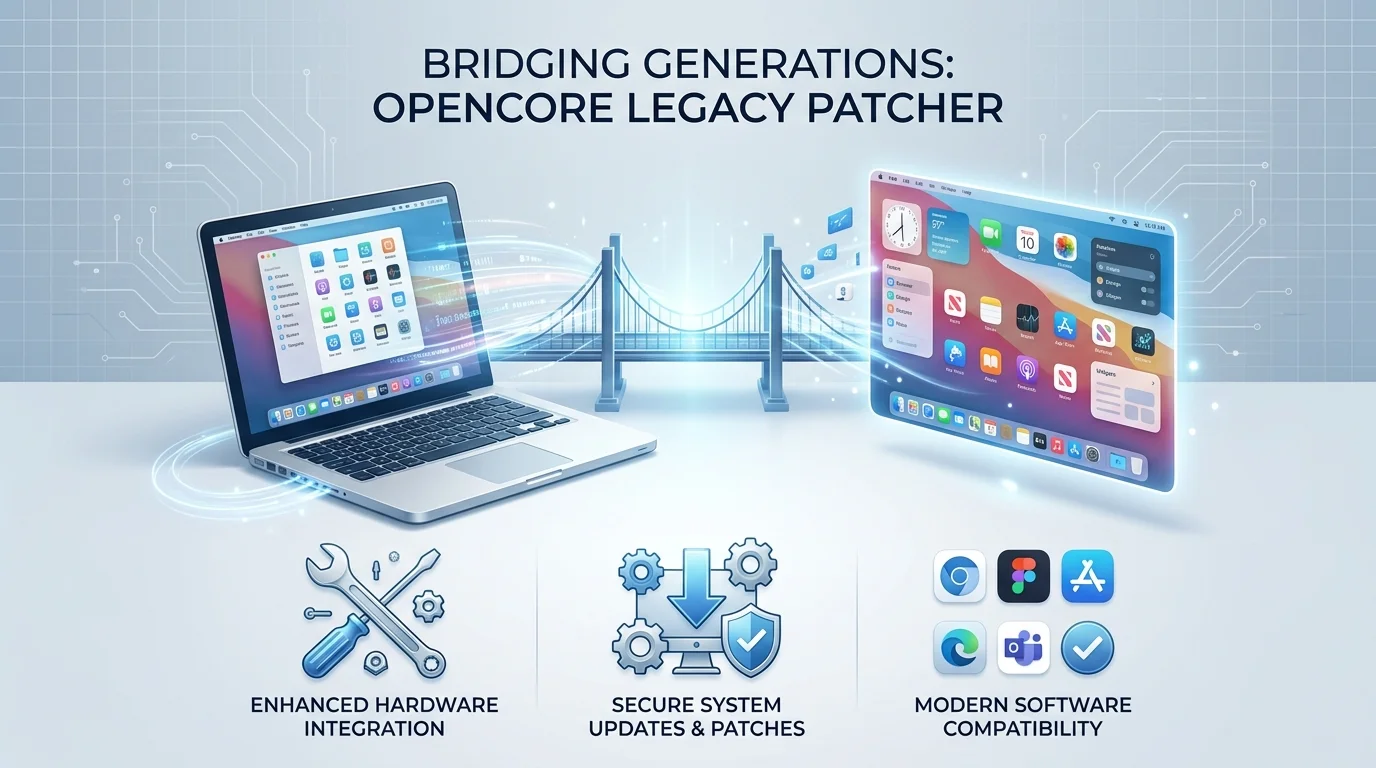
Let's clear this up fast. People search for the open core legacy patcher with all kinds of spellings, but the real name is OpenCore Legacy Patcher. It's a free tool from the Dortania community that lets older Macs run modern macOS. I think it does one job brilliantly: it keeps good hardware out of the trash.
You can read the full details in the official OpenCore Legacy Patcher docs.
How the Patcher Works
Here's the simple version. The project was started in 2020 and built on Acidanthera's OpenCorePkg. Instead of rewriting your disk, the OpenCore bootloader patches things in memory while your Mac starts up.
That's layer one.
Layer two is root patching. Apple strips out old graphics drivers, Wi-Fi, and Bluetooth support in newer releases, so OCLP puts them back. It's like handing your Mac a translator so it can talk to the new operating system.
Quick Glossary: Terms You'll See Below
Before we go further, let's decode the jargon. Nothing kills momentum like a term you don't understand, and the OCLP world is full of them. So here's a plain English cheat sheet you can skim now and reference later. No PhD required, I promise.
SIP (System Integrity Protection): Apple's security layer that OCLP partly lowers so root patching can work.
Root patching: Restoring removed drivers directly on your system volume after macOS installs.
EFI: The small boot partition where OpenCore lives.
Metal: Apple's graphics framework. Metal compatible GPUs (most Macs from 2012 onward) run best.
Kext: A kernel extension, meaning a driver that loads into the core of macOS.
T2 chip: Apple's security chip in 2018 and 2019 Macs, which causes boot panics under OpenCore.
Which Macs Can Run OCLP?
Check your model before you download anything. Seriously. It takes two minutes and saves you a wasted weekend. OCLP works only on Intel Macs. The supported models list covers 83 models from 2008 to 2019 for macOS Sequoia. To find your model identifier, open System Information.
Mac generation | Recommended macOS with OCLP | What you should know |
|---|---|---|
2008 to 2011 (non Metal graphics) | Monterey or Sequoia | AppleInsider suggests Monterey for 2008 and 2009 Macs. Expect slower graphics |
2012 to 2015 (Metal compatible) | Sequoia | Ivy Bridge, Haswell, and Kepler Macs need extra Metal support files on Sequoia |
2016 to 2017 (T1 chip) | Sequoia | Some features tied to the T1 chip may be limited |
MacBook Air 2018 to 2019 (T2) | Sonoma, Apple's own limit for these models | Sequoia panics on these models |
Mac Pro 2008 and Xserve 2008 | Sequoia (4 cores only) | Extra cores are disabled automatically |
Macs Apple still supports | No OCLP needed | Update normally |
Verified September 18, 2026 against the official Dortania model and Sequoia pages.
What You Need Before You Start
Grab these first:
An Intel Mac from the table above
3GB of RAM or more for Sonoma and newer, per the official model notes
A 32GB USB drive, as the installer guide recommends
A full Time Machine backup
Your Mac updated to its latest native macOS
How to Install macOS Sequoia With OCLP (Step by Step)
Alright, time to get your hands dirty. I'm targeting macOS Sequoia because it's the newest version OCLP officially supports. Read every step once before you touch anything, because skipping ahead is how installs go wrong. Now, let's roll.
Back up everything. Use Time Machine or an external drive. Don't skip this one.
Download OCLP. Grab
OpenCore-Patcher.pkgfrom the official GitHub releases page, and nowhere else.Create the installer. Open the app, choose Create macOS Installer, pick Sequoia, and select your USB drive. Go make coffee.
Build and install OpenCore. Click Build and Install OpenCore and target the USB drive. If you're patching a different Mac, pick its model in Settings first.
Boot the installer. Restart while holding the Option key, choose the EFI Boot icon, then pick the Sequoia installer.
Install macOS. Erase the drive for a clean start, or install over your system to keep your files.
Apply the post install root patch. Open OCLP, choose Post-Install Root Patch, then Start Root Patching. Reboot when asked.
Install OpenCore to your internal drive. Now you can boot without the USB stick.
After every major macOS upgrade, repeat the root patch. The updating guide explains why: major updates wipe your patches.
Troubleshooting Common OCLP Problems
Something will probably go sideways at some point. That's normal, and honestly, it's part of the fun. The good news is that most problems have quick fixes, and the community is big. Here are the issues people hit most often, plus what to try first before you panic and reach for the power button.
Sluggish or glitchy screen after install: You haven't root patched yet. Run Post-Install Root Patch.
Mac won't boot without the USB drive: Install OpenCore to the internal drive as well.
Features vanish after a macOS update: Root patches were wiped. Re apply them.
Sequoia graphics issues on Ivy Bridge, Haswell, or Kepler Macs: These need extra Metal support files.
Kernel panic on a 2018 or 2019 MacBook Air: That's the T2 problem, and it has no fix yet.
The Honest Risks of Using OCLP
Let me be real with you for a second. OCLP isn't magic, and anybody who says otherwise is selling something. Your Mac is running an operating system Apple never tested on it. That brings trade offs in security and features, and you deserve to know them upfront.
What won't work: Apple Intelligence and iPhone Mirroring don't function on most patched Macs. They need an NPU or a T2 chip, and the patcher can't fake hardware.
What about security? Root patching means lowering SIP. A developer said in a MacRumors thread that they only disable the parts needed. That's a community comment, not a guarantee. If you want to understand how boot time protections like Secure Boot fit into the bigger picture, that guide covers the basics. Either way, use your patched Mac for browsing, writing, and media, and keep your backups fresh.
OCLP Status in 2026: Tahoe and Golden Gate
Here's what most tutorials skip. The project is winding down, and you should hear it from me before you invest a weekend. The good news is that the Sequoia route still works beautifully. The rest of the picture is more complicated, so I've laid it out as a timeline you can scan in seconds.
June 2025: Apple made clear that macOS Tahoe 26 is the last release for Intel Macs.
March 2026: The lead developer had left for Apple, and the team closed donations.
June 15, 2026: The team said they're still working on Tahoe with no ETA, and have no plans for Golden Gate 27, which drops the last six Intel model identifiers.
September 2026: OCLP 2.5.0 arrived as a bug fix release with a slimmed down modern Wi-Fi patchset for Sequoia.
Security updates: Sequoia still receives Apple security updates, while Sonoma lost support in August 2026.
Verified September 18, 2026. Unofficial Tahoe forks like OCLP-Plus exist, but they call themselves experimental. Test them on a spare machine, never your daily driver.
OCLP vs. New Mac vs. Linux
So which route should you take? This is one of the most common questions about OCLP. The answer depends on your budget, your patience, and how much you rely on apps that only run on macOS. Here's a side by side comparison to make the decision easier. Look at your own priorities, then pick the column that fits.
Factor | OCLP + Sequoia | Buy a new Mac | Linux on your old Mac |
|---|---|---|---|
Cost | Free | Highest | Free |
Security updates | Apple's Sequoia updates, for now | Full, long term | Distribution updates |
Effort | Medium | Low | Medium to high |
macOS apps | Yes | Yes | No |
Apple Intelligence | No | Yes | No |
Best for | Everyday use on a Metal compatible Mac | Heavy or sensitive work | Maximum lifespan |
OpenCore Legacy Patcher FAQ
You've got questions, and I've got straight answers. These are the questions people ask most often about OCLP, and each reply is short so you can grab what you need and move on. If yours isn't here, the Dortania FAQ covers plenty more.
Is OpenCore Legacy Patcher safe?
It's open source and widely used, but it isn't risk free. Root patching lowers parts of SIP, and Apple never tested your Mac on the new OS. Download only from the official GitHub, keep backups, and avoid using a patched Mac for your most sensitive work.
Does OCLP support macOS Tahoe?
Not yet. The official docs target Big Sur through Sequoia. The team said on June 15, 2026 that they're still working on Tahoe but can't give a date. Forks claim Tahoe support, but they're experimental and unofficial. Stay on Sequoia for now.
Which Macs does OCLP support?
Only Intel Macs. The official list covers 83 models from 2008 to 2019 for Sequoia. Find your model identifier in System Information, then match it against the list. The 2018 and 2019 MacBook Air is the notable exception on Sequoia.
Does OCLP work on Apple silicon Macs?
No. The project states it doesn't support PowerPC or Apple silicon Macs. If you own an M series Mac, macOS runs natively, so you don't need it.
How do I undo OCLP patches?
Revert the root patches inside the OCLP app first. The 2.5.0 release notes say the uninstaller package removes the app but doesn't revert installed patches. After reverting, you can remove OpenCore from your drive.
Is OpenCore Legacy Patcher legal?
It's distributed openly on GitHub and offered as is with no support guarantee. Whether it complies with Apple's license terms is a question I can't answer, since I'm not a lawyer. Read Apple's terms yourself if that matters to you.
Your Next Move
Look, your Mac isn't broken. It's just been left behind.
A new Mac costs a fortune, and OCLP costs nothing. So here's what I'd do today: check the supported models page, back up your files, and order a 32GB USB drive. If your Mac has only 2GB of RAM, a cheap RAM upgrade is the smartest money you'll spend this year. Add an SSD while you're at it, and your old machine will feel brand new.
Don't wait for Apple's permission. Start with macOS Sequoia, follow the steps above, and enjoy years of extra life from hardware you already own. You'll thank yourself.
Written by
Alex
Creative blogger sharing insights, stories, and fresh ideas.