What Is a Kernel? A Simple Guide to How It Works


What Is a Kernel? A kernel is the core program of an operating system that manages communication between your hardware and every piece of software running on your device. It controls memory, processes, and devices so your apps never have to touch hardware directly. In short: no kernel, no computer.
I still remember the first time someone asked me "what is a kernel?" and I froze.
I mean, I used computers every day. But I had zero clue what was happening under the hood.
So today, I'm breaking it down the way I wish someone had broken it down for me — no jargon, no fluff, just straight talk. By the end, you'll understand exactly what a kernel is, why it matters, and how it's quietly running the device you're reading this on right now.
Let's dive in.
What Is a Kernel, Really?
Most explanations of a kernel sound like they were written for computer science professors. I'm not going to do that to you.
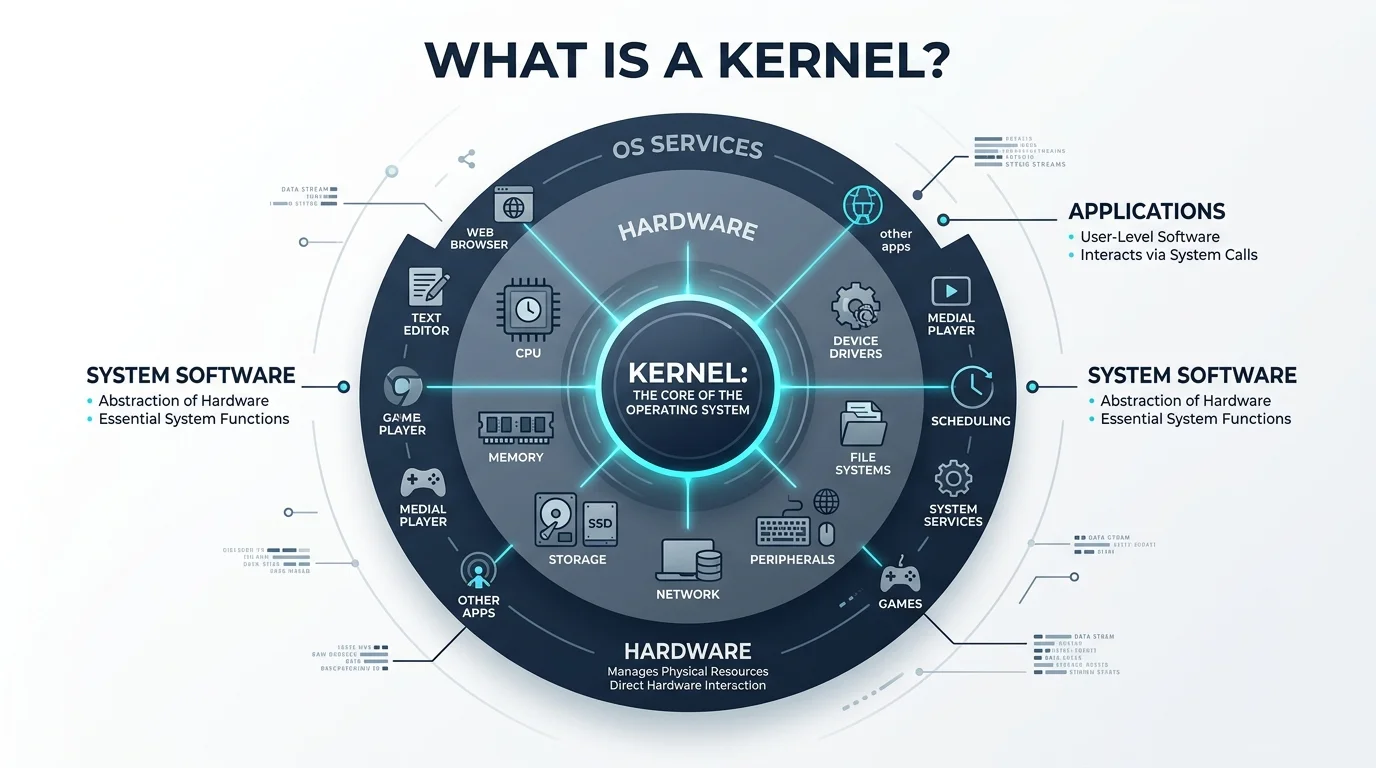
In plain English, a kernel is the core program at the heart of every operating system. It's the middleman. The translator. The bouncer deciding what gets in and what doesn't.
Every time you open an app, save a file, or plug in a USB drive, that request passes through the kernel first — because software can't talk to hardware directly. There needs to be a manager in charge, and that manager is the kernel. This is actually very similar in spirit to how an algorithm works — both are sets of instructions your computer follows step by step, just at very different layers of the system.
Think of it like this:
Your apps are the customers
Your hardware (CPU, memory, disk) is the kitchen
The kernel is the head chef making sure orders don't collide
If you're curious about the physical side of this equation, it also helps to understand the motherboard — the circuit board that physically connects the CPU, memory, and storage the kernel is managing.
Kernel Space vs. User Space (Don't Skip This Part)
Here's where it gets a little more technical, but stick with me — this part genuinely matters.
Your computer splits itself into two zones: kernel space and user space.
The kernel operates in a protected, privileged area, while your everyday apps run separately and communicate with it through system calls — structured requests that ask the kernel to do something on the app's behalf, like reading a file or allocating memory.
This separation exists for a reason. It means a poorly written app can't just reach in and mess with your entire system. It has to ask permission through the kernel.
Privileged mode (kernel mode) allows full, unrestricted access to system resources.
User mode is deliberately restricted — apps can't touch hardware directly, which is exactly what keeps your machine from crashing every time one app misbehaves.
What Does a Kernel Actually Do? (The 4 Big Jobs)
A kernel isn't just sitting there looking important. It's handling four major responsibilities, constantly, without you ever noticing.
1. Process Management
The kernel decides which program gets CPU time, and when. A built-in component called the scheduler handles this — it's the reason fifteen browser tabs, a music app, and a video call can all run at once without fighting each other for attention.
An interrupt handler works alongside the scheduler, responding whenever hardware or software needs the kernel's attention right away — like when you press a key or a download finishes.
2. Memory Management
The kernel allocates and frees up memory for every program you run. It also handles virtual memory — a clever trick that lets your computer pretend it has more RAM than it physically does, by borrowing space from your disk when needed.
3. Device Management
Printers, keyboards, webcams, network adapters — none of these would work without the kernel managing device drivers and translating your commands into something the hardware understands.
4. File System Management
Every time you save, rename, delete, or open a file, the kernel is managing how that file is structured and accessed behind the scenes.
The Different Types of Kernels (And Why It Matters)
Not all kernels are built the same, and the differences actually shape how your device performs.
Kernel Type | How It Works | Speed | Stability | Example OS |
|---|---|---|---|---|
Monolithic | All services run in one kernel-space block | Very fast | Lower (one bug can crash the system) | Linux |
Microkernel | Only essentials stay in kernel space; rest runs in user space | Slower | High | MINIX, QNX |
Hybrid | Combines monolithic speed with microkernel-style structure | Fast | Moderate-high | Windows, macOS (XNU) |
Exokernel | Gives apps near-direct hardware access | Very fast | Depends on app | MIT Exokernel, ExOS |
Nanokernel | Extremely minimal, low-level control only | Fast | High (narrow scope) | EROS |
A few notes worth knowing:
Monolithic kernels cram memory management, device drivers, and file systems into one block running in kernel mode. Linux is the classic example — it's fast, but a buggy driver can, in theory, take down the whole system.
Microkernels flip the script, pushing everything but the bare essentials into user space. More stable, but slower due to the extra communication overhead.
Hybrid kernels try to get the best of both worlds. Windows and macOS both lean on hybrid designs — though Linus Torvalds has famously called the "hybrid" label mostly marketing spin.
Exokernels and nanokernels are the specialized cousins — rare in consumer devices, but common in research systems where tight, low-level control matters more than general-purpose flexibility. Systems like this often rely on tightly controlled startup processes too, which is closely related to concepts like secure boot.
A Step-by-Step Way to Actually "See" Your Kernel
Want proof this isn't just theory? Let's make it real.
On Linux or macOS — open your terminal and type
uname -rOn Windows — open Command Prompt and type
winverfor your build detailsHit enter and look at what pops up
That string of numbers and letters is literally the version of the kernel running your machine right now. As of 2026, the mainline Linux kernel is in the 6.x series, with new stable releases shipping roughly every 9–10 weeks — a pace that's remained fairly consistent for the past several years.
Frequently Asked Questions
Is the kernel the same as the operating system?
No. The kernel is one core component of an operating system. The OS also includes the user interface, file system tools, and utility applications that sit on top of the kernel.
Which kernel does Windows use?
Windows uses a hybrid kernel architecture, combining monolithic-style performance with a more modular, microkernel-influenced structure.
Which kernel does macOS use?
macOS runs on XNU, a hybrid kernel that blends the Mach microkernel with components from BSD Unix.
Can I change my computer's kernel?
On Linux, yes — you can install different kernel versions or even different kernel builds. On Windows and macOS, the kernel is tightly integrated into the OS and isn't something typical users swap out.
Why does the kernel matter if I never interact with it directly?
Because it's the reason your apps don't crash your whole system, your files don't corrupt when you multitask, and your hardware actually responds when you use it. Every click depends on it, even if you never see it.
Why Should You Actually Care About This?
I get it — you're probably not building an operating system.
But understanding your kernel helps you:
Troubleshoot crashes and slowdowns with actual context
Understand why some apps request "elevated permissions"
Make smarter choices when picking software, servers, or devices
Sound genuinely sharp in any tech conversation
This isn't just trivia. It's foundational knowledge that makes everything else about computing click into place.
Final Thoughts
So, what is a kernel?
It's the quiet, tireless manager running the show behind every app you open and every file you save. It's the reason your computer doesn't collapse into chaos every time you multitask.
And now, you actually get it. Next time someone throws around the word "kernel" like it's some mysterious tech secret, you'll be the one nodding along — because you already know exactly what's happening under the hood.
Written by
Alex
Creative blogger sharing insights, stories, and fresh ideas.