Windows 11 Media Creation Tool: Use, and Fix It (2026 Guide)

The Windows 11 Media Creation Tool is Microsoft's free app for building a bootable USB drive or an ISO file to install Windows 11. You download it from Microsoft's official page, run it as administrator, and pick USB or ISO. It only works for 64 bit (x64) PCs, and you need a license.
Let me be straight with you.
If you want a clean copy of Windows 11, this is the safest place to start. It's free. It's official. And you'll be done in minutes.
In this guide, I'll show you what the tool does, how to use it step by step, and how to fix the errors people hit most. Ready? Let's dive in.
What Is the Windows 11 Media Creation Tool?
Think of it as Microsoft's own installation media builder. It's a small app that downloads Windows 11 and turns it into a USB drive or a disk image.
You'd use it to clean install Windows 11, reinstall it, or repair a PC that won't boot. Simple, right?
One thing worth knowing. Microsoft's download page currently serves the 2026 Update (version 26H2), and 26H2 was released on September 29, 2026.
Which Official Download Option Should You Pick?
Microsoft gives you three choices on its page, and people mix them up all the time. Here's how they compare:
Option | Best for | Key limits |
|---|---|---|
Installation Assistant | Upgrading the PC you're using right now | x64 only; needs Windows 10 version 2004 or later and 9 GB free space |
Media Creation Tool | Clean install or reinstall on any PC via USB or DVD | x64 only; blank USB of 8 GB or more |
ISO download | Virtual machines, DVD burning, mounting and upgrading | Multi edition x64 ISO; ARM64 ISOs are on a separate page |
Source: Microsoft's Windows 11 download page.
What Are the Windows 11 System Requirements?
Before you touch anything, check your hardware. It takes two minutes, and it can save your whole evening.
Here are the minimum system requirements, straight from Microsoft's specifications page:
Component | Requirement |
|---|---|
Processor | 1 GHz or faster, 2 or more cores, compatible 64 bit CPU |
RAM | 4 GB |
Storage | 64 GB or larger |
Firmware | UEFI with Secure Boot capability |
TPM | Trusted Platform Module 2.0 |
Graphics | DirectX 12 compatible with a WDDM 2.0 driver |
Display | 720p, larger than 9 inches diagonally |
Not sure what that Secure Boot line means? Read my explainer on what Secure Boot is before you change any BIOS settings.
Not sure your PC qualifies? Run the free PC Health Check app.
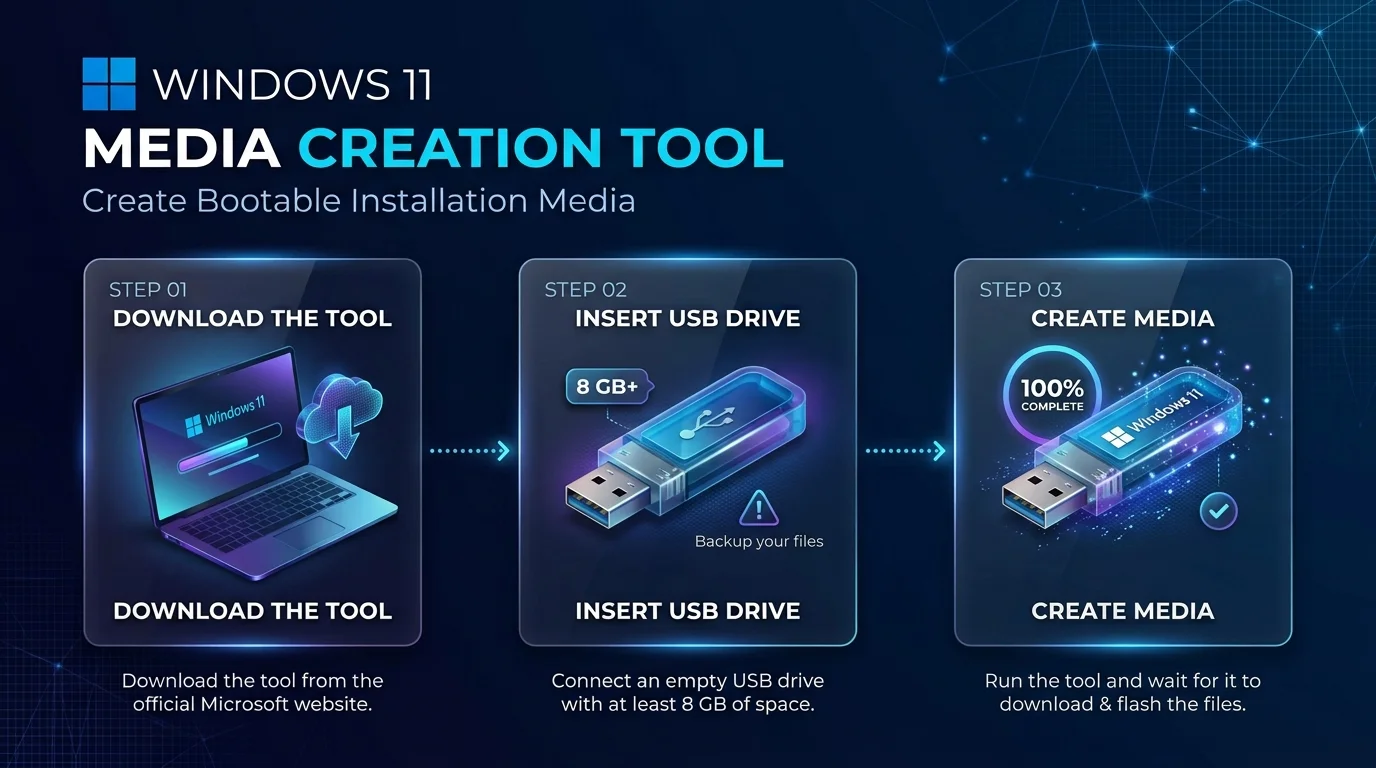
You'll also need a blank USB flash drive (8 GB or more), a stable internet connection, and admin rights.
How to Use the Media Creation Tool Step by Step
Now for the fun part.
Honestly, most people overthink this. Follow the steps and you'll be finished before your coffee gets cold.
How to Create a Windows 11 Bootable USB
Back up your files first. Seriously. The USB drive gets erased, and a clean install wipes your system drive too.
Download the tool from the official Microsoft page.
Right click it and choose Run as administrator.
Click Accept on the license terms.
Choose Create installation media for another PC, then click Next.
Pick your language, edition, and 64 bit architecture.
Select USB flash drive and choose your drive.
Wait for the download and creation to finish.
Next, plug the drive into the target PC and restart. Tap F2, F12, Delete, or Esc to open the boot menu, then pick the USB drive.
Building a brand new machine? My guide on how to build a PC covers everything that comes before this install step.
How to Download a Windows 11 ISO File
Prefer a disk image? Maybe you're building a virtual machine, or burning a DVD. Then go the ISO file route.
The steps match the USB ones until step 6. There, choose ISO file and pick a save location.
Here's my pro tip. Once the download finishes, verify the file. Microsoft explains how to do it with the Get-FileHash cmdlet in PowerShell. Then you compare your hash with Microsoft's table. If the two match, your file is untampered.
How Do You Fix Common Media Creation Tool Errors?
Let's face it. Sometimes things go wrong. The tool downloads several gigabytes, so there are plenty of ways to fail.
The good news? Most errors have simple fixes.
Error code | Likely cause | First fix to try |
|---|---|---|
0x80072F8F (0x20000) | Connection problems, blocked app, disabled TLS | Run as administrator, enable TLS 1.2, pause antivirus briefly, restart |
0x800704DD (0x90016) | Missing admin rights, antivirus block, weak connection | Run as administrator, check antivirus quarantine, restart |
Sources: Help Desk Geek and schieb.de.
Still stuck? Skip the tool and download the ISO directly from Microsoft. Then turn it into a USB drive with another app.
And if the tool runs fine but updates fail after install, follow my walkthrough on how to fix a Windows Update error.
Media Creation Tool vs. Rufus vs. Ventoy
You'll see Rufus and Ventoy mentioned everywhere, so let me clear it up.
Tool | What it does | Best for |
|---|---|---|
Media Creation Tool | Downloads Windows 11 and builds the USB or ISO | Supported PCs, the simplest official route |
Rufus | Free, open source USB creator; can remove TPM, Secure Boot and RAM checks | Advanced users who want more control |
Ventoy | Boots ISO files you copy onto the drive rather than building installation media | Keeping several ISOs on one USB |
Source: Windows Central's comparison.
Here's my honest take. Microsoft warns that installing on a PC below the minimum requirements isn't recommended. That PC may stop receiving updates, and the manufacturer warranty won't cover damage from incompatibility.
So if your PC qualifies, stick with the official tool. You get a trusted source and no surprises.
Windows 11 Media Creation Tool FAQ
Is the Windows 11 Media Creation Tool free?
Yes, the tool is free to download from Microsoft. You still need a valid license to install and activate Windows 11.
Can the Media Creation Tool install Windows 11 on ARM PCs?
No. According to Microsoft, it creates media for x64 processors only. ARM64 ISOs are available on a separate Microsoft page.
How big a USB drive do I need?
You need a blank USB flash drive with at least 8 GB. Everything on it gets erased during creation.
Do I lose my files during a clean install?
Yes, you can. Microsoft recommends saving your work and backing up your PC before you install.
Should I upgrade now?
I'd say yes. Windows 10 support ended on October 14, 2025. Also, 24H2 reaches the end of support for Home and Pro on October 13, 2026, so moving to 26H2 matters.
Why You Should Get Windows 11 Today
Here's the bottom line, and I'll say it plainly.
Staying on Windows 10 leaves your PC without regular security updates. Windows 11 keeps getting them, and 26H2 extends the support period further.
So here's what I'd do in your shoes. Check your PC. Buy a genuine Windows 11 license if you don't have one. Then use the Windows 11 Media Creation Tool to install it cleanly. A licensed copy means updates, security patches and support, all for the price of a single dinner out.
Don't wait for a problem to force your hand. Make the switch today, and you'll thank yourself later.
Written by
Alex
Creative blogger sharing insights, stories, and fresh ideas.