How to Block Websites on Chrome Android (2026 Guide)

Quick answer: Chrome for Android has no built-in website blocker, so you'll need a workaround. The three most reliable methods are Google Family Link (best for parents), Private DNS filtering (best device-wide protection), and third-party apps like BlockSite (best for personal productivity). For businesses, Chrome Enterprise policies handle it at scale. I'll walk you through all of them below.
So you want to block websites on Chrome Android?
You're in the right place.
I spent way too many hours testing every method out there — DNS tricks, parental apps, hidden settings, all of it.
And here's the truth nobody tells you upfront: Chrome on Android doesn't have a built-in "block this site" button.
Weird, right? Desktop Chrome has extensions. Android Chrome? Nothing.
But don't worry. There are still several rock-solid ways to lock down distracting or dangerous sites on your phone.
In this guide, I'll walk you through every method that actually works as of Android 16 — from Google Family Link to Private DNS to third-party website blocker apps.
Let's dive in.
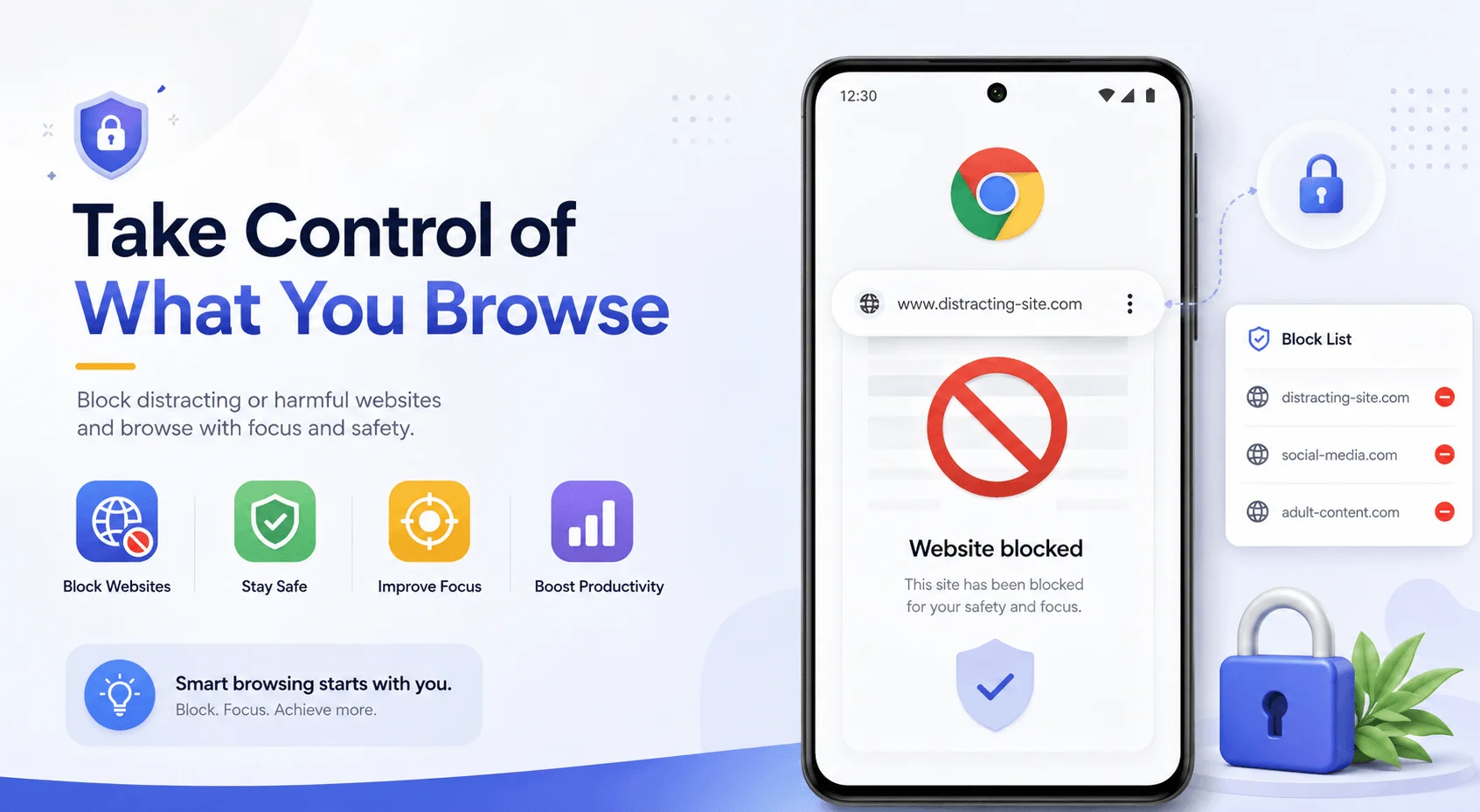
Why Chrome Android Doesn't Let You Block Sites Natively
Here's the deal.
Chrome for Android runs as a standalone app. It doesn't hook into your phone's system-level controls the way Safari does on iPhone.
That's actually why iPhone users can block sites through Screen Time, but Android users can't do the same thing inside Chrome's own settings. If you're weighing platforms for this reason, our breakdown of Android vs iOS security covers how the two operating systems differ when it comes to built-in content controls.
Frustrating, I know.
The Android version of Chrome simply doesn't include a built-in site-blocking feature, and because Chrome runs as a standalone app, your phone's system settings can't control which websites it loads.
So what's the fix?
You'll need to go around Chrome, not through it. That means using DNS filtering, a parental control app, or a dedicated site blocker.
I'll show you exactly how below.
H3: The Real Reason This Trips People Up
Most guides don't explain this part clearly, so let me.
Since Chrome can't restrict itself, every method on this page works by intercepting traffic before it reaches Chrome — either at the network level (DNS), the account level (Family Link), or the app level (blocker apps with accessibility permissions).
Understanding this helps you pick the right layer for your situation instead of guessing.
Method 1: Use Google Family Link (Best for Parents)
If you're trying to block websites for your kid's Android phone, start here. It's free, official, and built by Google itself.
Family Link is honestly the gold standard for parental controls on Android. Think of it as your command center for everything your child does on their device.
Here's the thing — it's not just about blocking sites. You also get screen time limits, app approval, and location sharing.
Let me show you how to set it up.
Step-by-Step: Setting Up Family Link
Download Google Family Link on your own phone.
Open the app and tap your child's name.
Tap Manage Settings, then select Google Chrome.
Choose your filtering level:
Allow all sites (block only what you specify)
Try to block explicit sites
Only allow approved sites
According to Google's own support page, you can select a content filter to allow or block certain sites in Chrome and in some Android apps for your child.
Pretty simple, right?
You can also manually manage things. Under "Manage sites," you'll find Approved sites and Blocked sites — and this setting automatically applies no matter what other Chrome browsing settings are enabled for your child.
Honestly? This overrides everything else. That's powerful.
H4: A Quick Heads-Up
One thing I noticed while testing this: Family Link works best when Chrome is set as the default browser.
If your kid switches to Firefox or another app, the filters might not carry over the same way.
So pair it with Private DNS (I'll cover that next) to close that gap.
Method 2: Set Up Private DNS Filtering (Device-Wide Protection)
Now here's a method I genuinely love — because it works across every app, not just Chrome.
Private DNS filters traffic at the network level. So even if someone opens Firefox instead of Chrome, the block still applies.
No apps to install. No subscriptions. Just a few taps in your settings.
Step-by-Step: Enabling Private DNS on Android
Open Settings on your Android phone.
Go to Network & Internet > Private DNS.
Select Private DNS provider hostname.
Enter a family-safe DNS address like
family.cloudflare-dns.com(from Cloudflare) or an OpenDNS family filter address.Tap Save.
That's it. Seriously.
This gives you device-wide website filtering without touching a single app.
I'd call this the most underrated method on this whole list. Most guides bury it under the "advanced" section, but honestly? It should be step one for most people.
Method 3: Install a Third-Party Website Blocker App
Okay, so maybe you're not trying to parent-proof a device. Maybe you just want to stop yourself from doomscrolling Reddit during work hours.
That's where website blocker apps come in.
The most well-known one is BlockSite. It's simple, it works, and it's built specifically to plug the gap Chrome leaves open.
As one source put it plainly: the only way to block websites in Chrome on Android is to use a third-party app that can filter or restrict web access.
Step-by-Step: Blocking Sites With BlockSite
Open the Google Play Store and search for BlockSite.
Install and open the app.
Grant it accessibility permissions when prompted (this lets it monitor and restrict browser activity).
Tap the + icon to add a site.
Type in the domain or keyword you want blocked.
Save it — and you're done.
Not sure what counts as a valid domain or URL to block? Our quick primer on what a URL actually is breaks down the difference between a domain, subdomain, and full URL — useful if you want to block a specific page rather than an entire site.
You can also set up scheduled blocking, so sites only get blocked during work hours or study time. Pretty handy if you're trying to stay productive without going full lockdown mode 24/7.
A Word of Caution
Look, I have to be honest with you here.
Third-party apps ask for a lot of permissions. Some are legit. Some aren't.
Stick to well-reviewed, established apps. Don't just download the first "free blocker" you find in the Play Store. And while you're cleaning up your browser setup, it's worth knowing how to clear cache on iPhone too, if you manage devices across both platforms — cached data can sometimes let old versions of blocked pages load until it's cleared.
Method 4: Turn On Chrome's Safe Browsing and SafeSearch
This one's not a true "blocker," but it's worth mentioning because it adds a layer of protection.
Safe Browsing helps flag malicious and phishing sites before you land on them. SafeSearch filters explicit content out of your Google search results.
Neither one blocks a specific site you choose. But together, they reduce your exposure to harmful content by default.
Step-by-Step: Enabling Safe Browsing
Open the Chrome app.
Tap the three-dot menu in the top-right corner.
Go to Settings > Privacy and Security.
Tap Safe Browsing.
Choose Enhanced Protection for the strongest setting.
Keep in mind — this helps block malicious sites and phishing attempts, but won't stop you from accessing specific websites if you enter the URL directly.
So if your goal is to block Instagram or Twitter specifically, this method alone won't cut it.
Combine it with Method 1 or Method 3 for real results.
Method 5: Use Chrome Enterprise Policies (For Businesses)
If you're managing a fleet of company Android phones, this section is for you.
Chrome Enterprise lets IT admins push site restrictions across every managed device from one dashboard. No app installs required on the employee's end.
Step-by-Step: Blocking Sites via Google Admin Console
Log into the Google Admin console.
Navigate to Devices > Chrome > Settings.
Find the URLBlocklist and URLAllowlist policies.
Add the domains you want to restrict.
Click Save to push the policy.
This method will work for any device or enrolled browsers on Windows, Mac, Linux or Android.
For bigger organizations, tools like SureMDM go even further, letting admins push URL blocklists, allowlists, time-based restrictions, and secure browsing policies across all managed devices.
If you're just one person trying to focus better, this is overkill. But for a business? It's the only method that actually scales.
Bonus: Know How Kids (and Employees) Bypass Blocks
Here's something most guides skip entirely — and honestly, it's the most important part.
Blocking a website isn't the end of the story. People find workarounds. Especially tech-savvy teenagers.
According to research on parental bypass patterns, common bypass routes include switching browsers, using a VPN app to tunnel around DNS filtering, signing into a different Google account without supervision, or simply deleting the parental control app entirely.
So what can you do about it?
Lock settings changes in Family Link so your child can't undo them.
Restrict app installs so they can't download a second browser.
Combine Private DNS with Family Link — this closes the "switch browser" loophole since DNS filtering applies system-wide.
Check installed apps periodically to catch VPN apps early.
No single method is bulletproof. Layer two or three together, and you'll cover almost every gap.
Comparing All 5 Methods
Here's a side-by-side so you can pick the right one fast.
Method | Best For | Cost | Device-Wide? | Setup Time |
|---|---|---|---|---|
Google Family Link | Parents | Free | No (Chrome-focused) | ~10 min |
Private DNS | Anyone wanting broad protection | Free | Yes | ~2 min |
BlockSite (3rd-party app) | Personal productivity | Free/Paid tiers | No (app-level) | ~5 min |
Safe Browsing/SafeSearch | Basic malware/content filtering | Free | No | ~1 min |
Chrome Enterprise/MDM | Businesses | Paid (per device) | Yes | Admin-dependent |
Which Method Should You Actually Use?
Let me break this down simply, because I know this is a lot of information.
Parent blocking content for a child? Start with Family Link, then add Private DNS as backup.
Trying to boost your own productivity? Go with BlockSite or a similar app, plus scheduled blocking.
Managing company devices? Use Chrome Enterprise policies or an MDM tool like SureMDM.
Just want basic protection from scams and malware? Turn on Enhanced Safe Browsing — but don't rely on it alone.
Honestly, most people benefit from combining two methods. One for convenience, one as a backup in case the first gets bypassed.
Frequently Asked Questions
Can Chrome block websites without an app?
Yes — through Private DNS, which you can set up directly in your phone's network settings without installing anything. It's the closest thing to a "native" block Android offers.
Does Private DNS work on all Android phones?
Private DNS works on any device running Android 9 (Pie) or later, which covers the vast majority of phones in use today.
Is Family Link enough on its own?
Not entirely. Family Link's Chrome restrictions only apply to Chrome — if your child installs a different browser, those filters won't carry over unless you pair it with Private DNS or restrict app installs.
Will blocking a site in Chrome also block it in other apps?
Only if you use a device-wide method like Private DNS or an MDM policy. App-specific tools like BlockSite or Chrome's own settings only cover what they're built to monitor.
Can someone bypass a blocked website on Android?
Yes, unfortunately. The most common workarounds are switching browsers, using a VPN, or signing into an unsupervised account — which is why layering multiple methods works best.
Final Thoughts
Blocking websites on Chrome Android isn't as straightforward as it should be — Google really dropped the ball by not building this into Chrome directly.
But now you know exactly how to work around that gap.
Whether you go with Family Link, Private DNS, a dedicated blocker app, or enterprise policies, you've got real options that work today.
My honest recommendation? Don't rely on just one method. Stack them.
Set up Private DNS as your foundation, layer Family Link or BlockSite on top, and you've built a system that's actually hard to bypass.
Give it a shot, and you'll notice the difference within a day.
Read more: How to Stop Apps Running in Background on Android 7 Steps
Written by
Alex
Creative blogger sharing insights, stories, and fresh ideas.