Excel Shortcuts Cheat Sheet: 25+ Keys to Work Faster (2026)


Quick answer: The most useful Excel keyboard shortcuts are Ctrl+Arrow, F2, Ctrl+1, Ctrl+T, Alt+= and F4. On Mac, Ctrl usually becomes Command and Alt becomes Option, though not every key maps one-to-one. Learn these first, then ad re as your daily tasks demand.
Let me guess.
You've got a spreadsheet open, a deadline closing in, and your hand keeps drifting to the mouse. Sound familiar?
I've been there too. That's exactly why I built this Excel shortcuts cheat sheet for you. It covers Excel shortcut keys for Windows, Mac, and the web. And it skips the 200-item dumps that nobody reads.
By the end, you'll know which keys to learn first, how they differ across platforms, and how to make them stick.
Ready? Let's go.
Why an Excel Shortcuts Cheat Sheet Beats Clicking Around
Here's the deal. Every trip to the ribbon costs you a second or two. It doesn't sound like much. But across a full workday, those tiny detours add up fast.
Excel shortcuts are key combinations that trigger commands without the mouse. Microsoft notes that keyboard shortcuts also matter for people with mobility or vision disabilities, so they're about access as well as speed.
And honestly? They make you feel like a wizard.
Here's what matters, though. You don't need every shortcut. Exceljet catalogs 244 of them, and Excel Champs lists 200+. But most people get the biggest benefit from a small core set. So that's where we'll start.
Want a quick experiment? Pick one task you repeat daily, like filling a formula down a column. Do it with the mouse a few times, then with the keyboard. Notice the difference. That's your motivation right there.
The 10 Excel Shortcuts to Learn First (Windows and Mac Table)
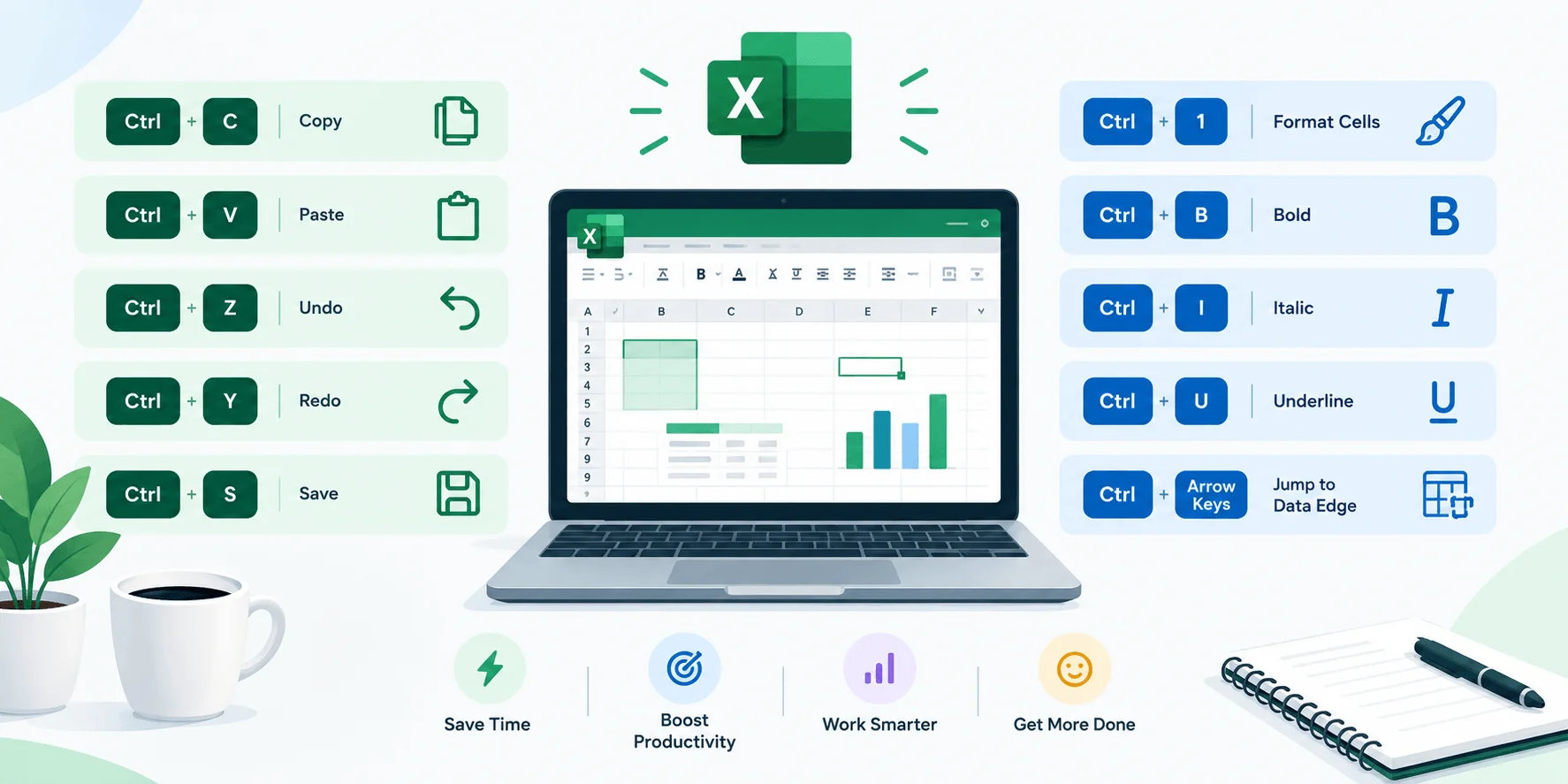
Before we get fancy, let's nail the essentials. These ten cover the hotkeys I reach for constantly, and they're the ones I'd teach a total beginner on day one.
Here they are side by side, so you can scan them in seconds:
# | What it does | Windows | Mac |
|---|---|---|---|
1 | Jump to the edge of your data | Ctrl + Arrow | ⌘ + Arrow |
2 | Edit the active cell | F2 | Control + U |
3 | Open Format Cells | Ctrl + 1 | ⌘ + 1 |
4 | Create a table | Ctrl + T | Control + T |
5 | Insert AutoSum | Alt + = | ⌘ + Shift + T |
6 | Lock a cell reference | F4 | F4 (or ⌘ + T) |
7 | Flash Fill | Ctrl + E | Control + E |
8 | Paste Special | Ctrl + Alt + V | Control + ⌘ + V |
9 | Fill down | Ctrl + D | Control + D |
10 | Undo | Ctrl + Z | ⌘ + Z |
A quick heads-up. Mac keys can vary by Excel version and keyboard settings. So double-check anything that doesn't respond against Microsoft's Mac shortcut list. For F4 on Mac, Exceljet explains that the older ⌘ + T still works too.
ExperTrain suggests a similar starter set, so I'm in good company.
Now, let's break things into categories.
Excel Shortcuts Cheat Sheet for Navigation and Selection
Navigation is where you'll feel the biggest payoff. Why? Because scrolling with a mouse through 5,000 rows is painfully slow. Once you learn to jump and select with the keyboard, big datasets stop feeling big.
This section splits into moving around and selecting. Practice each one on a real file, because reading alone won't build muscle memory.
How Do You Move Around a Workbook Fast?
Think of this as teleporting between cells. These navigation shortcuts get you where you're going in one keystroke instead of twenty scrolls.
Ctrl + Arrow keys: jump to the last filled cell in that direction.
Ctrl + End: go to the last used cell.
Ctrl + PgDn / Ctrl + PgUp: switch between worksheets.
Ctrl + F6: cycle through open workbooks on Windows, as Exceljet explains.
Here's a bonus. There's no single key for freeze panes. Instead, press Alt, then W, F, F. That sequence works through Excel's ribbon Key Tips.
Step-by-step: Freeze your top row with the keyboard
Click any cell in your sheet.
Press Alt to show the Key Tips.
Press W for the View tab.
Press F twice to open Freeze Panes and choose the option you want.
Simple. And you never touched the mouse.
How Do You Select Data Without the Mouse?
Selecting is the other half of speed. Add Shift to any navigation move and you're extending the selection. Same idea, just with a highlight. I use this constantly before formatting or deleting a block.
Ctrl + Shift + Arrow: select to the edge of your data.
Ctrl + Shift + End: select to the last used cell.
Ctrl + Space: select the whole column.
Shift + Space: select the whole row.
Pretty simple, right?
Excel Shortcuts Cheat Sheet for Editing and Formatting
Now let's talk about the stuff you do all day: typing, fixing, and tidying up. This is where editing shortcuts shine. A few of these will change how you work, especially Flash Fill and Paste Special, so don't skip them.
Here's my go-to list:
F2: edit inside a cell.
Alt + Enter: add a new line inside a cell.
Ctrl + D / Ctrl + R: fill down or fill right.
Ctrl + ;: insert today's date. Add Shift for the current time.
Ctrl + Shift + $, %, or #: apply currency, percentage, or date number formatting.
Ctrl + Shift + + and Ctrl + -: insert or delete rows and columns.
How Does Flash Fill Work?
Flash Fill deserves a special shout. Type one example of the pattern you want, then press Ctrl + E. Excel spots the pattern and finishes the list. Splitting names? Done. Cleaning phone numbers? Done.
Step-by-step: Split first names from full names
Put full names in column A.
In B1, type the first name from A1.
Move to B2 and press Ctrl + E.
Check the results, then press Enter to accept.
How Do You Paste Values Only?
Copy your data, then press Ctrl + Alt + V, or Alt + E + S, per Microsoft. Choose Values in the dialog, and you'll never drag messy formatting into a clean sheet again.
Excel Shortcuts Cheat Sheet for Formulas and Data Tools
Formulas are the heart of any spreadsheet. So the right keys here save you the most frustration. This group covers absolute references, Excel Tables, filters, and auditing. Some of these look odd on the keyboard, but they're worth learning early.
Let's start with the star: F4.
While you're editing a formula, press F4 to cycle a reference through A1, $A$1, A$1, and $A1. Skillademia calls it the fastest way to lock cells before copying a formula. I'd agree.
Step-by-step: Lock a cell reference with F4
Click the cell with your formula and press F2.
Place your cursor on the reference you want to lock.
Press F4 until you see the dollar signs you need.
Hit Enter and copy the formula down.
Next, a few more formula shortcuts worth knowing:
Ctrl + T: create a table with structured references.
Ctrl + Shift + L: toggle filters on Windows.
Ctrl + `: show formulas instead of results.
Ctrl + Shift + Enter: enter a legacy array formula, mostly needed in Excel 2019 and earlier.
Quick tip: press Alt on Windows and Excel shows a letter for every ribbon tab. Then you can reach almost any command by key. Yes, really.
Windows vs Mac: What Changes in Excel Shortcuts
Here's where many people get tripped up. If you switch between Windows and Mac, you've probably pressed a shortcut and watched nothing happen. Frustrating, I know. So let me clear this up before it costs you another afternoon.
The general rule: on Mac, Ctrl often becomes Command (⌘), and Alt becomes Option (⌥). Exceljet's Mac guide walks through the symbols and differences nicely. And if you want the system-wide keys too, see our guide on how to use keyboard shortcuts on Mac.
But it's not a perfect swap. Here's a quick comparison:
Topic | Windows | Mac |
|---|---|---|
Main modifier | Ctrl | Command (⌘), sometimes Control |
Alt-key ribbon sequences | Yes (Key Tips) | Not available |
Function keys (F2, F4) | Work directly | Often need fn held down |
OS conflicts | Rare | Some clash with macOS, flagged by Microsoft |
Microsoft's community answers confirm that Alt-based ribbon shortcuts don't exist in Excel for Mac. And Microsoft flags conflicting shortcuts with an asterisk in its documentation.
My advice? Keep the official Mac table open your first week. Then you can stop guessing.
Excel for the Web and Copilot Shortcuts
Not everyone works in the desktop app. Maybe you're in a browser at the office, or on a locked-down laptop. That changes things, because a browser owns some keys before Excel ever sees them. And there's a new addition worth knowing about: Copilot.
First, the web. Microsoft says shortcuts in Excel for the web differ from desktop, and common browser commands like Ctrl+O apply to the browser instead. To find any command quickly, press Alt + Windows logo key, Q to jump to the search field.
Now, Copilot in Excel. In May 2026, Microsoft unified its Copilot shortcuts across Microsoft 365:
Alt + C on Windows
Cmd + Control + I on Mac
F6 to move focus to the Copilot button
The rollout to Excel was scheduled to finish by June 2026, according to Microsoft Support. Availability can vary by license and region, so try it on your own setup first.
Excel Shortcuts for Finance and Data Analysis
If you live in models all day, this section is for you. Financial modeling shortcuts focus on auditing formulas and formatting numbers cleanly. Small errors hide in big models, so the fastest way to catch them is to trace where numbers come from.
Here are the finance favorites:
Ctrl + [: jump to precedent cells that feed a formula.
Ctrl + ]: jump to dependents.
Ctrl + Alt + V: paste values only, which keeps models clean.
Ctrl + 1: build custom number formats.
Want more? Wall Street Prep publishes a finance-focused cheat sheet, and Macabacus covers formatting for models.
For data analysis, combine Ctrl + T, Ctrl + Shift + L, and Flash Fill. That trio handles most cleanup jobs. Once your data is tidy, learn how to remove duplicates in Excel and how to create charts in Excel to turn those clean numbers into something you can present.
How to Memorize Excel Shortcuts: A Simple 30-Day Plan
Reading a list won't make anything stick. What works is small, repeated practice, and several ranking guides recommend picking just a few keys a day. So here's the plan I'd follow if I were starting over.
Follow these steps:
Print your cheat sheet. Keep it beside your keyboard.
Pick three shortcuts from the "first 10" table above.
Ban the mouse for those actions all day.
Repeat daily until they feel automatic.
Add two new shortcuts each time a habit sticks.
Review on day 30 and drop what you never use.
Need a printable version? Microsoft offers an official PDF, and Excel Champs has one too. Microsoft also promotes a downloadable guide of 50 time-saving shortcuts on its shortcuts page.
Excel Shortcuts Cheat Sheet FAQ
You probably still have a few questions. That's normal! So I'll answer the ones I hear most, and I'll keep each one short.
What are the most useful Excel shortcuts for beginners?
Start with Ctrl + Arrow keys, F2, Ctrl + 1, Ctrl + T, Alt + =, and F4. Together they cover navigation, editing, formatting, and formulas. Learn those before touching anything else, and you'll already work noticeably faster than most casual users.
What is the shortcut for AutoSum in Excel?
On Windows, press Alt + = to insert AutoSum. Excel automatically suggests the range above or to the left of your selected cell. Check the highlighted range, then press Enter. On Mac, the commonly listed AutoSum key is ⌘ + Shift + T.
How do I freeze panes with the keyboard?
Excel has no single freeze panes key. On Windows, press Alt, then W, then F, then F to open the freeze options. This works through the ribbon Key Tips. Excel for Mac doesn't support Alt-based ribbon sequences, so use the View menu instead.
How do I paste values only in Excel?
Copy your cells, then press Ctrl + Alt + V (or Alt + E + S) on Windows to open Paste Special. Choose Values and confirm. This strips formulas and formatting, so you paste only the results. It's especially handy in financial models.
Are Excel shortcuts the same on Mac and Windows?
Mostly similar, but not identical. Command usually replaces Ctrl, and Option replaces Alt. However, Windows Alt-key ribbon sequences don't exist on Mac, and function keys may need fn. Always check Microsoft's Mac table when a shortcut doesn't respond.
Do Excel shortcuts work in Excel for the web?
Some do, but not all. Microsoft says web shortcuts differ from the desktop app, and certain browser commands take priority over Excel. Press Alt + Windows logo key, Q to search for any command. Use Microsoft Edge for best results, as Microsoft recommends.
How many Excel shortcuts should I actually learn?
Honestly, 20 to 30 will cover most of your daily work. Exceljet counts over 200 shortcuts, but nobody needs them all. Master a core group first, then add more only when a repeated task starts annoying you.
Final Thoughts on Your Excel Shortcuts Cheat Sheet
So that's my Excel shortcuts cheat sheet, boiled down to what actually matters.
You've got the essentials, the Windows vs Mac quirks, the Copilot keys, and a plan to make it all stick.
Now here's your move: pick three shortcuts and use them today. Just three.
Do that, and I promise your future self will thank you.
Written by
Alex
Creative blogger sharing insights, stories, and fresh ideas.