How to Freeze a Row in Excel (Step-by-Step Guide for 2026)


How to freeze a row in Excel: To freeze the top row in Excel, go to View > Freeze Panes > Freeze Top Row. To freeze several rows, select the row below the last one you want locked, then choose View > Freeze Panes > Freeze Panes. The keyboard shortcut for the top row is Alt + W + F + R.
You know the feeling. You scroll down a huge spreadsheet, and your headers vanish. Now you're staring at a wall of numbers with no idea what they mean. Frustrating, right?
Good news: how to freeze a row in Excel takes about thirty seconds. I'll walk you through every method, then show you what to do when it breaks. Stick with me, and you'll never lose your header row again.
What Does Freezing a Row in Excel Do?
Freezing a row pins it to the top of your screen while everything else keeps scrolling. Simple as that.
Microsoft calls the feature Freeze Panes. It locks rows, columns, or both to the top and left of your sheet. So your column headers stay visible, no matter how far down you go.
Why should you care?
You stop guessing what each column means.
You make fewer data entry mistakes.
You review large datasets much faster.
How to Freeze the Top Row in Excel (Step by Step)
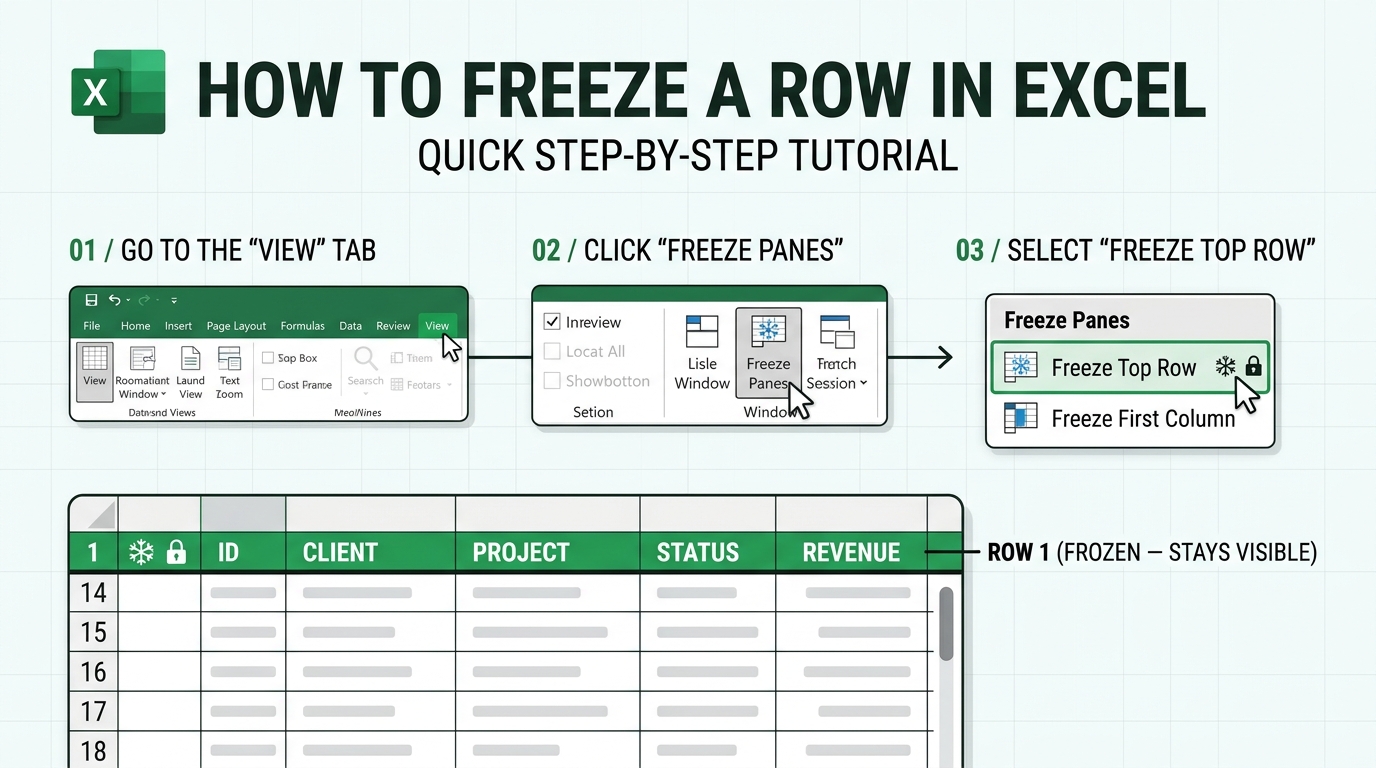
Short answer: Open the View tab, click Freeze Panes, and choose Freeze Top Row.
This is the method I use about 90% of the time. It's quick, and it's hard to mess up.
Open your workbook and make sure you're in Normal view.
Click the View tab on the ribbon.
Click Freeze Panes in the Window group.
Choose Freeze Top Row.
Now look closely. A slightly darker line appears under row 1. Microsoft's own guide says that border means the row above it is frozen. Scroll down and test it!
How to Freeze Multiple Rows in Excel
Short answer: Select the row directly below the last row you want frozen, then click Freeze Panes.
Sometimes one row isn't enough. Maybe you have a title in row 1 and your labels in row 3. Here's the rule that trips most people up: Excel freezes everything above your selection.
Select the row below the last row you want frozen. Want rows 1 to 3? Click row 4.
Go to View > Freeze Panes.
Click Freeze Panes again.
Done. Rows 1 to 3 now stay put.
How to Freeze a Row and Column at the Same Time
Short answer: Select the cell one row down and one column right of your freeze point, then click Freeze Panes.
Need row 1 and column A locked? You've got a wide table, and you can't lose your labels in either direction.
Select cell B2.
Click View > Freeze Panes > Freeze Panes.
Want a bigger block, like the top four rows and leftmost three columns? Select D5 instead. Same logic, bigger freeze.
Excel Freeze Panes Keyboard Shortcuts
Short answer: Press Alt, then W, then F, then R to freeze the top row. Press the keys one after another, not together.
Shortcuts are faster than the mouse, and you'll feel like a spreadsheet wizard. According to this shortcut guide, here's what you need on Windows:
Action | Windows shortcut | Where it lives |
|---|---|---|
Freeze top row | Alt + W + F + R | View > Freeze Panes > Freeze Top Row |
Freeze first column | Alt + W + F + C | View > Freeze Panes > Freeze First Column |
Freeze rows above and columns left of active cell | Alt + W + F + F | View > Freeze Panes > Freeze Panes |
Unfreeze | Alt + W + F, then pick Unfreeze Panes | View > Freeze Panes > Unfreeze Panes |
Quick note: once panes are frozen, the first item in that menu changes to Unfreeze Panes.
Want more time savers like this? Bookmark our Excel shortcuts cheat sheet and keep it open while you work.
How to Freeze Rows on Mac, Excel for the Web, iPad and iPhone
Short answer: The steps are nearly identical on every device. Pick the row below your freeze point, then use the View menu.
Mac: Use the same View tab buttons, as described in Microsoft's Mac guide. New to Apple shortcuts? Our guide to keyboard shortcuts on Mac will get you up to speed.
Excel for the web: Microsoft lists it as a supported platform for the same View > Freeze Panes steps.
iPad: Tap View > Freeze Panes.
iPhone: Tap the ellipsis button, switch to the View menu, then tap Freeze Panes. Microsoft documents this too.
Freeze Panes Not Working? Here's How to Fix It
Short answer: The most common cause is Page Layout view. Switch to View > Normal and try again.
Ever clicked Freeze Panes and found it greyed out? It's almost always a quick fix. Check these culprits one by one:
Page Layout view is on. Switch to View > Normal. Guiding Tech lists this as a top cause.
Your sheet is protected. Unprotect it first, as ExcelDemy explains.
You're editing a cell. Press Esc and try again.
A split is already active. Remove it from the View tab.
Frozen rows are hidden. Unhide row 1, then choose Unfreeze Panes.
Wrong rows frozen?
Unfreeze, reselect the correct cell, and freeze again.
Freeze Panes vs. Split Panes vs. Print Titles vs. Excel Tables
Short answer: Freeze Panes keeps headers on screen, Print Titles repeats them on paper, Split Panes compares distant data, and Tables swap column letters for headers.
Here's where most tutorials stop. Freezing only affects your screen. It won't change what prints. This table shows which tool fits which job:
Feature | Best for | Affects printing? | Where to find it |
|---|---|---|---|
Freeze Panes | Keeping headers visible while scrolling | No | View > Freeze Panes |
Split Panes | Comparing two distant parts of a sheet | No | View > Split |
Print Titles | Repeating header rows on every printed page | Yes | Page Layout > Print Titles |
Excel Table | Automatic header display while scrolling | No | Insert > Table (Ctrl + T) |
A few details worth knowing:
My Online Training Hub notes you can't split panes and freeze panes at the same time.
For printing, type $1:$1 in the "Rows to repeat at top" box, per Microsoft's instructions. The Software Pro points out that Freeze Panes and Print Titles don't talk to each other, so set both.
With an Excel Table, the headers replace the column letters as you scroll. It's on screen only. Tables also pair nicely with data cleanup, so see our walkthrough on how to remove duplicates in Excel.
Comfortable with macros? Developers can automate it with the FreezePanes property in VBA.
Frequently Asked Questions
How do I freeze the top row in Excel?
Go to View > Freeze Panes > Freeze Top Row. On Windows, you can also press Alt + W + F + R.
How do I freeze more than one row?
Select the row below the last row you want frozen, then choose View > Freeze Panes > Freeze Panes. To freeze rows 1 to 3, select row 4.
How do I unfreeze rows in Excel?
Go to View > Freeze Panes > Unfreeze Panes. That option appears once a freeze is active.
Why is Freeze Panes greyed out?
Usually you're in Page Layout view, editing a cell, or working on a protected sheet. Switch to Normal view, press Esc, or unprotect the sheet.
Does freezing a row affect printing?
No. Freeze Panes is a screen feature only. To repeat a header row on every printed page, use Page Layout > Print Titles and enter $1:$1.
Can I freeze rows in Excel on my phone?
Yes. On iPad, tap View > Freeze Panes. On iPhone, open the ribbon with the ellipsis button, go to View, and tap Freeze Panes.
What's the difference between freezing and splitting panes?
Freezing locks rows or columns in place. Splitting creates separate panes that scroll independently, which suits comparing distant data.
Final Thoughts: Stop Scrolling Blind
So there you have it. You now know every way to lock a frozen row, fix it when it misbehaves, and print it properly. That's more than most people ever learn!
Here's my honest advice. If you work in spreadsheets daily, use the full desktop app. Get Microsoft 365, and you'll have every feature in this guide on every device, with no workarounds. A few seconds of setup beats hours of lost scrolling.
Once your headers stay put, your next win is turning that clean data into visuals. Check out our guide on how to create charts in Excel.
Written by
Alex
Creative blogger sharing insights, stories, and fresh ideas.