Printer Offline? Fix It in 5 Minutes (2026 Guide)


A printer offline error means your computer can't communicate with your printer, even though the printer itself is usually powered on and working fine. It's almost always caused by a dropped connection, a stuck print spooler, an outdated driver, or a setting that got flipped by accident, and most cases are fixed in under ten minutes without needing a technician.
I've dealt with this exact problem more times than I'd like to admit, and here's what I've learned: don't panic, and don't assume your printer is broken. This guide walks you through the exact fixes, in the order that actually works, plus specific steps for HP, Epson, Canon, and Brother printers.
Why Does My Printer Say Offline?
When your computer can't talk to your printer, it defaults to marking it offline, even if the printer is sitting there powered on and ready to go.
Cause | How Common | Typical Fix |
|---|---|---|
Loose cable or dropped Wi-Fi | Very common | Reconnect and restart |
Printer IP address changed | Very common (recurring cases) | Assign a static IP |
Print spooler crashed | Common | Restart the spooler service |
Outdated or corrupt driver | Common | Reinstall driver |
"Use Printer Offline" enabled | Common | Uncheck the setting |
Paper jam or low ink | Occasional | Clear jam / replace cartridge |
Shared printer conflict | Office settings only | Standardize drivers, static IP |
Here's the thing you need to remember through all of this: "offline" is a symptom, not a diagnosis. Work through the checklist below in order, since most fixes come from the top of the list, not the bottom.
What You Need Before You Start Troubleshooting
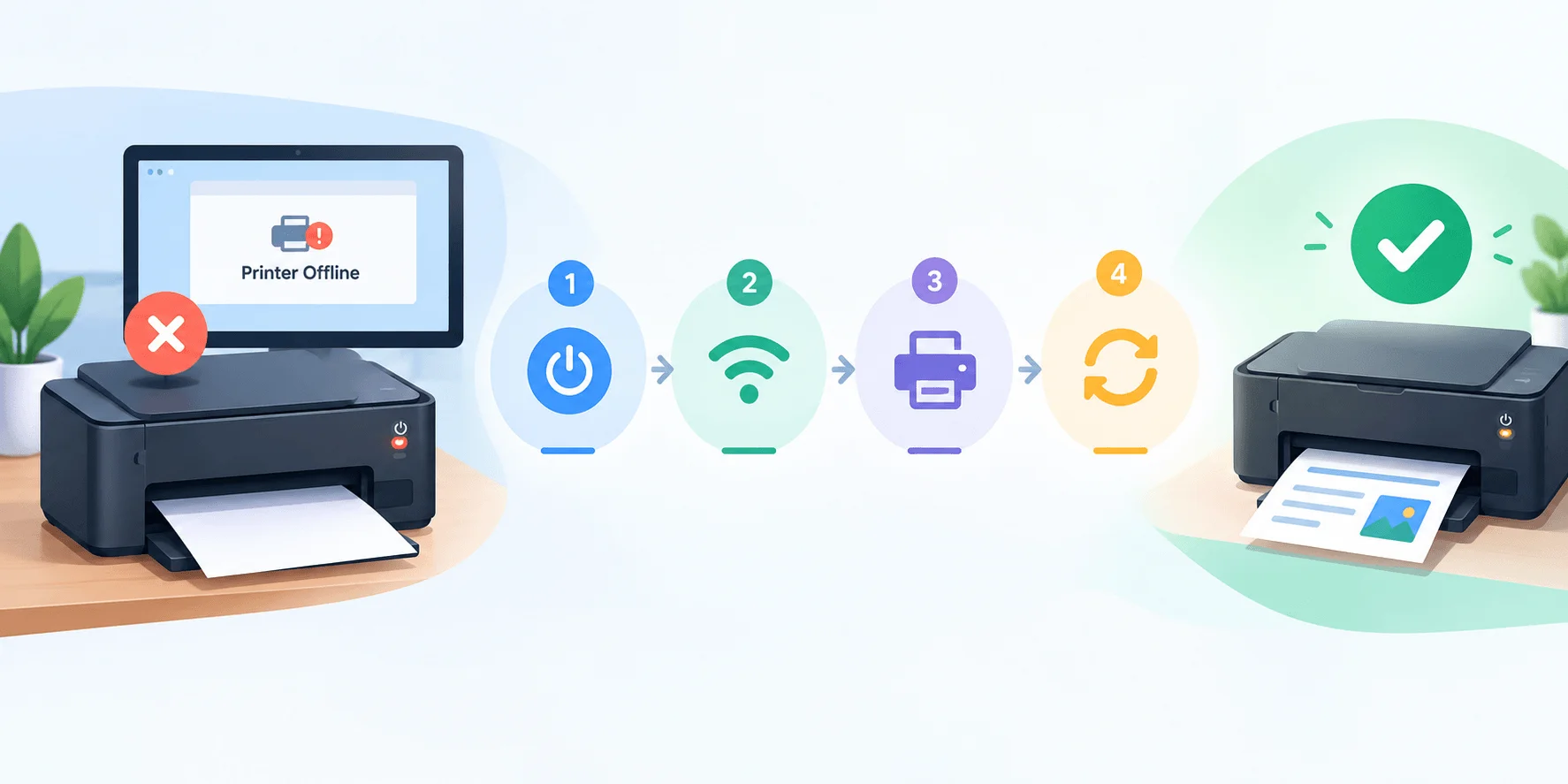
You don't need much for this, but having it ready saves you a few trips back and forth.
Grab the following before you dive in:
Your printer's power cable and network cable (if wired)
Access to your computer's Wi-Fi settings
Your printer manufacturer's support site bookmarked
Ten minutes of uninterrupted time
Step-by-Step Guide to Fixing a Printer Offline Error
Start at step one and don't skip ahead. Half the time, the fix is simpler than people expect.
Step 1: Check the Physical Connections First
Check that your printer is powered on and not sitting in sleep mode. If you're using a wired connection, confirm the USB or Ethernet cable is firmly seated at both ends. On Wi-Fi, look at your printer's display panel and confirm it shows a connected network with an assigned IP address.
This single check resolves a large share of offline errors, so don't skip it just because it feels too obvious.
Step 2: Restart Everything (Printer, Computer, and Router)
Turn off the printer and unplug it from power. Restart the device you're printing from. Restart your router too, since printers on Wi-Fi are especially sensitive to router hiccups. Wait about 30 seconds, then power the printer back on and wait for it to fully reconnect before testing print.
Most offline issues clear up right here.
Step 3: Disable "Use Printer Offline" in Windows
Windows has a manual toggle that sets your printer to offline mode, and it sometimes gets flipped by accident. Open Settings > Devices > Printers & Scanners, click your printer, open the print queue, then check under the Printer menu for "Use Printer Offline." If it's checked, uncheck it.
Step 4: Restart the Print Spooler Service
If your printer is still stuck, the issue is likely the print spooler, the Windows service that manages every job in your queue. When it crashes or hangs, your printer reports as offline even though the hardware is fine.
Type
services.mscinto your Start menu search bar and open itScroll down and find Print Spooler
Right-click it and select Stop
Open File Explorer and navigate to
C:\Windows\System32\spool\PRINTERSDelete any files sitting in that folder
Go back to services.msc, right-click Print Spooler again, and select Start
Try printing again. This step alone fixes a large share of persistent offline errors.
Step 5: Update or Reinstall Your Printer Driver
Skip the generic Windows Device Manager here. Go straight to your printer manufacturer's official support site and download the latest driver for your exact model. Uninstall the old driver first, restart your computer, then install the fresh one.
Step 6: Run the Built-In Printer Troubleshooter
Go to Settings > System > Troubleshoot > Other Troubleshooters, find Printer, and hit Run. It scans for common connectivity and driver errors and often applies the fix automatically.
If your printer issues started right after a system update, it's also worth checking whether a Windows Update error is the underlying cause
Step 7: Remove and Re-Add the Printer
If nothing above worked, this fixes corrupted printer profiles that build up over time. Go to Printers & Scanners, click your printer, and select Remove Device. Restart your computer. Then click Add Device and let Windows rediscover your printer and reinstall it fresh.
Fixing "Printer Offline" on Mac
The most common cause on a MacBook is the printer sleeping, a loose cable, or a Wi-Fi glitch. Restart the printer using the power button and wait about 60 seconds before trying to print again. If that doesn't work, reset the entire printing system, which removes the offline printer from your Mac so you can add it back with a clean slate. This resolves most stubborn Mac printing issues.
Brand-Specific Fixes
Different printer brands have their own quirks worth knowing.
HP Printer Offline
Turn off your HP printer and disconnect it from power. Restart your computer and router. Turn the printer back on and confirm it's on the same network as your computer before trying to print again. The HP Smart app can also diagnose and fix connection issues automatically.
Epson Printer Offline
Confirm the printer is powered on and connected to the same Wi-Fi or USB cable as your computer. Set the Epson printer as your default device in printer settings, then update the driver from Epson's support site if the problem persists.
Canon Printer Offline
Canon printers commonly go offline after a router restart changes the IP address. Check the printer's network settings screen for its current IP, compare it against what's saved on your computer, and re-add the printer if they don't match.
Brother Printer Offline
Brother printers often go offline due to the "Use Printer Offline" setting or an outdated driver. Work through Steps 3 and 5 above first, since these resolve most Brother-specific cases.
How to Stop Your Printer From Going Offline Again
Fixing it once is good. Stopping it from happening every week is better.
The biggest long-term fix is assigning your printer a static IP address instead of letting it grab a new one from DHCP every time it or your router restarts. A changing IP is responsible for the majority of recurring offline issues on wireless printers, so locking it in place solves the problem at the root.
Beyond that, keep your driver updated, avoid letting your printer sit in deep sleep mode if you print often, and if you're on a shared office network, make sure everyone's on the same subnet rather than split across a guest Wi-Fi network.
If you're setting up a new printer for the first time, check out our [printer setup guide] for the full walkthrough, and if recurring offline errors have you considering a replacement, our [best printers for home offices] comparison can help you pick a more reliable model.
Once your printer's back online, check out our guides on how to scan a document and how to scan to email to get the most out of it.
Common Mistakes People Make When Troubleshooting
Jumping straight to reinstalling drivers before checking the simple stuff wastes time you don't need to waste. Ignoring the print queue and letting stuck jobs pile up just makes the next print job fail too. Assuming the printer is broken when it's really a five-minute settings fix leads people to replace perfectly good printers for no reason.
Frequently Asked Questions
Why does my printer show offline even though it's connected to Wi-Fi?
This usually means your computer and printer are technically on the same network but can't communicate properly, often due to a changed IP address, a sleeping printer, or an outdated driver.
Do I need to reinstall my printer every time it goes offline?
No. Reinstalling should be your last step, not your first. Try restarting the spooler and checking the offline toggle before removing the device entirely.
Can a paper jam cause a printer offline error?
Yes. A jam can trigger an error state that gets reported as offline rather than a clear jam message, so it's worth checking the printer physically even if the error doesn't mention paper.
Is this different for a shared network printer in an office?
Somewhat. Office printers add connection-priority conflicts between multiple users and mismatched driver versions, so a static IP and consistent driver versions across machines matter even more.
How do I stop my printer from going offline permanently?
Assign it a static IP address so it stops losing its saved connection every time the router restarts, and keep its driver updated.
Wrapping Up
A printer offline error almost always comes down to a connection hiccup, a stuck spooler, or a setting you didn't know existed. Work through the steps above in order, starting with the simple physical checks before moving into driver and software fixes, and you'll usually land on the cause without needing a service call.
If you've tried everything here and your printer still won't come back online, that's your signal that something deeper, like a failing network card or worn internal components, is at play, and it's time to get it looked at by a professional.
Written by
Alex
Creative blogger sharing insights, stories, and fresh ideas.