WiFi Adapter for PC (2026): Best Picks, USB vs PCIe Guide

Quick answer: The best WiFi adapter for PC is a PCIe card with an Intel AX210 chip if you have a Wi-Fi 6E router. It's a USB 3.0 adapter if you want plug-and-play. Match the adapter to your router's Wi-Fi generation, and skip Wi-Fi 7 unless your router supports it too.
Your desktop has no Wi-Fi. Annoying, right?
Here's the deal: a wifi adapter for pc is the fastest fix, and it costs far less than a new computer. But pick the wrong one, and you'll get dropped calls and laggy games at 2 a.m.
I dug through standards documents, hardware reviews, regulator announcements, and Microsoft's own troubleshooting pages so you don't have to.
In this guide, you'll learn what to buy, how to install it, and how to fix it when things go sideways. Ready? Let's go.
What Is a WiFi Adapter for PC (and Do You Need One)?
A wifi adapter for pc is a small piece of hardware that lets your computer connect to your router without a cable. Many desktops have no WiFi on the motherboard, and others have a weak built-in radio. An adapter gives you a wireless network adapter upgrade without replacing the whole machine.
Let me be straight with you, because most guides skip the basics.
You probably need one if:
Your desktop has no wireless built in. GeekChamp notes that many desktops still ship without Wi-Fi.
Your current WiFi card keeps dropping the signal.
You bought a new router and your PC can't use its newer features.
Your Ethernet cable can't reach your desk. (Honestly, this is the most common reason.)
One honest note: a wired connection still wins on pure stability. But if drilling through walls sounds miserable, wireless is a perfectly good answer.
USB vs PCIe vs M.2: Which Type of WiFi Adapter for PC Is Best?
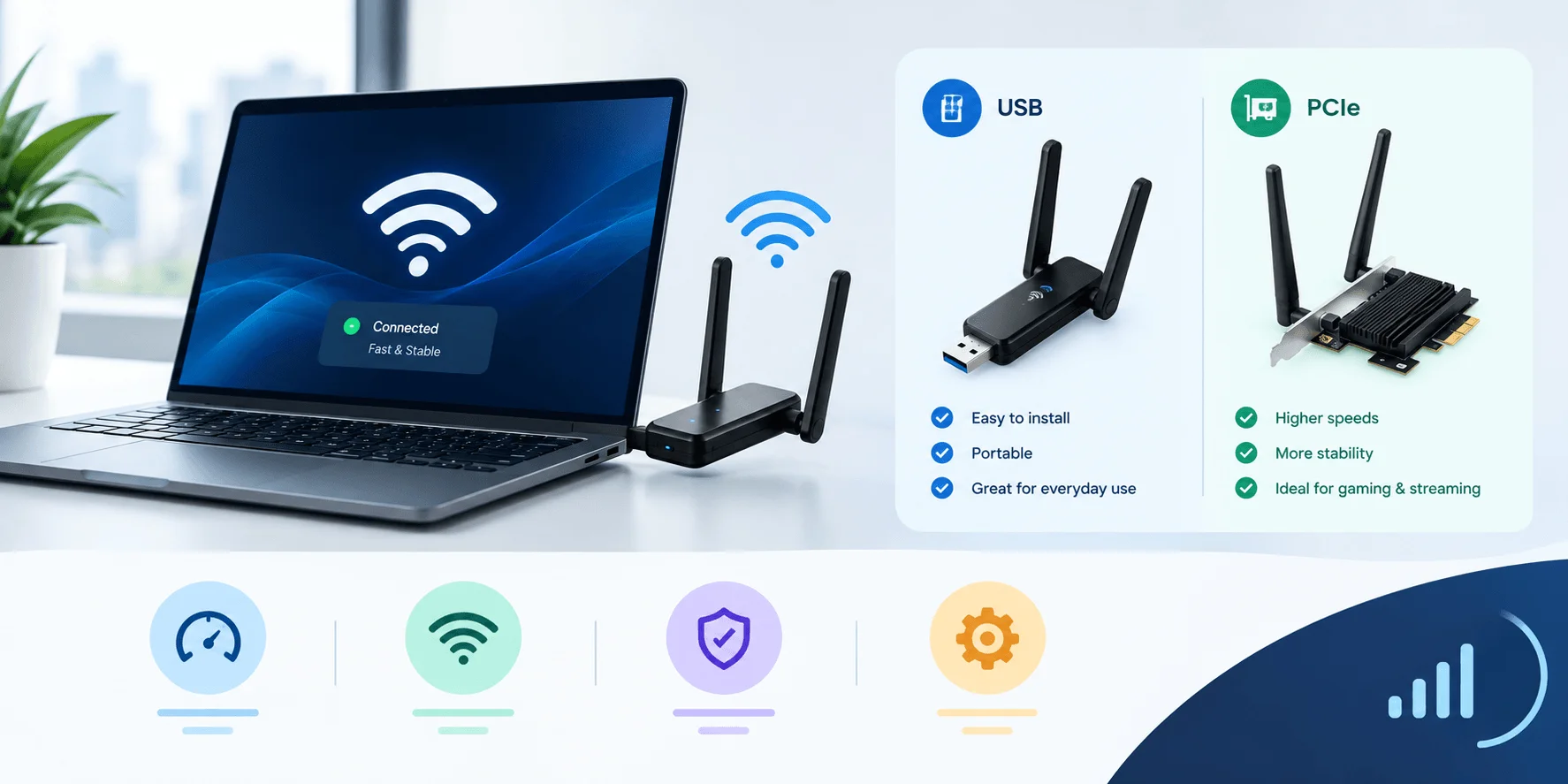
Every wifi adapter for pc connects in one of three ways: USB, PCIe, or M.2. For a desktop that stays put, PCIe or M.2 usually wins on speed and stability. For convenience, USB wins. Each choice changes your setup effort and even your signal quality, so here's the side-by-side view before we dig in.
Type | Speed | Ease of install | Bluetooth | Best for |
|---|---|---|---|---|
USB WiFi adapter | Good, but typically slower | Very easy (plug in) | Sometimes | Renters, quick fixes, shared PCs |
PCIe WiFi card | Faster, more stable | Moderate (open case) | Often included | Fixed desktops, gaming |
M.2 WiFi module | Same radio as PCIe | Moderate (needs free slot) | Often included | Clean builds, spare M.2 slot |
USB WiFi Adapter
A USB WiFi adapter is the plug-and-play option. You push it into a port, wait a few seconds, and you're online. No screwdriver, no opening the case, no drama. If you rent, share a desktop, or just hate fiddling with hardware, this is your friend. But convenience always costs something.
Tom's Hardware notes that USB models are typically slower than their PCIe counterparts. Dong Knows Tech agrees: PCIe and M.2 usually perform better, while USB wins on convenience.
So ask yourself: do you value speed or simplicity?
PCIe WiFi Card
If your desktop lives on one desk and never moves, a PCIe WiFi card is usually the smarter buy. It slots into your motherboard and connects antennas at the back. Yes, you have to open the case. No, it's not scary. Take your time, and you'll feel like a hardware wizard afterward.
Some cards add extras. Tom's Hardware points out that the Gigabyte GC-WBAX210 includes a USB cable for Bluetooth 5.2. Antenna design varies too, so check whether the antennas screw straight into the card or sit on a cable you can move.
M.2 WiFi Module
This is the option most people overlook. Many motherboards already have a small slot meant for a wireless card, and a M.2 WiFi module is the cleanest upgrade you can make. There's a catch, though, and it's a sneaky one. Let me explain before you order the wrong part.
According to XDA Developers, PCIe and M.2 cards use the same protocol. The PCIe version is just a small board on a carrier. The problem is Intel's CNVio standard, which only works with certain Intel CPUs.
If you're unsure, buy a PCIe-only card like the Intel AX200 or Intel AX210. They have the best compatibility.
WiFi 5 vs WiFi 6 vs WiFi 6E vs WiFi 7: Which Standard Should Your WiFi Adapter for PC Support?
The generation your wifi adapter for pc supports decides how well it works with your router. Matching the two matters more than chasing the biggest number on the box. Wi-Fi 6 or 6E is the sweet spot for most people, and Wi-Fi 7 only pays off with a Wi-Fi 7 router. Here's the quick comparison, followed by the plain-English version.
Feature | Wi-Fi 6 (802.11ax) | Wi-Fi 6E | Wi-Fi 7 (802.11be) |
|---|---|---|---|
Bands | 2.4 and 5 GHz | 2.4, 5 and 6 GHz | 2.4, 5 and 6 GHz |
Max channel width | 160 MHz | 160 MHz | 320 MHz |
Max modulation | 1024-QAM | 1024-QAM | 4096-QAM |
Headline feature | OFDMA | Extra 6 GHz spectrum | Multi-Link Operation |
Is Wi-Fi 5 Still Enough?
For plenty of people, yes. Wi-Fi 5 (802.11ac) works only in the 5 GHz band, according to Data Alliance. One buying guide, SpeedtestHQ, calls it fine for real-world speeds of roughly 400 to 600 Mbps.
But it's the weakest choice in crowded homes. If your router is Wi-Fi 6 or newer, spend a little more and get an adapter that matches it.
Wi-Fi 6 and Wi-Fi 6E
Wi-Fi 6 and Wi-Fi 6E are cousins, not strangers. According to TechTarget, both use the same 802.11ax standard. The only real difference is the extra spectrum 6E can tap. If that sounds vague, don't worry. The next few lines make it click.
Wi-Fi 6E adds the 6 GHz band, which the FCC opened up for Wi-Fi in the United States. That band is quieter than the crowded 2.4 GHz and 5 GHz bands. Think of it as an empty express lane. A WiFi 6E adapter is also tri-band, meaning it can use 2.4, 5, and 6 GHz.
But you need a 6E router to use it. A WiFi 6E adapter built on the Intel AX210 chip is a popular pick for good reason: it's widely compatible and reasonably priced.
Do You Really Need a WiFi 7 Adapter?
Short answer? Probably not yet.
Long answer? It depends on your router and your internet plan. A WiFi 7 adapter is impressive, but buying one without a Wi-Fi 7 router is like buying a sports car for a school-zone commute. So let me show you when the upgrade makes sense and when it's just expensive bragging rights.
The Wi-Fi Alliance lists the big features: 320 MHz channels, Multi-Link Operation (MLO), and 4K QAM, which delivers 20% higher rates than 1024 QAM.
Sounds amazing, and it is. But reality bites a little. TechTarget warns that most Wi-Fi 7 connections don't actually use 4096-QAM in everyday conditions. And Cisco Meraki's technical guide explains that in standard power mode, the US allows only one 320 MHz channel. So headline speeds are a best case, not a promise.
The good news is that Cisco confirms Wi-Fi 7 is backward compatible with 6E, Wi-Fi 6, and earlier standards. Buying one now won't break anything.
Best WiFi Adapter for PC in 2026: Picks by Use Case
Let's talk actual products. I haven't benchmarked these myself. These picks come from published testing and buying guides, so treat them as a shortlist, not gospel. Prices are approximate and change often, so check the live price before you buy. Here's how they line up by who they suit best.
Pick | Standard | Type | Approx. price | Best for |
|---|---|---|---|---|
Intel AX210 PCIe card | Wi-Fi 6E | PCIe | $25 to $40 | Best value overall |
Cudy AX3000 (Intel AX200-based) | Wi-Fi 6 | PCIe | about $26 | Tight budgets |
Gigabyte GC-WBAX210 | Wi-Fi 6E | PCIe | varies | Bluetooth 5.2 via USB header cable |
TP-Link Archer TBE550E | Wi-Fi 7 | PCIe | $70 to $80 | Wi-Fi 7 routers, Windows 11 only |
ASUS ROG USB BE92 | Wi-Fi 7 | USB with cradle | varies | No-case-opening Wi-Fi 7 |
A few notes so you don't get burned:
Intel BE200-based cards are cheap, but they work only on Intel platforms.
The TP-Link Archer TBE550E is Windows 11 only, per Technize.
If you game, choose PCIe or M.2 over USB whenever you can.
How to Choose the Best WiFi Adapter for PC: A Step-by-Step Guide
Picking the best wifi adapter for pc isn't about finding the fanciest spec sheet. It's about matching the adapter to your router, your motherboard, and your habits. Follow the checklist below in order, and you'll dodge the most common buying mistakes.
Check your router first. Look at which Wi-Fi generation it supports. An adapter can't use features your router doesn't have.
Pick your connection type. Choose USB for convenience, or PCIe and M.2 for stability and speed.
Inspect your motherboard. Look for a free PCIe x1 slot or an M.2 wireless slot. If you're unsure about CNVio, go PCIe-only.
Confirm operating system support. Make sure the manufacturer offers a Windows 11 WiFi driver (or Linux support if that's your world).
Decide on Bluetooth. Many cards bundle it, which is handy for headsets, keyboards, and controllers.
Think about antennas. Better placement means a stronger WiFi signal. A desk beats the back of a metal case.
Check local rules. If you want 6 GHz, confirm your country allows it.
Features That Matter: WPA3, MU-MIMO, OFDMA and Latency
Spec sheets love acronyms. Most of them sound scarier than they are. Three actually affect your day-to-day experience, especially in a busy home with lots of devices. Here's the plain-English translation, so you know which ones deserve your attention and which ones you can safely ignore.
WPA3 security is the newer Wi-Fi security standard, and the Wi-Fi Alliance says it gives WPA3-Personal users more protection against password-guessing attempts.
OFDMA and MU-MIMO are the two big Wi-Fi 6 efficiency features. TechTarget compares MU-MIMO to adding lanes on a highway and OFDMA to smarter carpooling.
WiFi latency (your ping) matters most for gaming and video calls. Qualcomm's OFDMA brief says OFDMA gives higher throughput and lower latency when many devices share an access point.
Signal Interference: Why Your WiFi Adapter for PC Feels Slow
Sometimes the adapter isn't the problem. Your environment is. Older Wi-Fi bands are crowded, and that congestion shows up as random lag and dropped connections. Knowing this saves you from buying a new adapter when a simple fix would do. So check these before you spend money.
The PTA points out that the 2.4 GHz and 5 GHz bands are shared with everyday devices such as microwave ovens, Bluetooth gadgets and cordless phones, and that this causes congestion. Here's what you can do about it:
Move the antenna onto your desk, away from the metal case.
Keep the adapter away from other USB 3.0 devices and hubs where possible.
Use the 5 GHz band (or 6 GHz, if your router and country support it) instead of 2.4 GHz.
Keep drivers up to date through Windows Update or the manufacturer's site.
Using a WiFi Adapter on Linux: Chipsets, Drivers and Realtek vs MediaTek
Linux users, this one's for you. Chipset choice matters far more on Linux than on Windows, because your driver has to exist in the kernel. Pick the wrong chipset, and you'll spend a weekend compiling drivers. Here's the short version so you can avoid that.
Intel's own Linux support page says its wireless drivers ship as part of the upstream Linux kernel, so newer distributions usually work out of the box. That's a big reason the Intel AX200 and AX210 keep showing up as safe picks. Check the minimum kernel version for your card on that page first.
Realtek USB adapters are trickier. Linux wireless developer Nick Morrow explains on GitHub that some Realtek chipsets are dead ends without in-kernel drivers, and he points Wi-Fi 6 buyers toward MediaTek adapters first. When you shop, search for the chipset, not just the brand.
How to Install a WiFi Adapter for PC
Now let's actually do it. Installing a wifi adapter for pc sounds technical, but it's easier than assembling flat-pack furniture, with fewer leftover screws. Below, I'll walk you through both routes: the internal card and the USB stick. Pick the one that matches your purchase and follow along step by step.
Installing a PCIe WiFi Card
Ready to open the case? Grab a screwdriver and clear some desk space. Before you start, shut everything down completely and unplug the power cable. Static and live power are the two enemies here. New to working inside a desktop? Our guide on how to build a PC covers the basics of handling internal parts safely. Don't rush, and don't force anything into place.
Power off your PC and unplug it.
Remove the side panel.
Find a free PCIe x1 slot and remove its metal cover.
Press the card firmly into the slot until it clicks.
Secure it with a screw.
Attach the antennas and connect the Bluetooth USB cable if your card has one.
Close the case, plug in, and boot up.
Install the driver from the manufacturer's website.
Installing a USB WiFi Adapter
This one's almost embarrassingly simple. Plug it in, and you're most of the way there. Still, a couple of small choices make a real difference, especially which port you use. So don't just jam it into the first slot you find. A little care here saves you from mysterious slowdowns later.
Plug the adapter into a fast rear USB port, ideally a USB 3.0 port.
Install the driver if Windows doesn't do it automatically.
Use the cradle or extension cable if one is included, to lift the adapter away from the case.
Click the network icon, choose your network, and connect.
How to Test Your WiFi Adapter for PC (Before and After)
Don't just trust the box. Test your adapter and see what you actually gained. This takes a few minutes and gives you real numbers you can compare. It also tells you whether a fix worked or whether you're wasting time. Here's a simple, repeatable method.
Note your plan speed. Your adapter can't beat what your internet provider delivers.
Run a speed test before you switch. Do it at your desk, at the same time of day, three times.
Check your connection details. Open Command Prompt and run
netsh wlan show interfacesto see your radio type and signal strength.Swap in the new adapter. Then repeat the same tests in the same spot.
Move the antenna and retest. Even a small move can change your results.
Write it down. A tiny before-and-after table makes the difference obvious.
WiFi Adapter for PC Not Working? Fix It Fast
Let's be real. Sometimes things just won't connect, and that's frustrating. The good news is that most problems come down to drivers, power settings, or a confused network stack. Microsoft has published solid guidance for these situations. Work through the list below in order, and don't skip ahead to the nuclear option.
Run the troubleshooter. Go to Settings, then System, then Troubleshoot, then Other troubleshooters, and run the Network Adapter tool.
Turn off power saving. Following Microsoft Support, open your adapter's properties in Device Manager, go to Power Management, and uncheck the option that lets Windows switch the device off.
Reset the network stack. Open Command Prompt as administrator and run
netsh int ip reset,ipconfig /release,ipconfig /renew, andipconfig /flushdns.Reinstall the driver. Uninstall the adapter in Device Manager, restart, and let Windows reinstall it, or use the manufacturer's driver.
Check WLAN AutoConfig. A Microsoft Q&A thread suggests making sure this service is running and set to Automatic.
Use network reset last. Microsoft says this removes all network adapters and their settings, so save it for when everything else fails.
Frequently Asked Questions About WiFi Adapter for PC
Will a WiFi adapter for PC make my internet faster?
Not beyond what your internet plan delivers. An adapter can't create speed your provider doesn't sell you. What it can do is remove a bottleneck if your old radio was weak or outdated. If your wireless speeds sit far below your plan, a newer WiFi 6E adapter or better antenna placement may help.
Is a USB or PCIe WiFi adapter better for gaming?
For a desktop that stays put, PCIe or M.2 is generally the better bet. Tom's Hardware notes that USB models are typically slower, and internal cards keep your ports free. A good USB 3.0 adapter is still fine for casual play. Just place it away from the case and avoid no-name sticks.
Will a WiFi 7 adapter work with my WiFi 6 router?
Yes, it will. Cisco confirms Wi-Fi 7 is backward compatible with Wi-Fi 6E, Wi-Fi 6, and earlier standards. But you won't get Wi-Fi 7 features like MLO until your router supports them too. It's a safe, forward-looking buy, though you'd be paying extra for benefits you can't use yet.
What is the difference between a WiFi dongle and a WiFi card?
A WiFi dongle for PC is the USB version, and a WiFi card is the internal PCIe or M.2 version. They do the same job. The dongle is easier to install, while the card is usually faster, more stable, and often includes Bluetooth. Pick based on whether you value convenience or performance more.
Do I need Windows 11 for a new WiFi adapter?
Not always, but some models require it. The TP-Link Archer TBE550E, for example, is Windows 11 only, according to Technize. Always check the manufacturer's driver page for your operating system before buying, especially for 6 GHz and Wi-Fi 7 features.
Why does my WiFi adapter keep disconnecting?
The usual suspects are power-saving settings, outdated drivers, or a stuck network stack. Microsoft's guidance suggests disabling the "allow the computer to turn off this device" option, resetting the network commands, and reinstalling the driver. Also check antenna placement and interference from nearby devices.
Can I use a WiFi adapter on Linux?
Yes, and Intel adapters are the safest bet. Intel says its wireless drivers are part of the upstream Linux kernel, so most current distributions support them. Realtek USB adapters can need extra driver work, so check the chipset and kernel support before you buy.
Final Thoughts: Your Next Step
So, what's the takeaway? Choosing the right wifi adapter for pc comes down to three simple things: your router's generation, your motherboard's slots, and how much hassle you're willing to accept. For most desktops, a PCIe WiFi 6E adapter with an Intel chip hits the sweet spot. Want plug-and-play? Go USB.
Now it's your turn. Check your router, open your motherboard manual, and pick your type.
You've got this.
Written by
Alex
Creative blogger sharing insights, stories, and fresh ideas.