Share WiFi Password on iPhone: 3 Fast Ways

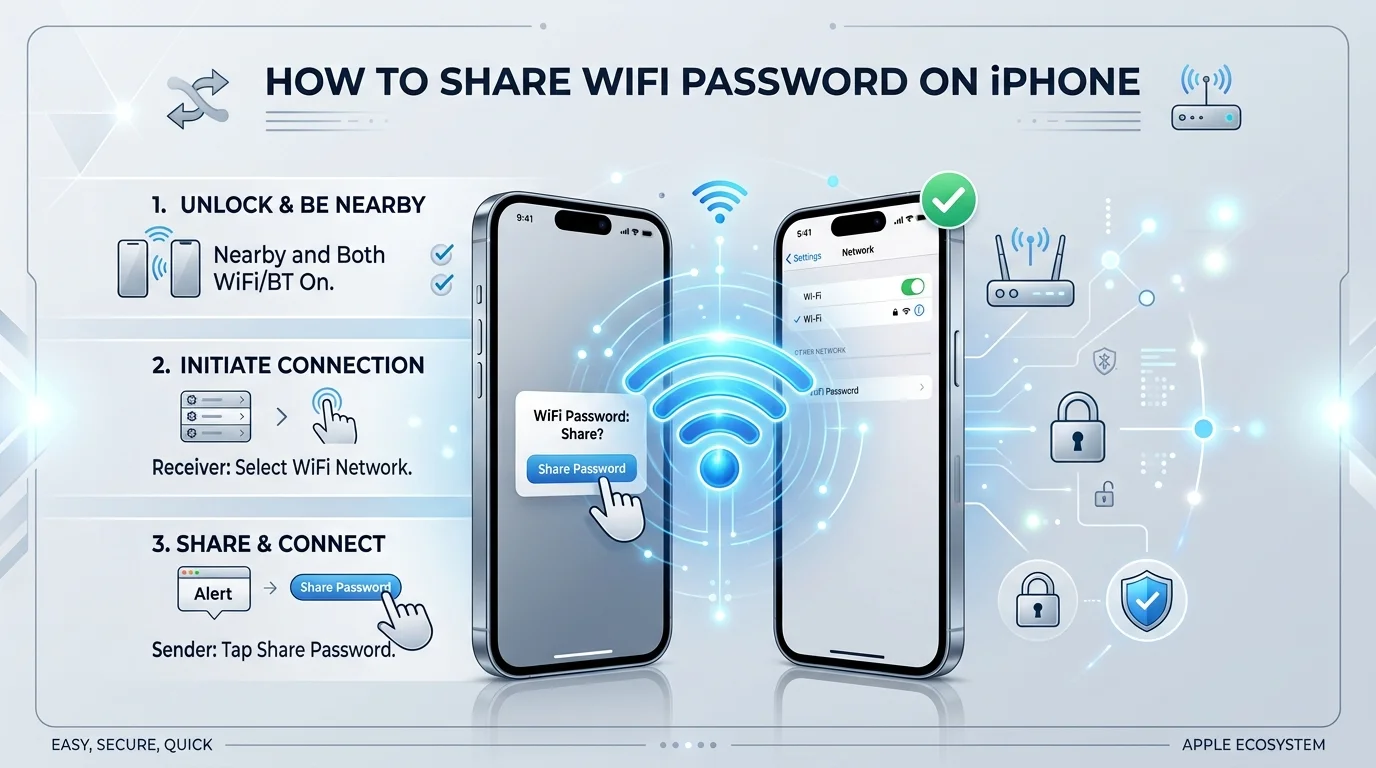
To share WiFi password on iPhone, have the other person tap your network name while your unlocked iPhone is nearby, then tap Share Password when the popup appears. Both devices need Wi-Fi and Bluetooth turned on and each other's Apple Account saved in Contacts. For Android phones or guests, open the Passwords app, tap Wi-Fi, choose your network, and tap Show Network QR Code.
That's the quick answer.
But there's a lot more you can do.
In this guide, I'll show you every method that works in 2026, including how to share with Android users, what to do when the popup won't appear, and how to find your actual password in seconds.
Key Takeaways
iPhone to iPhone sharing works in one tap, but only between Apple devices whose owners are saved in each other's Contacts.
The Passwords app QR code (iOS 18 and later, including iOS 26) works with any phone, including Android, with no contacts needed.
iOS 16 and later let you view and copy any saved Wi-Fi password in Settings using Face ID, Touch ID, or your passcode.
Most sharing failures come from Bluetooth being off, outdated software, or a missing contact entry.
Which Wi-Fi Sharing Method Should You Use?
Before we get into the steps, here's a quick side by side look at your options.
Why does this matter? Because the "best" method depends entirely on who you're sharing with.
Sharing with your partner's iPhone? The popup is fastest. Sharing with a friend's Android phone or a room full of guests? The QR code wins easily. And if you're connecting a smart TV or a Windows laptop, you'll need the password itself.
Use this table to pick the right method, then jump to that section below.
Method | Works With | Contacts Needed? | iOS Version | Best For |
|---|---|---|---|---|
Share Password popup | iPhone, iPad, Mac only | ✅ Yes | iOS 11 or later | Friends and family with Apple devices |
Passwords app QR code | Any phone (including Android) | ❌ No | iOS 18 or later | Guests, Android users, groups |
Shortcuts QR code | Any phone (including Android) | ❌ No | iOS 17 or earlier | Older iPhones |
Copy from Settings | Any device | ❌ No | iOS 16 or later | Smart TVs, laptops, consoles |
What Do You Need Before Sharing Your Wi-Fi Password?
First things first: iPhone Wi-Fi password sharing depends on a few settings working together behind the scenes.
Specifically, Apple uses Bluetooth Low Energy (BLE) so nearby devices can request the password and receive it through an identity check similar to AirDrop.
So if even one setting is off, the Share Password popup simply won't appear.
Honestly, this is where most people get stuck. The good news? Checking everything takes about 30 seconds. Here's Apple's official checklist:
Update both devices to the latest version of iOS, iPadOS, or macOS.
Turn on Wi-Fi and Bluetooth on both devices.
Sign in to your Apple Account on each device.
Turn off Personal Hotspot on both devices.
Save each other's Apple Account email or phone number in Contacts.
Keep the devices close together.
Quick tip: this feature has existed since iOS 11 and macOS High Sierra, so nearly every modern Apple device supports it.
How Do You Share Wi-Fi Password From iPhone to iPhone?
This is the classic method.
And it's ridiculously fast.
Basically, your friend taps your network, your iPhone detects the request, and a popup asks whether you want to share. One tap later, they're online.
Here's a nice bonus: the password isn't displayed on their screen during the handoff, so you don't have to read it out loud. (Keep in mind it does get saved on their device, just like any network they join.)
Here's the process, step by step:
Ask your friend to open Settings > Wi-Fi on their iPhone.
Have them tap your Wi-Fi network name.
Unlock your iPhone and make sure it's connected to that network.
Tap Share Password, then tap Done.
[Screenshot: The Share Password popup on the sharing iPhone]
That's it.
This also works when both devices use the same Apple ID. For example, you can share with a child's iPad that's signed into your account.
Can You Share Wi-Fi From iPhone to a Mac or iPad?
Yes, you absolutely can.
And the process is almost identical. The only difference is that on a Mac, the other person has to actively try to join your network from Control Center or the menu bar first.
Once they do, the familiar Share Password prompt pops up on your iPhone. Tap it, and the Mac connects automatically.
For an iPad, simply follow the same steps as iPhone to iPhone. Easy.
How Do You Share Wi-Fi With a QR Code on iPhone?
Here's the thing: the popup method has two big limits.
It only works between Apple devices. And you both have to be saved in each other's contacts.
That's exactly where the Wi-Fi QR code shines.
Starting with iOS 18 (and continuing in iOS 26), Apple's Passwords app can turn any saved network into a scannable code.
In fact, I recommend this method to anyone who hosts guests often. It's quick, and it skips every contact requirement.
Here's how to do it:
Open the Passwords app. You'll find it in the Utilities folder of the App Library.
Tap the Wi-Fi category.
Choose your network. Your current network appears highlighted in blue.
Tap Show Network QR Code.
[Screenshot: Show Network QR Code option in the Passwords app]
Then, your friend opens their Camera app, points it at the code, and taps Join Network.
Done.
How Do You Share Wi-Fi From iPhone to Android?
Got friends with Android phones?
No problem at all.
Because QR codes are a universal format, Android users can scan your code with their camera to join your Wi-Fi instantly.
Even better, you can screenshot the code and print it. Stick it on your fridge, in a guest room, or by your front door.
Now visitors can connect without asking you at all. For an even safer setup, pair this with a separate guest Wi-Fi network on your router.
What If You're Running iOS 17 or Earlier?
Don't worry. You still have options.
Before the Passwords app existed, people used a free Siri Shortcut to create Wi-Fi QR codes. And it still works today on older iPhones that can't update.
It takes a couple of minutes to set up once, and after that you can generate your code whenever you need it. Here's the quick version:
Open the Shortcuts app and go to Gallery.
Find the "QR your Wi-Fi" shortcut.
Add it, then enter your network name and password.
Run it to generate your code.
How Do You Find and Copy Your Wi-Fi Password on iPhone?
Sometimes, you just need the actual password.
Maybe you're connecting a smart TV, a Windows laptop, or a game console. A QR code won't help there. (And if your desktop PC can't see any wireless networks at all, you may need a Wi-Fi adapter for your PC before the password is any use.)
Fortunately, since iOS 16, you can see saved Wi-Fi passwords right in Settings. Your iPhone simply asks for Face ID, Touch ID, or your passcode first to keep things secure.
Here's what to do:
Open Settings > Wi-Fi.
Tap the Info (i) button next to your network.
Tap the Password field.
Authenticate, then tap Copy.
Want a password for an old network? Tap Edit in the top right corner to see all your previously connected networks.
Plus, with iCloud Keychain turned on, the Passwords app also shows networks you joined on your other Apple devices.
Why Won't My iPhone Share the Wi-Fi Password?
Let's be real: sometimes the popup just refuses to appear.
Frustrating? Absolutely.
However, the cause is usually something tiny. Most of the time, one device has Bluetooth off, the contacts don't match, or the software is outdated.
So before you give up and start typing the password manually, run through these fixes:
Update iOS via Settings > General > Software Update.
Toggle Wi-Fi and Bluetooth off and back on (Payette Forward recommends this).
Restart both iPhones. If your iPhone feels slow or glitchy in general, it's also worth clearing the cache on your iPhone.
Check your contacts again for the correct Apple Account email.
Keep devices close, but not too close. Otherwise, you might trigger NameDrop instead.
Check for work restrictions. Organizations can block Wi-Fi password sharing on managed devices.
Still stuck? Switch to the QR code method. It sidesteps almost every one of these issues.
Is It Safe to Share Your Wi-Fi Password on iPhone?
For everyday use, yes.
Apple requires the requesting device to prove its identity before your iPhone sends anything, and it only shares with people in your contacts. If you're curious how Apple's approach stacks up overall, our Android vs iOS security comparison breaks it down.
That said, no system is perfect.
For example, in 2020, security researchers at Hexway reported that sharing requests broadcast partial hashes of the requester's phone number and email over Bluetooth.
So what's my advice? Share freely with friends and family. For strangers or a busy household, share a guest Wi-Fi network instead, and change your router password if it's been handed out too widely. And when you're the guest on someone else's network, such as café Wi-Fi, see our proxy vs VPN guide to protect your traffic.
Frequently Asked Questions
Still have questions? You're not alone.
Below, I've answered the most common questions people ask about sharing Wi-Fi passwords on iPhone. Each answer is short and to the point, so you can find what you need fast.
If your question isn't here, chances are one of the sections above covers it in more detail. Otherwise, drop it in the comments and I'll add it to this list.
Why isn't the Share Password popup showing on my iPhone?
The popup usually fails to appear because Bluetooth is off, Personal Hotspot is on, the devices are too far apart, or the other person's Apple Account email isn't saved in your Contacts. Your iPhone also needs to be unlocked and connected to the network. Update both devices, toggle Wi-Fi and Bluetooth, and try again. If it still fails, use the Passwords app QR code instead.
Can I share my Wi-Fi password from iPhone to Android?
Yes. The automatic popup only works between Apple devices, but you can share with Android using a QR code. Open the Passwords app, tap Wi-Fi, select your network, and tap Show Network QR Code. The Android user scans it with their camera and joins the network. On iOS 17 or earlier, use the "QR your Wi-Fi" shortcut.
Can I share Wi-Fi without being in someone's contacts?
Yes, with a QR code. The Share Password popup requires both people to have each other's Apple Account email or phone number in Contacts. The Passwords app QR code has no such requirement, which makes it the best option for guests, coworkers, and anyone you've just met.
How do I see my Wi-Fi password on iPhone?
On iOS 16 and later, go to Settings > Wi-Fi, tap the Info (i) button next to the network, then tap the Password field and authenticate with Face ID, Touch ID, or your passcode. On iOS 18 and later, you can also find it in the Passwords app under the Wi-Fi category.
Does Wi-Fi sharing work if both devices use the same Apple ID?
Yes. If both devices are signed into the same Apple Account, such as your iPhone and your child's iPad, you can share the Wi-Fi password without adding separate contacts. With iCloud Keychain on, saved networks also sync automatically across your Apple devices.
Can I see Wi-Fi passwords on iOS 15 or earlier?
No, not directly on the iPhone. The password field was added in iOS 16. On older versions, you can look up the password in Keychain Access on a Mac signed into the same Apple ID, or share it to another Apple device using the Share Password popup.
Is sharing Wi-Fi from iPhone secure?
Mostly, yes. Apple verifies the requester's identity and only shares with people in your contacts. However, researchers have shown that sharing requests broadcast partial contact hashes over Bluetooth. For guests you don't know well, a separate guest network is the safer choice.
Final Thoughts
There you have it: every practical way to share Wi-Fi password on iPhone in 2026.
To recap, use the Share Password popup for Apple users in your contacts. Use a Wi-Fi QR code for Android phones and guests. And use Settings when you need the password itself for a TV or laptop.
Now it's your turn.
Here's my challenge for you today: open the Passwords app, generate your Wi-Fi QR code, and print it for your guest room. The next time someone asks for your password, you'll just point to the wall.
(And if your iPhone can't run iOS 18 or later, the free Shortcuts method above gets you most of the way there.)
Which method are you going to try first?
Written by
Alex
Creative blogger sharing insights, stories, and fresh ideas.