WPS Button on Router: What It Does, Is It Safe, and How to Use It

the WPS button on router opens a roughly two minute window in which one nearby device can join your Wi-Fi without the password. Push button WPS is fairly low risk for occasional use. The WPS PIN method is the dangerous one, so turn it off. Switch WPS off completely if you rarely use it.
That's the short version.
Want the details? Keep reading, because I'll show you the steps, the risks and the fixes.
What Is the WPS Button on a Router?
The WPS button is a physical shortcut for adding devices to your wireless network without typing a password. It's handy, and it's also a bit controversial. This section covers what WPS stands for, who created it and where to find the button. Then you'll know exactly what you're pressing.
WPS stands for Wi-Fi Protected Setup. The Wi-Fi Alliance certified the first products around 2007 so non technical people could secure their Wi-Fi router.
You'll usually find the button on the back or side, labeled "WPS" or marked with two arrows chasing each other in a circle. Some brands call it Quick Secure Setup.
One warning. On some models, one button does two jobs. A short press starts WPS, and a long press may toggle Wi-Fi or reset the router. Read the label first.
How Does WPS Push Button Configuration Work?
Push button configuration (PBC) is the method most people use, and it takes about thirty seconds. This section walks you through the exact steps and explains the pairing window. It also covers the four ways devices can connect, so you can compare them at a glance.
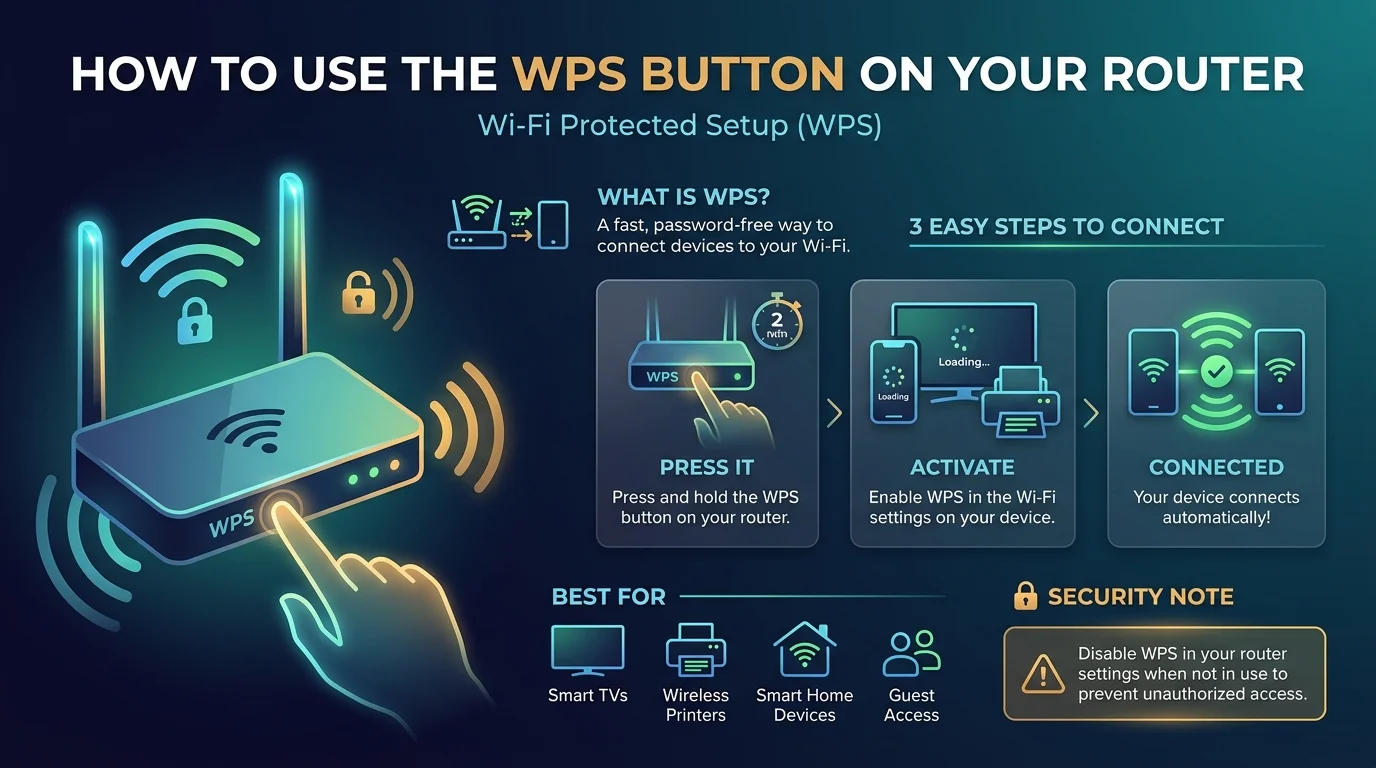
Pressing the button opens a two minute pairing window. Then it closes on its own.\
Step by Step: Connect a Device With WPS
Start on your device. On a printer, TV or extender, choose WPS (push button) in the network menu. Canon's manual shows the flow.
Press the WPS button on your router for two or three seconds.
Watch the light. A blinking WPS or Wi-Fi LED means the router is listening.
Wait. The devices swap credentials automatically.
Confirm. The LED stops blinking and your device shows "connected."
If the printer drops off later, see our guide on how to fix a printer that shows offline.
WPS Methods Compared
Method | How it works | Security risk | Status |
|---|---|---|---|
Push button (PBC) | Press the router button, then connect within about 2 minutes | Low, since the attacker must be physically present | Common, fine for occasional use |
WPS PIN | Enter an 8 digit PIN | High, with at most 11,000 guesses needed | Disable it |
NFC tap | Tap two NFC devices together | Low, but needs proximity | Added in 2014, rarely implemented |
Wi-Fi Easy Connect | Scan a QR code | Low, but it has its own research flagged weaknesses | Introduced in 2018 as the WPS replacement |
Is the WPS Button Safe? A Timeline of WPS Security
WPS security has a messy history, and you deserve the full picture. This section separates the risky PIN method from push button mode. It also walks through the key attacks in order, with dates, so you can see what's still a threat today.
2011: A design flaw lets attackers confirm the two halves of the PIN separately. That cuts the guesses to at most 11,000.
January 2012: US-CERT alert TA12-006A warns that free tools can recover a PIN in 4 to 10 hours. Reaver was one of them.
2014: The Pixie Dust attack targets weak random number generation and works offline.
2018: The Wi-Fi Alliance introduces Easy Connect alongside WPA3 as the core replacement.
September 2025: NetRise confirms that consumer and small office gear is still vulnerable.
Cracking the PIN also reveals your actual passphrase, so a strong Wi-Fi password won't protect you.
What About Push Button?
Mostly fine.
An attacker has to be near you at the exact moment you press the button. TP-Link and Digital Citizen both call it the safer choice for home use. Still, leaving WPS on all the time adds exposure you don't need.
How to Disable WPS on Your Router
If you rarely pair gadgets, turning WPS off is a two minute router security upgrade. This section shows you where the setting lives and why your existing devices stay connected. You'll also learn how to spot a router that fakes the "off" switch.
Open a browser and enter your router's address, often 192.168.1.1 or 192.168.0.1.
Log in with your admin credentials.
Go to Wireless or Advanced settings.
Turn WPS off. If you see "Disable Router's PIN," tick that as well.
Save, then reboot if asked.
While you're in the admin panel, it's also a good moment to learn what a static IP is and whether reserving one for your printer or camera makes sense.
Devices already connected stay connected.
One catch. US-CERT noted that some routers keep WPS active even when the page says it's off. If yours does that, upgrade.
WPS Button Not Working? Quick Fixes
When you press the button and nothing happens, the cause is usually timing or a disabled setting. This short checklist covers the fixes in the order I'd try them. Most people sort it out in minutes.
Check that WPS is enabled. Many ISP routers ship with it off.
Mind the timing. The light only stays on for about two minutes.
Press one router's button only. Canon warns that multiple routers in WPS mode cause errors.
Move closer to cut distance and wall interference.
Update the firmware.
Still stuck? Type the password once instead. On an iPhone, you can share your Wi-Fi password with a nearby device in a few taps.
Why a Modern Router Beats an Old WPS Relic
If your router is a decade old, the WPS button is the least of your worries. This section shows what to look for in a replacement. A good one is one of the cheapest, smartest security moves you can make.
The Wi-Fi Alliance introduced Wi-Fi Easy Connect in 2018 alongside WPA3, as the core replacement for WPS. Pairing happens by scanning a QR code, and no 8 digit PIN is involved. It isn't flawless, since researchers have flagged weaknesses in early implementations. Still, it's a smarter foundation.
When you shop, look for:
WPA3 support, not only WPA2
A WPS on/off switch that truly disables the feature
Easy Connect or QR code onboarding
Regular firmware updates with specific security notes
Wi-Fi 6 or newer for speed across all your devices
Got a desktop that still struggles on weak Wi-Fi? Pair the new router with a good Wi-Fi adapter for your PC.
Buy a router with those features and you get faster Wi-Fi, safer pairing and fewer headaches. It's worth every penny.
Frequently Asked Questions
Got a quick question? These short answers cover what people ask most. Each one stands alone, so you can jump straight to the one you need.
What does the WPS button on a router do?
It opens a short pairing window, about two minutes, during which one nearby device can join your Wi-Fi without the password.
Is the WPS button safe to use?
Push button WPS is considered relatively safe for occasional home use because it needs physical access. The PIN method is not safe.
Should I leave WPS on or off?
Off, unless you use it regularly. A feature you don't use is exposure you don't need.
Does turning off WPS disconnect my devices?
No. Already connected devices keep working.
How long does the WPS window last?
Typically about two minutes.
What replaced WPS?
Wi-Fi Easy Connect, introduced in 2018 alongside WPA3.
Final Thoughts: Should You Use the WPS Button on Your Router?
Use the WPS button on your router for quick, occasional pairing. Skip the PIN method completely. Turn WPS off when you're done, because convenience shouldn't cost you network security.
If your router can't switch WPS off properly, stop gambling Get a modern WPA3 router and take back control of your Wi-Fi.
Written by
Alex
Creative blogger sharing insights, stories, and fresh ideas.